Report performance issues
Linear is engineered to be a highly performant application. If you’re experiencing performance issues with the app, we’d like know about it. Follow the steps outlined below so we can investigate and resolve the issue as quickly as possible.
What to include in your performance report
To help us diagnose and fix performance issues effectively, please include the following information in your report:
- Short written description: Briefly describe the performance problem you’re experiencing (e.g., “The app becomes unresponsive when loading the projects list”).
- Screen recording: A video recording showing the issue in action helps us see exactly what you’re experiencing. You can use the built in screen recording tool on MacOS or Windows or a 3rd party tool like Loom.
- Performance snapshot: A Chrome performance profile captured while the issue occurs provides technical data we can analyze.
- Confirm workspace data access: Please confirm in writing if you consent to our team accessing obfuscated data from your workspace to help diagnose the issue. All sensitive data is anonymized, so we will never be able to see issue details etc.
How to record a performance snapshot
Follow these steps to capture a performance snapshot in Google Chrome:
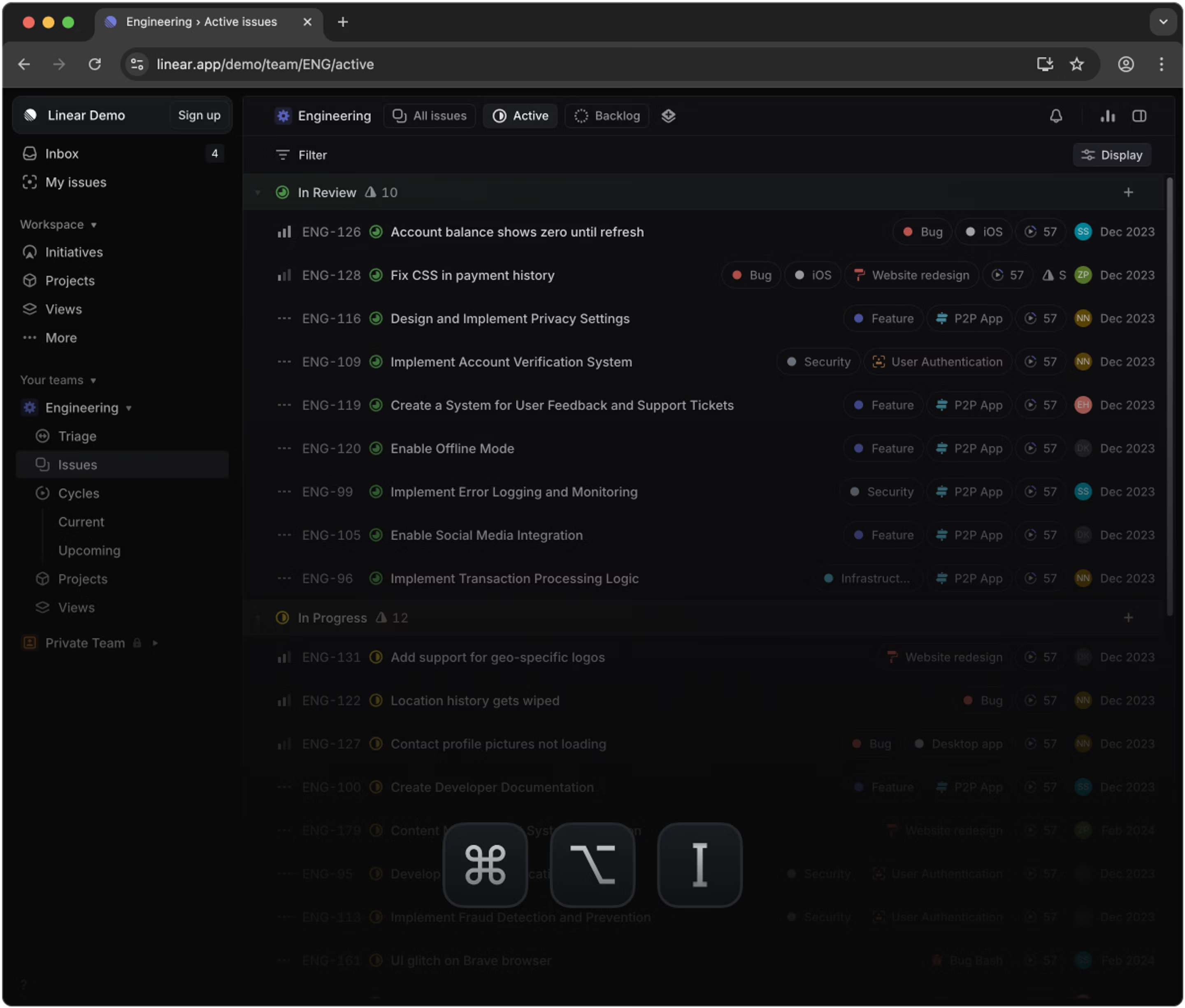
1. Open Chrome DevTools
Right-click anywhere on the Linear app page and select Inspect, or press
Cmd+Option+I (Mac) or Ctrl+Shift+I (Windows/Linux).
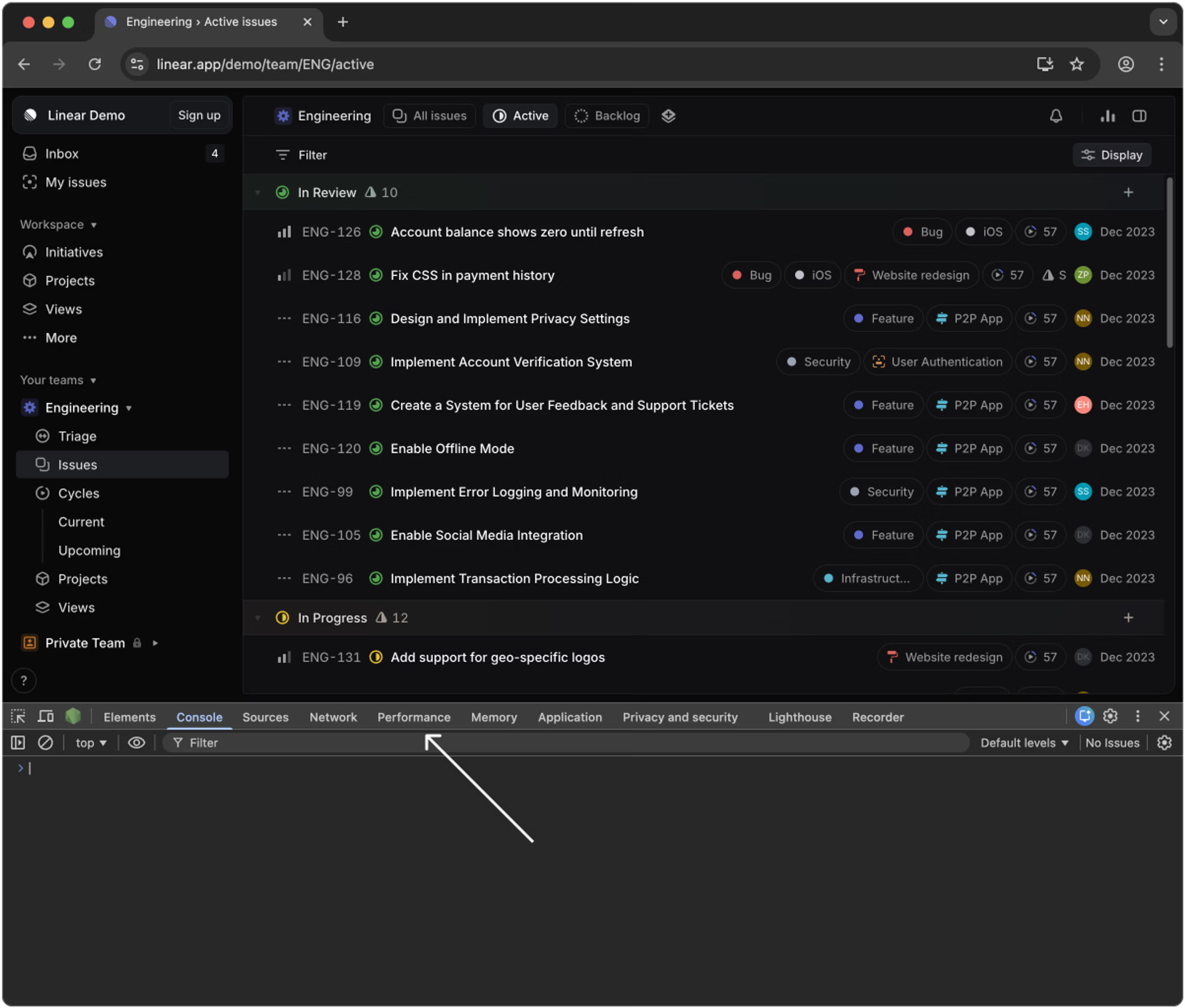
In the DevTools panel, click on the Performance tab at the top.
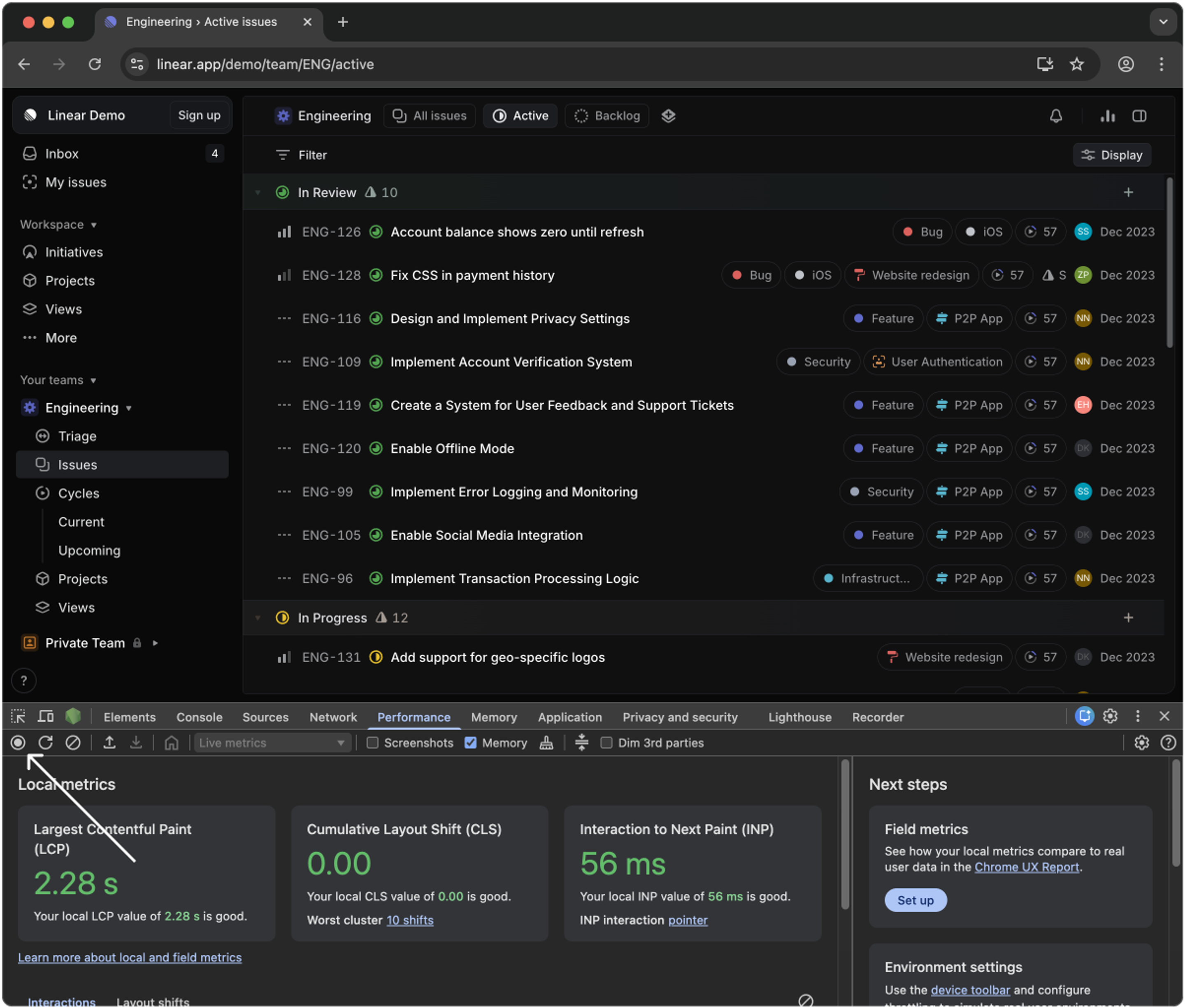
3. Start recording
Click the Record button (circular icon) in the Performance tab to begin capturing performance data.
- Uncheck the Screenshots option
- Check the Memory option
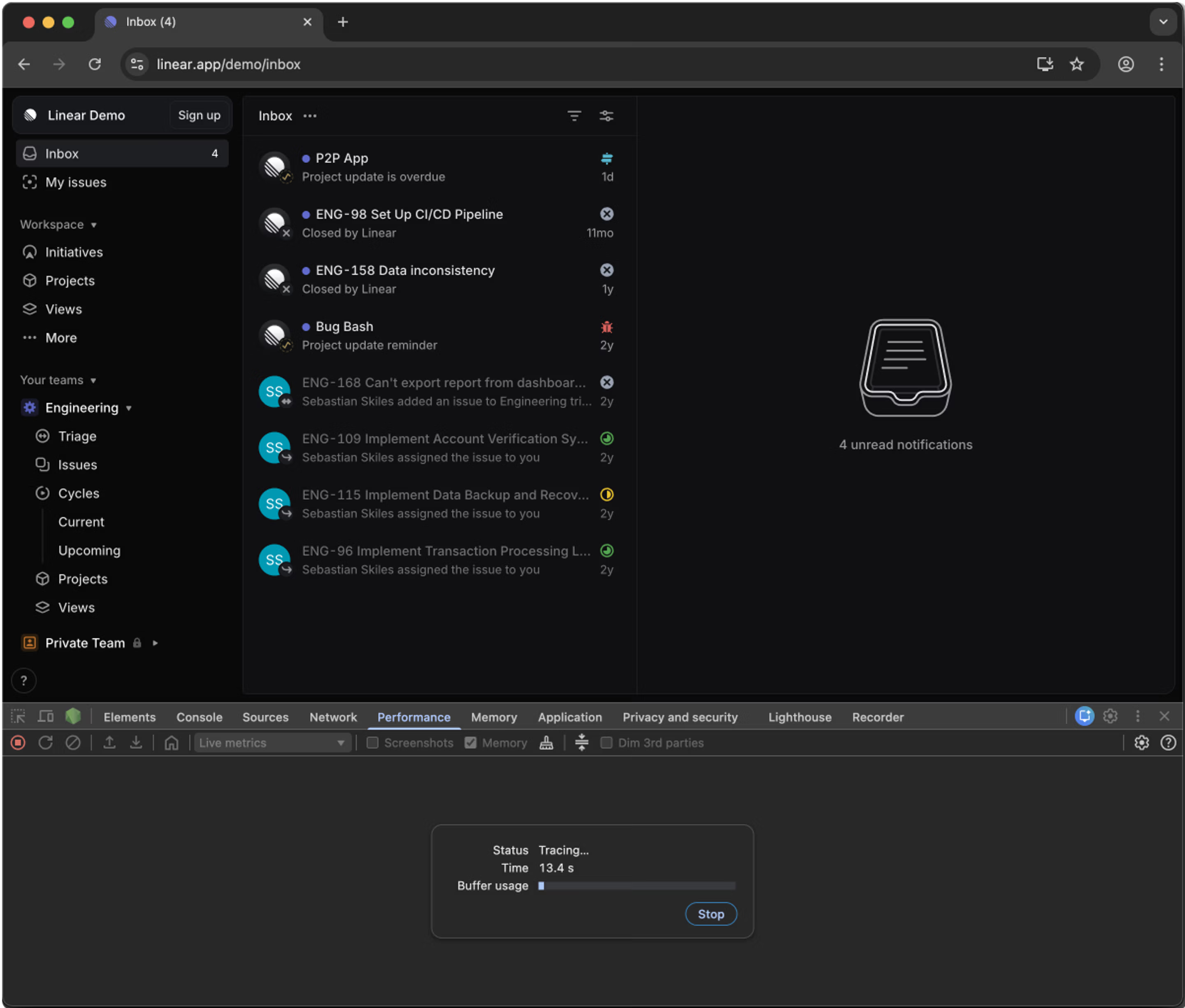
4. Reproduce the issue
Perform the actions that trigger the performance problem. Try to keep the recording focused on demonstrating the specific issue.
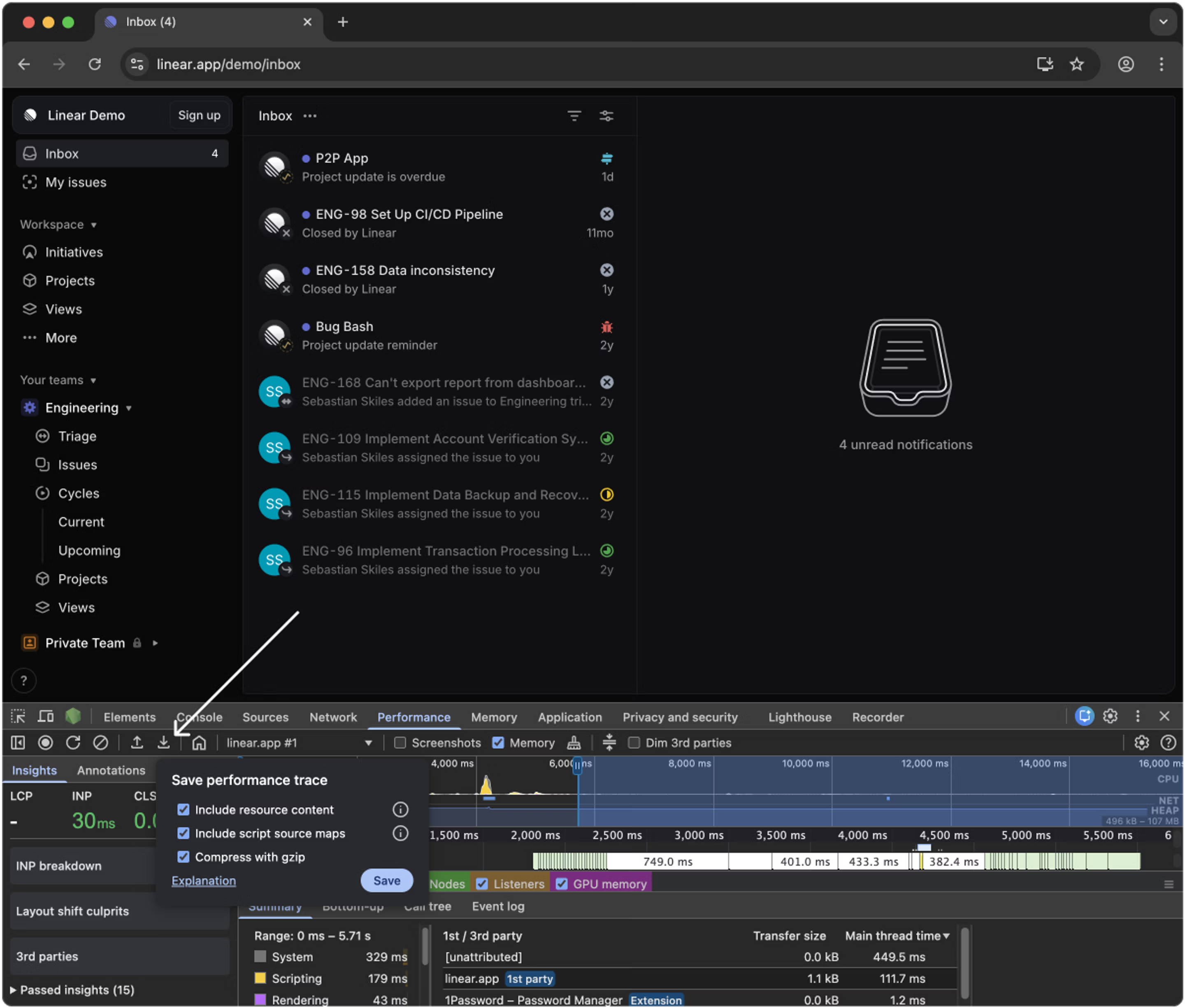
5. Save the performance profile
Stop the recording and click the Download icon (downward arrow) in the Performance tab to save the performance profile as a .json file.
- Check all three options in the popover.
6. Send everything to support
Email support@linear.app with:
- Your short written description of the issue
- The screen recording video file
- The performance profile
.jsonfile - Confirmation of consent for the Linear team to access obfuscated workspace data