Documents
Add documents to projects, initiatives, teams, issues, or cycles.
Overview
Use documents to keep long-form text attached to the work references. Teams often have runbooks for processes, project members have weekly meeting notes, and issues with complex implementation needs may prefer to use a document rather than a short description.
Create documents
You can create a document by pressing the + in a project or a team, through an overflow menu option, or by searching in the ⌘/Ctrl + K menu.
Projects use the same editor as issues. You can type in plain text, use code snippets, format with headers and reference other objects by mentioning the (@ENG-123).
Edit documents
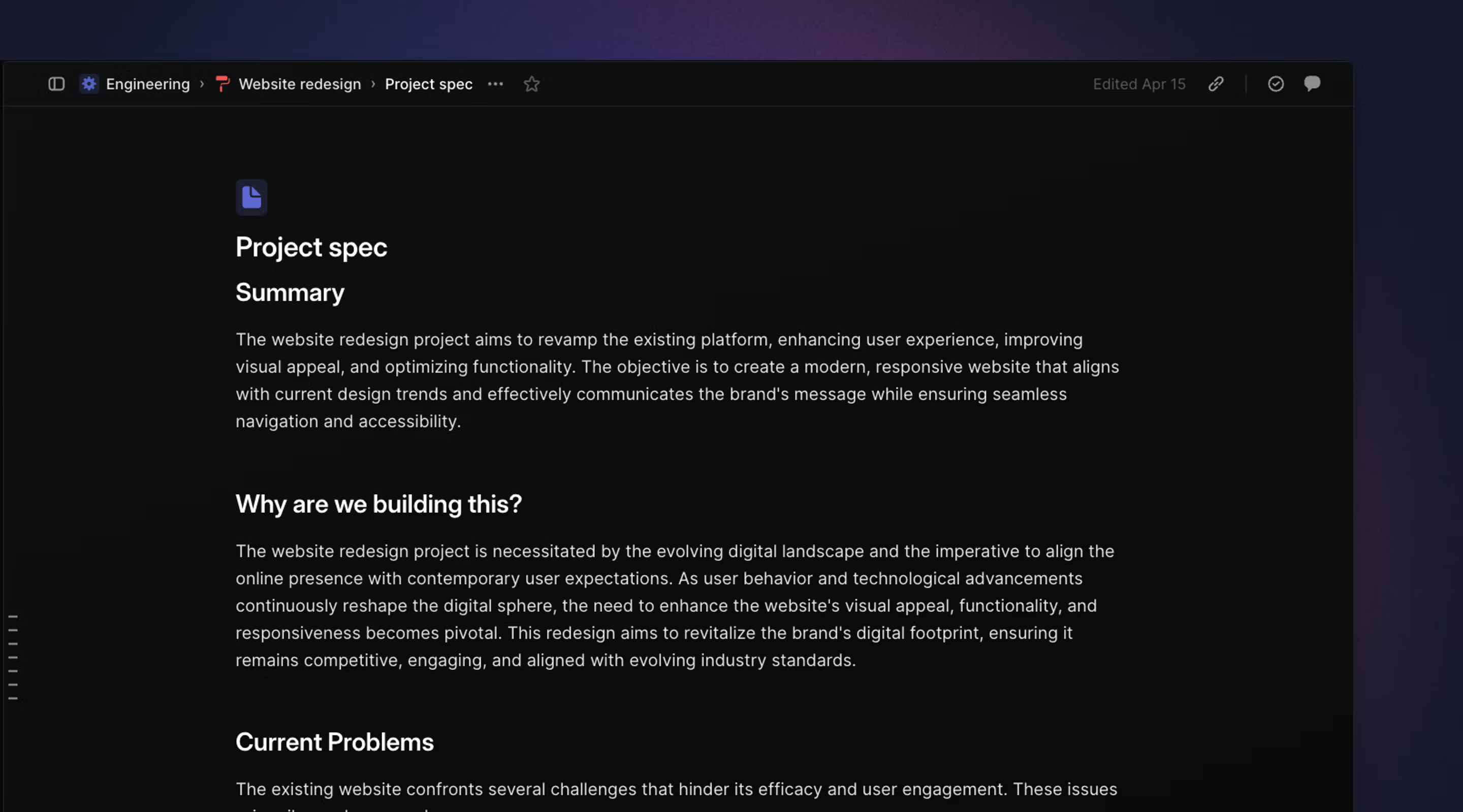
Edit documents by clicking in the main body. We’ll show when the document was last edited and by whom. Documents support collaborative editing, so you’ll see input cursors if another user is editing or viewing the text. All changes are saved and synced to everyone in realtime.
Agent changes are marked with blue lines beside edited sections while the relevant agent chat is open in Linear. Edit attribution remains available in document history, which distinguishes manual edits from those made “via Linear”.
Linear can work in tables and existing formatting so you can prompt the agent to make changes without breaking existing conventions. Prompt Linear to make a change by pressing ⌘/Ctrl + J and describing the edit, or by selecting text and pressing the Add to chat button.
Version history
Every document (and project description) has version history, so you can see or revert to earlier document versions when needed. Open history through the display options menu. Agent edits and changes made by loops also create version history checkpoints.
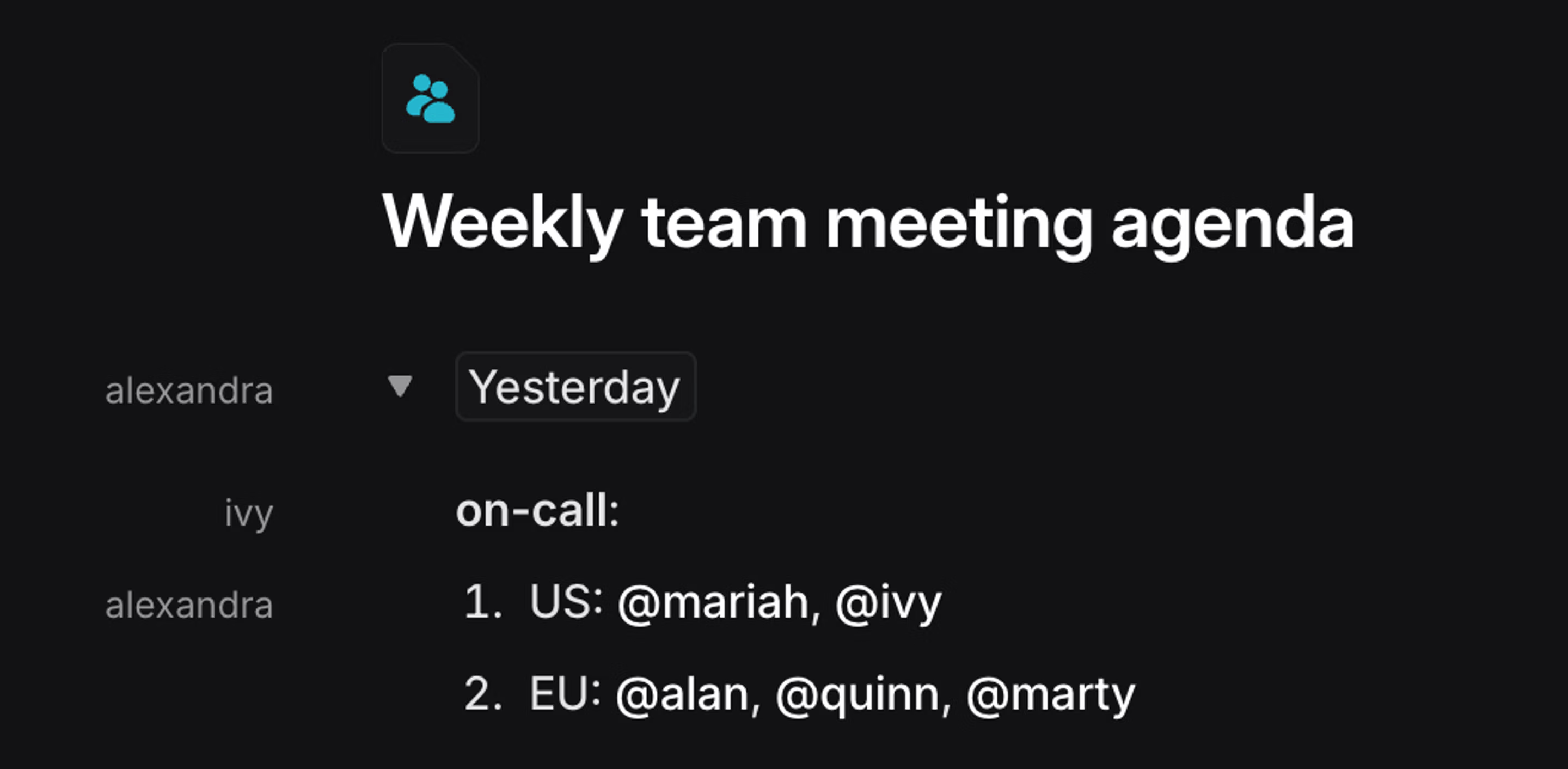
You can show who (or what loop) wrote text in a document by pressing searching for show author names in the ⌘ + K menu, or through document display options. If you’re not seeing the option to enable them, you may need to increase the width of your Linear window.
Editor slash commands
Type / to see additional formatting options in documents (and issues.) Using this menu you can create formatting types like:
- Headers (H1, H2, H3)
- Lists (bulleted, numbered, checklists)
- Codeblocks
- Dividers
- Blockquotes
Document templates
You can create document templates to write documents faster, and guide creators to share information effectively. These templates can be selected when creating a new document inside a project or issue.
Create document templates from workspace settings or from a team’s settings. Once you’ve created the document template, press save to make the template available for your team and workspace members.
To edit, duplicate or delete a template, go to the same page where you created the templates and then hover over the template name in order to show contextual controls. Click on the overflow menu and take the desired action.
Document subscriptions
Subscribe to notifications for specific documents by clicking the bell icon in the upper right of the document. Selecting yourself or another team member for notification. This will also subscribe you to notifications in the description section of a project overview.
The creator of a document will be automatically subscribed to the changes in the document.
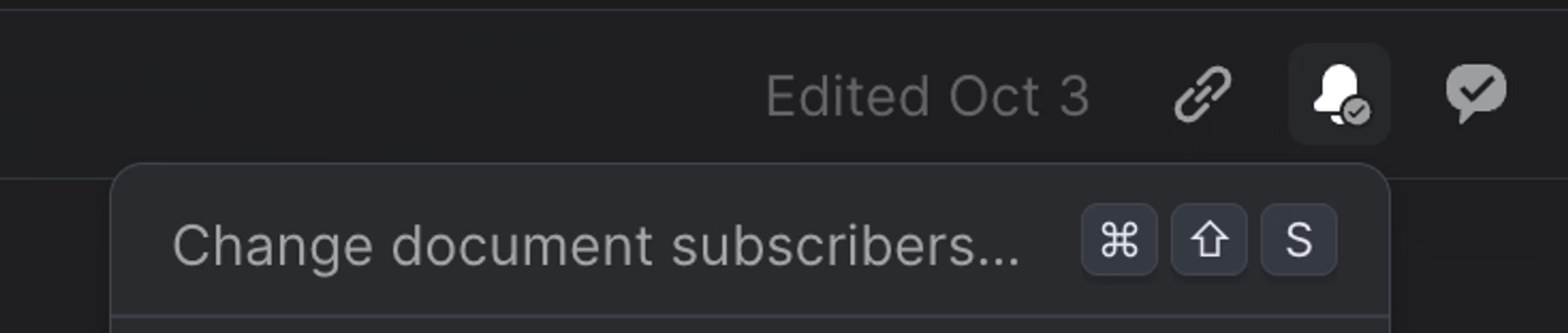
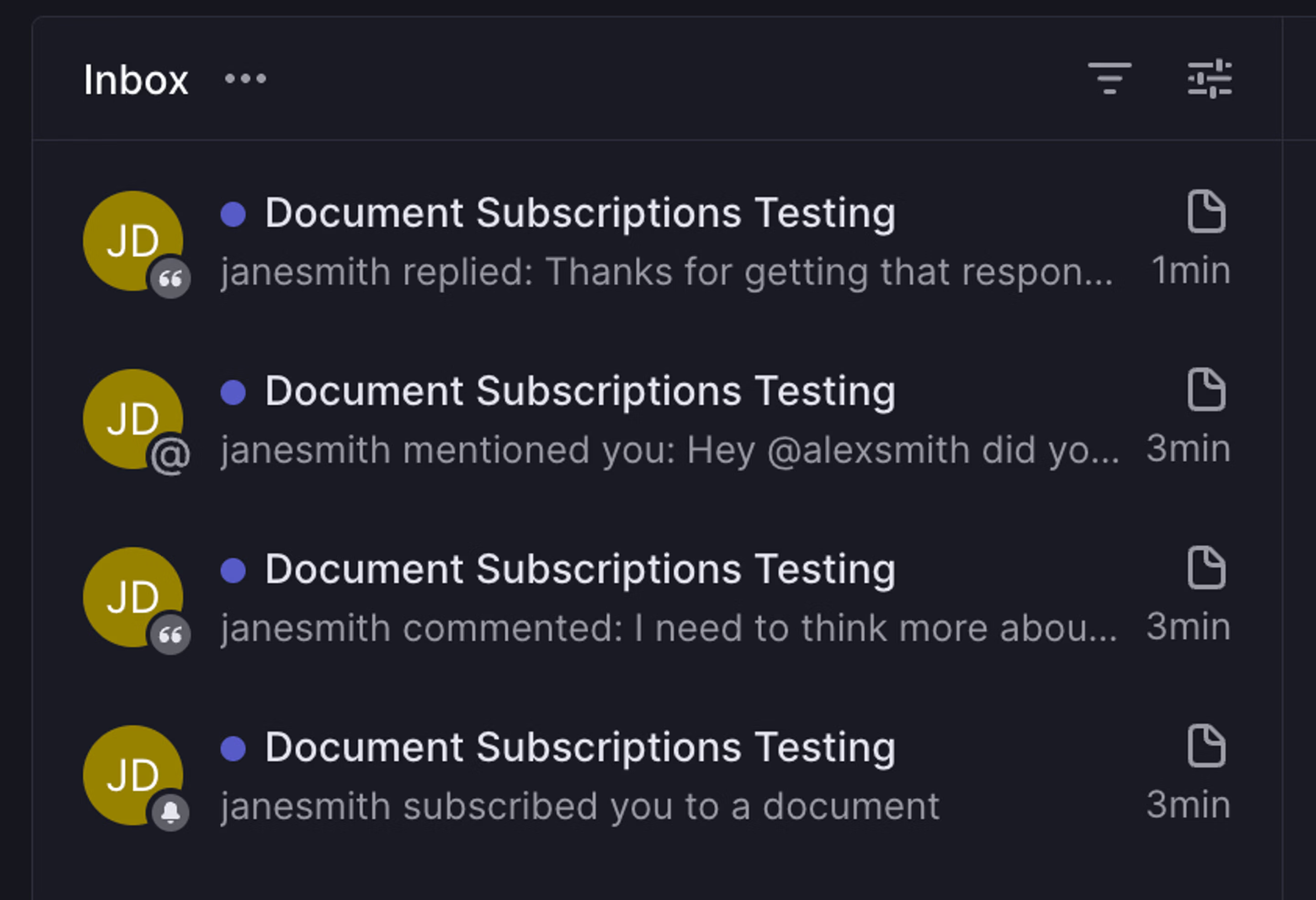
Notification types include document changes, comments, and replies. You do not get notifications for actions you have taken on a document, but you will receive notifications when:
- A comment or reply has been made in a document.
- Material changes to the content of a document.
- A document was deleted.
- A team member subscribes or unsubscribes you to a document.
- A team member mentions you in a document
Document comments
Select text and press the comment button, or use Cmd Opt M to leave an inline comment. Subscribed or mentioned members will receive notifications about comments and replies.
Reply to comments, or resolve them by clicking the check icon.
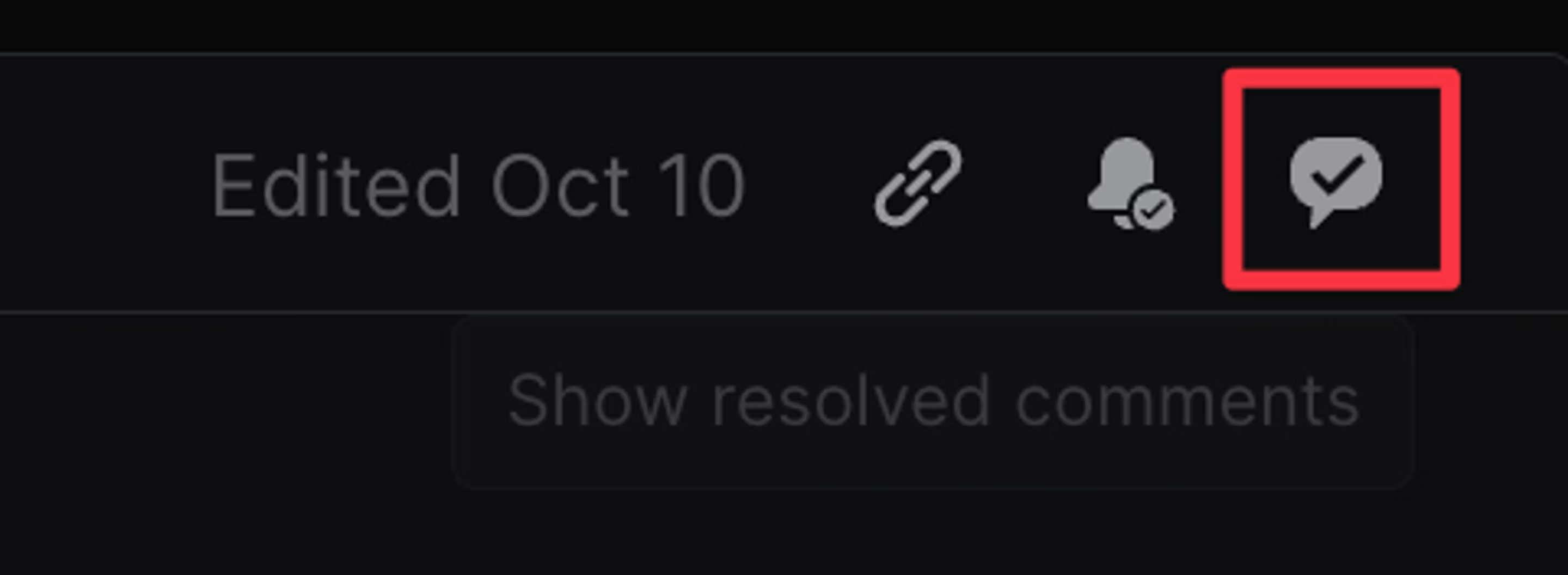
To view resolved comments, click “Show resolved comments” in the top-right corner of the document.
Open documents
While in a project view, you can open the document list with the shortcut O then D or by selecting the relevant document from the Overview tab on a specific project.
Reference documents
Reference documents in issue descriptions, comments, agent guidance fields and even in other documents by typing @while in edit mode followed by the document name. This action can also be used to reference issues or projects; matching documents will appear in the lowest section. To reference a document from a Linear editor, type @ followed by part of the document’s title, then select the document.
If you mention a document an agent guidance field, the agent can reference the instructions in that document before performing another action.
Link to headers
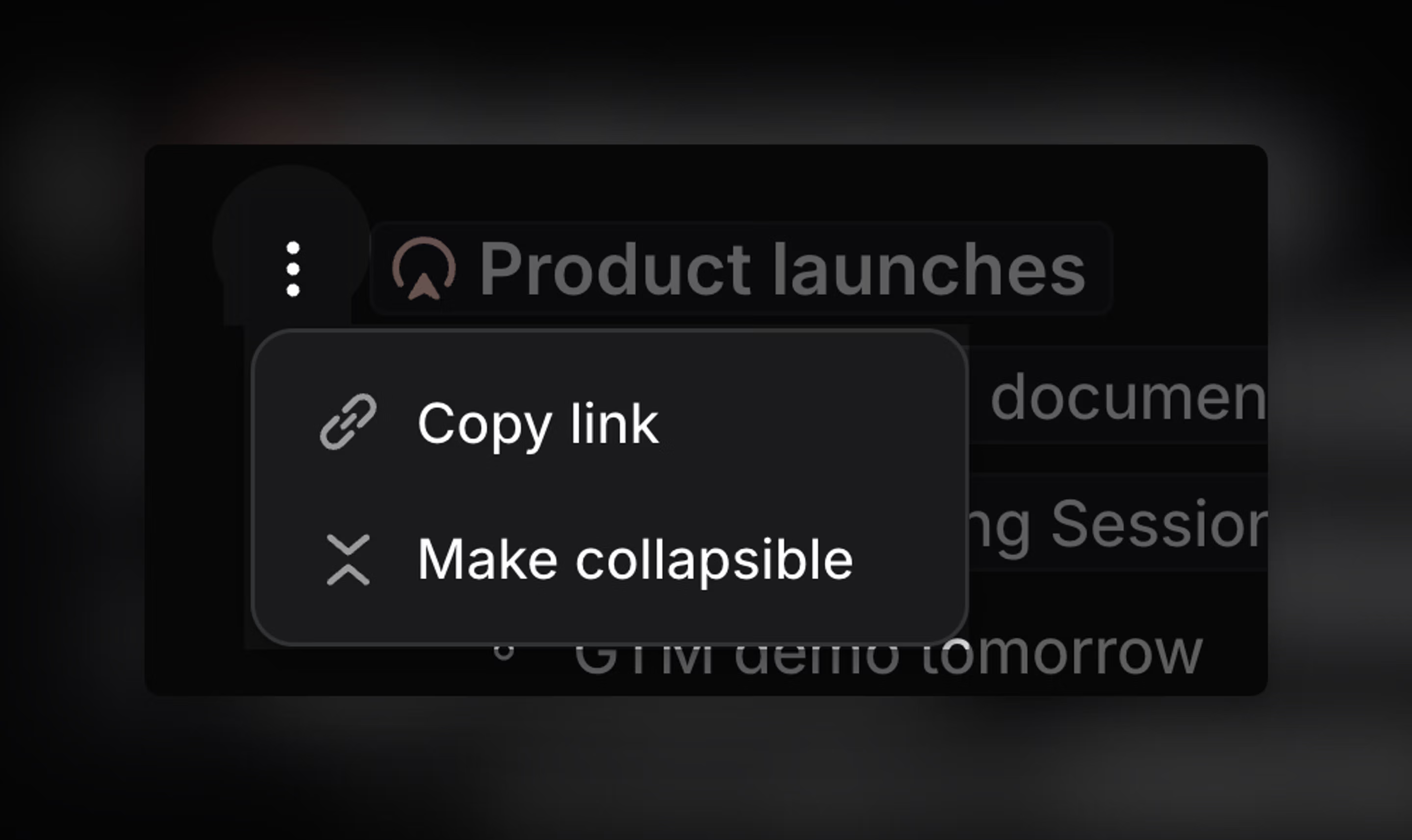
To copy a URL to a specific header, hover over the left side and click Copy link. Sharing this URL with a colleague in your workspace will direct them to this specific section.