Linear Agent

Overview
Linear Agent turns your workspace context into action. It lives inside Linear, understands your issues, projects, teams, and history, and can act on your behalf through conversation.
You can ask it to:
- Create and update issues, projects, milestones and initiatives
- Summarize and analyze ongoing work, threads, and customer requests
- Answer questions about your workspace data
- Post, edit, and delete its own comments in threads
Reach it by opening an agent chat, using ⌘/Ctrl + J, or by mentioning @Linear in any comment within your workspace.
Setup
Linear Agent is available by default in your workspace.
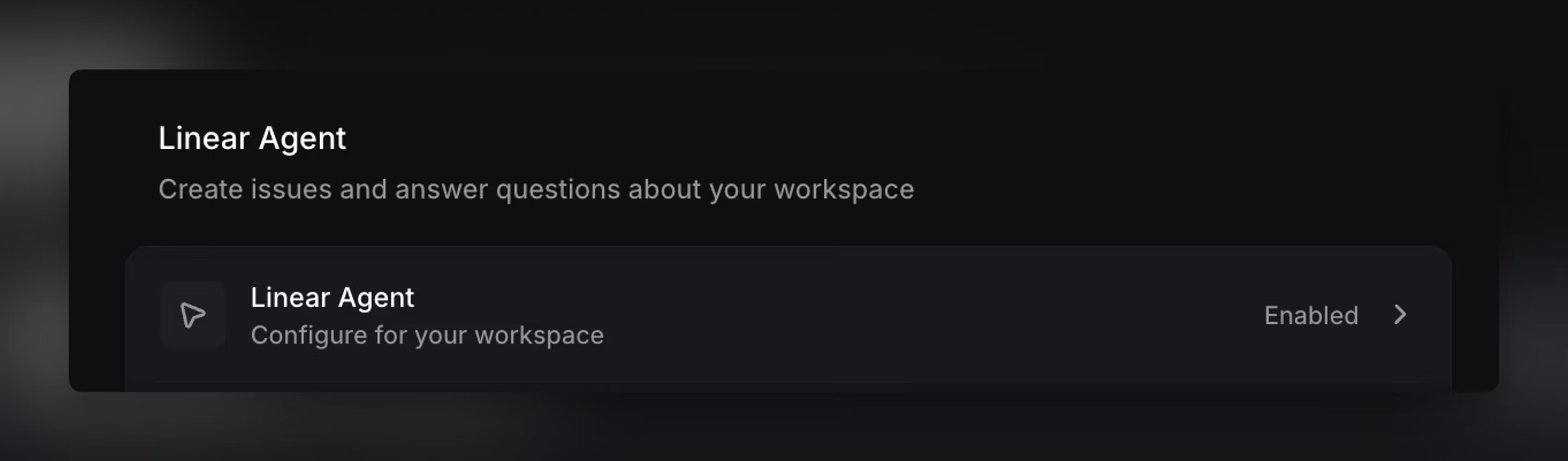
If you’d prefer to disable Linear Agent for your workspace, a workspace admin or owner can navigate into Settings → AI → Linear Agent and toggle-off Enable Linear Agent.
Linear Agent
Linear Agent works with your existing workspace data, including teams and sub-teams, initiatives and projects (with milestones and cycles), issues and their relationships, comments, activity history, and documents.
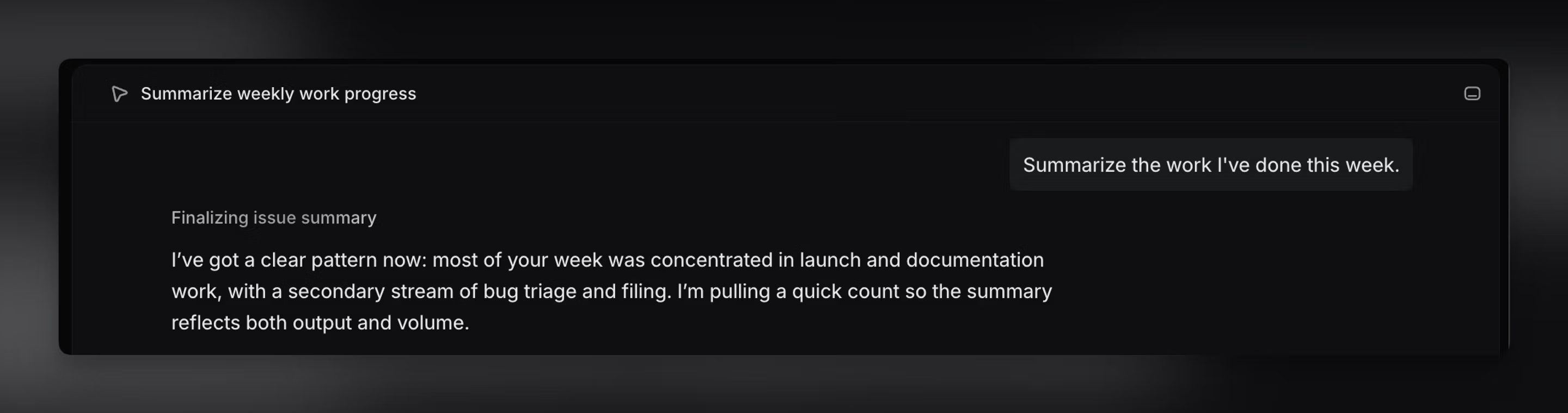
It uses this context to understand how work is organized and to answer questions, summarize activity, and make updates in the right places.
Linear Agent operates within your existing permissions — it can only reference or change content that you already have access to.
Linear Agent chat
The dedicated Linear chat is the main place to converse with Linear. It can keep context over time, show its progress as it works, and help you iterate from questions to drafts to concrete next steps.
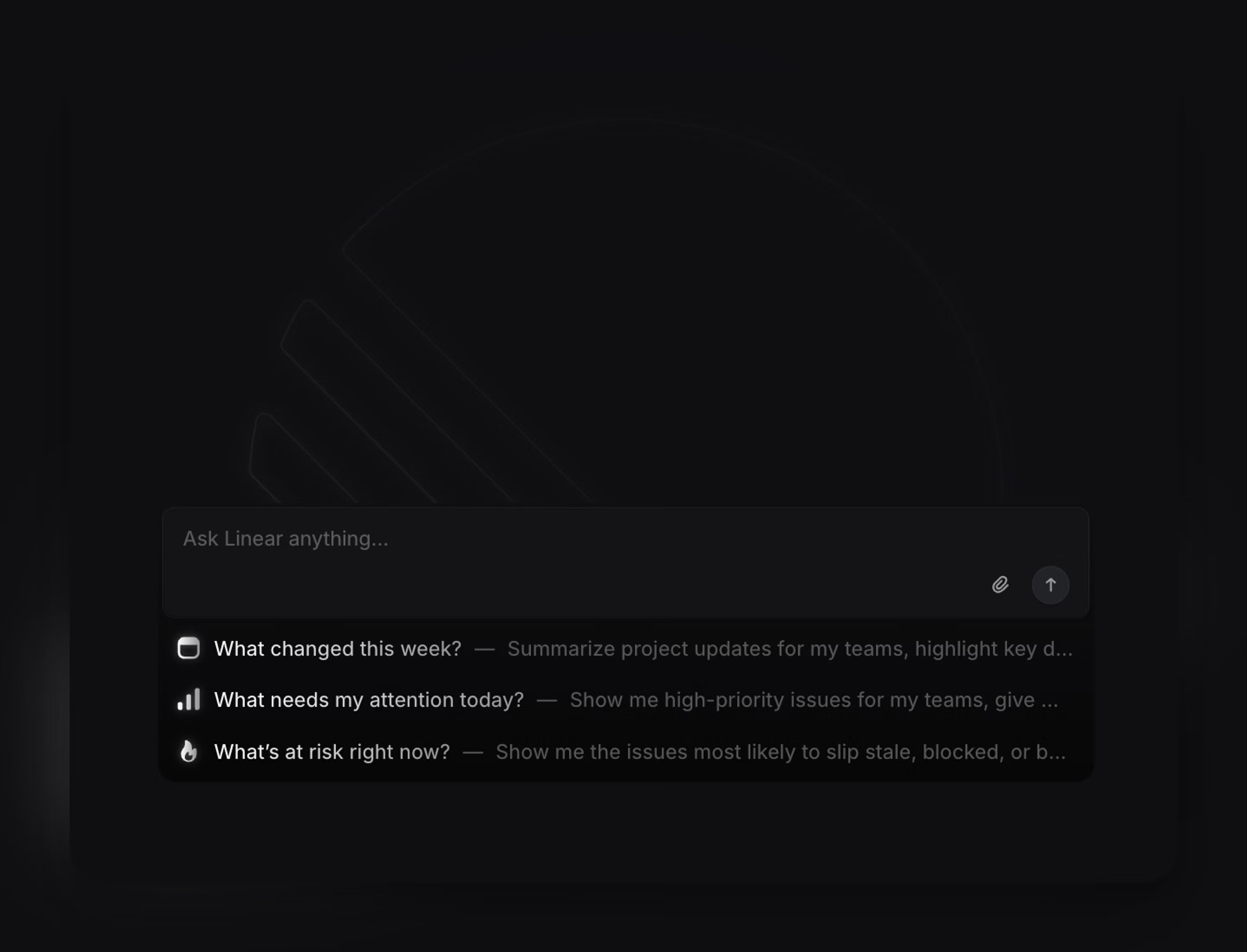
Start a new chat whenever you want a clean slate: when you’re switching to a different topic, a different issue or project scope, or you want to avoid the agent reusing earlier context from a prior thread.
If you prefer to multi-task, Linear supports working in multiple open chats at once. In the toolbar, each open chat appears as a tab so you can switch between topics without losing context. Each tab shows a short label and indicates when there are unread updates or when the agent is currently working in that thread.
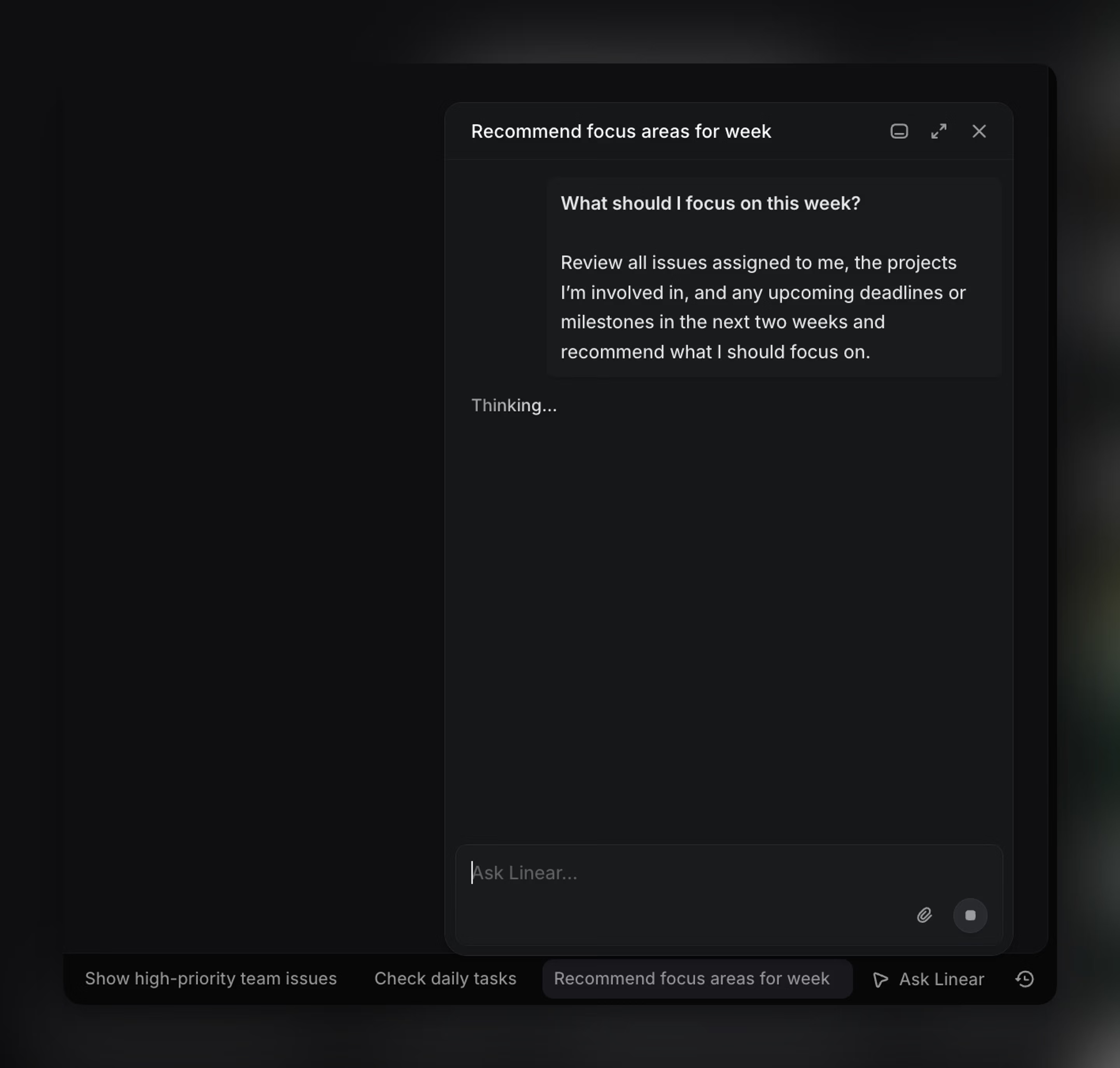
Try prompting Linear to:
Summarize the current status of this project with progress, risks, and next steps.
Summarize the progress of our team’s current cycle; what issues are at risk of rolling over?
Draft a new document on this project that comprehensively outlines the feature.
Publish a stakeholder update that is concise and focused on outcomes and risks.
You can start a new chat or return to recent conversations by typing ⌘J.
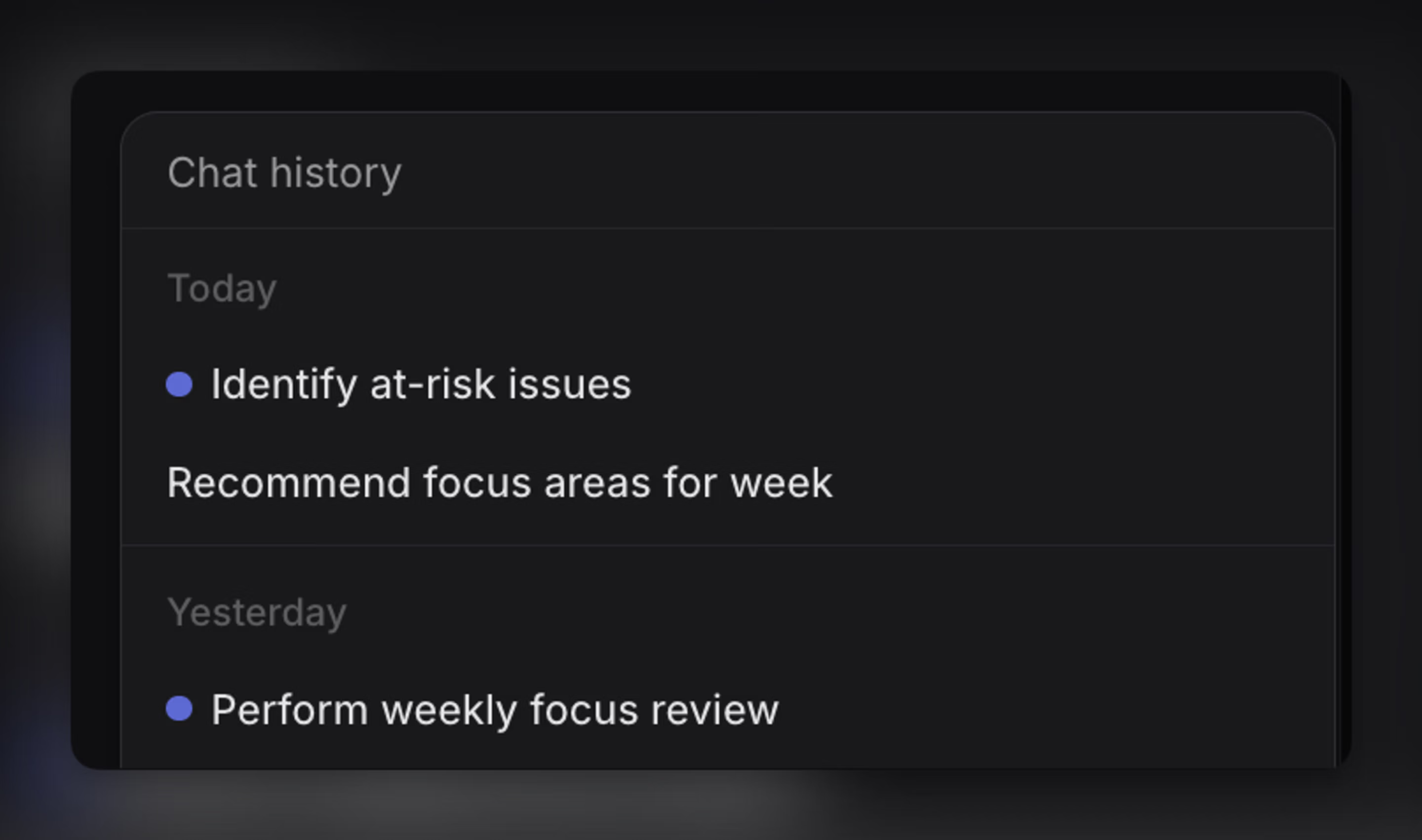
Chat history
Linear keeps a history of your past chats so you can return to them later instead of starting over. Open Chat history in the agent toolbar to browse previous conversations.
Chats are typically grouped by recency (for example, Today, Last week, 4 weeks ago, or Older) and may also surface chats that are related to what you’re currently looking at, so it’s easier to jump back into a relevant thread.
Linear Agent in comments
Outside of the dedicated chat experience, @Linear is also available directly in comments across issues, documents, and updates, as well as inline in project and initiative descriptions.
This is meant for moments when you’re already doing work and you want the agent to help in-place, using that context.
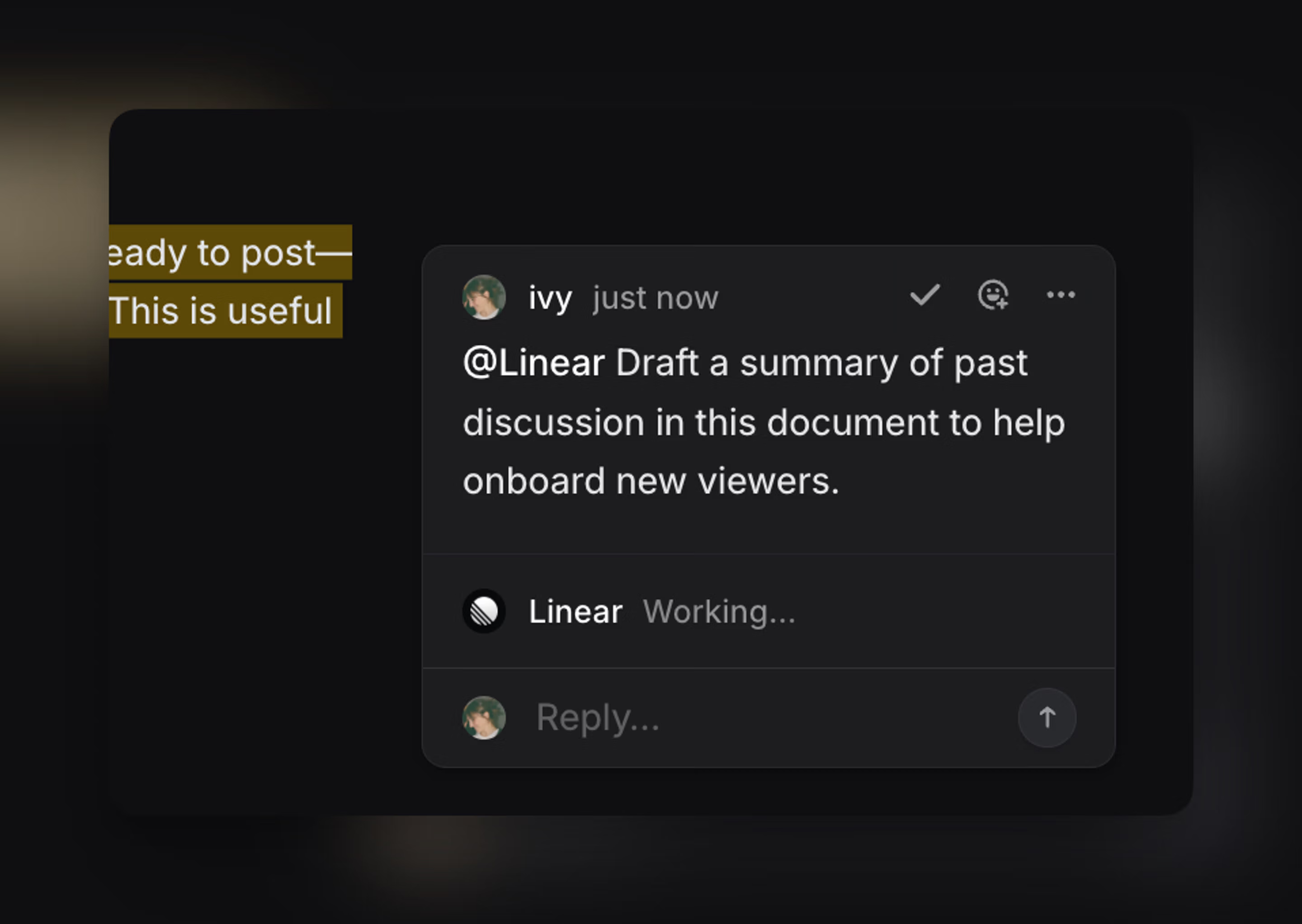
When you’re writing a comment, you can prompt Linear to help you produce something that’s ready to post — like a status update, a concise summary of progress, a list of action items, or a decision recap. This is useful when you want the output to live directly on the issue for team visibility.
Try asking:
Summarize the current state of this issue and call out blockers.
Rewrite this section to be more concise and action-oriented.
Turn these notes into a weekly update with progress, risks, and next steps.
Draft a summary of the overview for the next person picking this up.
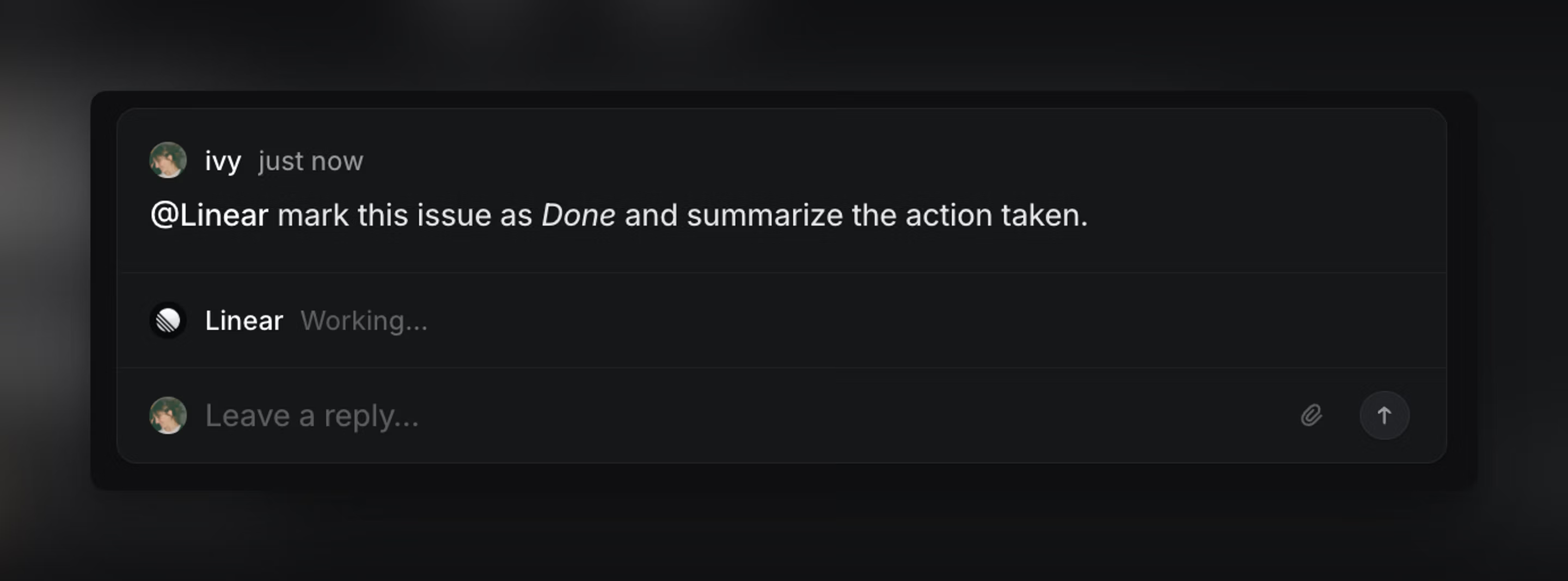
Linear Agent for Slack
Linear Agent is available in both Linear and Slack, so you can collaborate on work in whichever tool your team is using.
In Slack, mention @Linear to take actions based on the context of your conversations.
Learn how to use Linear Agent for Slack
Skills
When a conversation with Linear agent yields a great result, save that workflow as a reusable skill.
Skills help you save time, get more consistent results when collaborating with Linear, and avoid rewriting the same instructions for repeated prompts or workflows.
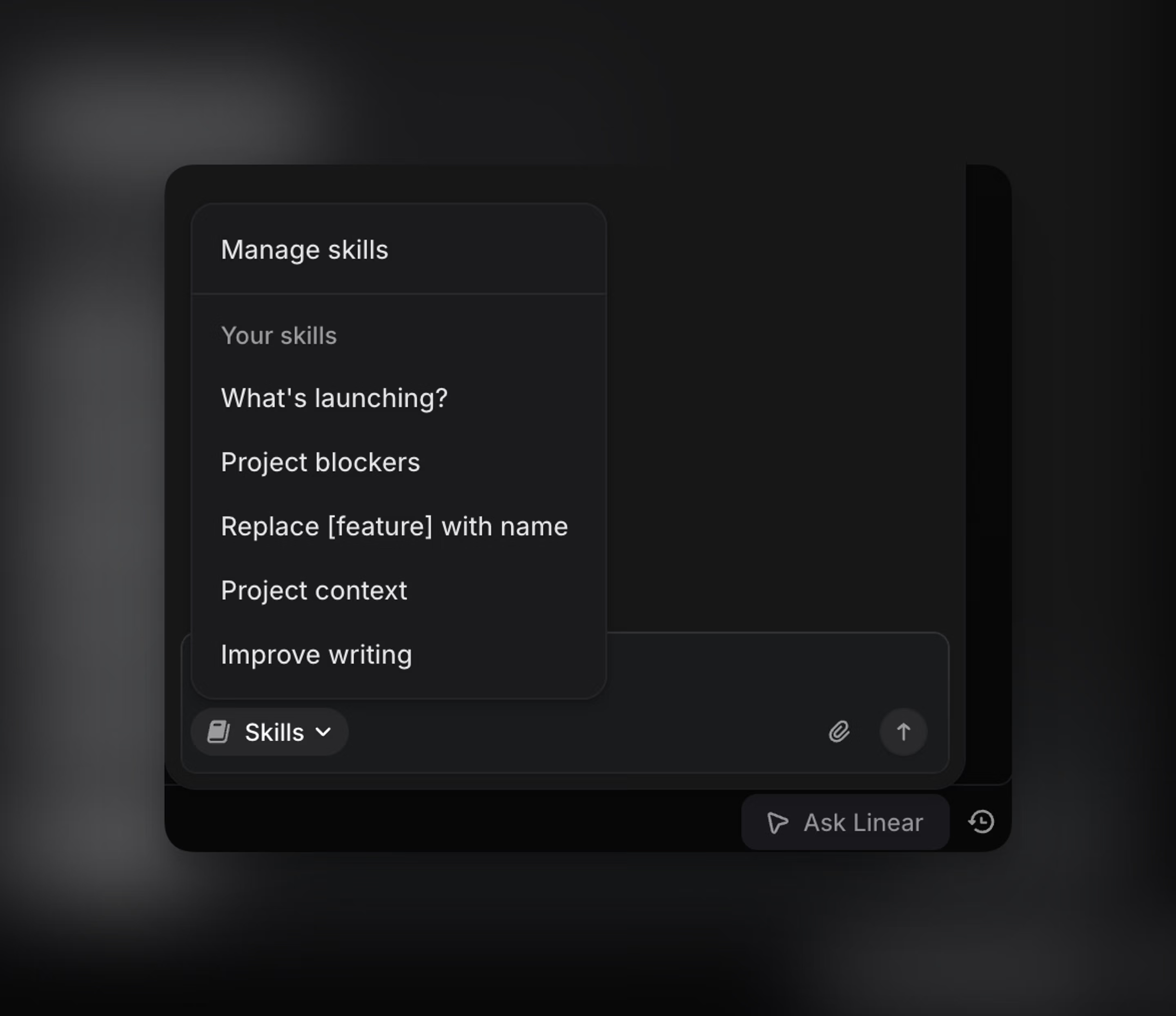
You can create a skill by asking Linear directly to save a conversation as a skill for you, either as a personal resource or shared to your team.
Once saved, skills can be invoked directly with a slash command in the agent input, and Linear Agent may also use them automatically when the context matches the skill’s intent.
Personal skills
Personal skills can be created and managed in Settings → Account → Agent personalization → Skills.
Consider creating skills for personal workflows you use frequently. Click any of the links below to save a skill in Linear.
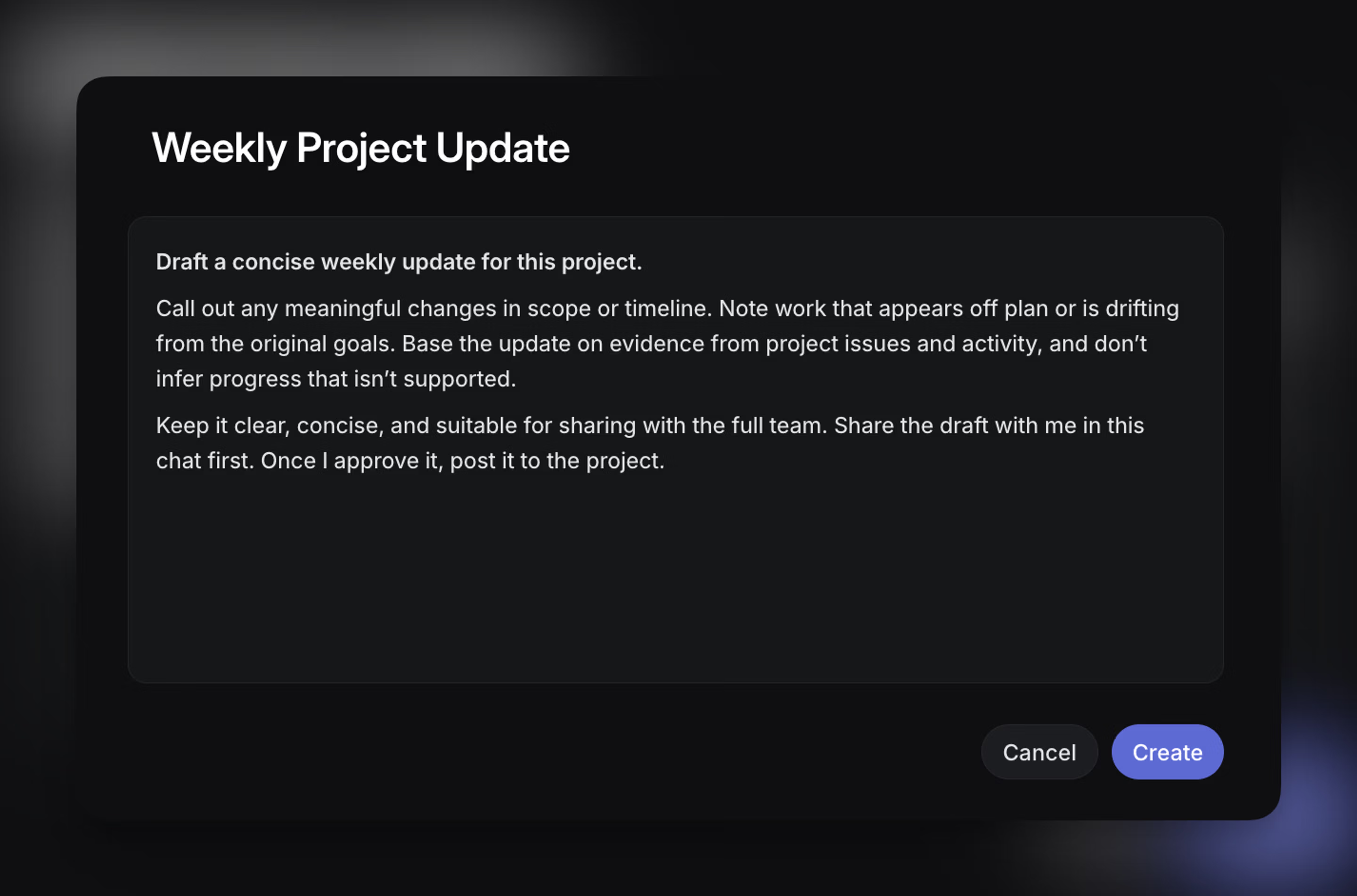
Skills can be shared at the team level under AI & Agents → Agent skills in your team settings. Team-shared skills are visible for use across all members of that specific team.
Permissions to create, update, or delete team-shared skills are controlled by Team permissions → Agent skills management. By default, any team member can manage team skills.
Consider creating team-shared skills for repeatable workflows that team members benefit from running the same way. Use these examples as starting points when creating a shared skill for your team.
Loops
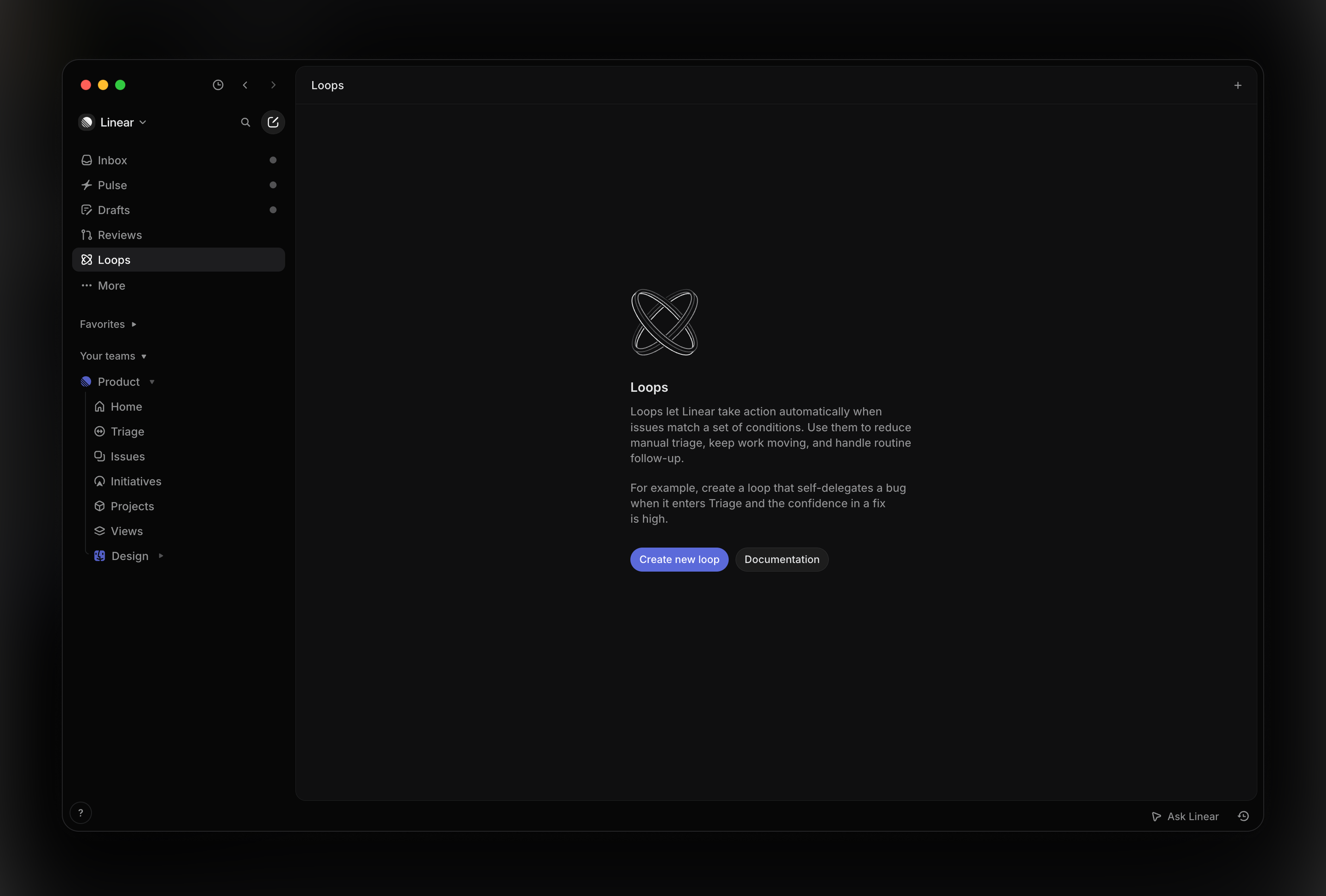
Loops let Linear work in the background to keep your processes moving — like a shared skill that triggers on a schedule or event. You can use loops to help with triage delegation, follow-ups, and other routine workflows.
For setup details, triggers, permissions, and troubleshooting, see the Loops help documentation.
Best practices
Start in chat
Start by working with the Linear agent in a chat to solve a real problem.
Beyond achieving your immediate goal, this helps you figure out what instructions work, what context is needed, and what kind of result you want.
Save a skill once the result is good
Once an interaction works well and is likely to be reused, save it as a personal skill. Personal skills are a good fit when the workflow is still evolving, reflects an individual way of working, or is only useful to one person.
Share a skill to the team
Create a team-shared skill when the workflow is repeatable, stable, and useful for multiple people on the team. Team-shared skills should have clear instructions, predictable output, and a purpose that others can understand and use without extra explanation.
Optimize the skill
After saving a skill, you can also keep improving it. You might ask Linear how to make it faster by excluding steps that aren’t needed every time.
Coding sessions
Linear Agent can also be delegated the actual implementation work on an issue. See Coding sessions to learn how this workflow operates.
Connect MCP Servers
Linear Agent can connect to MCP servers to access tools and data outside of Linear.
This lets the agent bring external context into your workflows to investigate issues, plan projects, write specs, and draft updates grounded in your full context. MCP works across Linear Agent chat, comments, and Loops, and is configured at the workspace level by Admins.
For more information to configure MCP servers within your workspace, check out our documentation here.
Guidance
Guidance is a set of instructions for how Linear operates within your workspace and across teams. Use guidance to make outputs consistent with conventions in your workspace. You might specify how you want issues titled, what fields should be included in bug reports, or how updates should be structured.
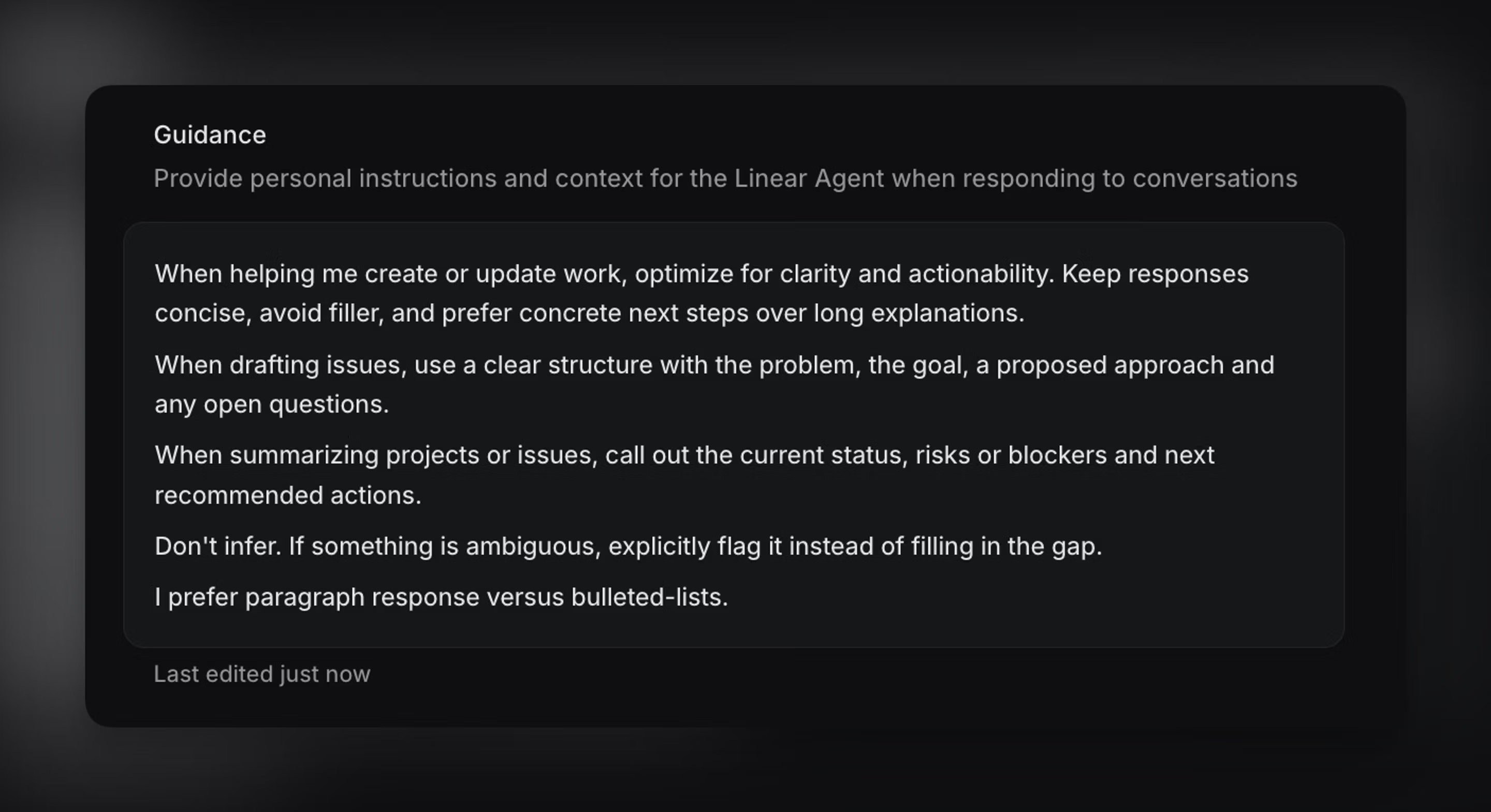
You can configure guidance for Linear at different scopes: workspace-wide, specific to a team or personal to you.
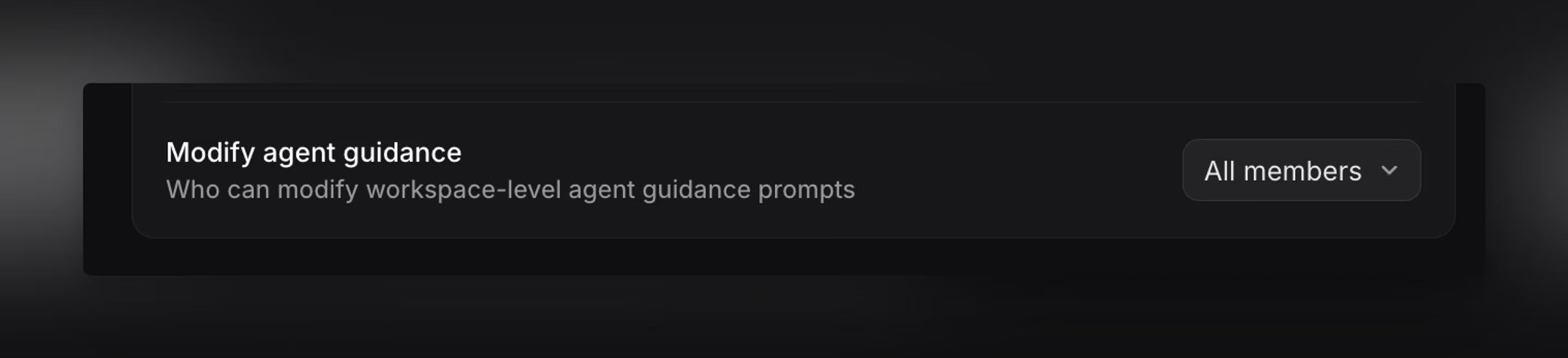
Workspace guidance applies to everyone in the workspace by default. Restrictions for who can edit workspace-level guidance is configurable by navigating into Settings → AI.
Personal guidance lets an individual tailor how Linear responds for them. Update your personal Linear agent guidance by navigating in Settings → Agent personalization.
If you’d like guidance to apply to a specific team only, you can reference that team and its unique instructions in your workspace-level guidance.
Note that workspace-level guidance for the Linear agent within Linear is separate from the guidance used for the Linear agent for Slack. The Slack integration has its own guidance specifically for how Linear Agent should turn Slack messages into issues, and it’s configured in Slack integration settings rather than the general Linear Agent guidance settings.
Personal agent guidance applies to both the agent within Linear and Slack.
Preferences
When opening a new Linear tab, we launch a new chat with Linear agent.
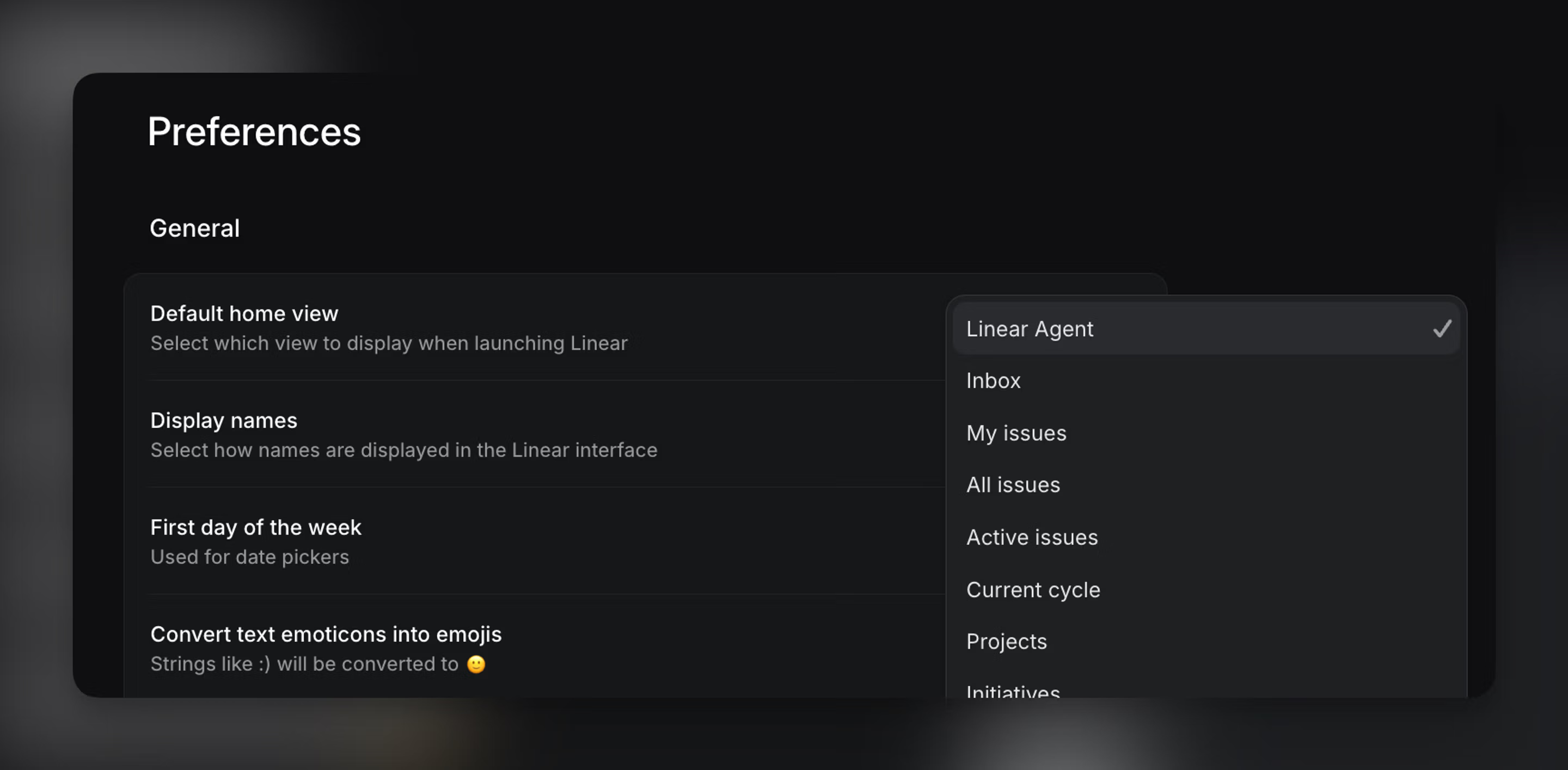
If you’d prefer to change this behavior, navigate Preferences and update Default home view from Linear Agent to your desired location.