Microsoft Teams
Drive work forward from Microsoft Teams by turning conversations into issues, projects, and documents.
Overview
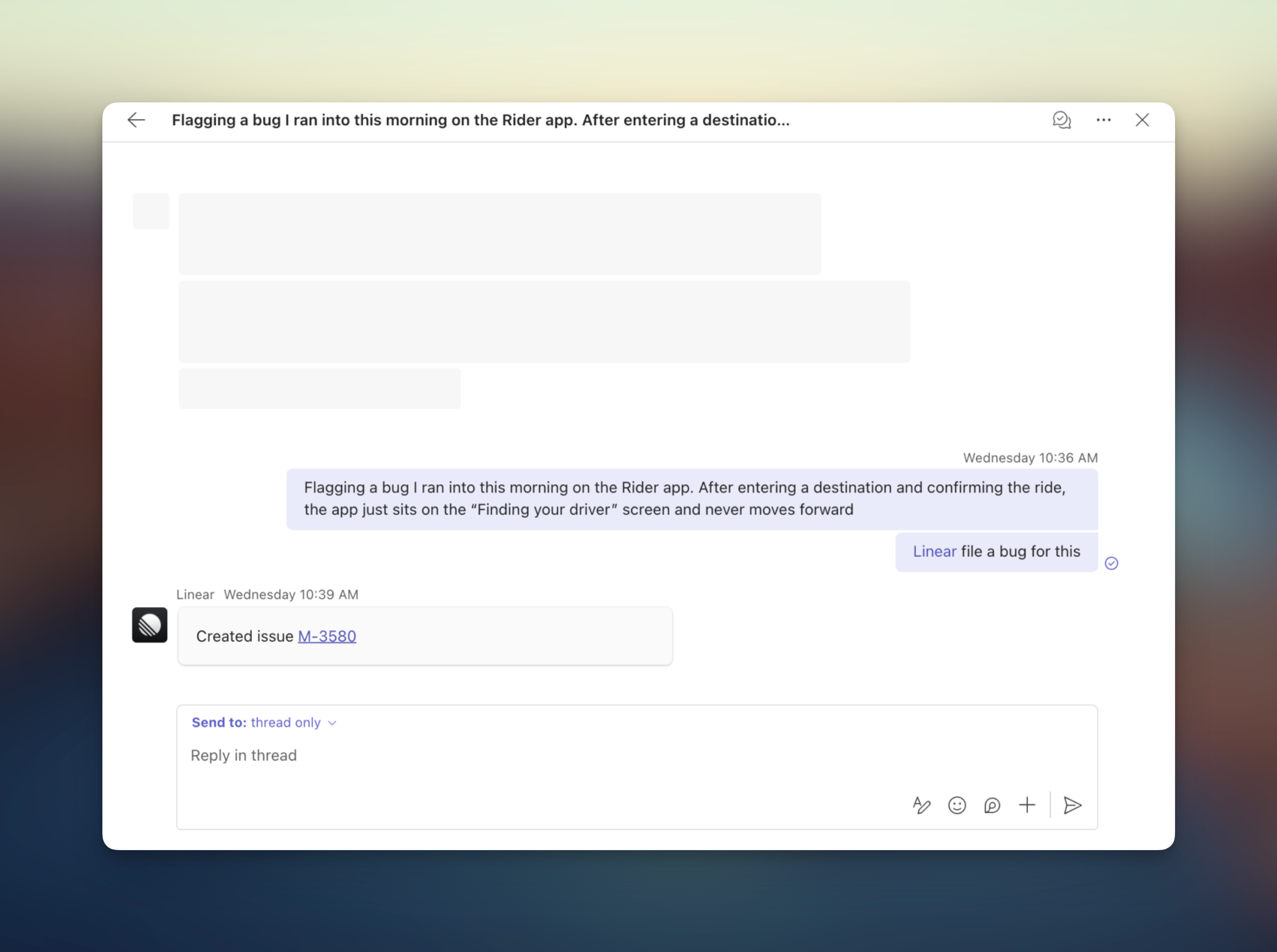
Use Linear in Microsoft Teams by messaging or mentioning @Linear to create issues and projects, ask questions about work in your workspace, and turn discussions into actionable follow-up. You can ask Linear to make changes directly in Linear or pull information from Linear into Teams, all without leaving the conversation.
Try sending:
- @Linear file a bug for this and assign it to me
- @Linear what’s the latest progress on our billing API project?
- @Linear create issues for each feature request mentioned in this thread
Linear uses the context of the conversation when relevant, so you can work naturally without switching tools.
Integration configuration
First, connect Linear to Microsoft Teams in Settings > Integrations > Microsoft Teams. This step must be completed by a Linear admin or workspace owner with admin privileges in the Microsoft Tenant.
Once the workspace connection is in place, a Teams admin will need to install the Linear app from the Microsoft Teams marketplace. If your organization manages apps centrally, this should be done through the Teams Admin Center rather than by individual users.
If you’re using the Teams Admin Center, ensure the Linear app is allowed by going to Teams apps → Manage apps and confirming its availability. You may also need to make the app available to the appropriate users or groups from the app’s settings page.
For organizations that restrict third-party apps, review your Org-wide app settings in the Teams Admin Center and confirm that external apps are permitted.
On all plans, the Microsoft Teams integration can connect one tenant per Linear workspace.
On Enterprise, a single Linear workspace can connect multiple Microsoft Teams tenants.
Personal account connection
If your Teams account uses a different email than your Linear account, you should then connect your own Microsoft account from the same Microsoft Teams settings page in Linear. This allows Linear to recognize you in Teams and act on your behalf.
You can connect one Microsoft account from a single tenant.
Project channel connection
Connect a Linear project to a Microsoft Teams channel to send new project updates to that channel and provide project context in the connected conversation.
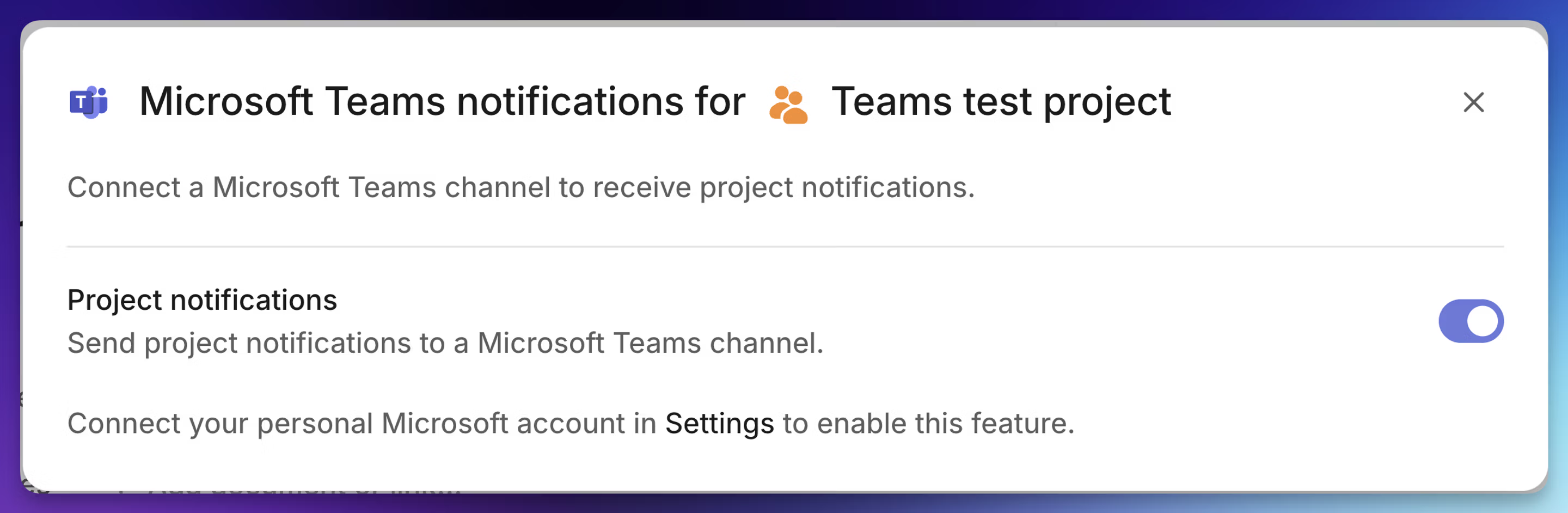
Available channels are based on the access of the person setting up the connection. To configure it, that person must have their personal Microsoft account connected in Linear and be able to access the team and channel in Microsoft Teams. Note that shared channels are not currently supported for connection. For private channel support, see the below section.
Private channel connection
Apps in Microsoft Teams private channels are currently in public developer preview and have not yet been rolled out broadly by Microsoft — Linear Agent will only work in private channels if your Microsoft 365 tenant has opted in to Targeted Release.
Some IT teams may prefer not to opt in, as it means receiving features ahead of the standard release cycle; until Microsoft rolls out private channel app support more broadly, Linear Agent will not be available in private channels for tenants not on Targeted Release.
For more details, see Apps for shared and private channels in the Microsoft documentation.
FAQ
Yes. The Microsoft Teams integration is available on all plans. Connecting multiple Microsoft Teams tenants to one Linear workspace is available on Enterprise.
Microsoft Teams for Personal Use is not supported. Linear supports Microsoft Teams for Work and Microsoft Teams for School.
Linear will only respond to users who have access to your Linear workspace, which does not include Guests in shared channels.
Feel free to use the thumbs up and thumbs down controls on Linear’s replies in Microsoft Teams to provide feedback — our team will get alerted to take a look at improvements.
For anything else, please contact us!