Team pages
Teams in your sidebar open to a home page. This page helps you organize team-level resources and quickly access the rest of the team’s work.
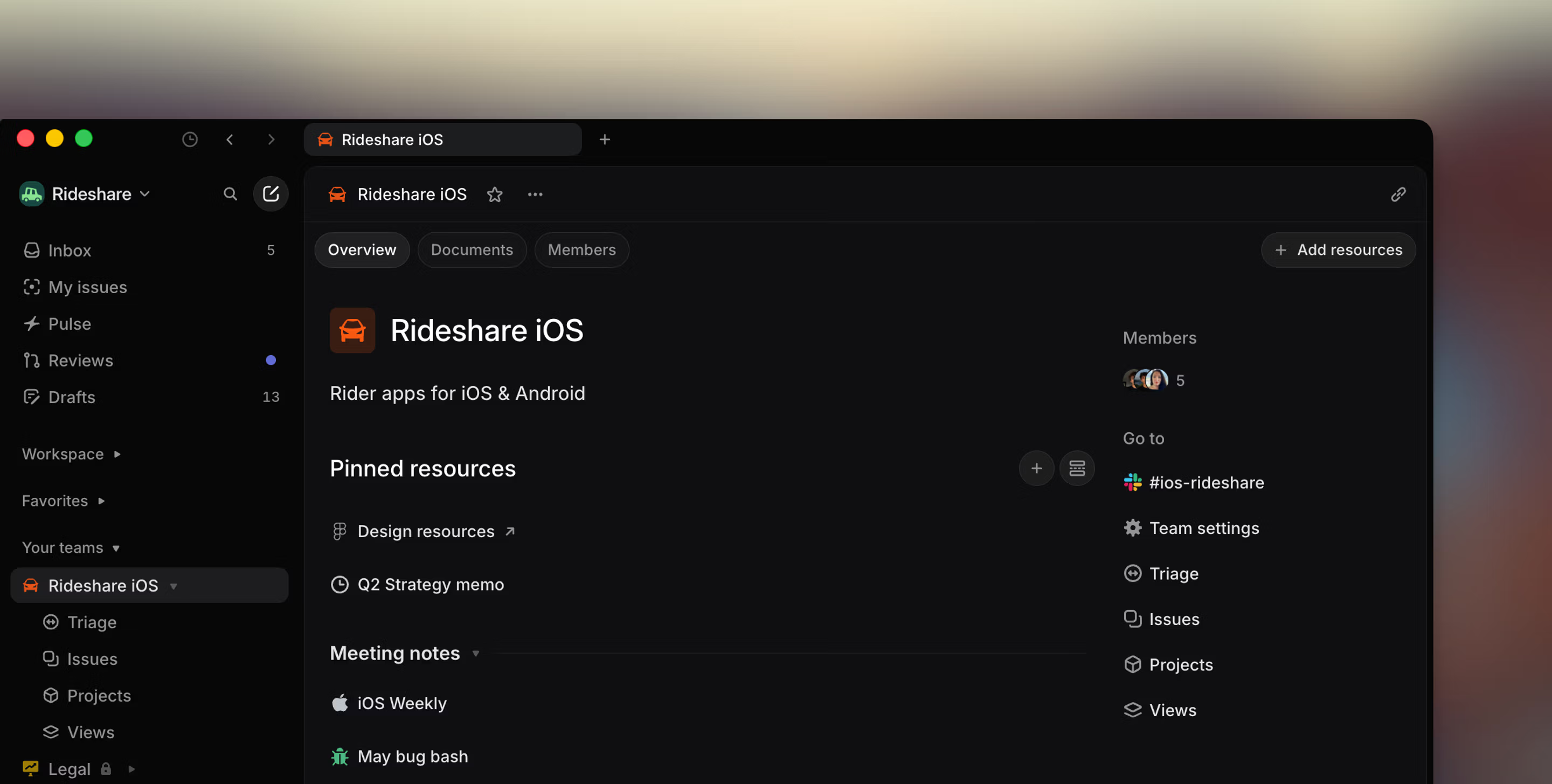
Overview
Click a team in the sidebar to open the landing page for your team. From here, you can create and organize team-level resources like team documents, links to design files and more.
The Overview tab highlights pinned resources for quick access. You can pin team-level documents and links, as well as resources from issues and projects within the same team. Team Home also shows team members and shortcuts to common destinations like team settings, triage, issues, projects, and views.
- Use the Documents tab to browse or create team-level documents.
- Use the Members tab to browse the members of that team.
- Archived issues can be found under the ... menu when hovering over a Team name or by using the keyboard shortcut
gfollowed by x.
Team documents
Create documents at the team level for shared context that doesn’t make sense to tie to a particular project or initiative. Runbooks, links to design resources, and meeting notes are all good use-cases for team documents.
If you @mention a team doc in an agent guidance field, the agent can use that document specifically to help inform its actions. For example, you might have ownership of different feature areas within a team you’d like a agent automation to reference before assigning an issue.
Team default pages
Team pages can include Triage, Issues, Cycles, Projects, and Views. Some items depend on team settings and features — for example, Triage only appears when it’s enabled, and some teams may also see Updates.
Issues
The Issues page shows all issues across the selected team that are not archived or deleted. This includes completed and canceled issues. There are default views within this page for Active issues and Backlog issues.
Active
Active shows all active issues on your team, which are the issues under Unstarted or Started categories in your team’s workflow. If you’re using our default states, these would include To Do and In Progress but not Backlog, Completed, or Canceled issues. Navigate to your team’s active issues by hitting G then A.
Backlog
This includes issues in backlog, which is our default status for newly created unstarted issues. Navigate to your team’s backlog issues by hitting G then B.
One backlog status exists by default but you can add more statuses in this group through team settings (e.g. Icebox). Any issues here will be updated to active (To do) status if they’re moved to a cycle. You can also enable a cycle setting to automate the reverse: if issues are moved out of a cycle, they’ll move to the backlog. See cycles under team settings for more information.
Archive
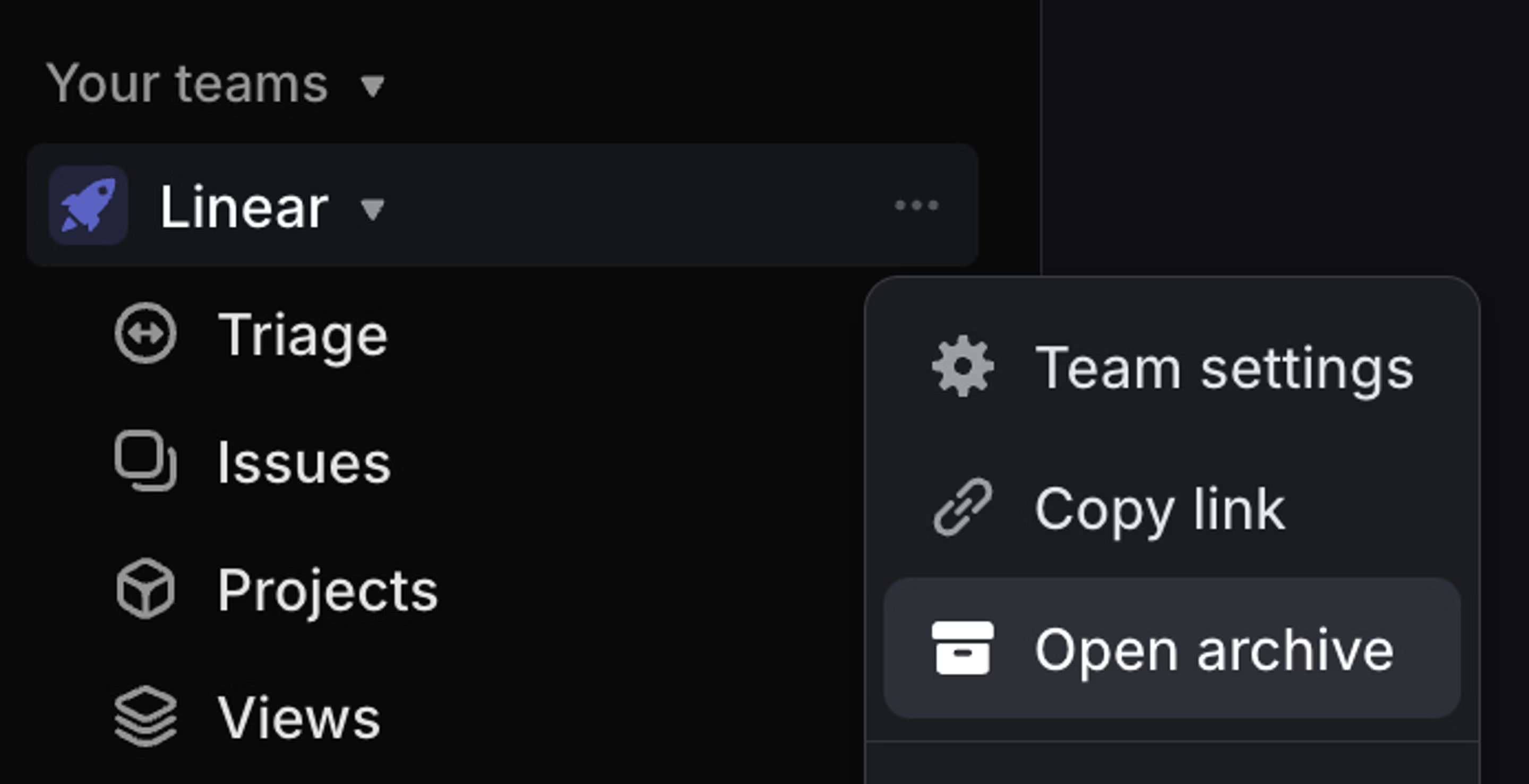
The archive includes archived issues, cycles, and projects, along with recently deleted issues, projects, documents, and initiatives. Archived items are kept for historical reference and can be restored anytime using the # shortcut. Issue links will still work even if the issue has been archived or is awaiting deletion but issues and projects must be unarchived in order to make changes to them. Deleted items are permanently removed 30 days after deletion.

Navigate to your team’s archives page by clicking on the three dots next to your team’s name in the sidebar and selecting Open archives... or use the keyboard shortcut G then X.
Cycles
The Cycles page displays current, future, and past (unarchived) cycles and and shows some high level overview for you to compare between cycles. Click into any cycle here to view cycle issues and graphs. Past cycles will be archived according to the settings in auto-archive.
Current cycle opens the current cycle and Upcoming opens the next cycle.
If the team does not currently have a current or upcoming cycle, those shortcuts will take you to the main cycles page instead.
Projects
Projects shows all projects what are assigned to the team.
Views
See existing custom views created for your team or workspace. You can also create new issue or project views from here.