Usage & limits
Track AI spending across your workspace, explore the sessions behind it, and set spend limits.
Available to workspace members with permission to manage billing.
Open Settings → Usage & limits to see recent spending and your credit balance. Select Usage explorer to explore usage in detail.
For details on purchasing credits, automatic reloads, and expiration, see AI credits.
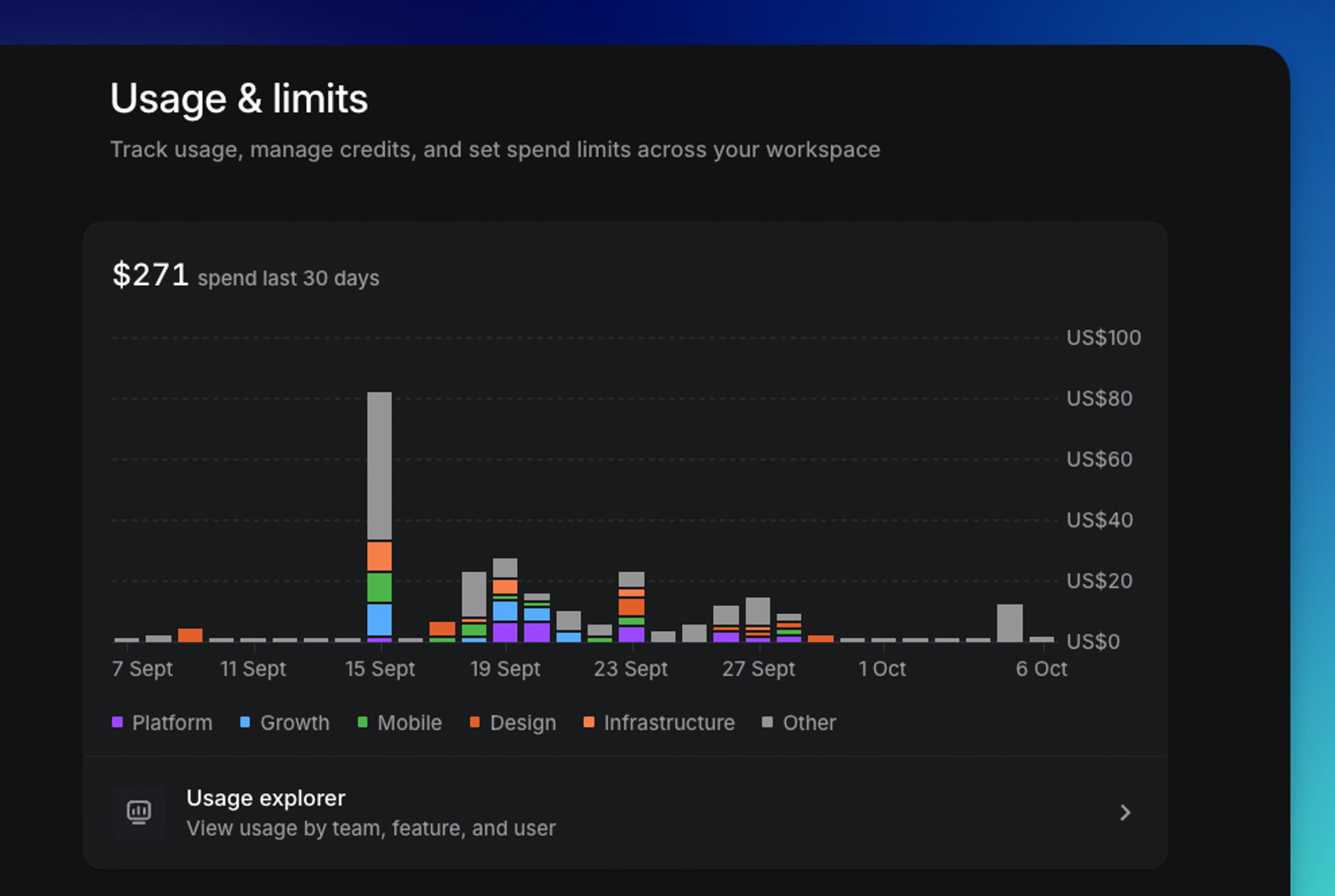
Explore your usage
The usage explorer shows total spend, session count, and average spend per session for your selected date range.
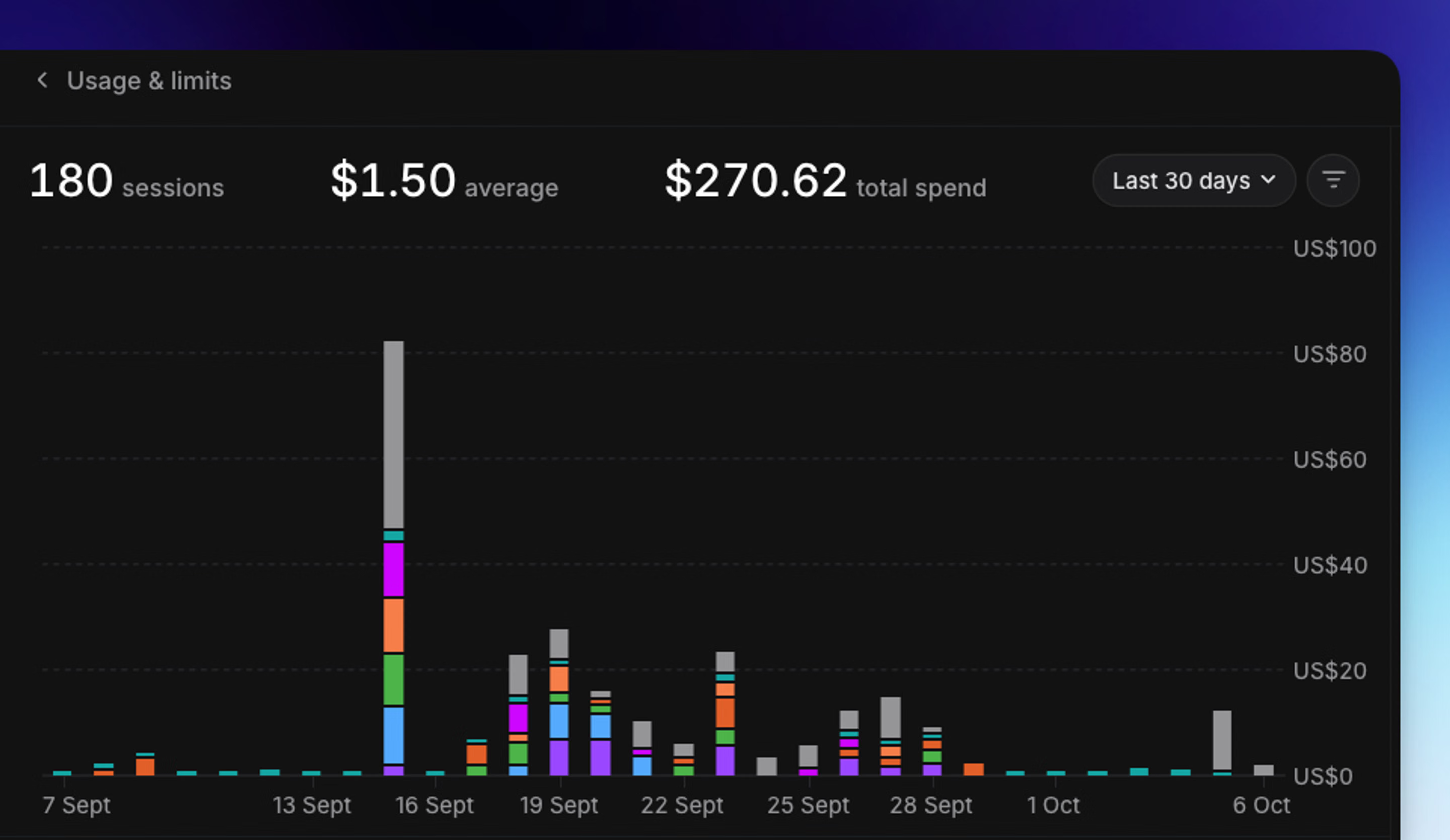
Usage history includes up to six months of records.
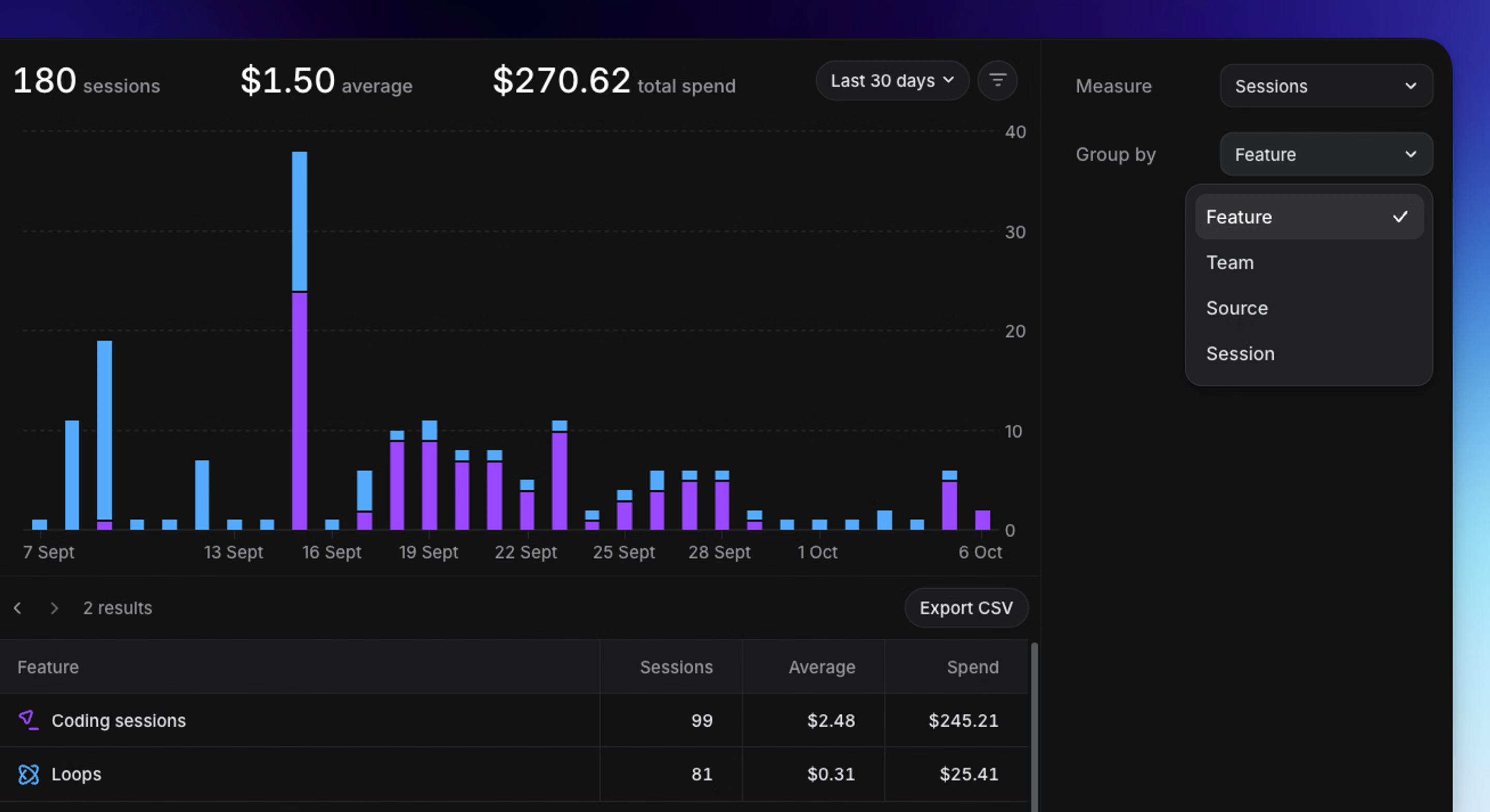
Group usage by Team, Feature, or Source, and combine filters to focus on the work you want to review:
- Team: Usage attributed to a team. Usage without an associated team appears under No team.
- Feature: Usage attributed to coding sessions or loops
- Source: The user or loop the usage is attributed to. Use the User and Loop filters to select specific sources.
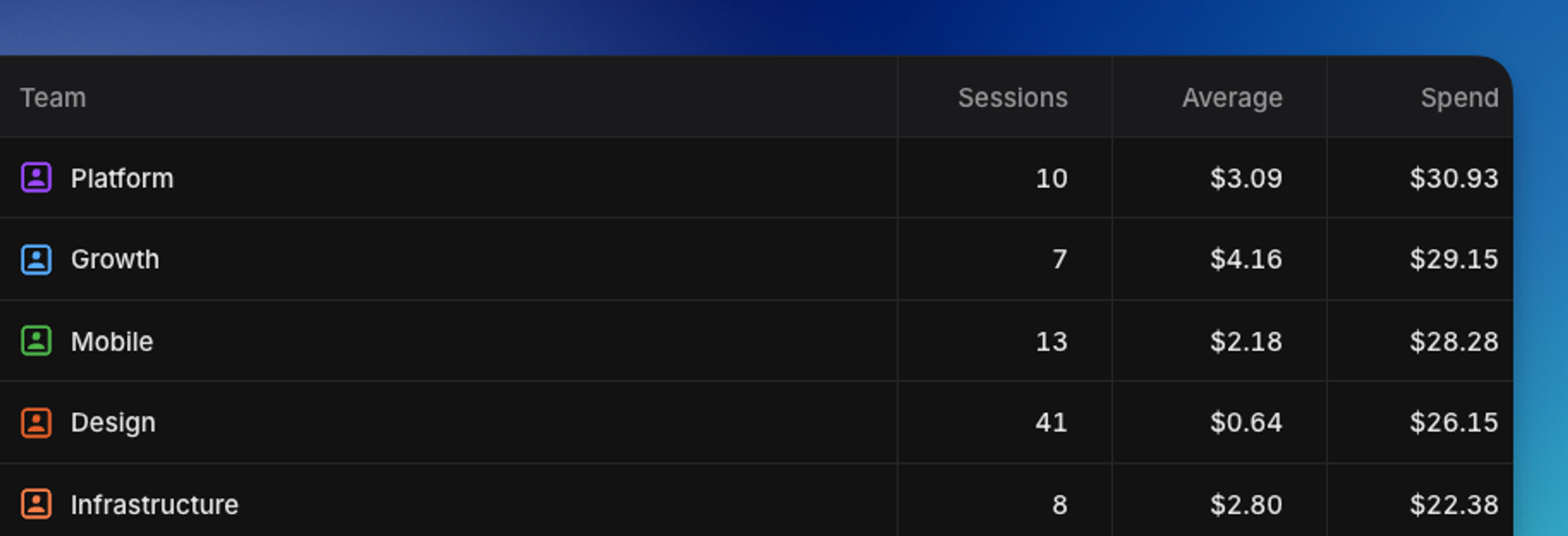
Group by Team to compare session counts and spending across teams.
Use Group by to switch between Feature, Team, Source, and Session.
For example, filter to one team, select Loops, then group by Source to compare spending across that team’s loops. Select a result to drill down further.
Understand sources and sessions
A source identifies whose usage you’re looking at: an individual user for coding work, or a particular loop for automated work. Grouping by source lets you compare users and loops within your selected filters.
Loop costs include the coding work the loop starts. If a loop investigates an issue and starts a coding session to fix it, that coding work is included in the loop’s spend. Hover over the spend amount to see the loop’s own costs and the coding sessions it started, including model and compute costs.
Loop usage is attributed to the team the loop belongs to. Coding usage after a user prompt is attributed to that user and the issue’s current team. If an issue moves to another team, usage after the next user prompt is attributed to the new team. Earlier usage keeps its original attribution.
View individual sessions
For any combination of filters, choose Group by → Session to see the matching sessions and their spend.
You can sort sessions by spend or last activity, adjust the displayed columns, and open the related coding session or loop run where you have access.
Spend reflects usage within your selected date range. When a session has additional spend outside that range, the spend tooltip can also show the full-session total.
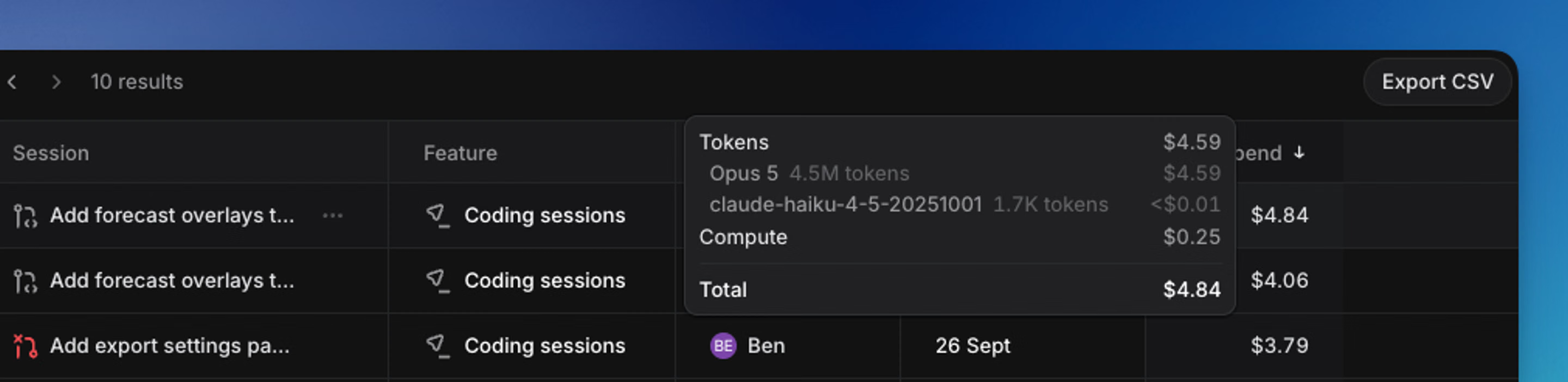
Hover over a coding session’s spend to see available token costs by model, compute costs, and total spend for the selected date range.
Export usage
Select Export CSV to download the results for your current filters and date range.
- Grouped views export session counts, average spend, and total spend for each team, feature, or source
- The session view exports individual records with source, team, feature, dates, identifiers, and both selected-period and full-session spend
Exports include all matching results, including rows you haven’t loaded in the table. Exporting requires workspace export permission.
Set spend limits
Spend limits help control spending on usage-based AI features, including coding sessions and loops. Open Settings → Usage & limits → Spend limits to configure them. Access requires permission to manage workspace billing.
You can also ask Linear Agent in Linear or Slack to view usage and create, update, or remove limits. This is not available in externally shared Slack conversations. Change reset frequencies and the reset schedule in settings.
Different types of limits
- Workspace limit: One limit for billable usage across the workspace
- User limits: A default limit that applies separately to each user’s funded coding work, with individual overrides
- Loop limits: A default limit that applies separately to each loop, including coding work funded by that loop, with individual overrides
User-funded usage counts toward the user and workspace limits. Loop-funded usage counts toward the loop and workspace limits, not a user’s limit. An override replaces the corresponding default but does not bypass the workspace limit. Work is blocked when any applicable limit is reached.
Limit overrides per user and per loop
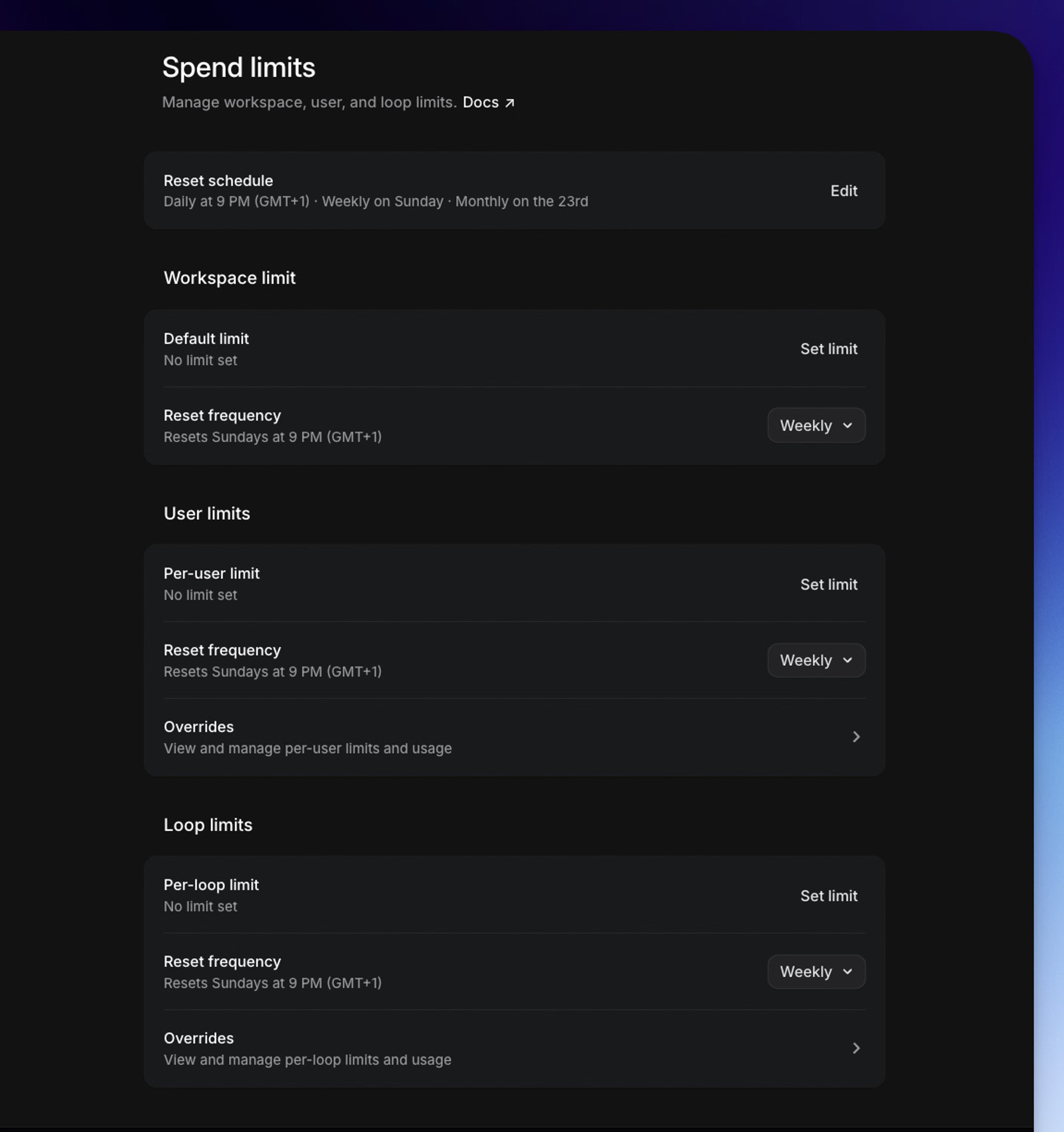
Open Overrides under User limits or Loop limits to view usage and set individual limits. Select multiple rows and choose Edit limits to apply the same override to several users or loops.
Removing an override restores the default. If no default is configured, that user or loop has no individual limit, but the workspace limit still applies.
Manage reset cadence
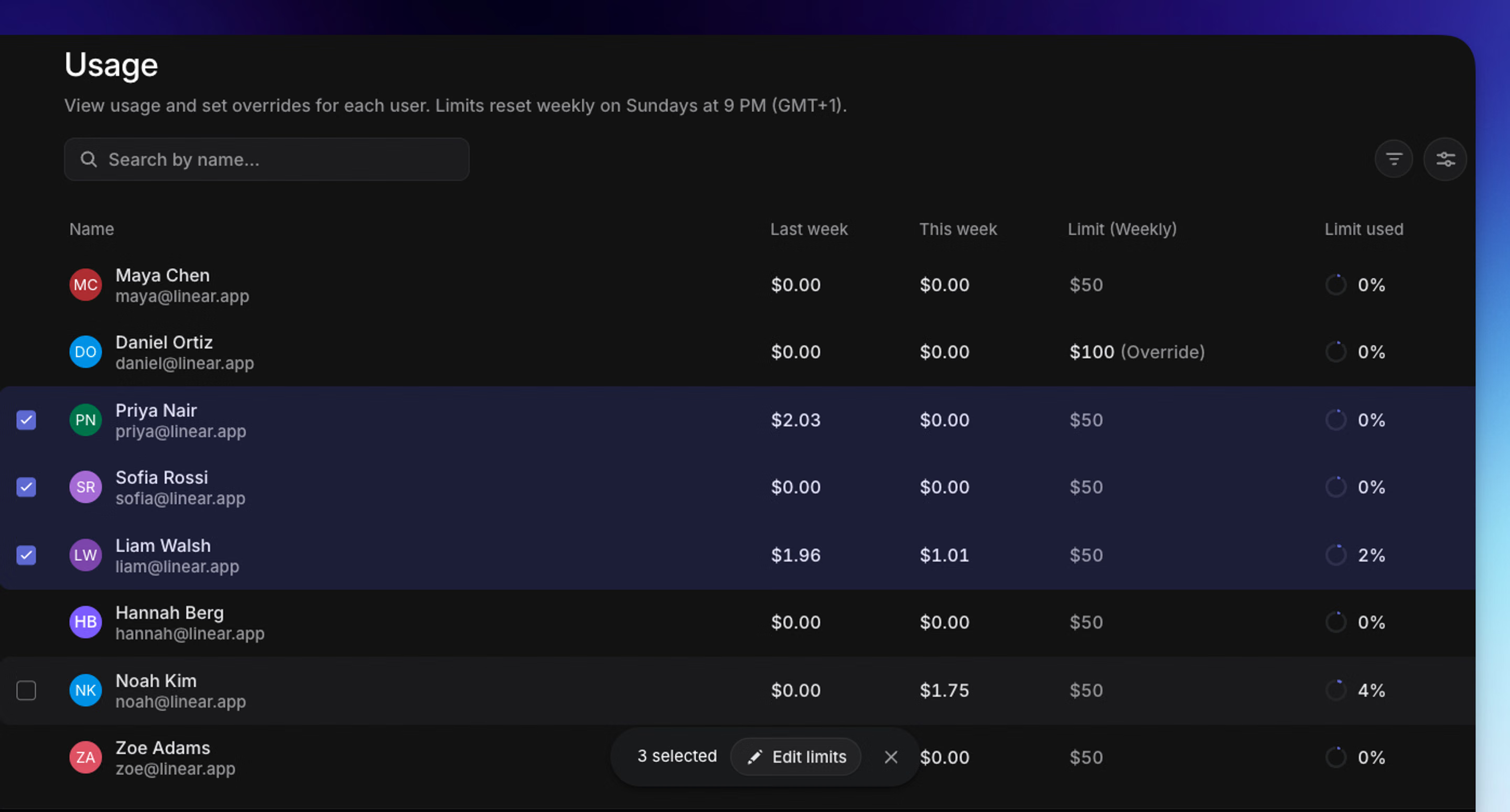
Each limit type has a reset frequency: Daily, Weekly, or Monthly. The limit is the amount that can be spent within one period. When the period ends, spending for that period resets to zero. All user limits share the user reset frequency, and all loop limits share the loop reset frequency.
Changing the frequency rescales the default and individual overrides in that group. For example, a $10 daily limit becomes $300 when switched to monthly. Review the scaled amounts after changing the frequency and adjust them as needed.
Manage reset schedule
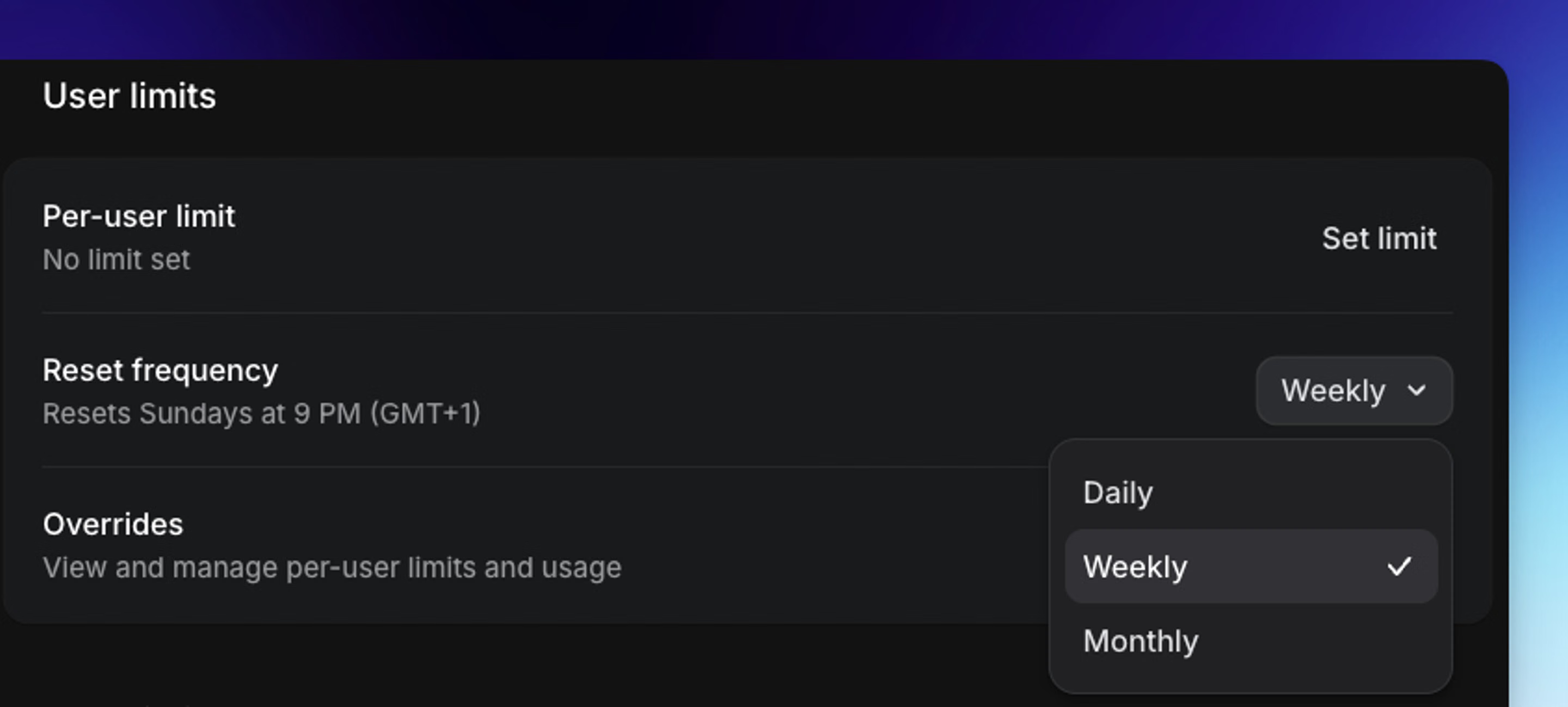
Open Settings → Usage & limits → Spend limits → Reset schedule to configure:
- Daily: The time when daily limits reset
- Weekly: The day of the week when weekly limits reset, using the same reset time
- Monthly: The day of the month when monthly limits reset, using the same reset time
- Time zone: The time zone used for all reset times
If you choose the 29th, 30th, or 31st for monthly resets, months with fewer days reset on the last day of the month.
When a limit is reached
A reached limit blocks new billable work within its scope. A workspace limit blocks usage-based coding work and loop runs across the workspace. A user limit blocks that user’s funded coding work. A loop limit blocks that loop and its funded coding work. Other users or loops remain available unless another applicable limit blocks them.
To restore access, wait for the next reset, raise the applicable limit above current usage, or remove it. Other applicable limits and credit availability still apply.
Blocked work does not resume automatically when access is restored. To continue, reply in the existing coding session. For loops that support manual runs, choose Run now on the loop page. Issue-based loops prompt you to select an issue; scheduled loops can be run immediately.
FAQ
Spend limits are approximate safeguards, not exact caps. Recent usage takes time to be processed, and concurrent or already-running work can cause spending to exceed a limit. Coding work already in progress is instructed to wind down when a block is detected.
No. After access is restored, reply in the coding session to continue, or manually run a loop that supports manual runs.