- Integrations
- Sleekplan
Turn Sleekplan customer feedback into Linear issues with two-way status sync
Overview
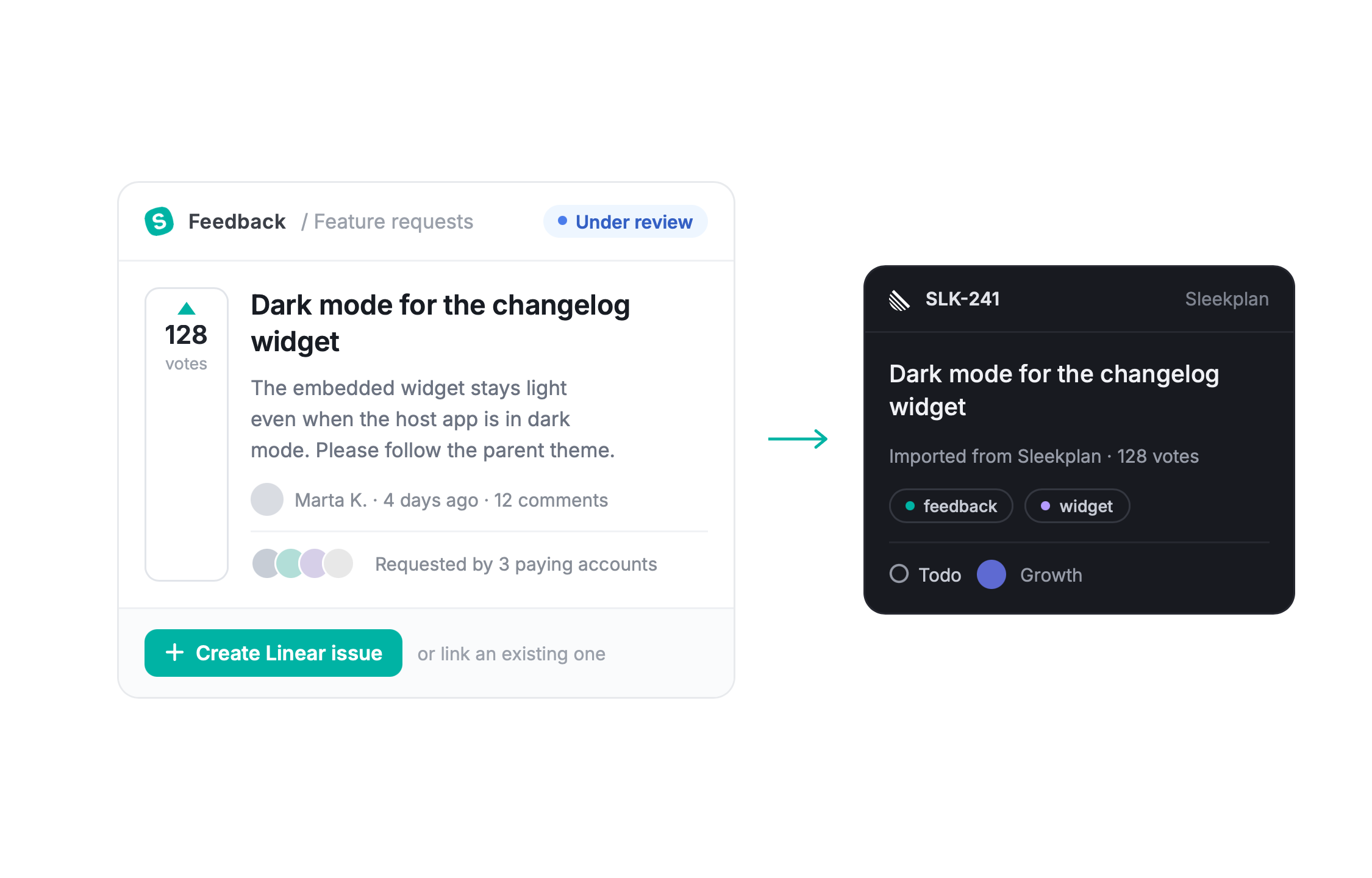
Sleekplan is a customer feedback platform where users submit, vote on, and discuss feature requests. The Linear integration connects that feedback to your engineering work: link posts to existing Linear issues or create new issues directly from a post, while two-way status sync keeps the post, the issue, and the customers who voted up to date.
How it works
Once connected, a Linear panel appears on every feedback post in Sleekplan. From there you can search your Linear workspace for an existing issue and link it, or create a new issue without leaving the post by entering a title and description and picking the team it belongs to. The connection is visible on both sides: linked issues get a comment pointing back to the Sleekplan post, and newly created issues include the post link in their description.
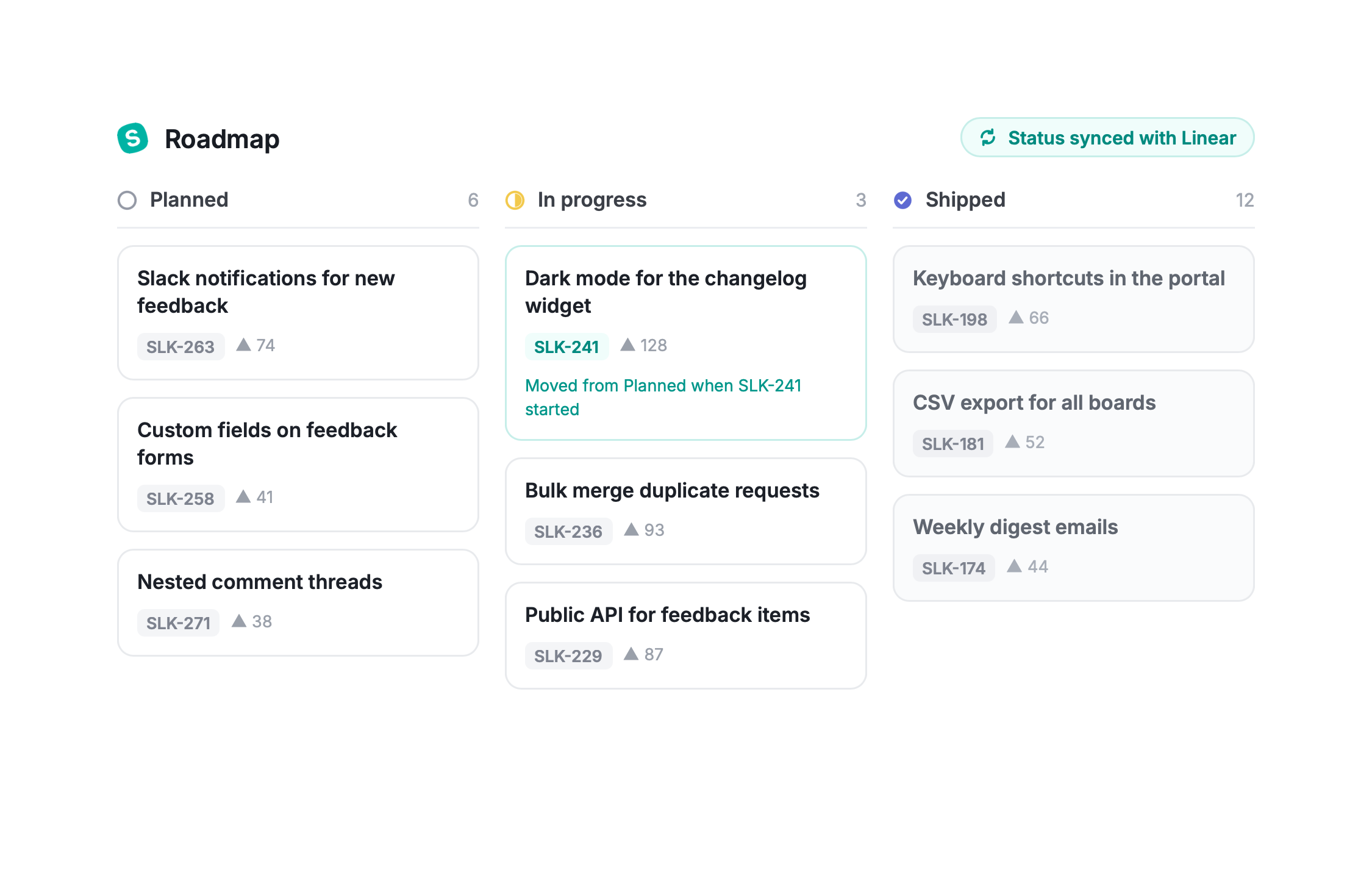
Statuses stay in sync in both directions. In the integration settings, you map each Linear workflow state, per team, to one of your Sleekplan statuses. When a linked issue moves through your Linear workflow, the feedback post updates to the mapped status, and when a post’s status changes in Sleekplan, the linked issue moves to the matching state in Linear.
Because status changes in Sleekplan notify the customers following a post, shipping work in Linear closes the loop automatically: an issue moving to Done can move the post to Released and let every voter know. States you leave unmapped are ignored, so internal workflow steps stay internal, and unlinking an issue from a post never deletes anything in Linear.
Configure
Connecting Linear takes a couple of minutes and is done from Sleekplan. You need to be an owner or admin of the Sleekplan workspace and have a Linear account with access to at least one team.
In Sleekplan, go to Settings → Integrations, find Linear and click Connect. A Linear authorization window opens; choose the workspace you want to connect and approve access. After you’re redirected back, Linear appears as connected.
To enable status sync, click Manage on the Linear integration. Sleekplan lists the workflow states of every team in your connected workspace; map each state to a Sleekplan status, or leave it on None to exclude it from syncing. You can disconnect from the same screen at any time. Full setup guide can be found here.