- Integrations
- Plandeck
Cross-team critical path from your Linear issues
Overview
Plandeck turns your Linear projects into a cross-team schedule with a real critical path. Issues, cycles, and blocking relations sync in read-only, and every status change lands as a proposal you review before the plan moves.
How it works
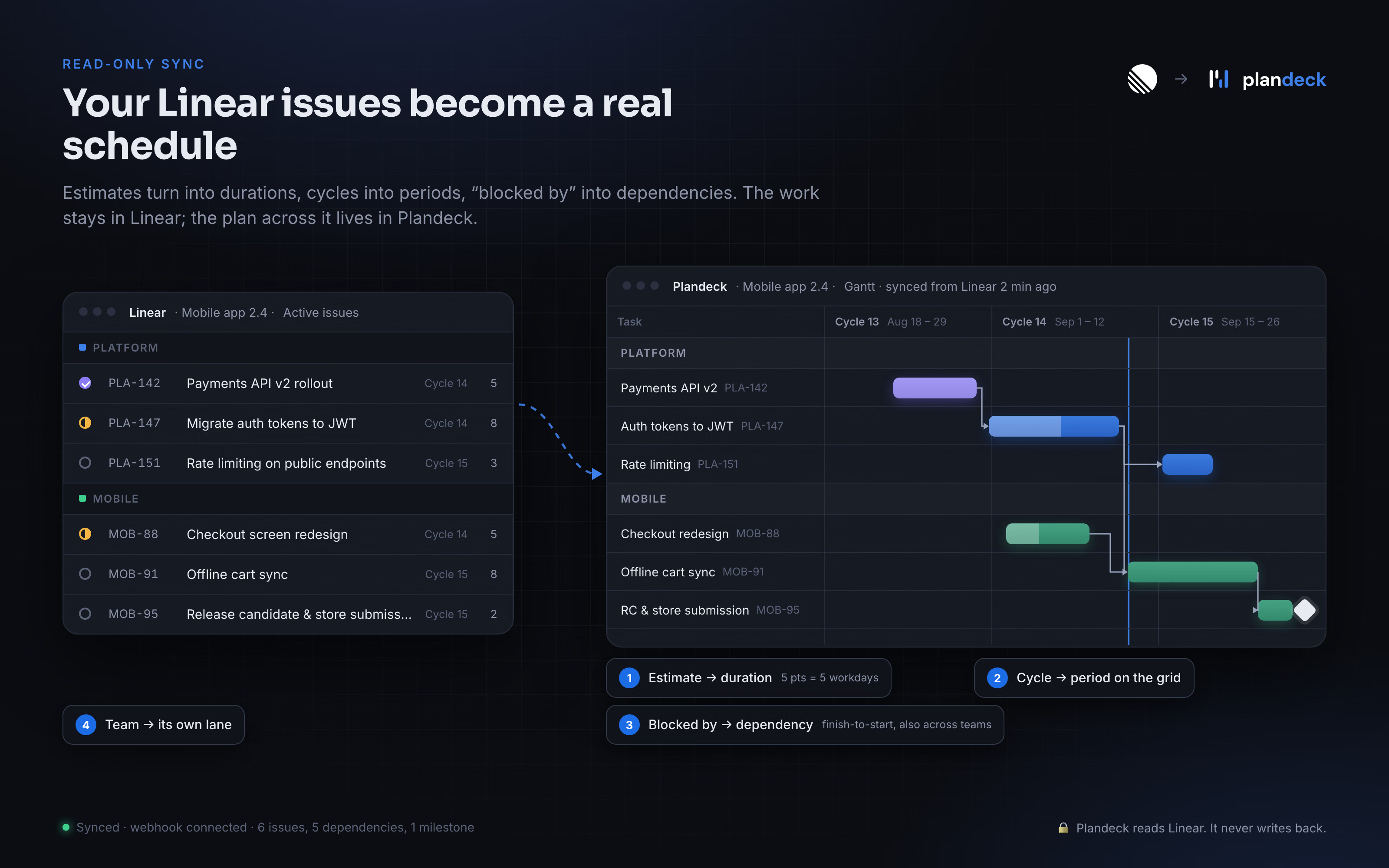
Connect Plandeck to Linear with an API key, choose a Linear project, and Plandeck imports it into a schedule. Issues become tasks, parent issues with sub-issues become groups, and blocking relations become finish-to-start dependencies. Teams map to swimlanes and cycles to a sprint grid, so the same work can be viewed as a Gantt chart or per team. Estimates set task durations using a points-to-days factor you control, due dates set end dates, project milestones become milestones, and issue states set initial progress. Before anything is written, Plandeck shows a preview of what will be created so you can adjust the mapping first.
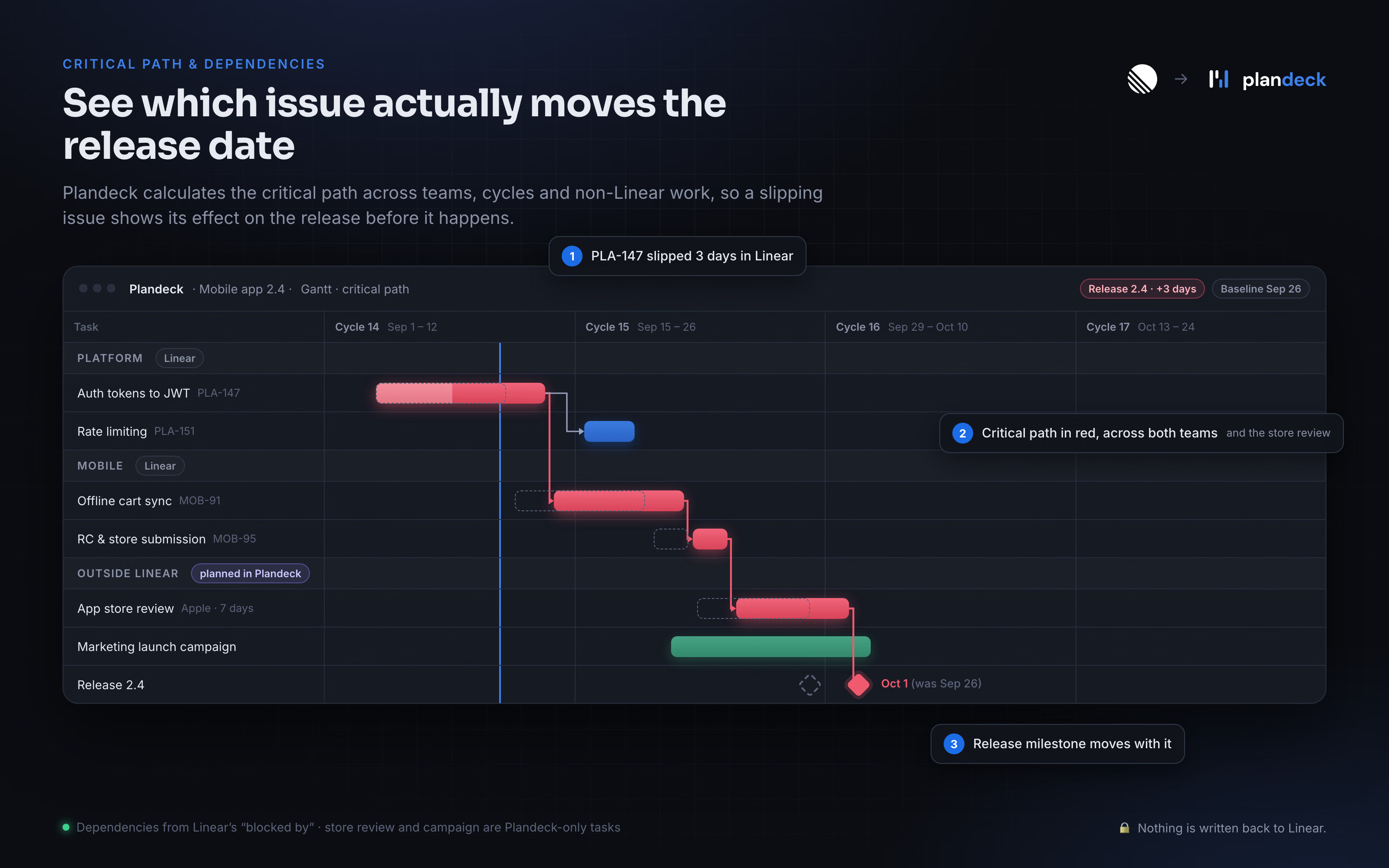
Once linked, Plandeck computes the critical path across all teams in the project and highlights where one team’s work is waiting on another. You can re-sync at any time: issues that changed in Linear are updated, issues that disappeared are flagged rather than deleted, and dates you have adjusted by hand in Plandeck are left alone. Every task keeps a link back to its Linear issue, and the sync is strictly one-way. Plandeck never writes to Linear, so your issues, states, and cycles remain exactly as your team manages them.
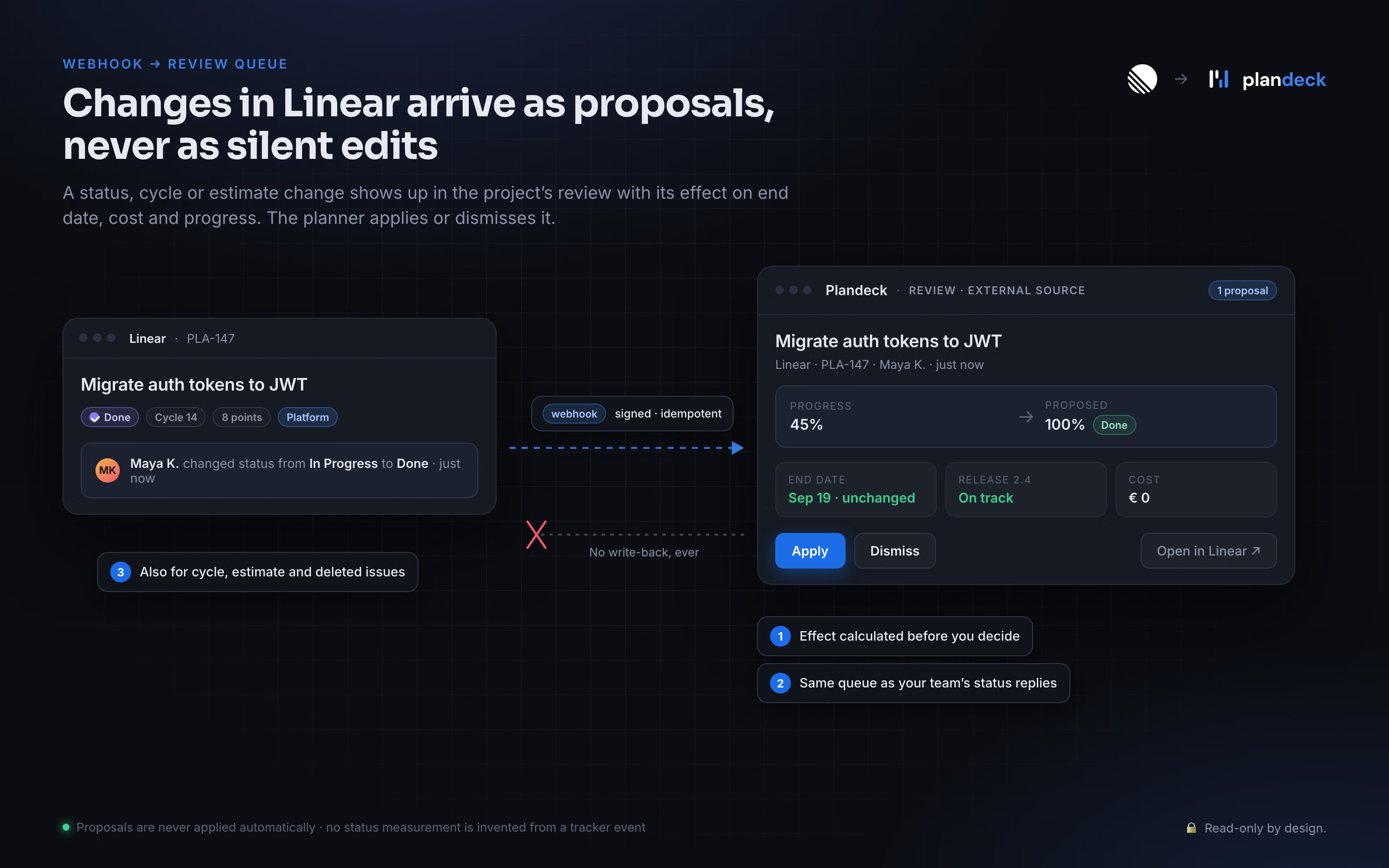
Status changes in Linear arrive through a webhook as proposals in Plandeck’s review queue, not as automatic edits. When an issue is completed, moved to another cycle, or re-estimated, the proposal shows what applying it would do to the end date, remaining work, and cost before you accept or dismiss it. This keeps the schedule current without letting a single ticket change silently move a delivery date, and it works alongside Plandeck’s other progress channels, so teams outside Linear can report on the same plan.
Configure
You need an owner or planner role in your Plandeck organization, on a plan that includes integrations. On the Linear side you need two things: a personal API key, which any workspace member can create, and a webhook, which requires a Linear workspace admin. The API key inherits the read access of the member who created it, so create it as a member who can see the projects you want to sync.
In Linear, create a personal API key under Settings > Security & access > API keys and copy it; Linear only shows the key once. In Plandeck, go to Settings > Integrations > External sources, choose Add source > Linear, give it a label, paste the key, and press Test. Plandeck confirms which Linear user the key belongs to, then displays a webhook URL and a signing secret for this source.
As a Linear workspace admin, go to Settings > API > Webhooks and create a webhook with that URL and secret. Enable the Issues, Cycles, and Projects resource types, and select the teams you want to sync, or all public teams.
Back in Plandeck, open the project you want to plan in, choose Import > Linear (sync), pick the Linear project, and set the mapping: which teams map to which lanes, whether cycles map to the sprint grid, and the points-to-days factor for estimates. Review the preview and confirm. Plandeck fetches the project and computes the schedule. From then on, status changes in Linear arrive as proposals in the project’s review queue, and you can re-sync manually at any time from the project menu.
For lanes and a sprint grid to appear, the Plandeck project should use the Team and Sprint presets under project settings; without them, teams are imported as categories and cycles are ignored. To stop syncing, remove the source in Plandeck. The imported tasks stay in your plan and nothing is changed in Linear.