- Integrations
- Lucidlane
Give every client a branded portal for their Linear requests
Overview
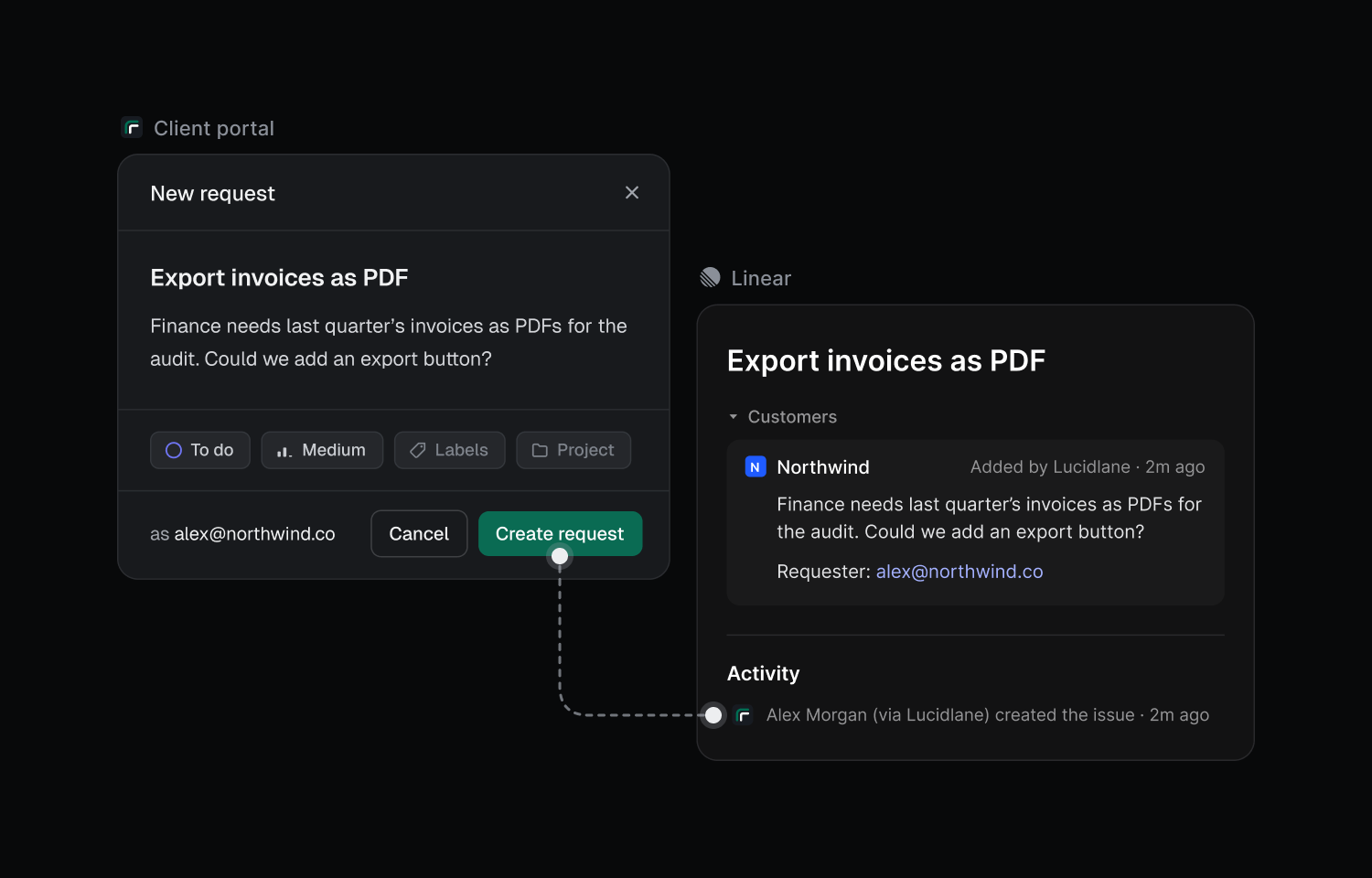
Lucidlane gives each of your clients a portal for their Linear work. Clients send requests, follow live status, and reply to your team, and every request and comment lands in Linear linked to the right Customer. Your team stays in Linear, and your clients don’t need a Linear account.
How it works
Connect your Linear workspace once and Lucidlane creates a portal for each Linear Customer. Each portal runs on a Lucidlane subdomain or your own domain with your client’s logo and color, and you choose which projects and statuses clients can see.
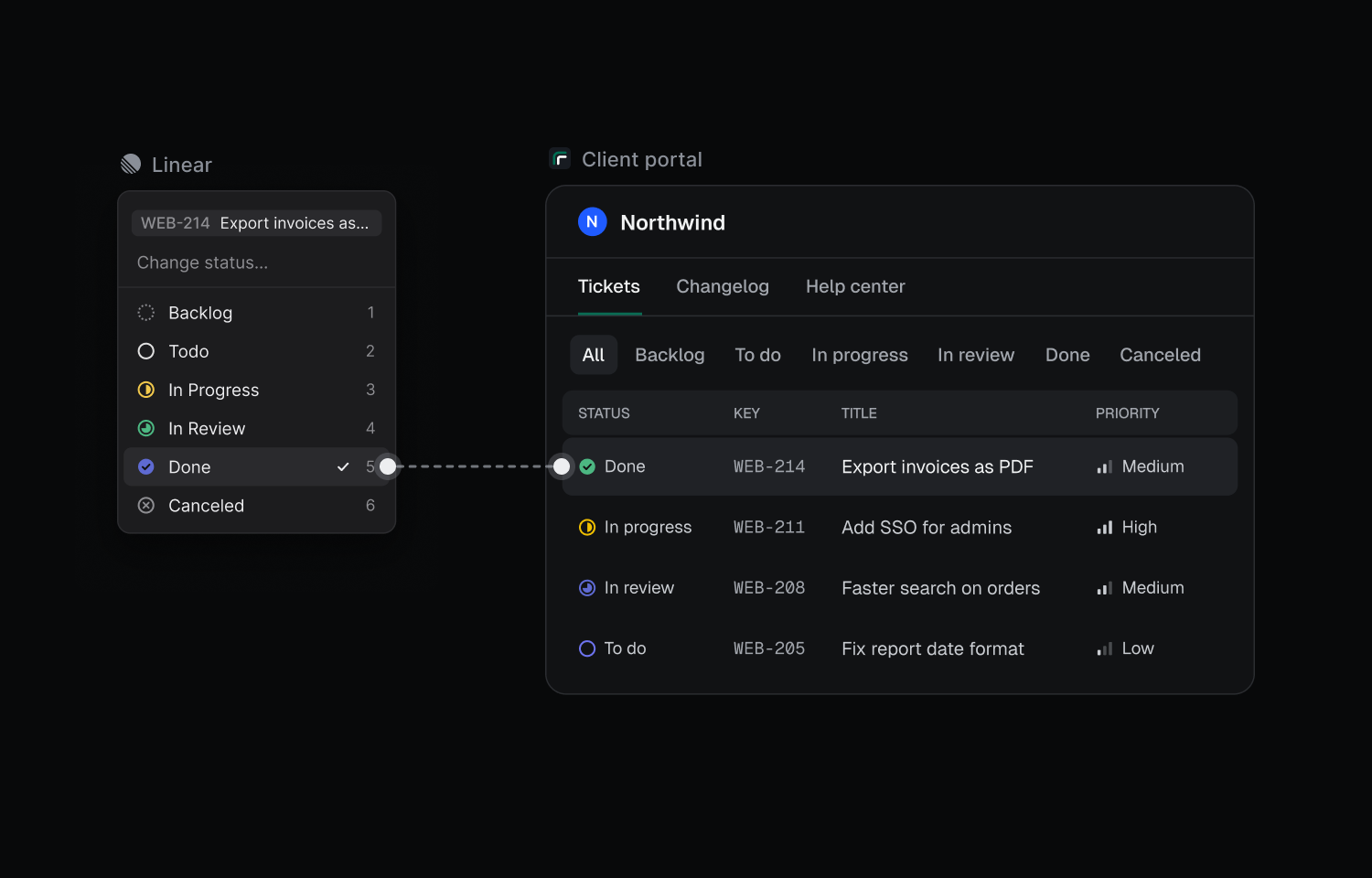
When a client sends a request, Lucidlane creates a Linear issue linked to their Customer and routed to your triage. Status changes in Linear show up in the portal right away, and portal roadmaps are built from your Linear initiatives.
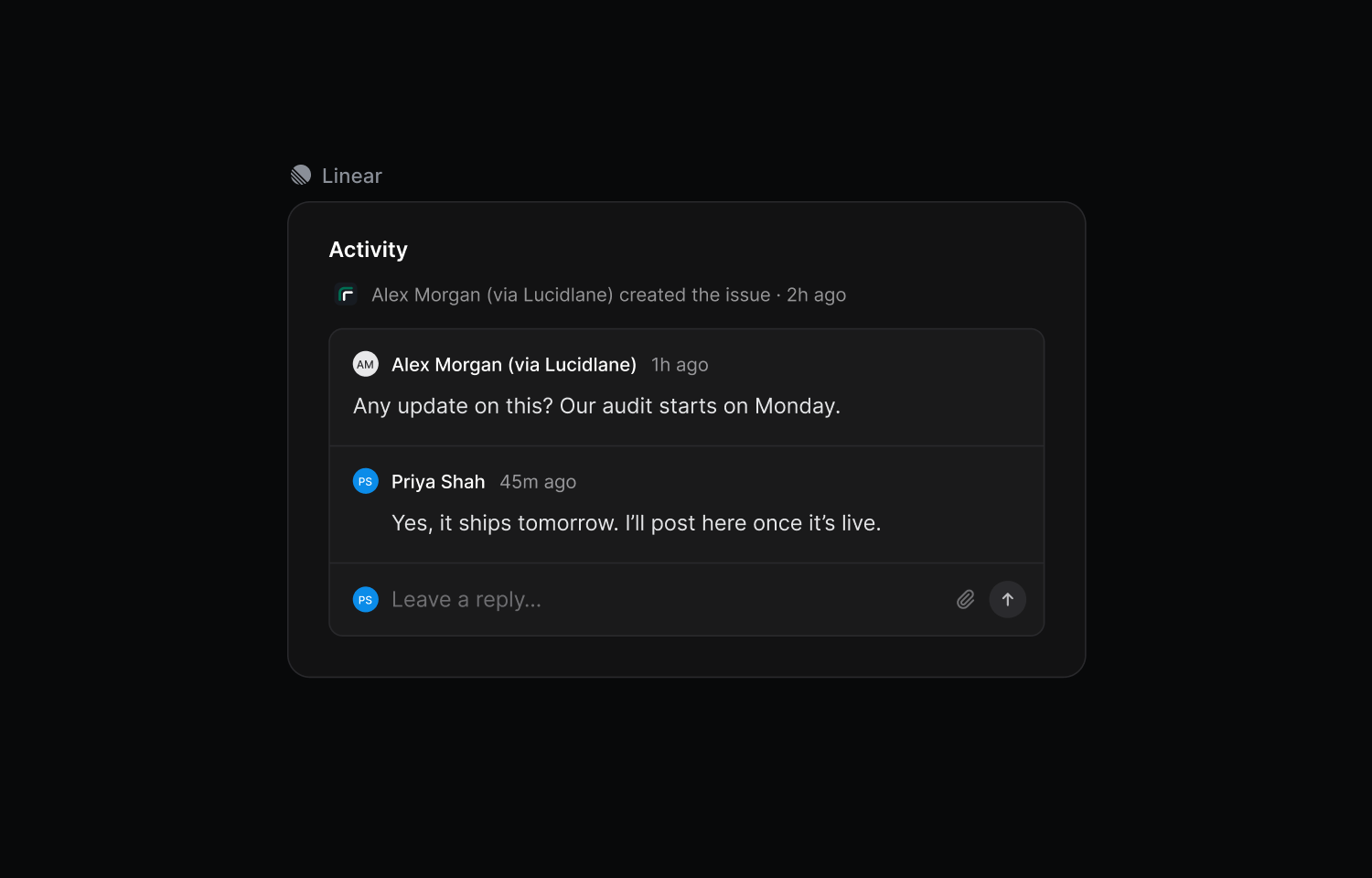
Comments sync both ways. A client’s reply is posted on the issue as “Name (via Lucidlane)”, and your team’s replies in Linear appear in the portal. Lucidlane is installed as a Linear app, so the connection doesn’t depend on any one person’s account.
Configure
You need a Lucidlane account with the admin role, and a Linear workspace admin has to approve the connection because Lucidlane is installed as an app.
- Sign in to the Lucidlane console, open Settings → Integrations, and press Connect on the Linear card. You can also go straight to console.lucidlane.app/connect/linear.
- Approve Lucidlane in Linear. You are then sent back to the Lucidlane console.
- Lucidlane creates an unpublished portal for each Linear Customer. Review each portal’s visibility settings to choose which projects and statuses that client can see.
- Publish the portal and invite your client.