- Integrations
- Deviera
Automatically turn engineering signals into Linear issues
Overview
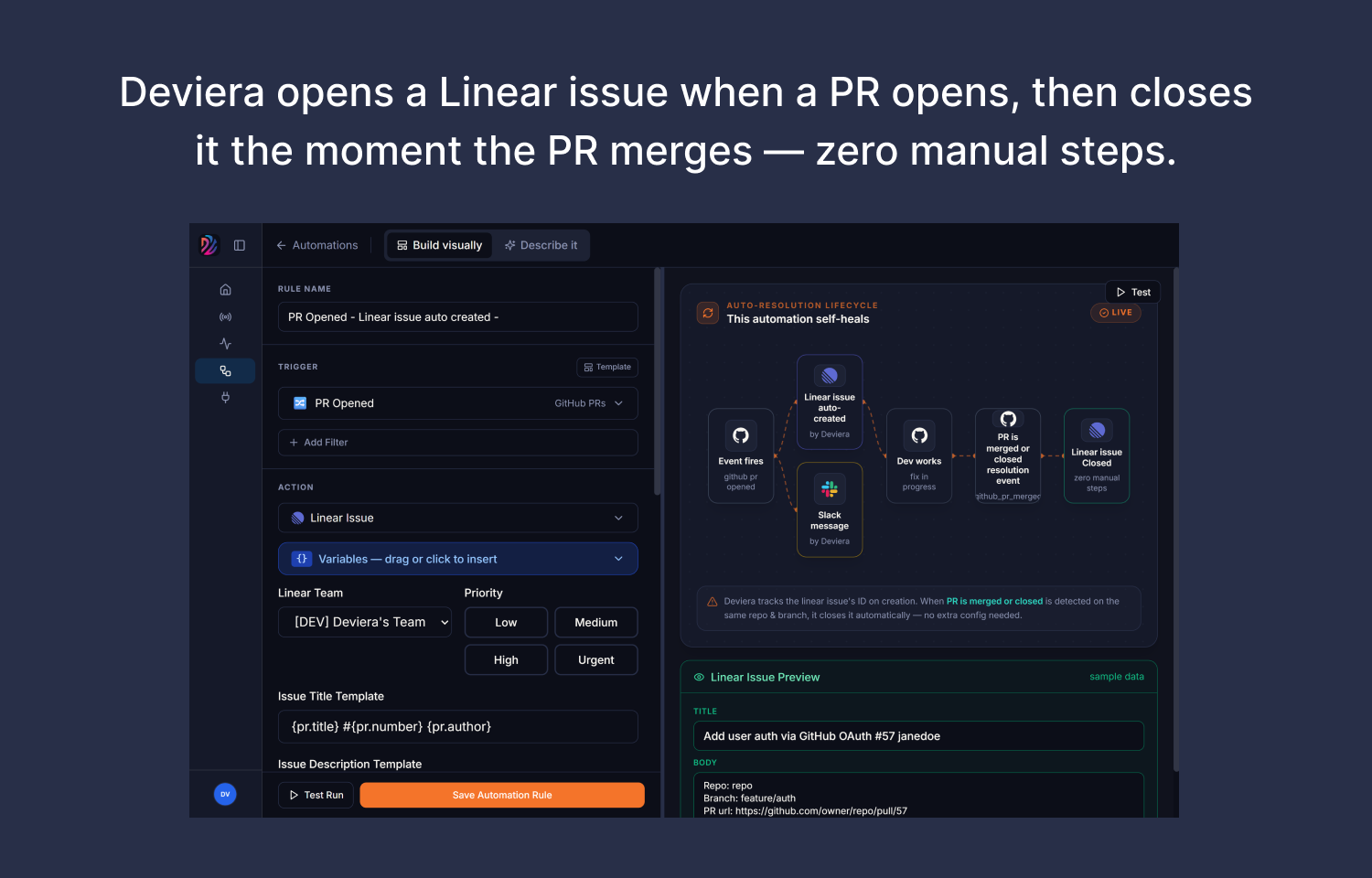
Deviera watches your GitHub and GitLab activity and creates Linear issues the moment something needs attention — a failing CI pipeline, a pull request that’s gone stale, or a spike in production errors. When the underlying problem is resolved, Deviera marks the matching Linear issue as done automatically, so your board reflects reality without manual triage.
How it works
Deviera connects to Linear through OAuth and runs your engineering signals through an automation engine. When a trigger fires — a CI failure, a pull request sitting too long without review, a Sentry error alert, or one of many other repository events — Deviera creates a Linear issue in the team you choose, with a title and description summarizing the problem. You control how each issue is filed: pick the target team, set a priority, apply labels, and optionally assign it to a teammate, all from Deviera’s automation builder.
The integration is two-way where it counts. Once an issue has been created from a signal, Deviera keeps tracking that signal, and when the condition clears — CI goes green again, the stalled PR merges, the error stops firing — it updates the corresponding Linear issue to a completed state. This auto-resolution keeps your Linear board honest, so it shows genuinely open work rather than a backlog of stale, already-fixed items. Deviera also deduplicates, so a flapping pipeline won’t bury your team under repeat issues for the same underlying problem.
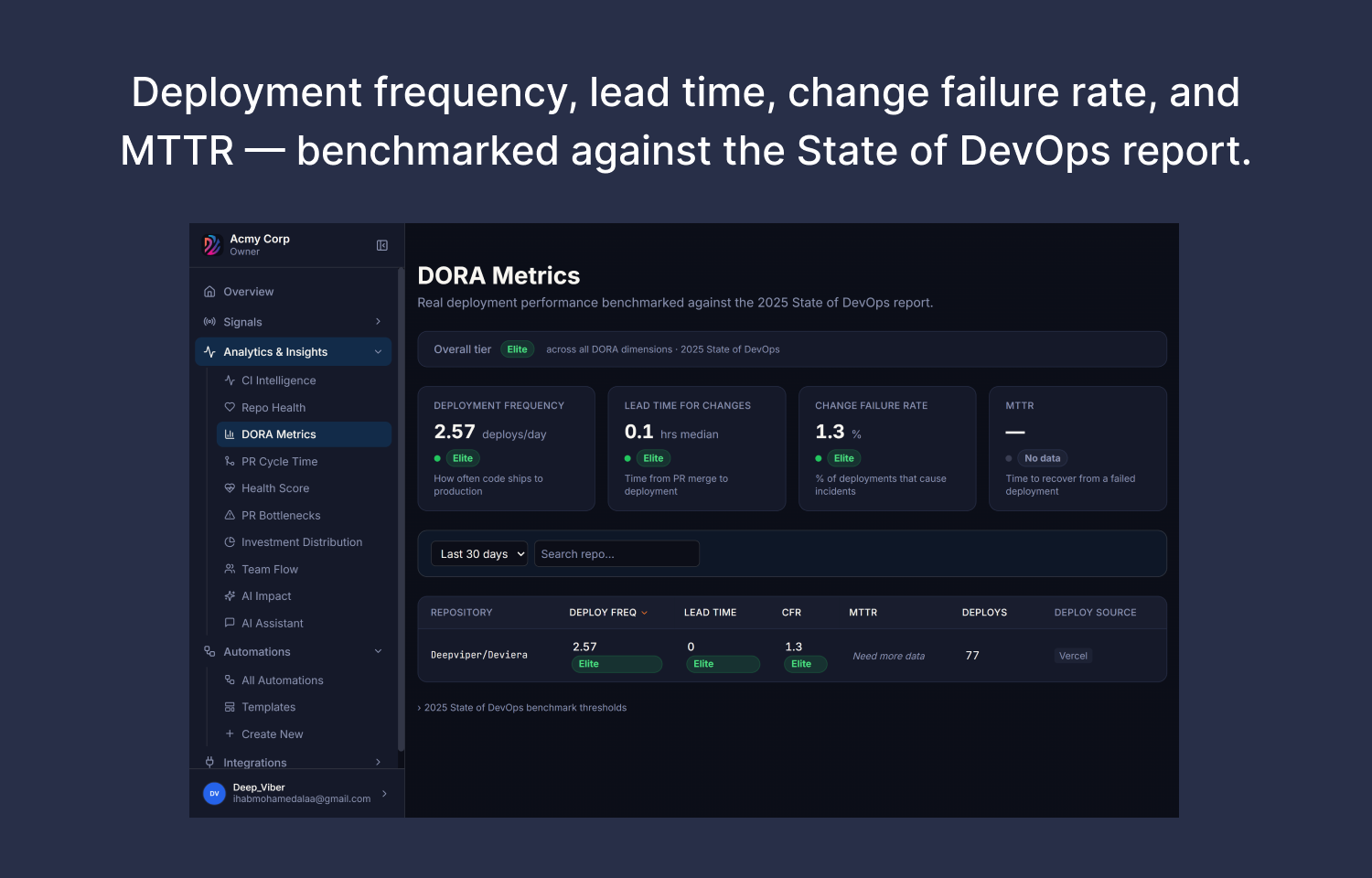
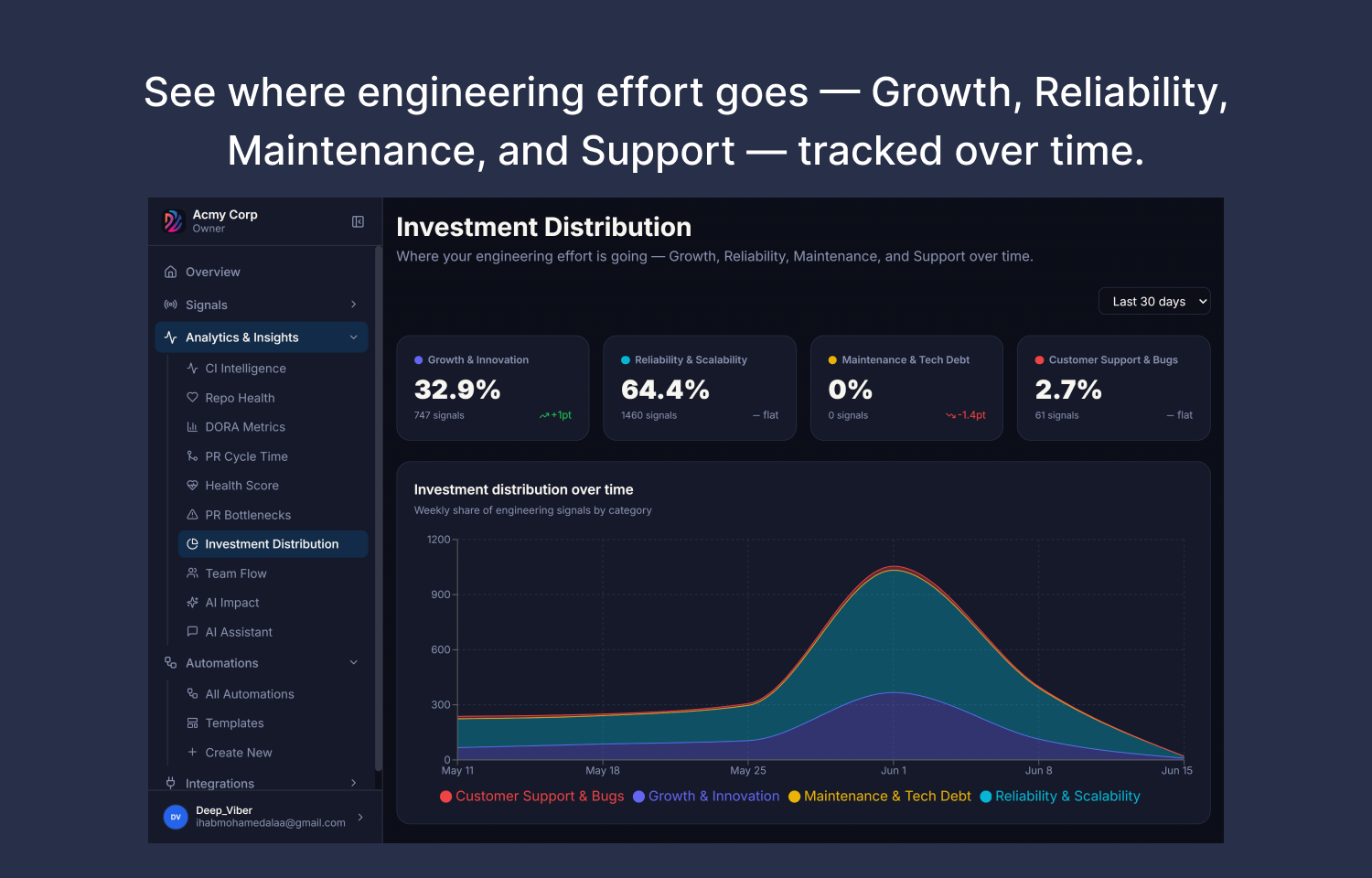
Everything is configured per automation, giving you fine-grained control over which signals reach Linear and how. You can route critical production errors to one team as urgent issues while sending stale-PR reminders to another team at low priority. Because Deviera connects your source control, CI, and error tracking in one place, Linear becomes the single destination where engineering problems land, get triaged, and get closed — with most of that lifecycle handled automatically.
Configure
Connecting Linear takes a minute and requires a Deviera account on any plan (Linear is available on the free tier and up). In Deviera, go to Settings → Integrations and click Connect Linear. You’ll be sent to Linear to authorize the connection — you must be able to grant access to the Linear workspace you want issues created in, so a workspace admin should typically perform the initial connection. After authorizing, Deviera reads the teams and labels available in your workspace.
From there, open or create an automation in Deviera’s automation builder, add a Create Linear issue action, and choose the target team, priority, labels, and (optionally) an assignee. Save the automation and it goes live immediately. You can disconnect Linear at any time from the same Integrations page, which removes Deviera’s access and cleans up its webhooks in your Linear workspace.
You might be interested in
- Create Linear issues from incidents reported from your website's monitoring and observability stack
 All QuietBy All Quiet
 - Make code reviews easier by syncing your pull request channels with your Linear issues
 AxoloBy Axolo
 - Speed up your bug reporting workflow with Bird Eats Bug
 Bird Eats BugBy Bird Eats Bug