- Integrations
- BugScreen
Turn mobile screenshots into Linear issues with application logs and device details attached
Overview
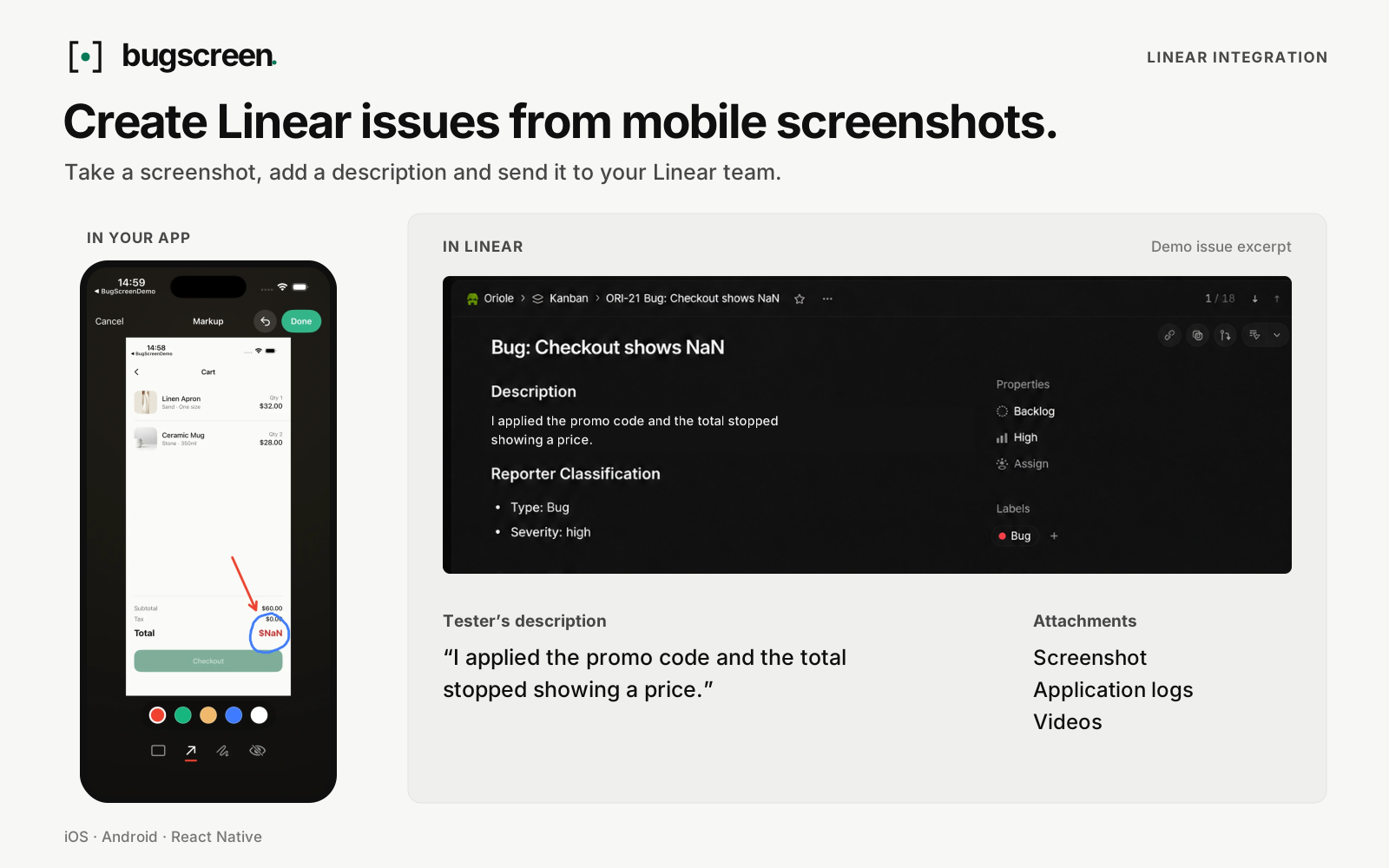
Take a screenshot in your app, add a description, and send the report straight to Linear.
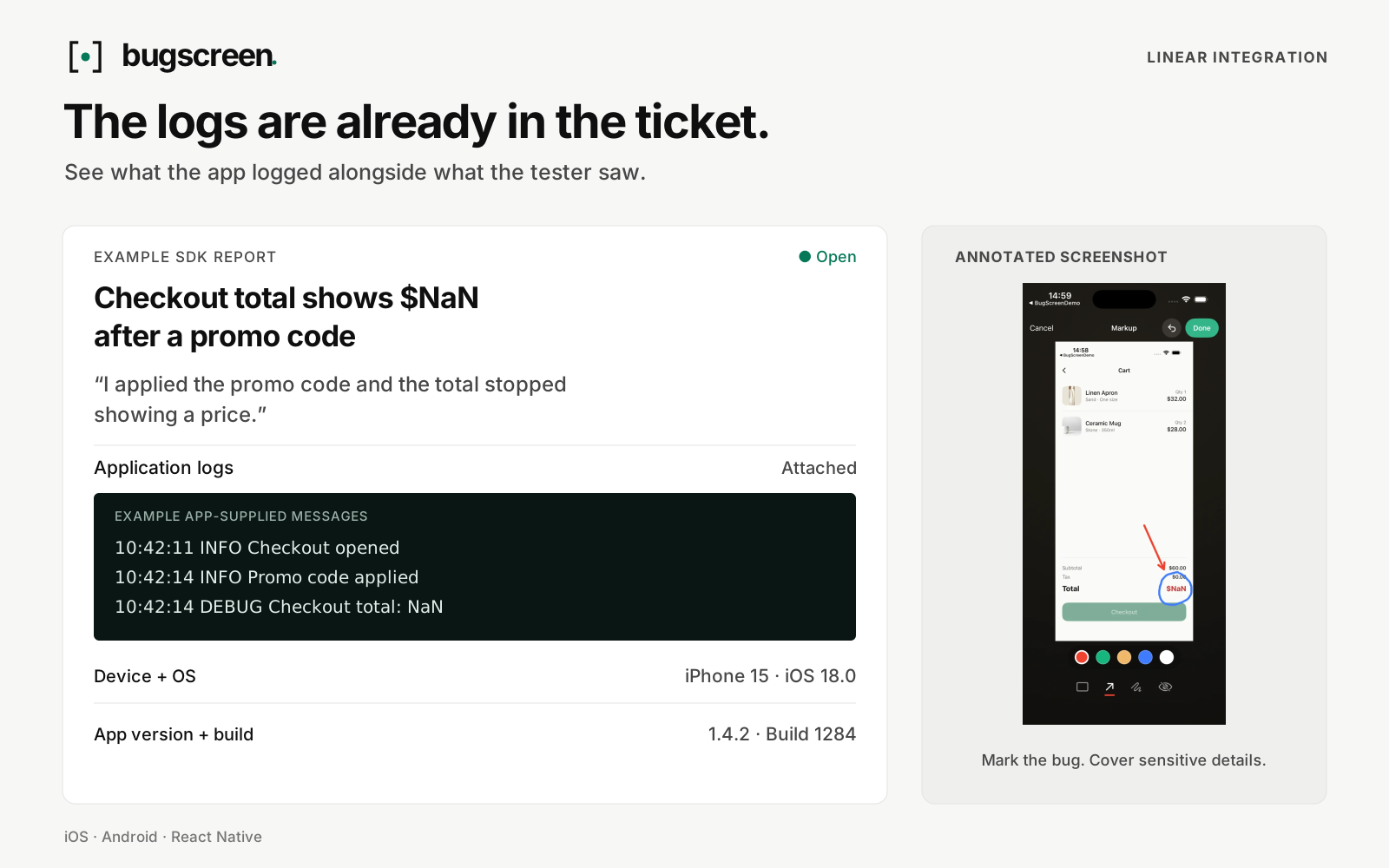
BugScreen’s SDK attaches the application logs, the app version, and the device details, so the issue arrives with the context a developer needs to reproduce the problem.
How it works
Install the BugScreen SDK in your iOS, Android, or React Native app. Testers take a screenshot to open the reporter, add a description, and mark up or redact the image before sending it. The SDK attaches application logs, the app version, and device details. A BugScreen companion app lets testers send screenshots and device details without adding the SDK to your app at all.
Each report becomes an issue in the Linear team you choose. Screenshots appear inline in the issue description alongside the report text and the device and app details, and application logs are linked when attached. Issues are created by the BugScreen app and land in Triage, or in the team’s first backlog state if Triage is switched off.
Report severity maps onto Linear’s priority field: high becomes High, medium becomes Medium, and low becomes Low. Urgent is left free for your team to set by hand. BugScreen also applies an existing Linear label when its name matches the report type, such as bug, ui, or crash. It never creates or renames labels. Connect Linear more than once if you want reports to reach several teams.
Configure
You need to be a BugScreen organization admin and able to authorize applications in your Linear workspace.
In the BugScreen console at bugscreen.app/apps, open your app and find Connected destinations. Open the Add integration menu and choose Linear, then authorize BugScreen in Linear and choose which teams it can access. Back in BugScreen, select the team reports should be filed into and confirm.
After connecting, select Test integrations to create a sample issue and confirm everything works end to end. The test issue is real and arrives without attachments, so you can delete it afterwards. See the BugScreen documentation for setup and troubleshooting details.