- Integrations
- Arkweaver
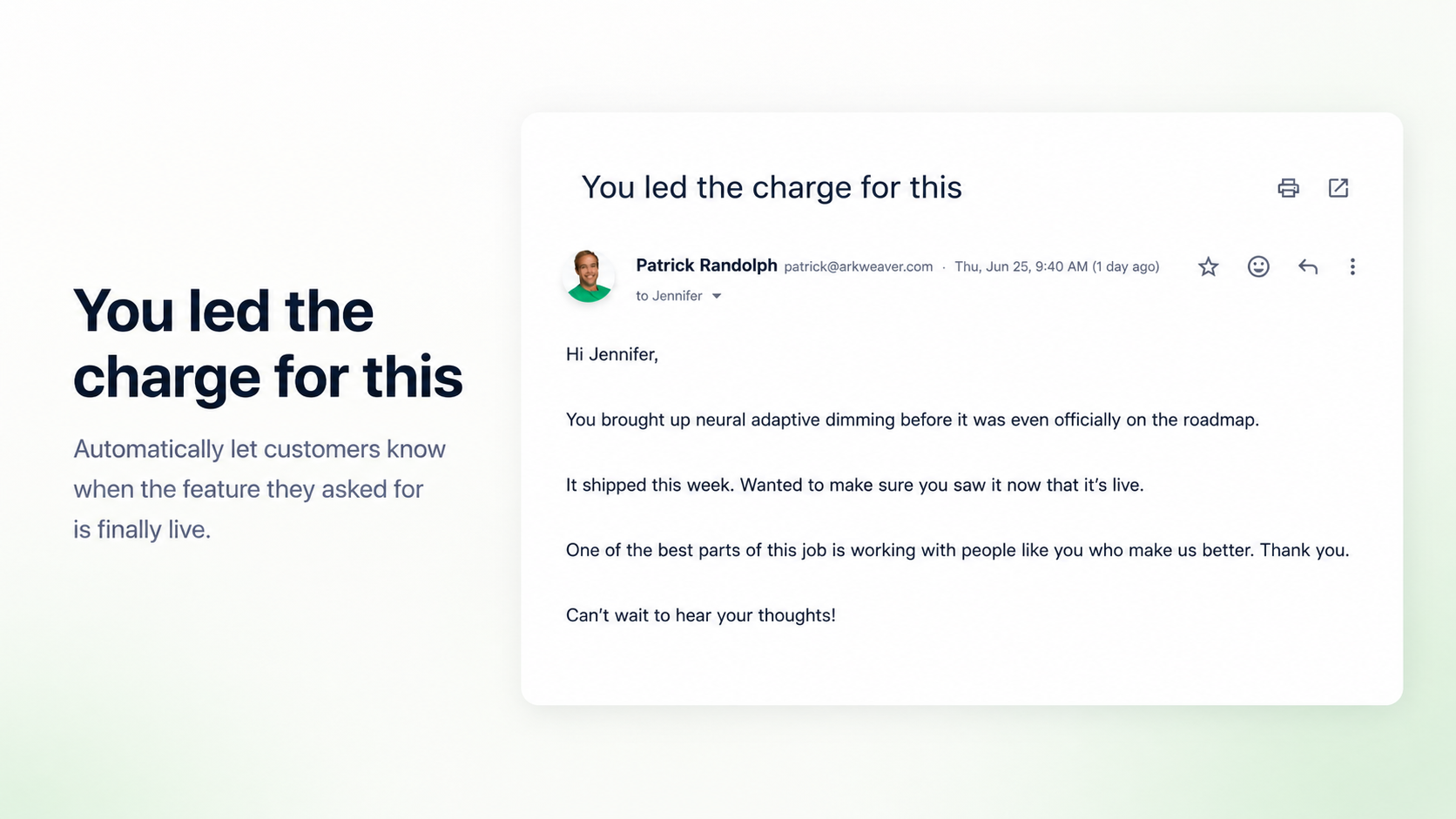
Automatically message the right customers and teammates when Linear Projects go live.
Overview
Building amazing features with Linear that your team and customers can’t keep up with? Finding that distribution is your new bottleneck to rapid growth? Arkweaver bridges the gap between product and revenue by automatically identifying who wants each feature — internally and externally — and notifying the right people the moment it ships.
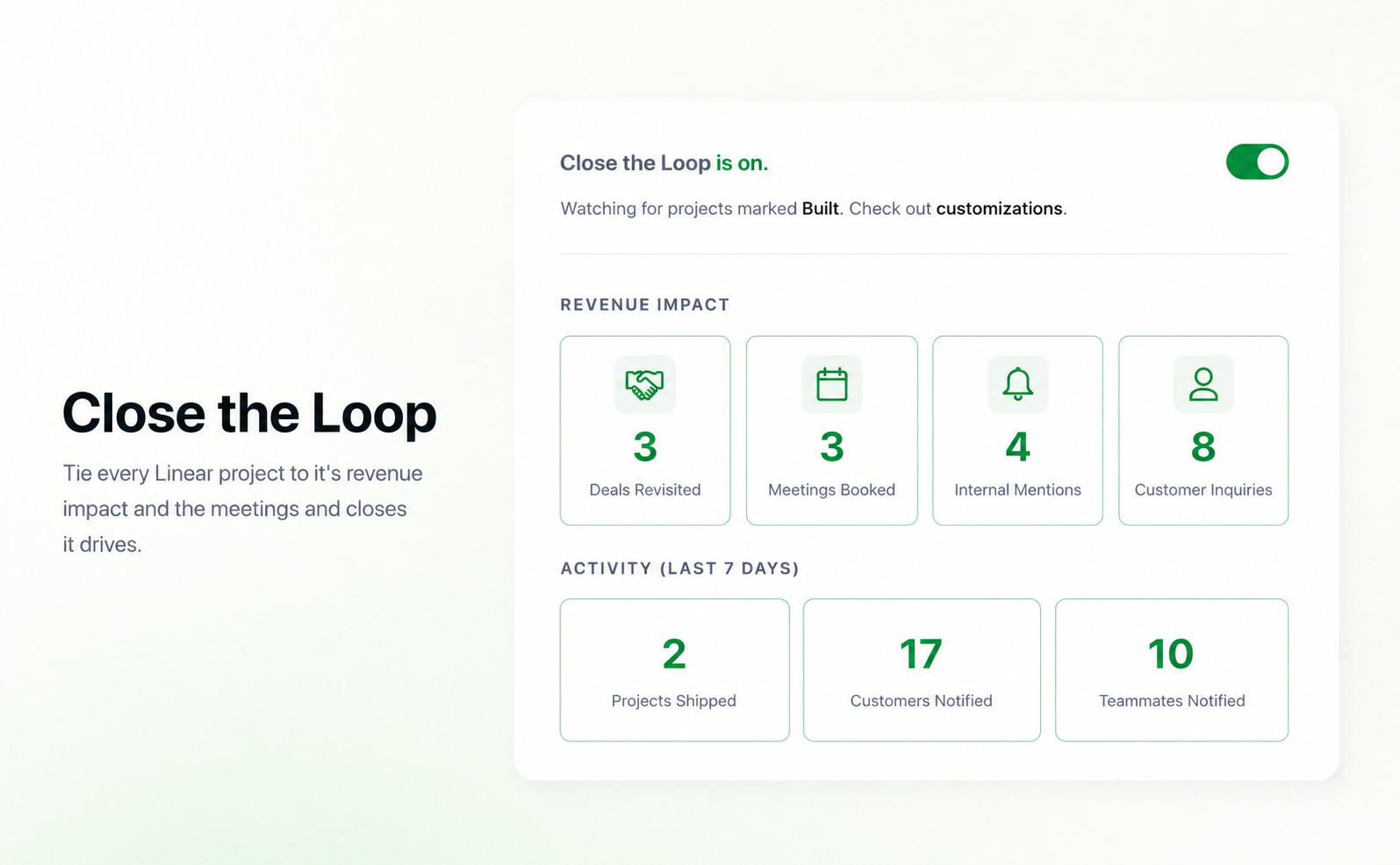
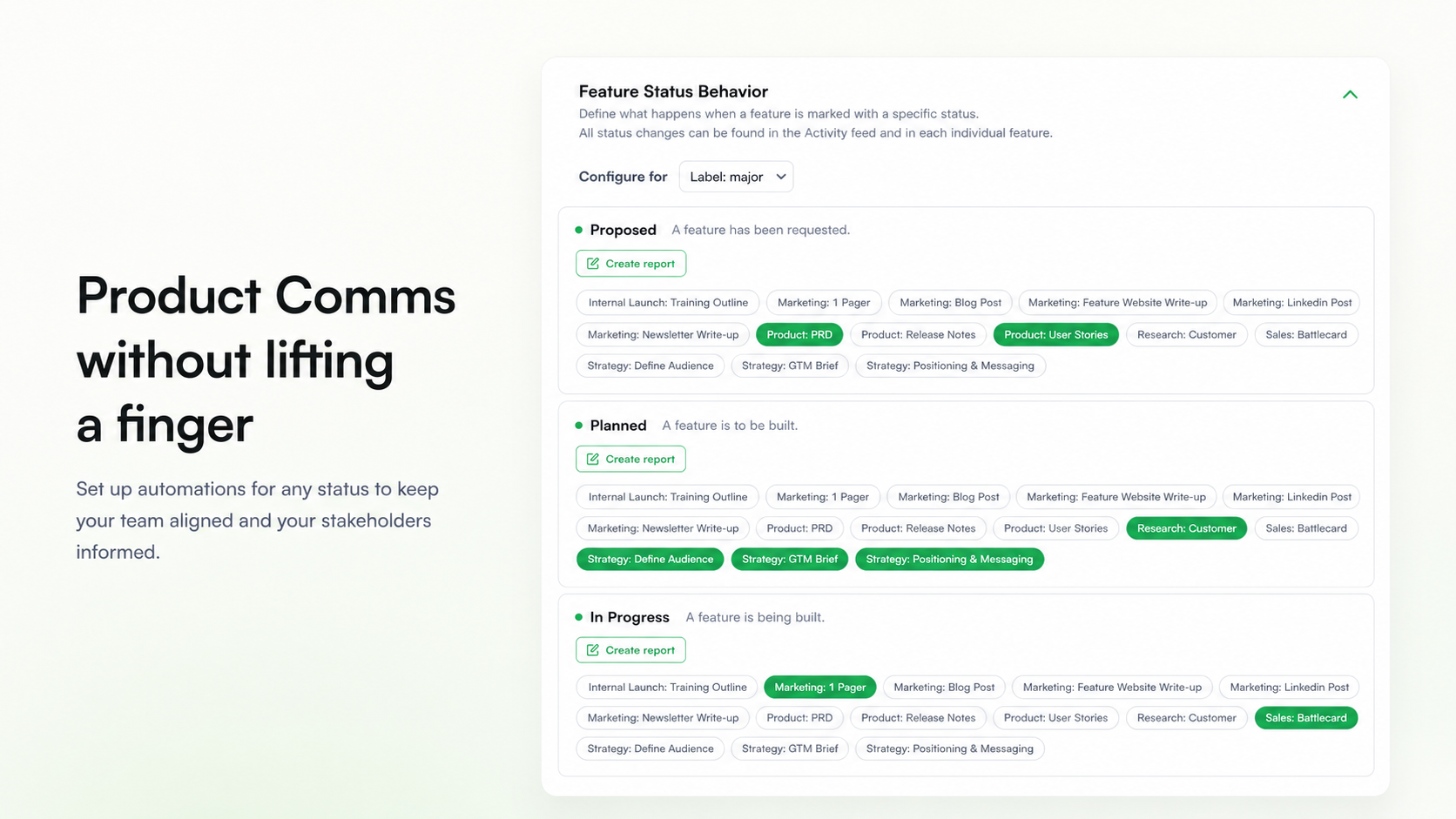
When a project changes status in Linear, Arkweaver communicates the right follow-up to every stakeholder who cares. Then it measures whether those feature launches led to upsells, reactivated deals, and new prospects closing.
How it works
Arkweaver syncs customer and prospect demand directly to Linear and back. It analyzes sales conversations to identify user problems and feature requests, then calculates the revenue value of building them. That demand is mapped to the right Linear projects so full context is attached throughout the work. Any features or problems not yet reflected can be added directly to your backlog in Linear.
As work moves through Linear, Arkweaver keeps teams, prospects, and customers connected. When a project changes status, Arkweaver sends the right follow-up to the people who care about that problem. Finally, it closes the loop by tracking feature launches against sales and account management conversations to surface what is actually moving the needle.
All fully autonomous, but configurable to fit your workflow. That way your GTM team sells and supports your work, and you can track whether that work turned into additional revenue.
Configuration
Connect Arkweaver to Linear in a few quick steps:
1. Create an Arkweaver account at arkweaver.com.
2. Go to Settings → Groups → [your group] → Integrations and add the Linear integration.
3. Click Connect Linear and approve access in Linear. Arkweaver requests read and write scope so it can create and update issues on your behalf.
4. Arkweaver pulls in Linear Projects and maps to customer demand and syncs context back to Linear.