- Integrations
- Spreo
Bring Linear issues onto a whiteboard for cycle planning and retros
Overview
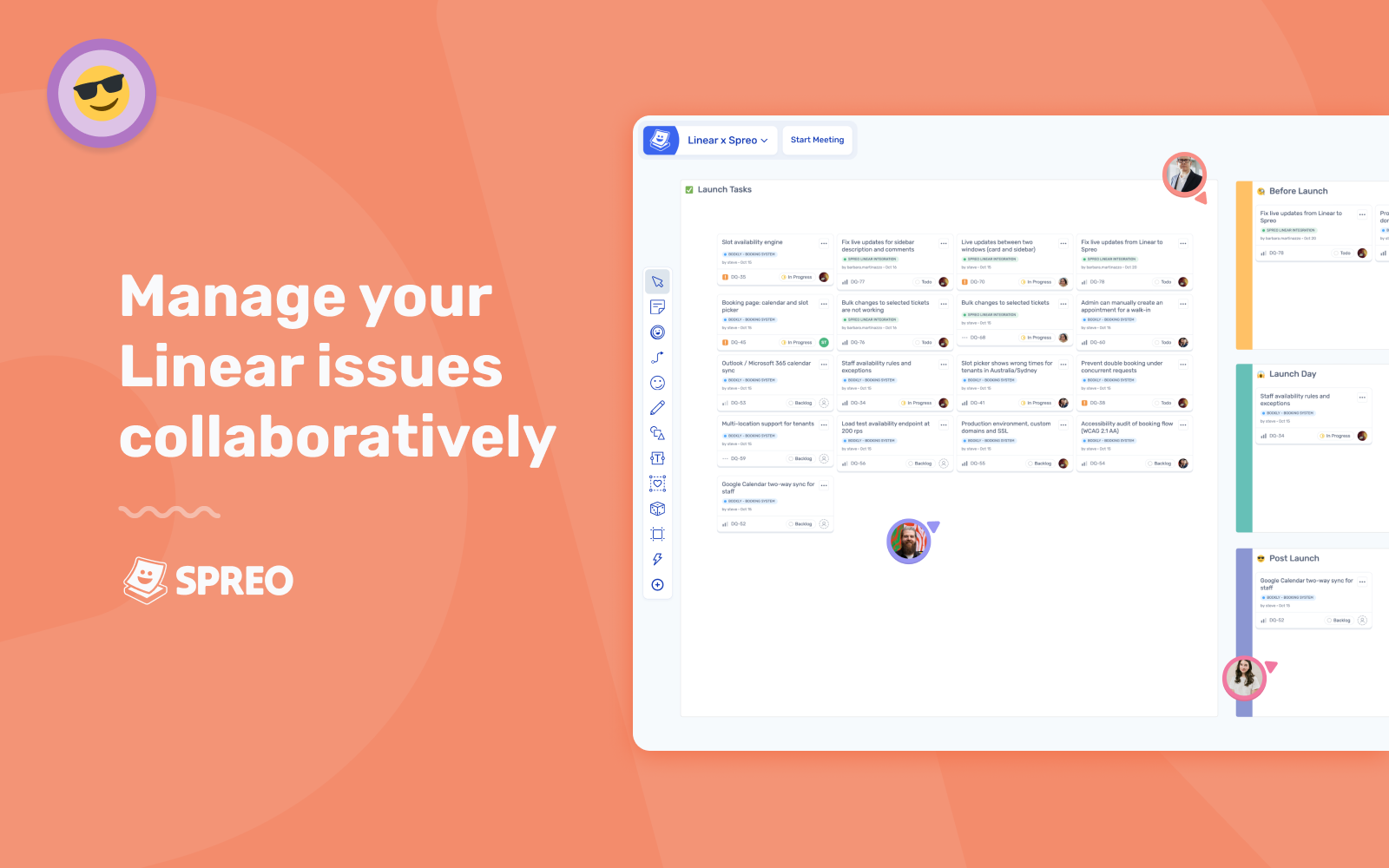
Spreo is an online whiteboard that brings agile teams together in realtime sessions. The Linear integration puts your issues on a board as live cards, so the whole team is looking at the same work while you plan a cycle, refine the backlog, estimate collaboratively, or run a retro. Edits made on the board are saved back to Linear right away.
How it works
Teams run their planning sessions, retros, and workshops on Spreo boards, starting from ready-made templates or their own custom boards. The Linear integration imports your issues to the board as editable cards, each showing the issue’s identifier, title, status, priority, assignee, and project.
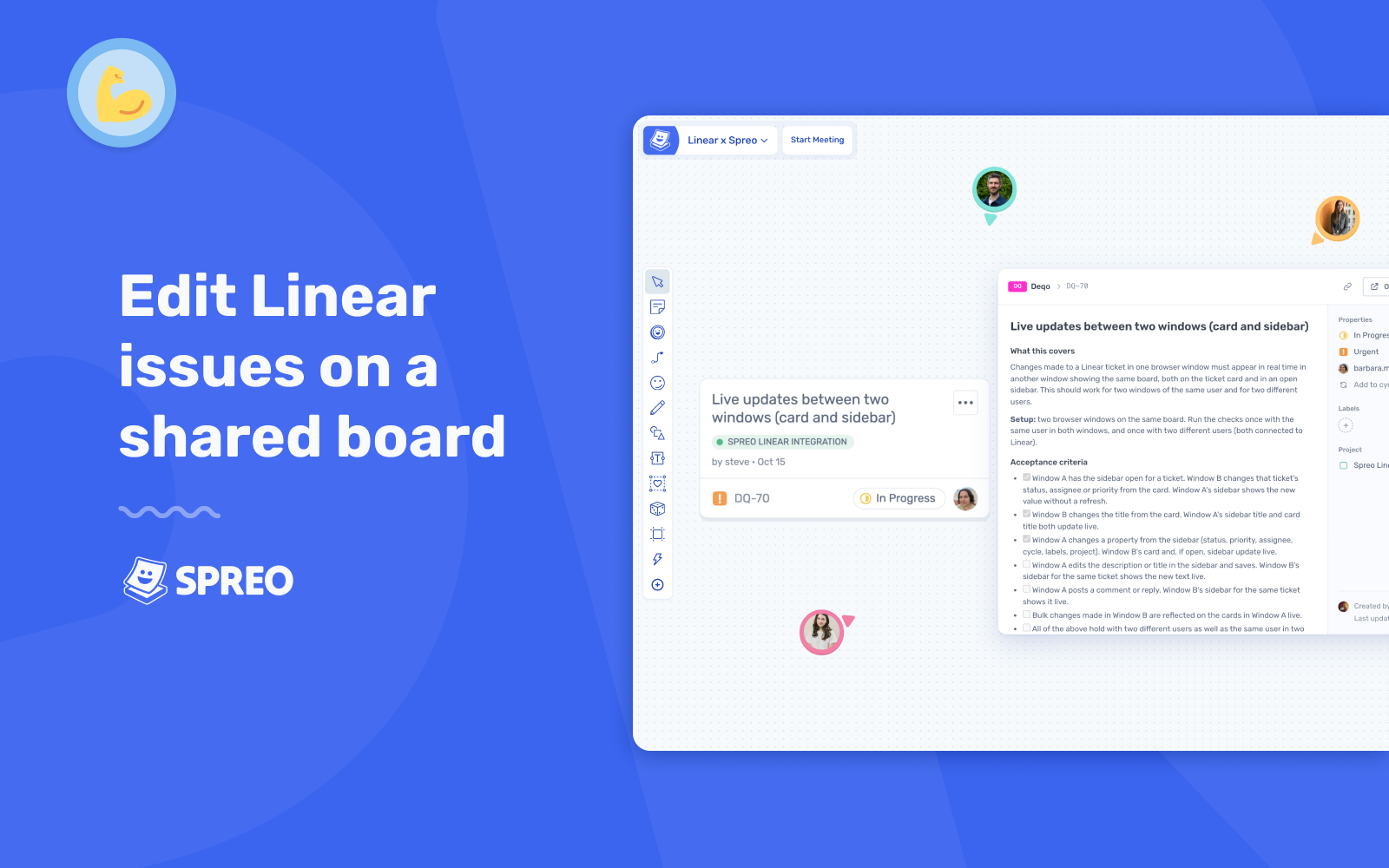
Cards can be moved, arranged, grouped, voted on, and annotated with Spreo’s whiteboarding tools. Double-click a card to change its title, status, priority, or assignee, or open the issue in a side panel to edit the description, read and reply to comments, and change the cycle, labels, or project. Select several cards and use Bulk Change to update assignee, priority, or status all at once.
Changes made in Spreo are saved to Linear straight away and are visible to everyone on the board, so there is no backlog cleanup after the meeting. Changes made in Linear appear when the board is opened or reloaded. Deleting a card removes it from the board without deleting the issue in Linear.
Configure
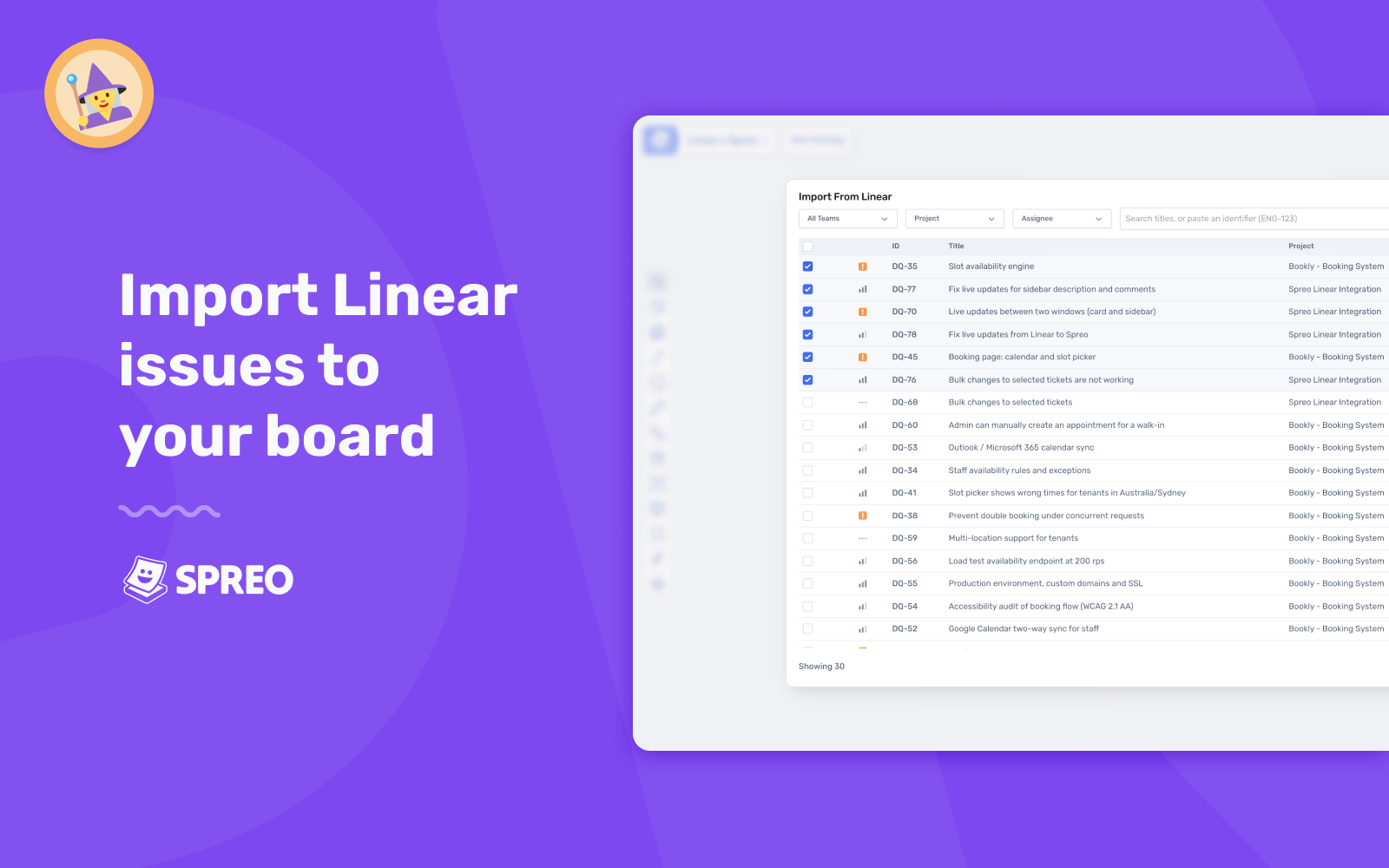
No admin setup is needed in Spreo: each person connects their own Linear account. On a board, open Insert in the toolbar and select Linear Issues, or connect ahead of time from Integrations in Your Settings. Sign in to Linear and authorize Spreo, which asks for read and write access so it can load your issues and save your edits. Then filter by team, project, assignee, or status, select the issues you want, and click Import. Each Spreo organization connects to one Linear workspace: the first person to connect sets it, and everyone else connects to the same workspace.