- Integrations
- SparrowDesk
Create and link Linear issues from SparrowDesk
Overview
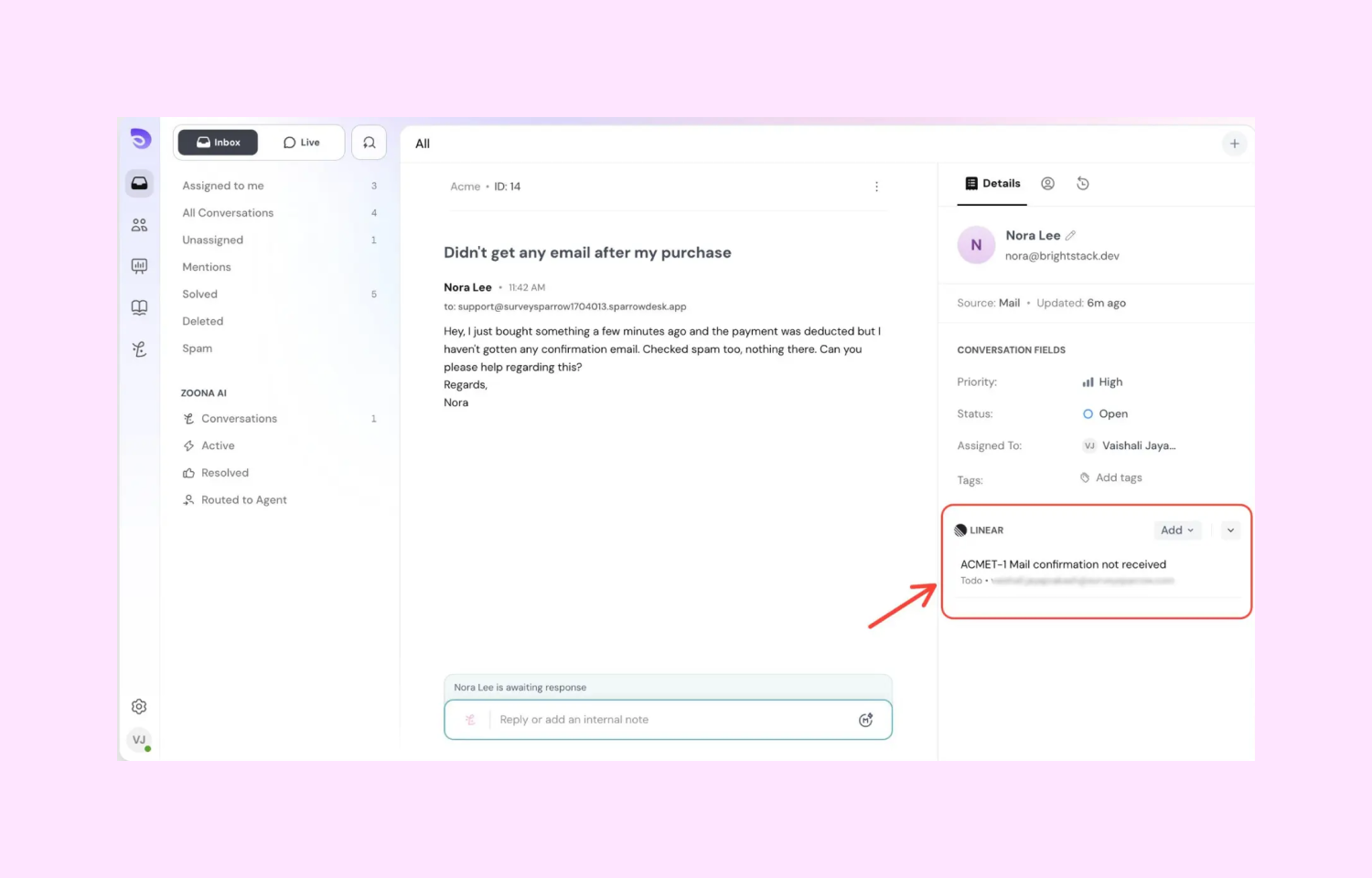
SparrowDesk’s Linear integration connects your support and engineering workflows so teams can collaborate without leaving their tools. Once connected, agents can link Linear projects to SparrowDesk and associate relevant work directly with customer conversations. This ensures that product work is always tied to real customer context, without the need to switch between systems or manually share updates.
How it works
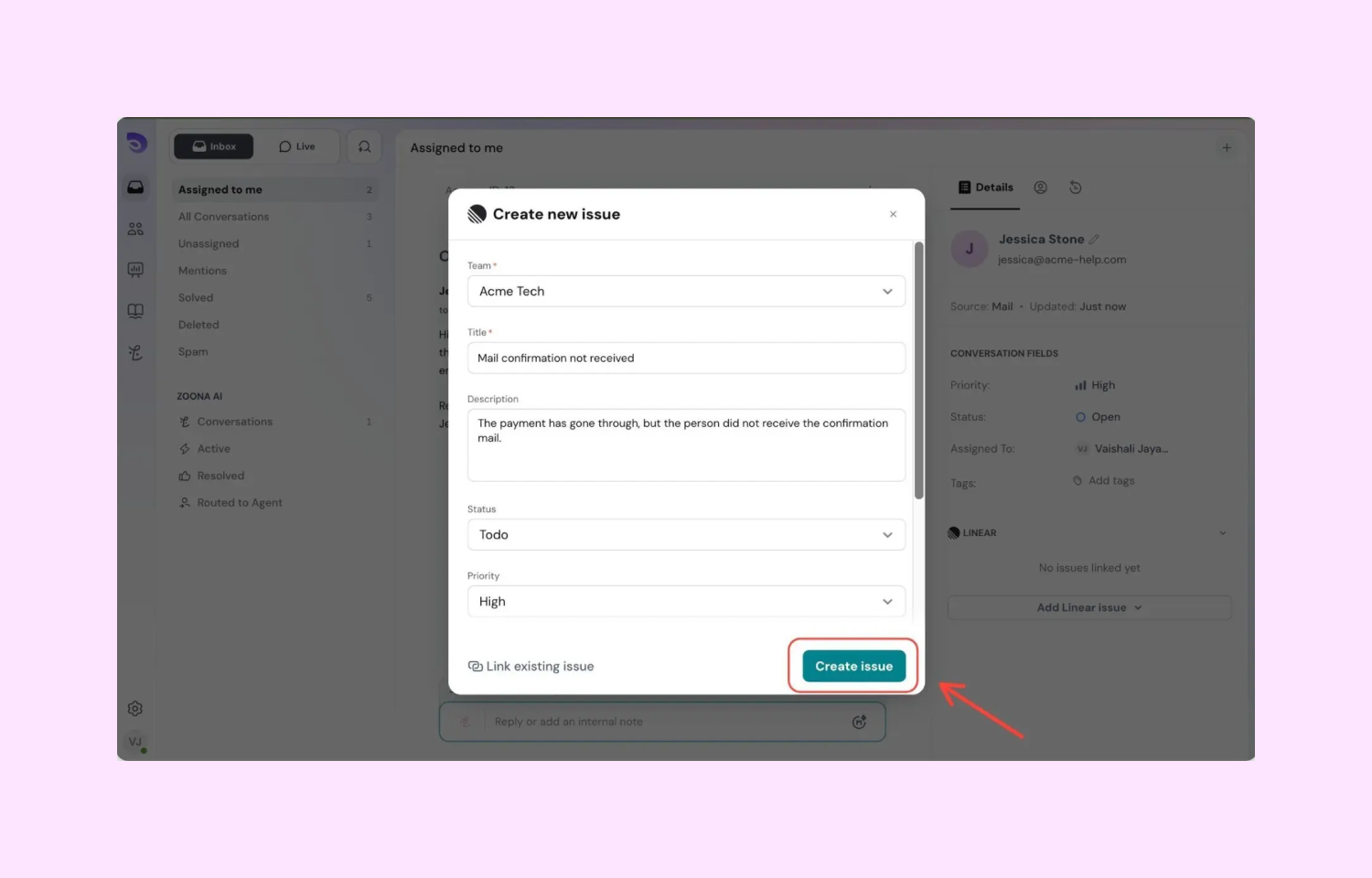
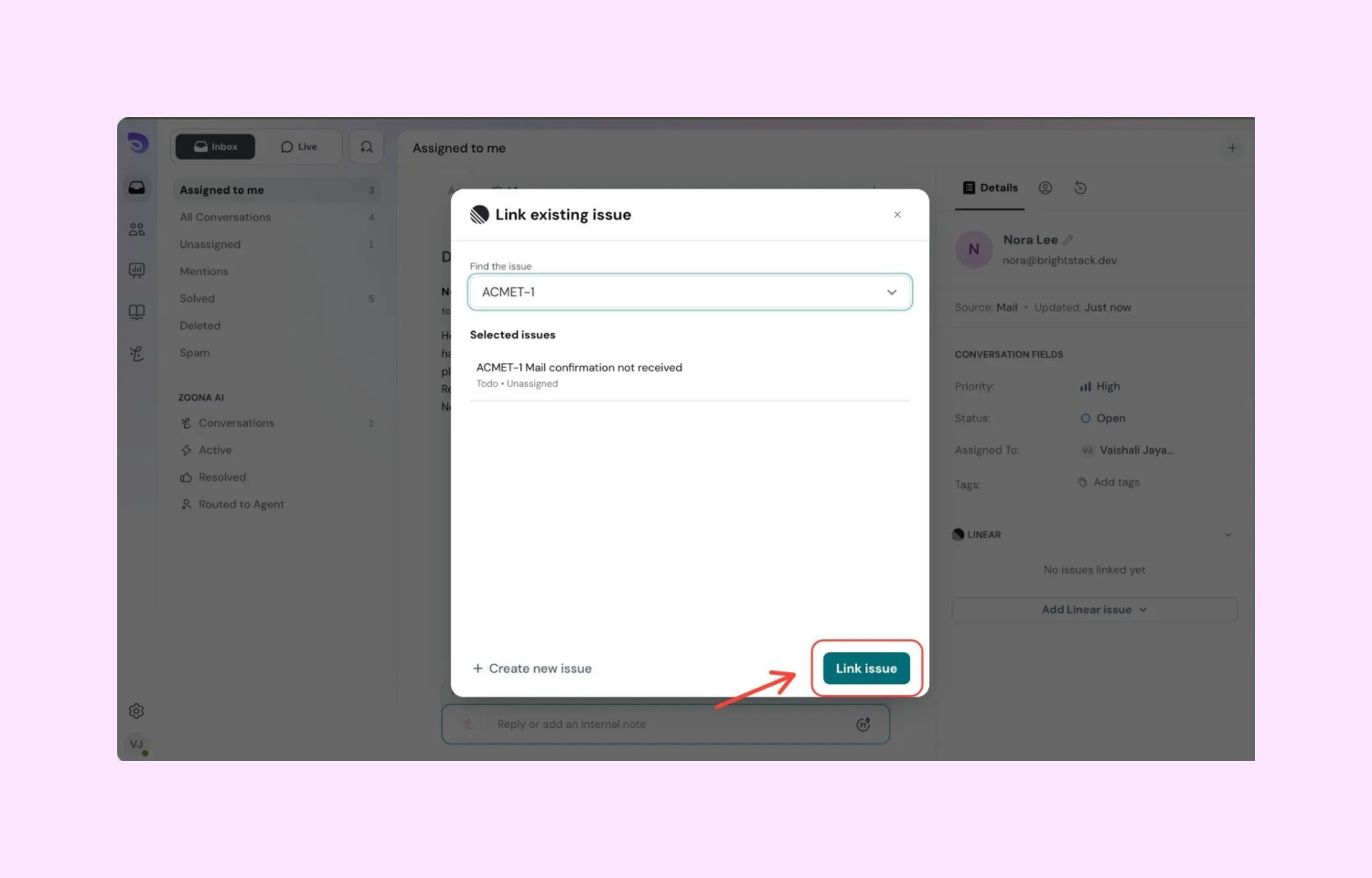
From within a conversation, agents can create new Linear tasks or link existing ones, attaching the full context of the issue, including conversation details and customer inputs. This makes it easier for engineering teams to understand the problem without back-and-forth clarification, while support teams can stay informed on what’s being worked on. Everything remains connected, so both teams are aligned on progress and priorities.
As work moves forward in Linear, updates remain accessible from within SparrowDesk, allowing support teams to track status and follow up with customers confidently. This reduces internal friction, improves response quality, and helps teams close the loop faster on bugs, feature requests, and product-related issues.
Configure
To set up the integration, you need admin access in both SparrowDesk and Linear. In SparrowDesk, go to Settings → App store → Linear, and click Connect Linear. You’ll be prompted to authorize access to your Linear workspace and select the team(s) you want to connect.
Once connected, you can configure how Linear is used within SparrowDesk. This includes choosing the default Linear team, mapping relevant fields if needed, and enabling the option to create or link Linear tasks from conversations. Make sure your Linear workspace has the required permissions enabled so SparrowDesk can create and access tasks.
After setup, the integration will be available directly inside conversations. Agents can start linking or creating Linear tasks without any additional configuration. For detailed step-by-step instructions, refer to this help article.