- Integrations
- QA Sphere
Create and link issues from QA Sphere test results
Overview
QA Sphere is a test management platform for organizing test cases and running structured test runs. This integration lets QA engineers create Linear issues directly from failed tests, with test details attached automatically, so bugs reach the development team with full context and no manual copy-pasting.
How it works
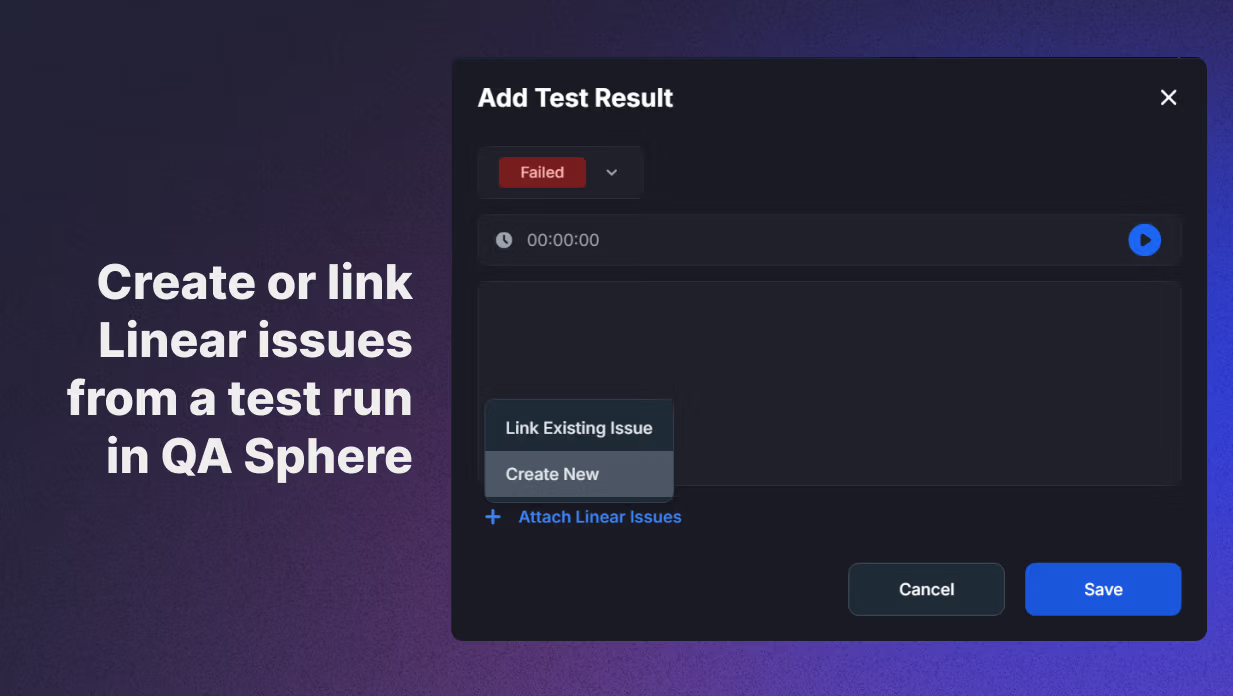
QA Sphere is a test management platform where QA teams organize test cases and execute structured test runs. With the Linear integration connected, testers can attach Linear issues directly from a test case while recording results, either by linking an existing issue or creating a new one on the spot. New issues are created in the Linear team of your choice, so bugs land exactly where your development workflow expects them.
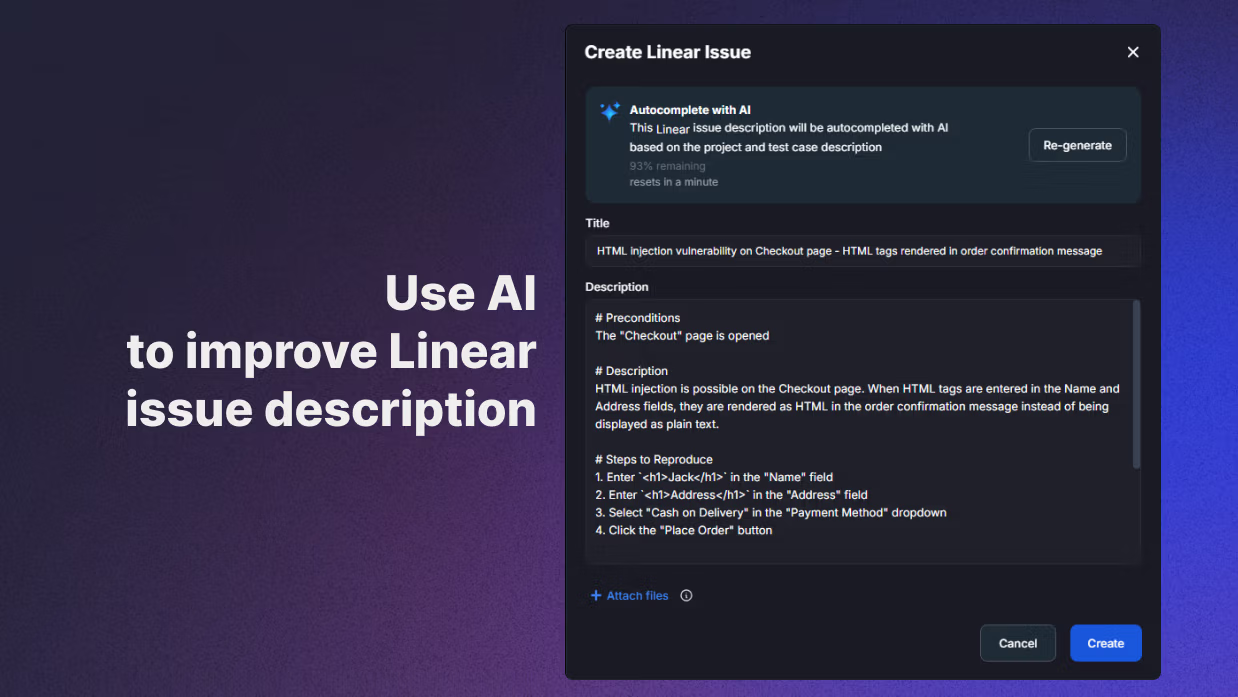
When creating an issue, testers can enter the title and description manually or let AI generate them automatically from the test case details and result comments, turning a failed check into a well-documented Linear issue in seconds. Every issue linked or created during a run is recorded in the test run’s action history, giving teams a clear trail of what was reported, when, and from which test.
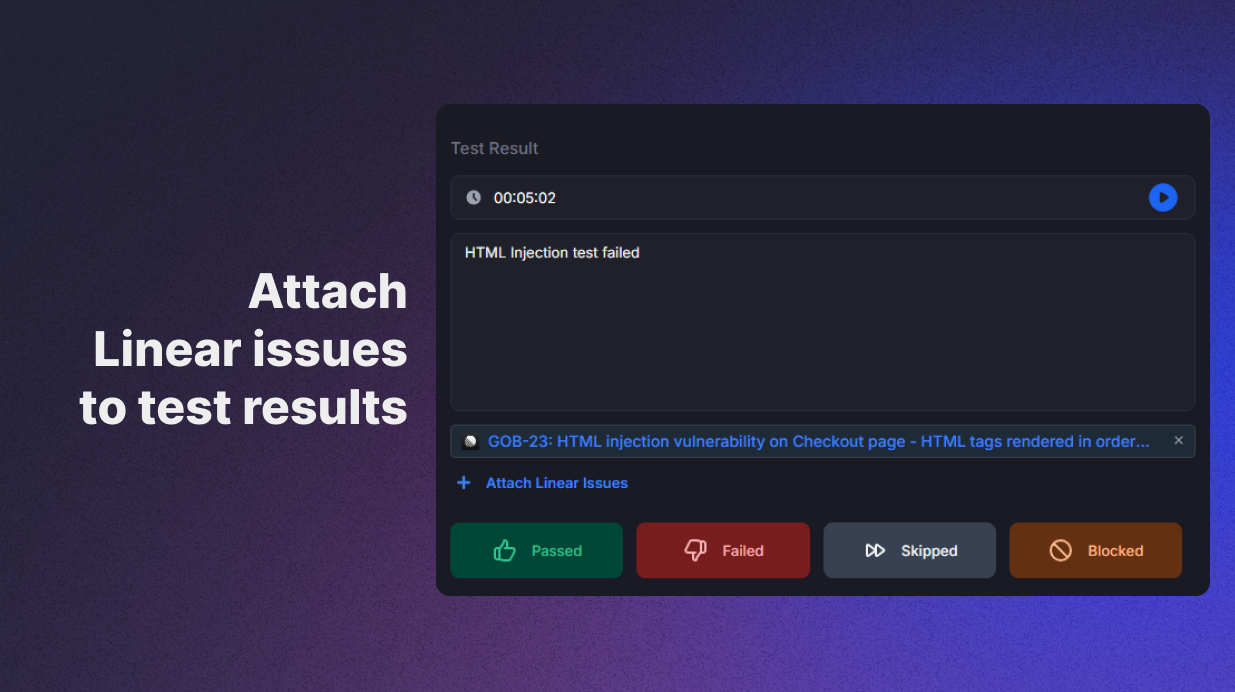
The connection works in both directions: when an issue is attached to a test case, a link back to that test case is automatically added to the Linear issue description. Developers picking up the issue in Linear can jump straight to the failing test for full context, while QA can see the related issues from the test side, keeping both teams aligned without duplicating information across tools.
Configure
To connect Linear, open Workspace Settings in QA Sphere and select Issue Trackers from the sidebar. Choose the QA Sphere project you want to connect, click the + button to add an integration, and select Linear from the list. You’ll be asked to authorize the connection with your Linear account through OAuth, then choose the Linear team where new issues should be created. Configuring integrations requires QA Sphere workspace admin access, and the Linear account used for authorization needs permission to create issues in the selected team. Full setup instructions: QA Sphere Linear docs