- Integrations
- Nullify
Turn security findings into trackable Linear issues
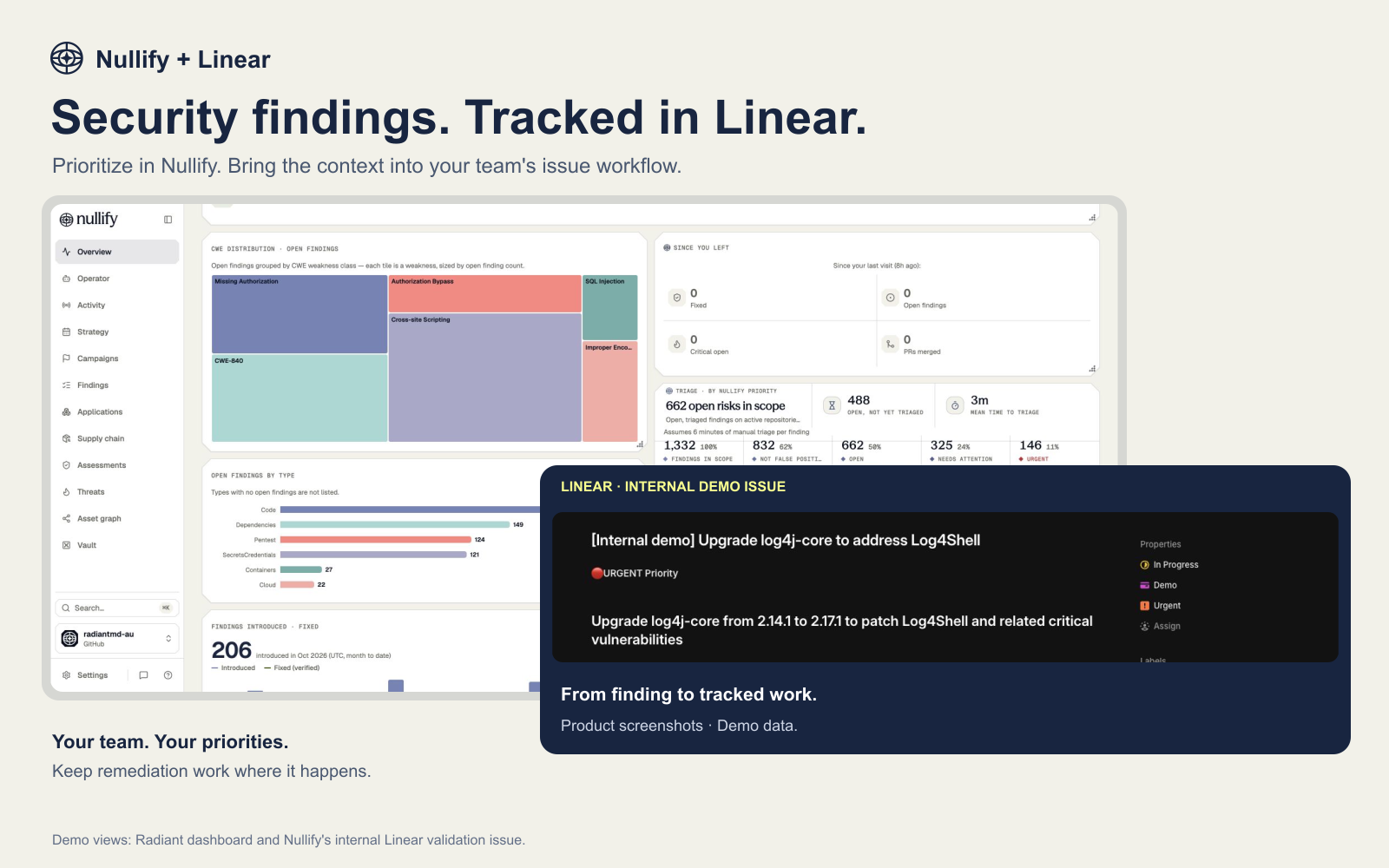
Overview
Nullify finds, proves, and fixes product security vulnerabilities. This integration brings security remediation into your team’s Linear workflow, turning prioritized findings into issues so engineers can track ownership and progress alongside their existing work.
How it works
Once your workspace is connected, Nullify files a Linear issue in the team you choose whenever a finding crosses your configured threshold. You can let Nullify create issues automatically for qualifying findings, or your team can create them manually from the Nullify dashboard. Issues are created with the Task issue type by default.
Each finding ticket stays linked to its Linear issue. As your team moves the issue through its workflow, Nullify maps the Linear workflow state to the finding’s ticket status: a move into a completed or cancelled state is treated as a close, and a move back out is treated as a reopen. Assignee changes are forwarded as well, so the finding always reflects who currently owns the work. Teams running a custom Linear workflow can override the default state mapping.
Updates are posted asynchronously, so your team keeps using its existing Linear workflow while security teams track remediation in Nullify. Changes that do not affect workflow state or assignee, such as label-only edits, comments, and title changes, are ignored.
Configure
You need permission to change Nullify configuration and to authorize the Linear app.
1. In the Nullify dashboard, go to Configure → Integrations and start the Linear connection.
2. Approve the consent screen in Linear. Nullify connects over OAuth using its own Linear app and requests the read and write scopes so it can create issues, update their status, and read the issues it manages. There is nothing to install from the Linear marketplace, and webhook delivery needs no setup on your side.
3. Choose a destination Linear team in the Linear integration settings. Until a team is set, the integration stays inactive even if authorization has completed.
4. Set a default assignee for that team, or confirm a security owner under Configure → Ticketing. New tickets require an eligible, active assignee in the destination team.
5. Under Configure → Ticketing, set severity and priority thresholds per finding type and choose whether qualifying findings are ticketed automatically.
Full setup instructions, including deployment-specific availability, are at https://docs.nullify.ai/connectors/linear
You can disable automatic ticket creation at any time, either globally or for a specific repository, while keeping the team configured so your team can still create tickets manually.