- Integrations
- Maze
Create Linear issues for your code and cloud risks
Overview
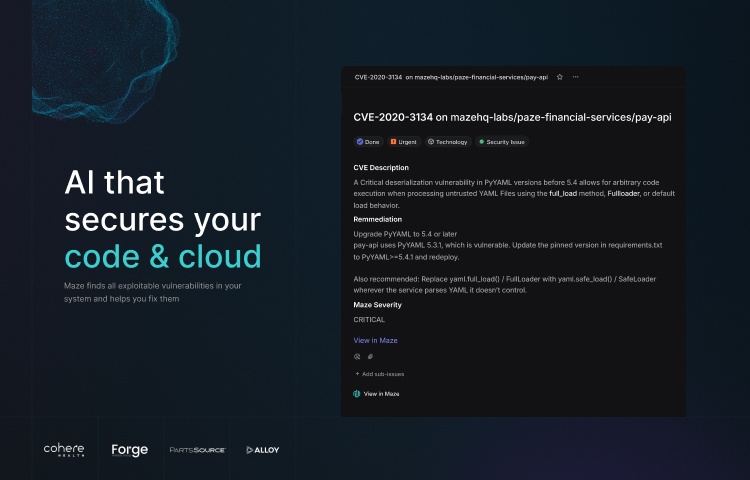
Maze finds, triages, and helps you fix exploitable vulnerabilities across your code, dependencies, and cloud. This integration lets Maze customers create Linear issues that stay in sync with Maze.
How it works
Once a Linear admin connects your workspace, Maze can create issues in the team you choose. You can create an issue by hand from any finding in Maze, or set up an automation that creates them for you. An automation creates one issue per affected asset or one per vulnerability, and only for findings at or above the Maze severity you set. Issues are created by the Maze app, not by a person, so they keep working if the person who set up the integration leaves.
Each issue can include the vulnerability details, Maze’s verdict and reasoning, the recommended fix, and a link to the full investigation in Maze. You can set a project, labels, and an assignee, and map Maze severity to Linear priority. Until someone starts work on an issue, Maze updates its description when the underlying findings change. After that, Maze leaves the description alone while you work on the fix.
Status changes in Linear show up in Maze, and closing an issue records when it was resolved. If you delete or archive an unfinished issue, Maze unlinks it, and an automation creates a new one if the finding still qualifies. When Maze finds that a vulnerability is no longer present, it closes the linked Linear issue.
Configure
You will need a Linear workspace admin to approve the app, and admin access to the Maze portal.
1. In the Maze portal, go to Integrations → Linear and select Connect Linear.
2. In Linear, choose whether Maze can see all public teams or only the teams you select, then select Authorize. Maze can only create issues in the teams you grant.
3. Back in Maze, add a template. Give it a name, choose one issue per vulnerability or one per asset, pick the Linear team (and optionally a project), then set the issue title and description. Both support Maze variables such as {cve_id} and {maze_link}.
4. Create issues from any investigation with Create issue, or go to Automations → Create Automation → Ticketing Automation, choose Linear, set a minimum Maze severity, and pick a matching template.
Full setup instructions are at https://maze.support.site/article/linear-integration
To disconnect, use the bin icon on the Linear integration page in Maze, then remove Maze in Linear under Settings → API → Applications.
You might be interested in
- Connect GitHub to automate PR workflows, review code in Linear, sync issues and understand your codebase with Linear Agent
 GitHubBy Linear
 - Previews of Linear issues, views and projects and query Notion AI
 NotionBy Linear
 - Build custom dashboards and analytics from issue and project data
 Google SheetsBy Linear