- Integrations
- Lane
Create Linear issues from prioritized customer signals
Overview
Lane turns scattered customer feedback into prioritized product plans backed by real revenue and real customer quotes. The Linear integration pushes those plans into Linear as issues with the underlying customer requests attached, and syncs issue status back to Lane so the customers who asked get told when the work ships.
How it works
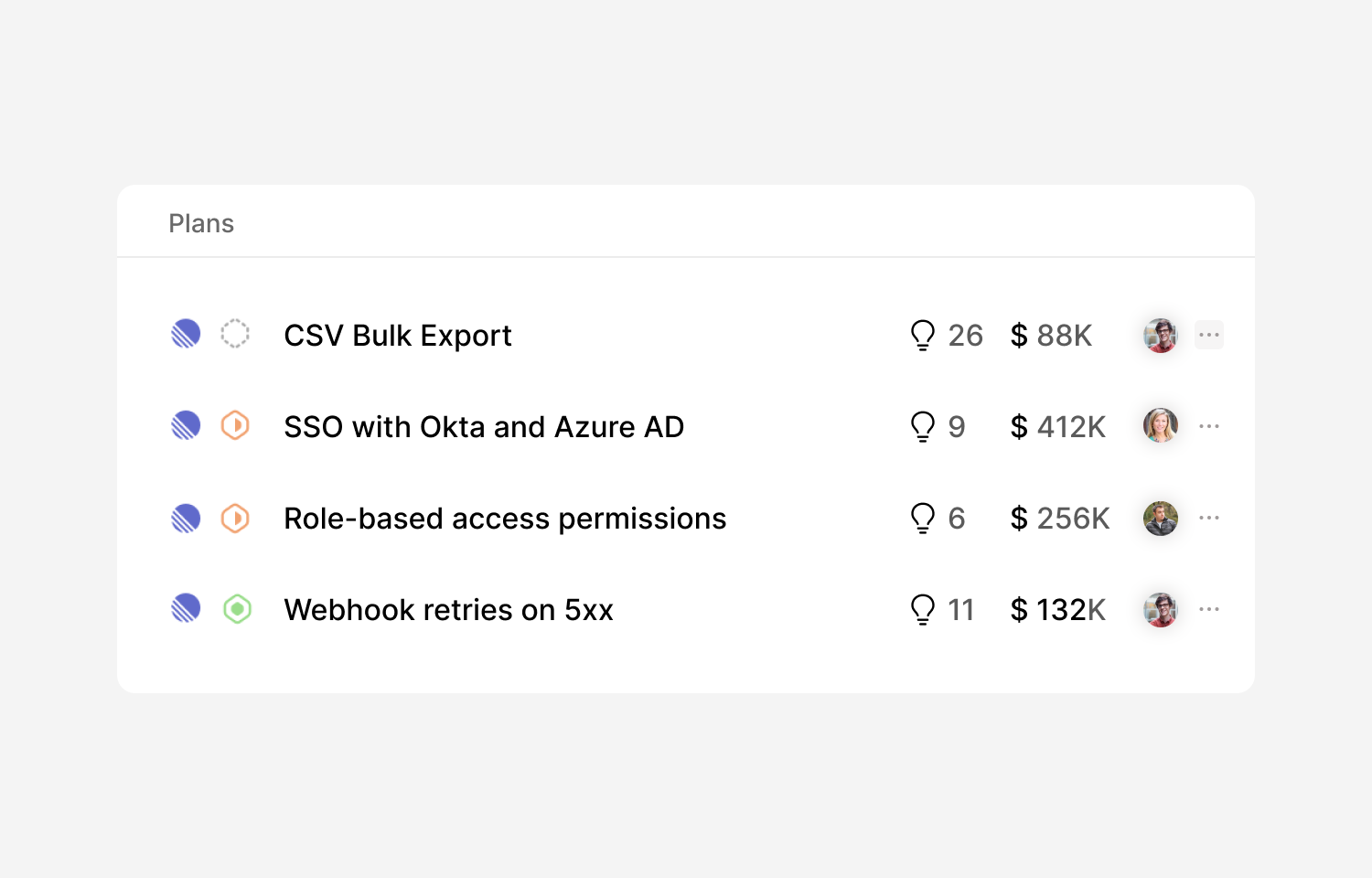
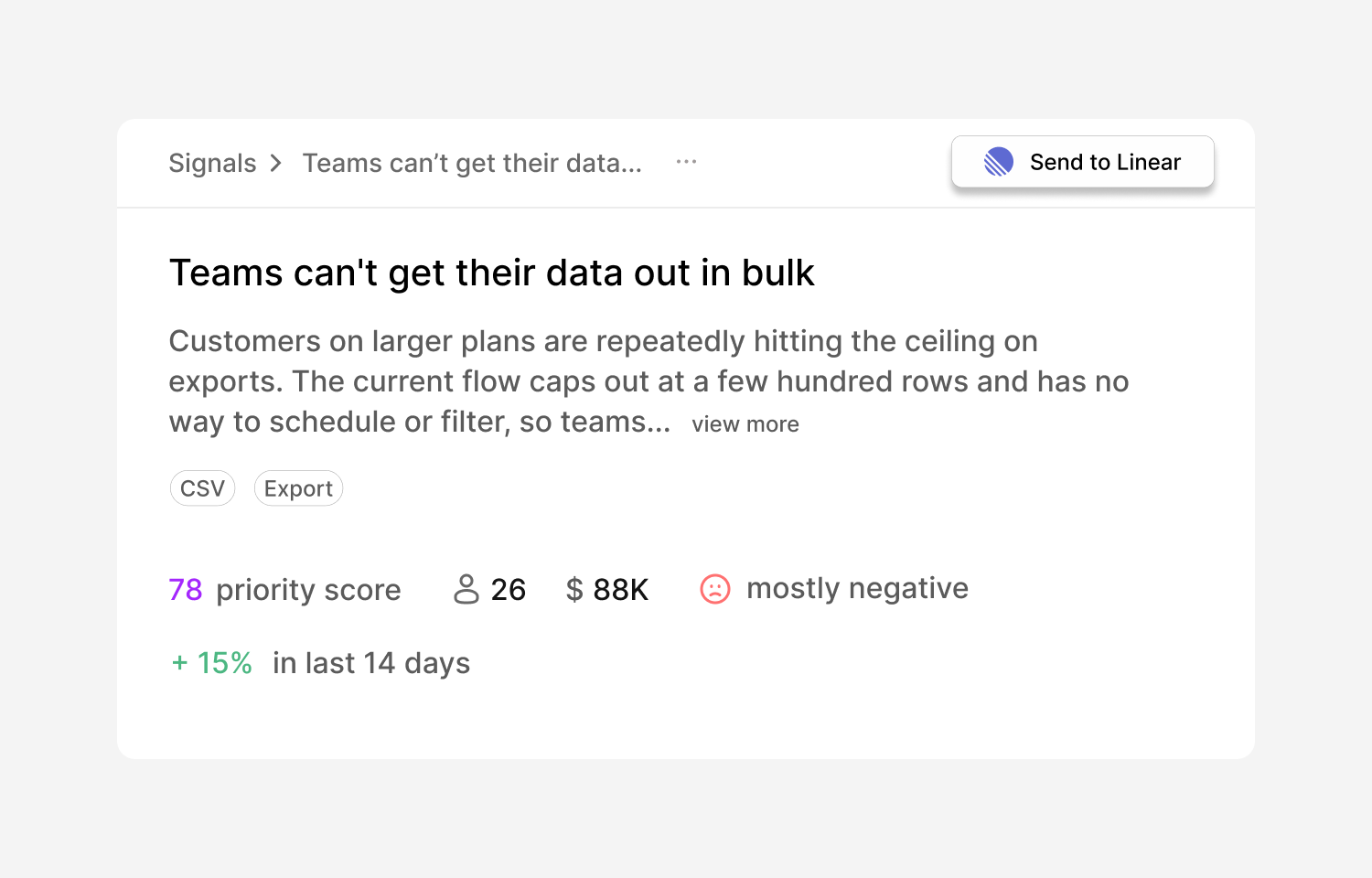
Once your Linear workspace is connected, any plan in Lane can be sent to a Linear team as an issue. Lane creates the issue with the plan’s title and body, keeps a link between the two records, and shows the Linear issue and its live status on the plan in Lane. You can also browse an existing Linear team’s issues from Lane and import them, so work already tracked in Linear can be linked to the feedback arriving against it.
Every plan in Lane carries the customer feedback that motivated it, and that evidence travels with the push. Lane upserts each account as a Linear customer using its domain, name, ARR and size, then adds that customer’s feedback to the issue as a customer request, including the original Slack thread where the conversation happened. The result is that your team sees who asked, how much revenue sits behind it and what the customer actually said, inside Linear’s own customer request views rather than in a separate tool.
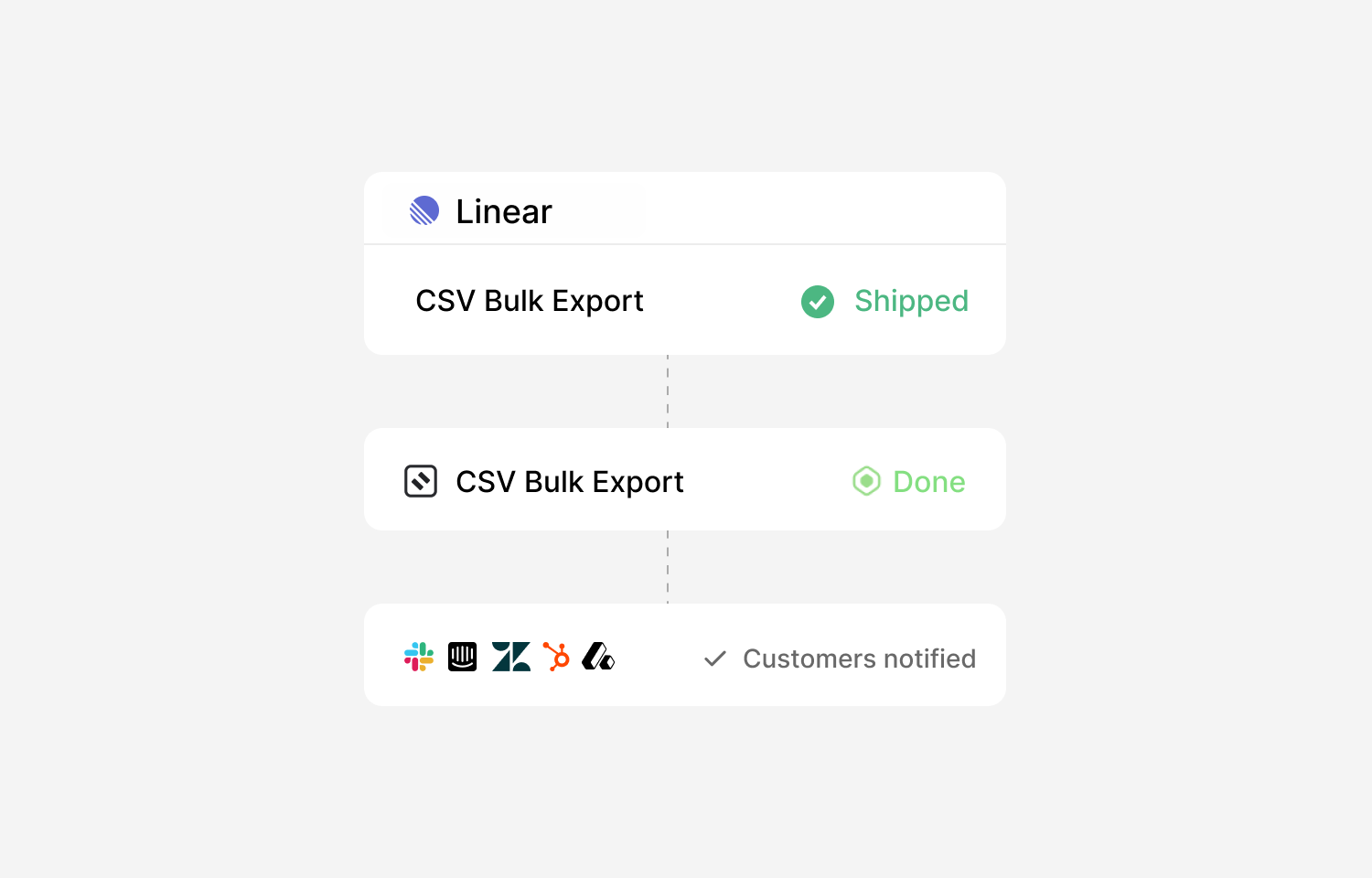
Status flows in the other direction over Linear webhooks. You map Linear workflow states to Lane statuses, and when someone moves an issue on the Linear board the linked plan in Lane updates to match. Because Lane still holds every conversation behind that plan, a status change can also trigger follow-up messages back into the original Slack, Intercom or Zendesk threads, closing the loop with the customers who requested it without anyone chasing the list by hand.
Configure
Connecting requires a Lane workspace on the Pro or Business plan and a Linear account with permission to create issues in the teams you want to push to. In Lane, go to Settings → Integrations → Linear and select Connect. You will be redirected to Linear to authorize the app; Lane requests read, write, issue create and comment create access, and the connection is made on behalf of the authorizing user, so issues and comments appear under your Linear identity.
After connecting, two optional settings sit on the same page. Turn on “Include insights as customer requests” to attach linked customer feedback to every issue Lane pushes, which requires the Business plan. Turn on status sync and add one rule per Linear workflow state you care about, mapping it to the Lane plan status it should set, so Linear stays the source of truth for delivery status. From then on, push from the Linear section of any plan by choosing a team, and import existing Linear issues from the same integration settings page.