- Integrations
- Timing
Track time spent on Linear issues from your Mac
Overview
Timing is an automatic time tracker for Mac that integrates with Linear to show when you worked on specific issues and sync tracked time back as issue attachments. It imports your assigned Linear issues onto your timeline, suggests their titles when creating time entries, and automatically keeps Linear up to date with how much time you spent — no manual timers required.
How it works
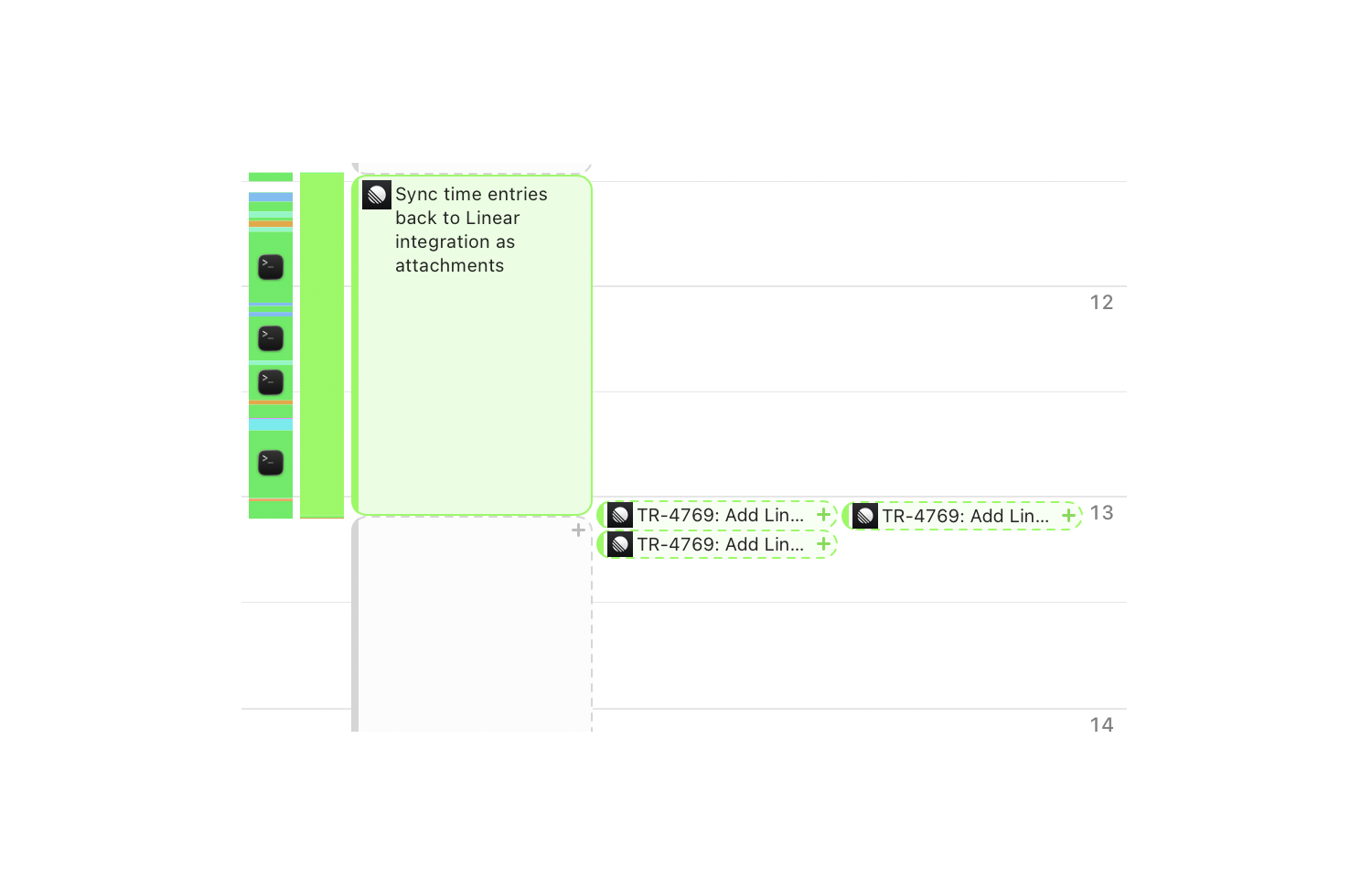
Timing automatically tracks which apps, documents, and websites you use on your Mac throughout the day, building a detailed timeline without requiring you to start or stop timers. Once connected to Linear, Timing imports all issues assigned to you and displays them on your timeline, giving you additional context for when you worked on each issue. When you create a time entry, your Linear issue titles appear in the auto-complete list, making it easy to associate time with the right issue. You can control which teams and projects are imported from the integration settings page.
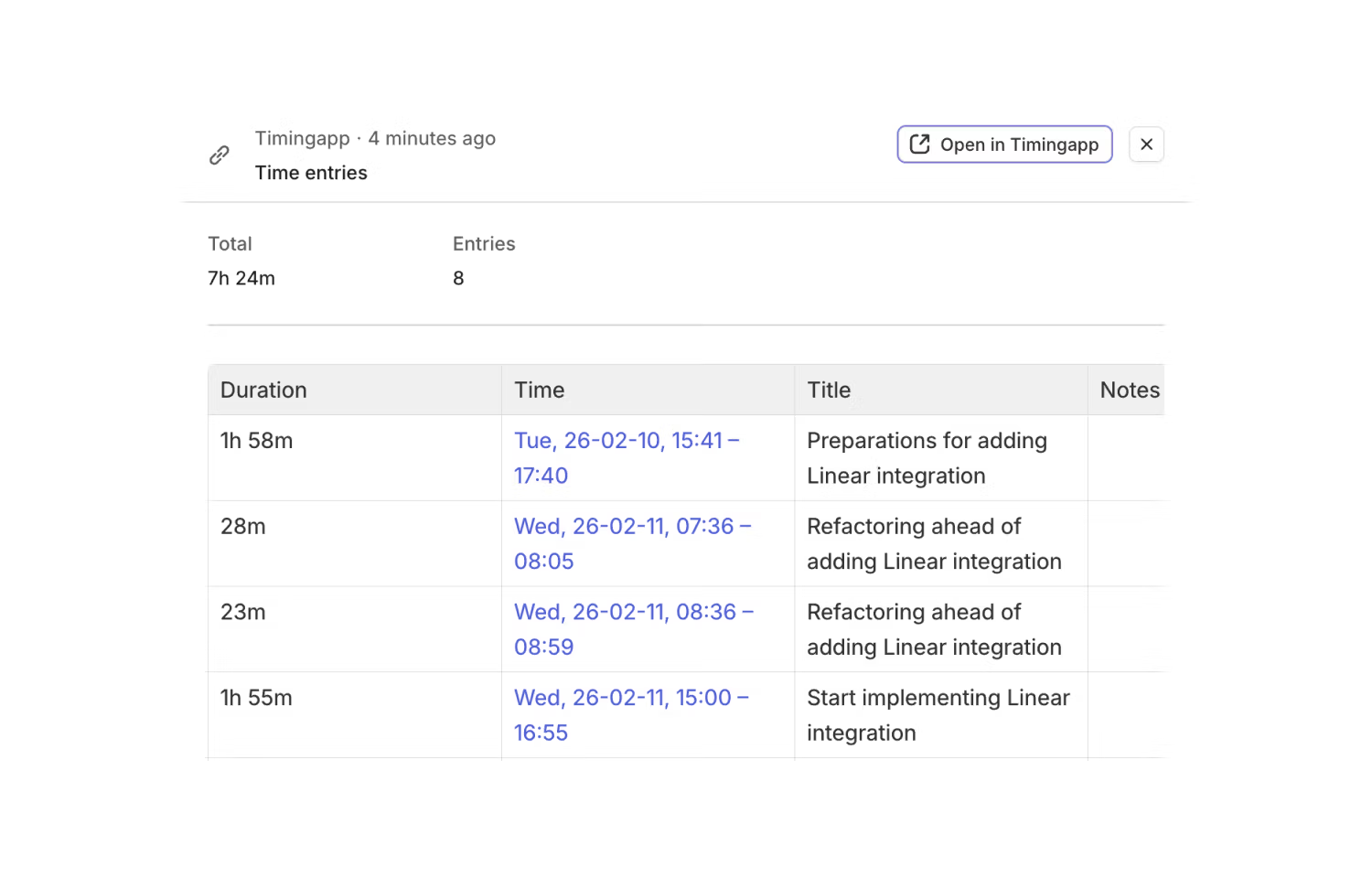
When time entry sync is enabled, Timing creates an attachment on each Linear issue that has linked time entries. The attachment shows a summary of all your tracked time for that issue, including a table with the duration, time range, title, and notes for each entry. Attachments update automatically whenever your time entries change.
Configure
To set up the integration, you first need a Timing sync account.
1. Sign in to the Timing web app here using your sync credentials.
2. Navigate to the Integrations page and click “Connect with Linear”.
3. Authenticate with Linear and select the organization you want to connect. If you belong to multiple organizations, make sure to select the correct one.
4. Select which teams and projects you want to import issues from. All are selected by default. If you have the Connect edition of Timing, you can also enable syncing time entries back to Linear.
5. Wait up to 10 minutes for the initial import to complete.
Once set up, your assigned Linear issues will appear on your Timing timeline, and their titles will be available as suggestions when creating time entries. You can adjust which teams and projects are imported at any time from the integration settings page.