- Integrations
- Tana
Turn meeting discussions into Linear issues
Overview
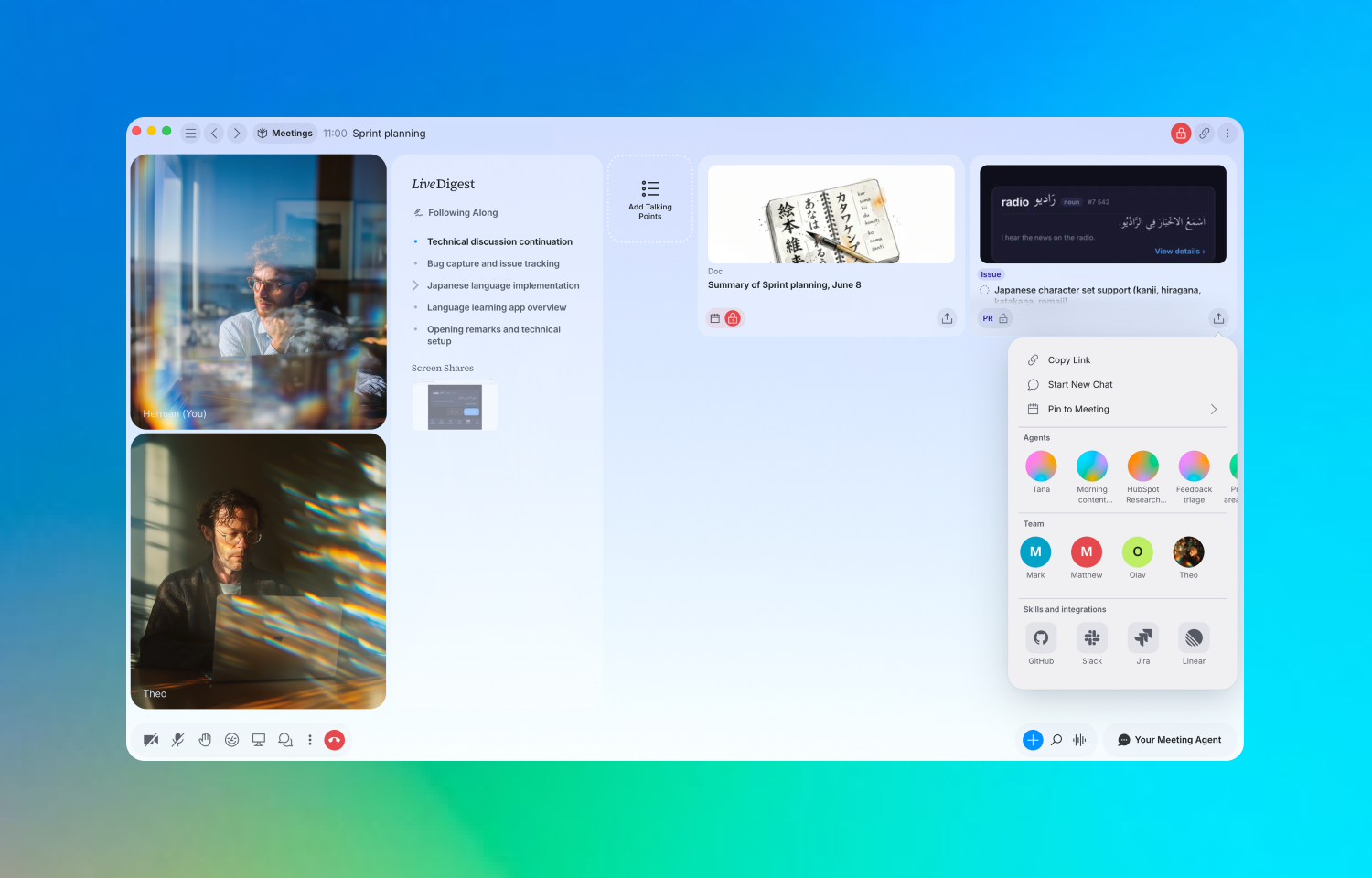
Tana is an agentic meeting platform: its AI acts on what you discuss, not just records it. With Linear connected, a conversation in a meeting or chat becomes tracked work — you ask Tana to create and update Linear issues, so the bugs, tasks, and decisions you talk about get captured in Linear without anyone switching tools or writing them up afterward.
How it works
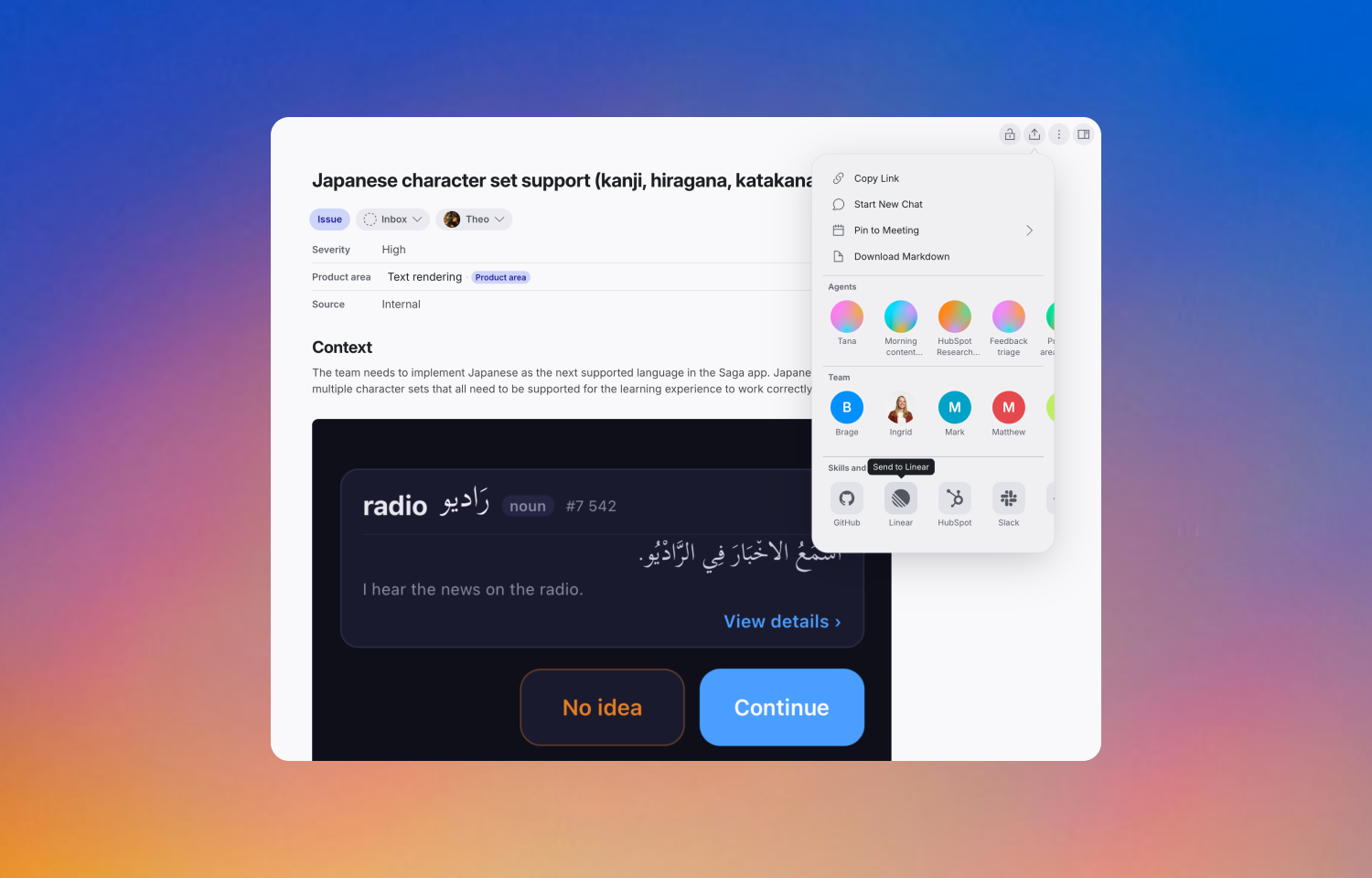
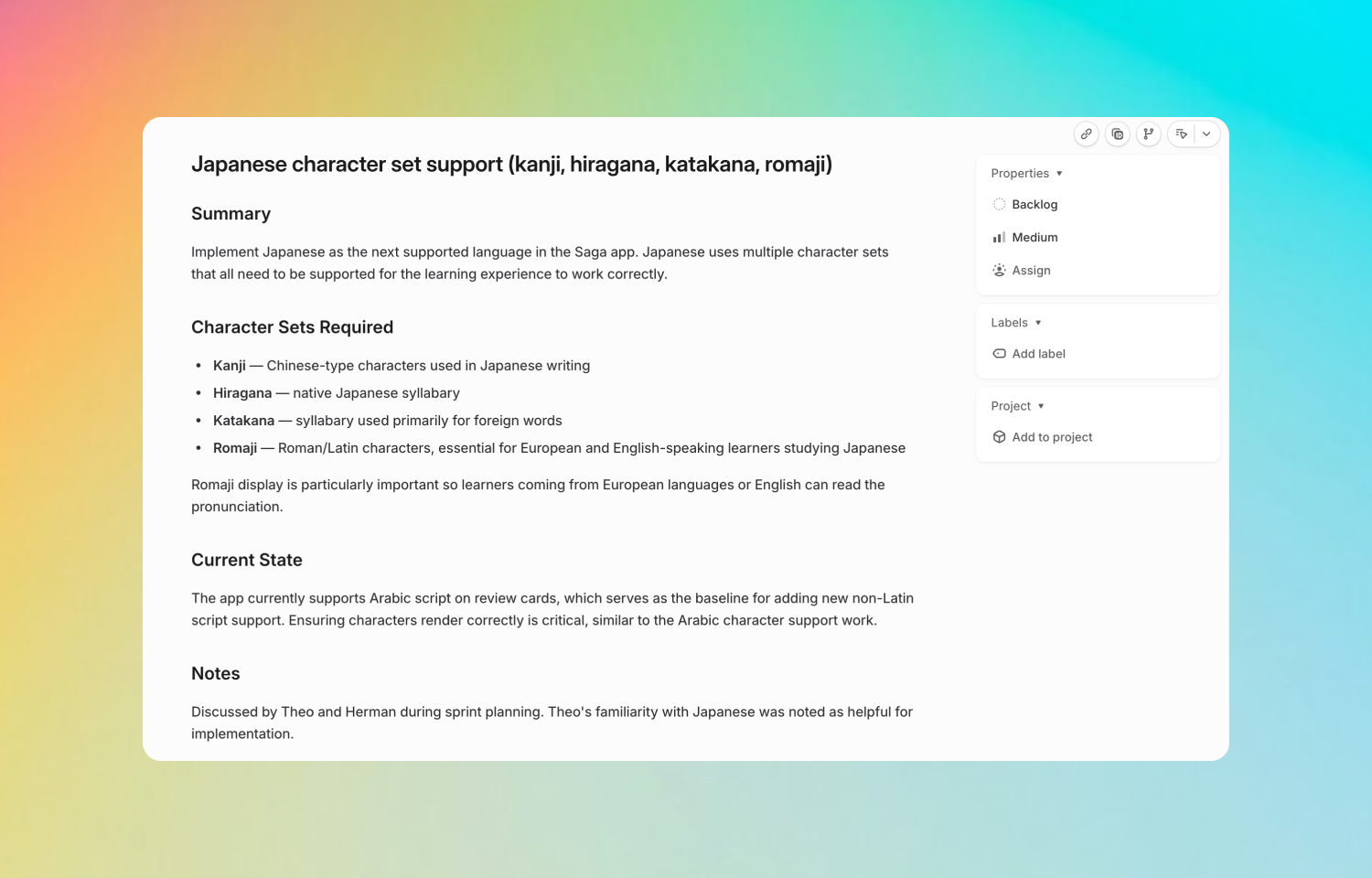
Once you connect Linear in Tana’s settings, Tana’s AI can work with your Linear workspace whenever you ask, whether you’re in a meeting or a chat. You can have it create new issues from a discussion, complete with a title, description, priority, labels, assignee, and project, placed on the right team. It can also update existing issues, change their fields, and move them to a new workflow state, so the conversation and your tracker stay in sync.
Before filing, Tana can search your existing issues to avoid duplicates, and it can list the teams you have access to so each issue lands in the right place. Issue descriptions are written in Markdown, which Linear renders natively, so headings, lists, and code come through cleanly. When an issue comes out of a meeting, Tana can embed the screenshots shared on the call directly in the description, keeping the visual context with the work.
The result is that the work you talk about gets captured as you talk, instead of turning into a backlog of issues to write up later. A bug raised in standup, a task agreed in planning, or a change decided mid-call can be filed and assigned in Linear by the time the conversation ends. Everything runs through Tana, so your team keeps its existing Linear teams and workflows.
Configure
Connecting Linear is a one-time setup done inside Tana, and there is nothing to install in Linear. In Tana, open Settings, then Integrations, find Linear, and click Connect. A Linear authorization window opens, where you sign in and approve access, after which Tana shows Linear as Connected. The connection is per user, so each teammate connects their own Linear account, and it works with one Linear workspace per connection. If your Linear workspace restricts third-party OAuth apps, a workspace admin may need to allow it. For step-by-step setup and example prompts, see https://tana.inc/learn/guides/connect-linear.


