- Integrations
- Rize AI Time Tracker
Automatically track time to Linear task and projects
Overview
Rize is an AI-powered automatic time tracking app that runs privately on your device, monitoring the apps, websites, and documents you use throughout the day to build a complete picture of how you spend your time.
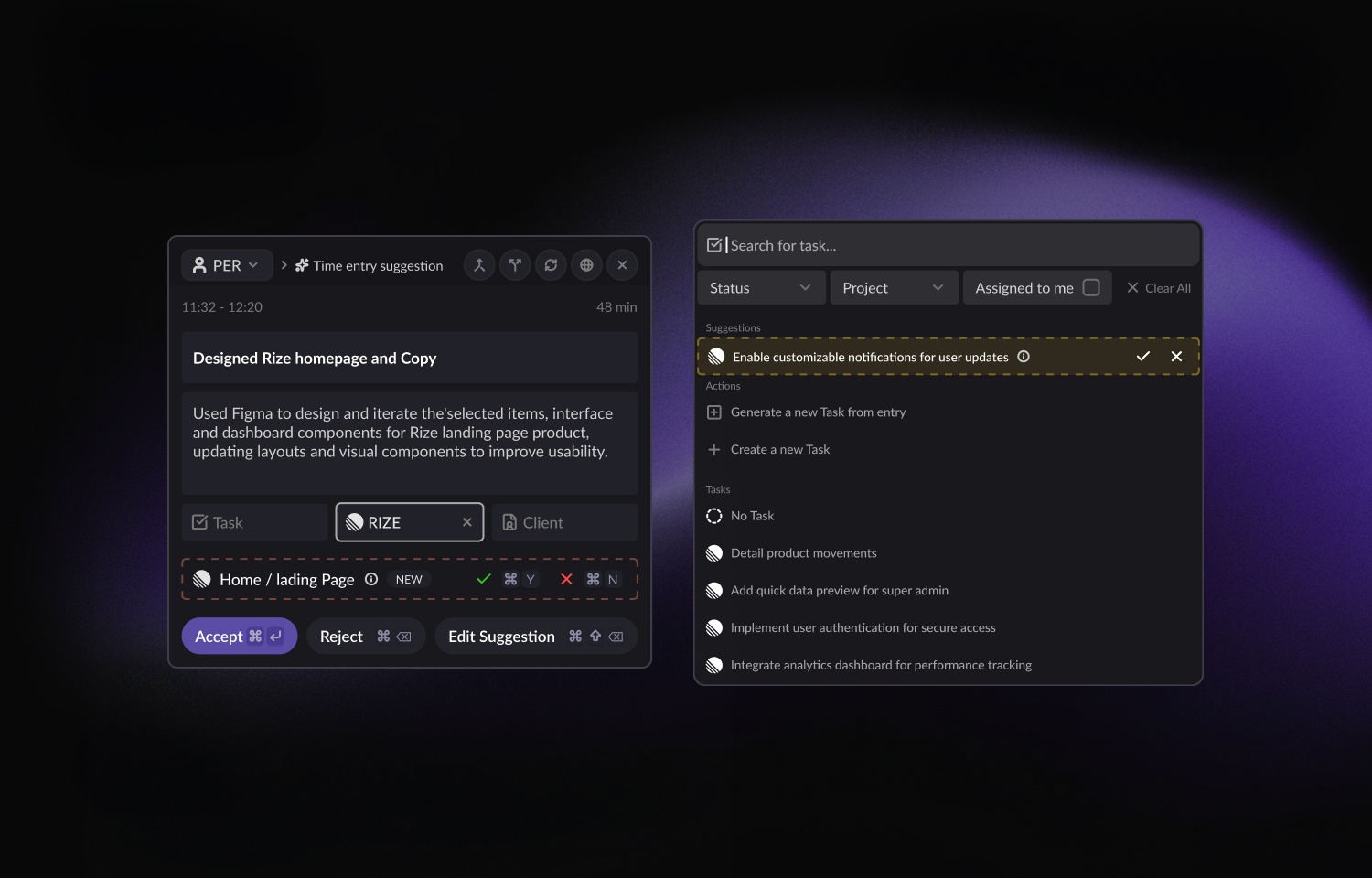
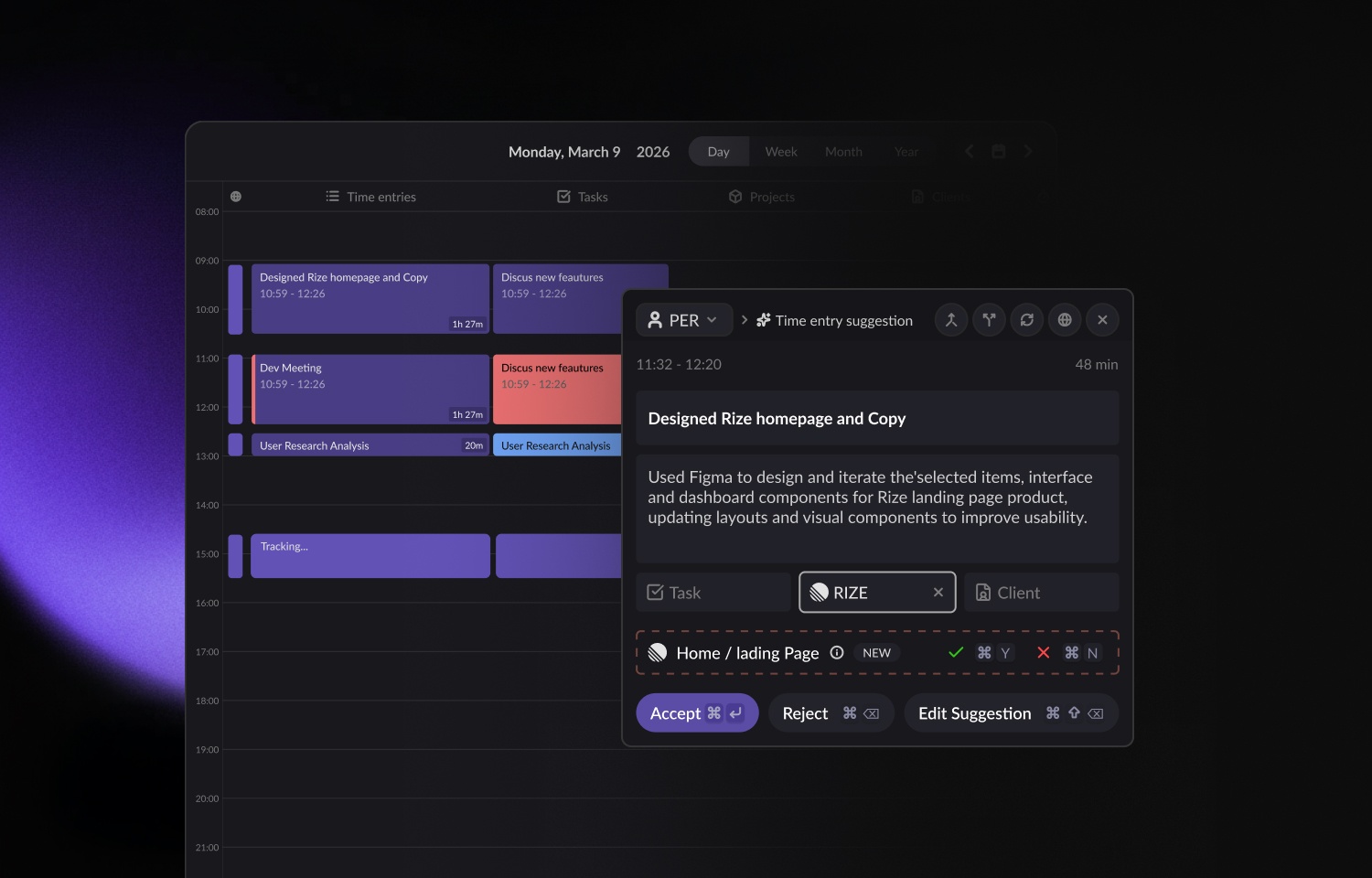
It syncs with Linear to pull in your issues and projects, then uses AI to automatically assign your tracked time to the right projects and issues. No manual entry, no timers to start and stop. Just work in Linear as usual and Rize handles the rest.
How it works
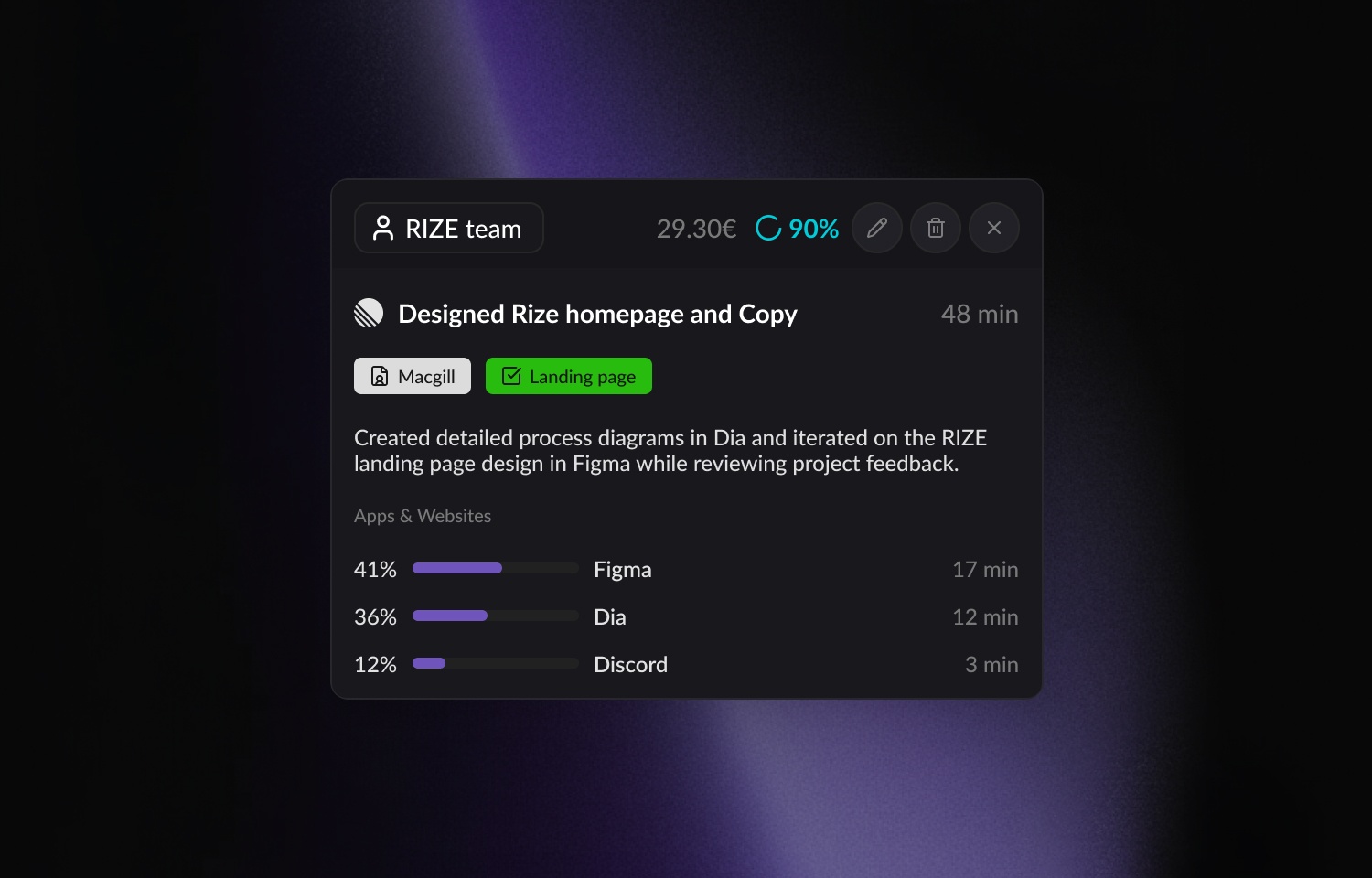
Rize is an automatic time tracking app that runs privately on your device, observing which apps, websites, and documents you use throughout the day. It uses AI to turn that raw activity into structured time entries - figuring out what you were working on, for how long, and assigning each block of time to the right client, project, and task.
The Linear integration feeds your real issues and projects into Rize so the AI has accurate context to match against rather than relying on manually created tasks or guesswork.
Once you connect your Linear workspace, Rize syncs your assigned issues, project structure, and team members (optionally) into its system. Issue titles, statuses, and assignments stay aligned as they change in Linear, and time tracked in Rize flows back to Linear as logged time on the corresponding issue. Teams can import their full Linear workspace into Rize — including members and projects — so setup takes minutes. You can connect during onboarding or at any time from Settings > Integrations.
With the integration active, your team gets granular visibility into how time is actually spent against real Linear issues. This helps with project estimation, utilization reporting, and understanding where time goes at a project and issue level. Everything is automatic and runs in the background. No one needs to remember to start a timer or fill out a timesheet at the end of the week.Configure
Configure
- Create a Rize account and download and install the macOS/Windows Rize app.
- You must be an admin of your Linear workspace to authorize the connection.
- Connect Linear during Rize’s onboarding flow, or navigate to Settings > Integrations, find Linear, and click Add Linear.
- Authorize the connection in Linear when prompted.
- Select which Linear teams you want to sync with Rize and map them to your Rize workspace.
- Once configured, syncing begins automatically and no additional setup required.