- Integrations
- ProBackup
Back up Linear every day and restore deleted or overwritten issues
Overview
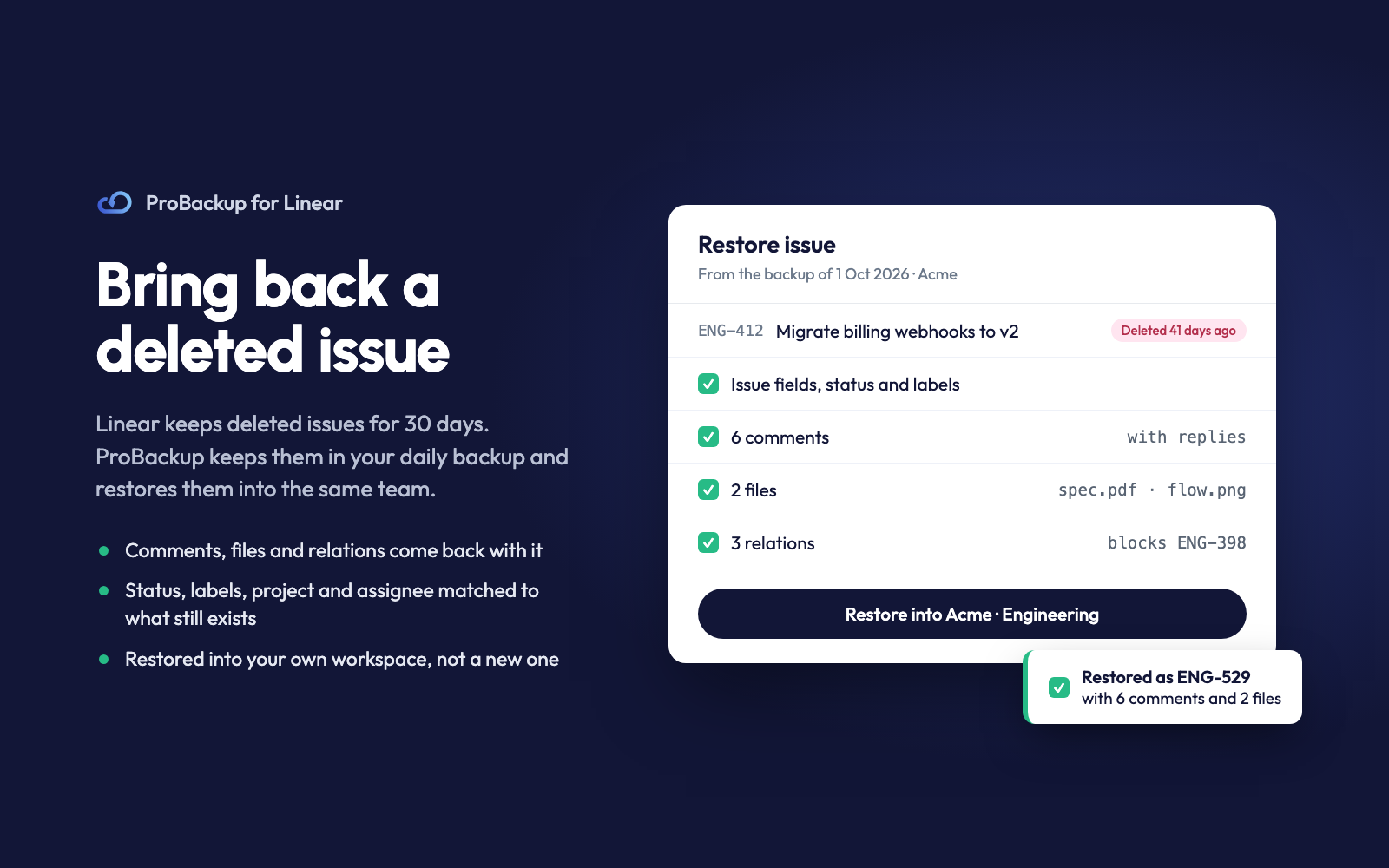
ProBackup backs up your Linear issues, comments, files, projects, and documents every day and keeps them outside Linear. When an issue is deleted or overwritten, you restore it straight back into your own workspace: a deleted issue with its comments and files, or a single issue rolled back to an earlier day’s version.
How it works
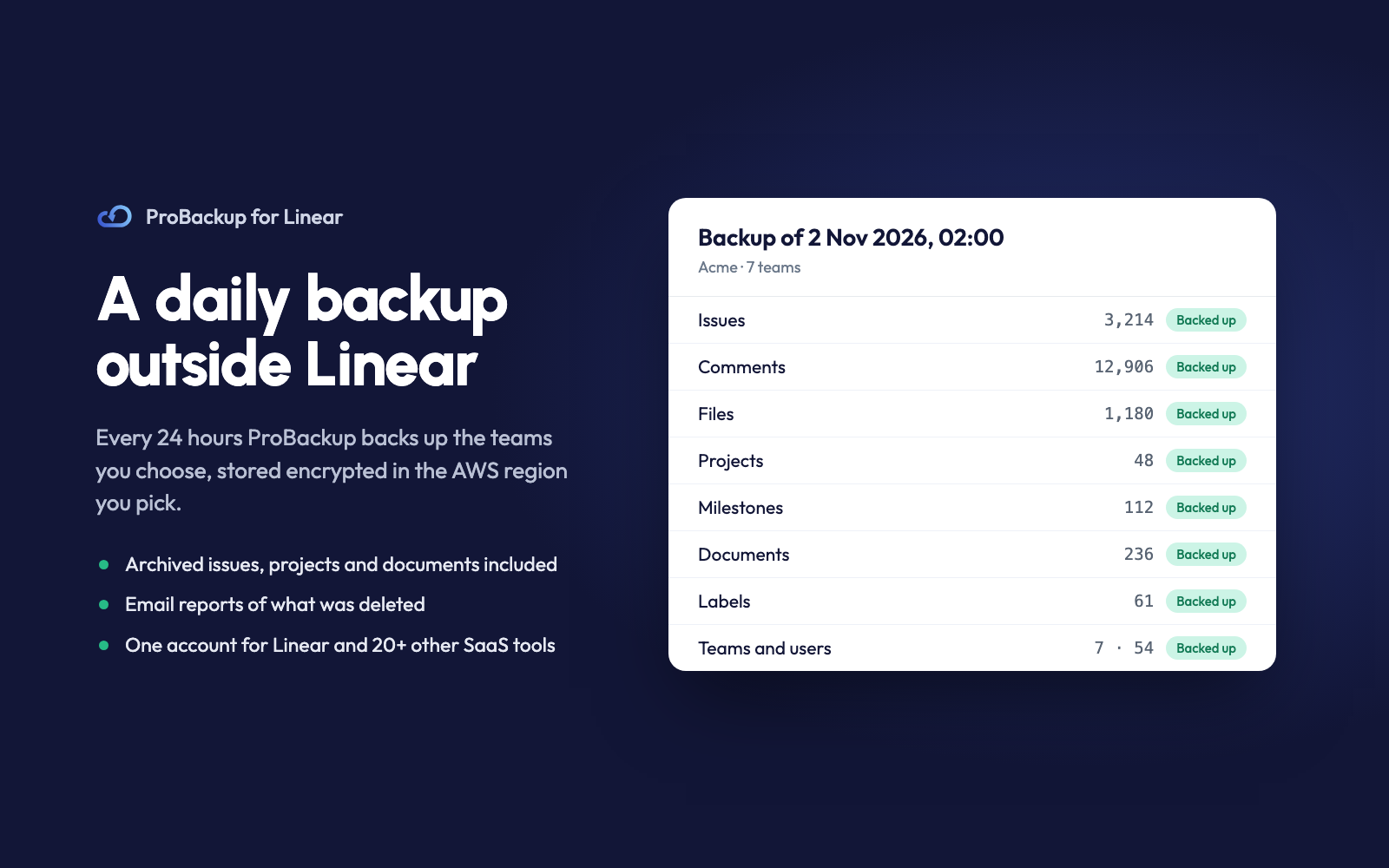
ProBackup connects to Linear with OAuth and, every 24 hours, takes a snapshot of the teams the connected account can access: issues (with sub-issues, relations, and archived issues), comments and replies, file attachments, projects, project milestones, documents, labels, teams, and users. Uploaded files are stored as files, and external links are kept as links. The backup is encrypted and stored in the AWS region you choose, and earlier versions of every issue are kept, including issues that have since been deleted. Cycles, initiatives, customer requests, views, issue history, and workspace settings are not backed up.
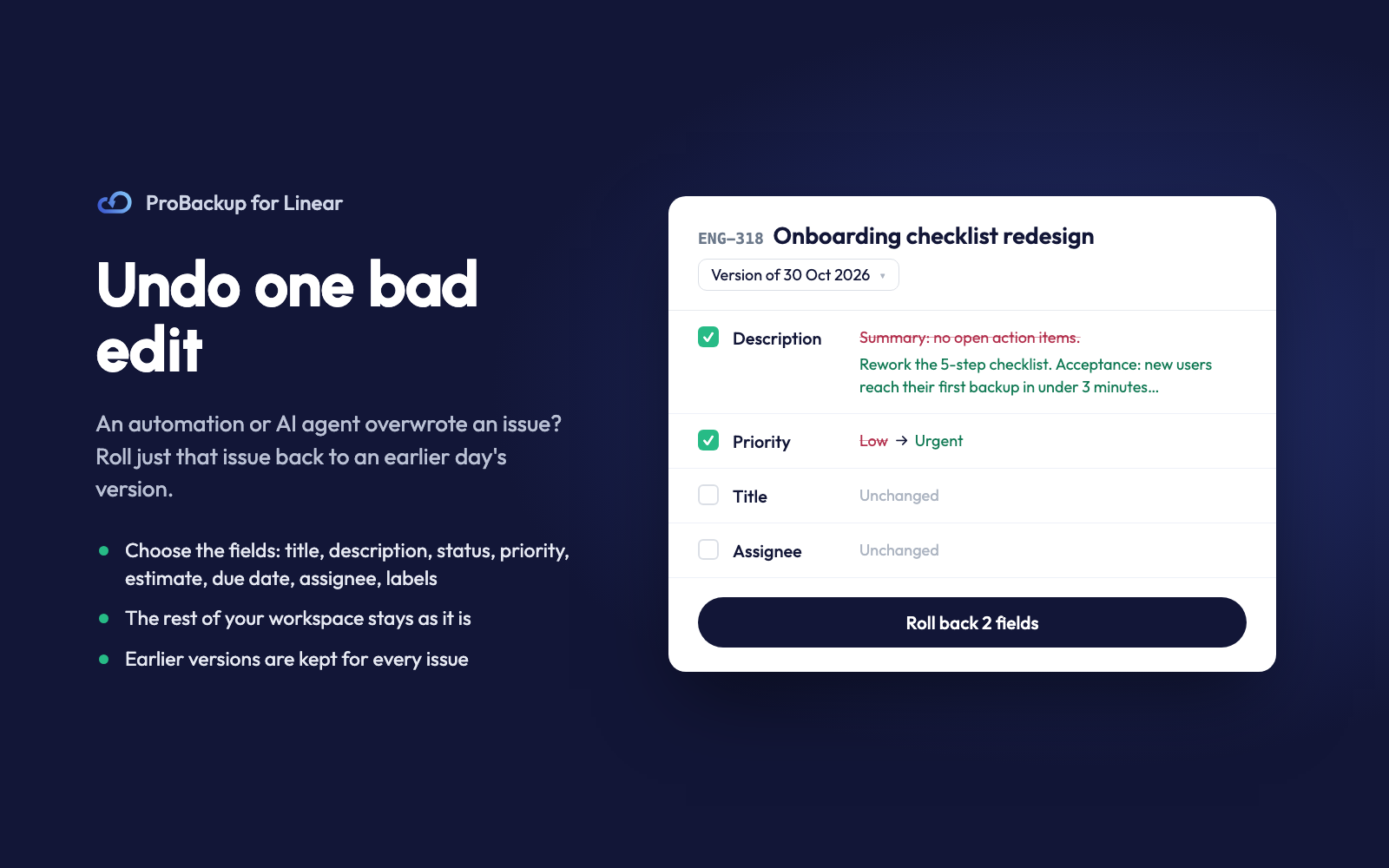
In ProBackup you browse the backup by team, pick a day, and restore what you need. A deleted issue is re-created in its original team with its comments, attachments, documents, and relations. It gets a new identifier, and its status, labels, project, milestone, and assignee are matched to what still exists in the workspace. For an issue that still exists, you can roll back that one issue instead: choose which of its title, description, status, priority, estimate, due date, assignee, and labels to set back to the backed-up version, and nothing else in the workspace changes. Projects, milestones, documents, labels, comments, and attachments can be restored too.
ProBackup also emails a report of what was deleted, can sync the backup to Google Drive, and lets you download attachments in bulk. The same account backs up ClickUp, Asana, Notion, HubSpot, Jira, and 20+ other SaaS tools, and ProBackup is SOC 2 Type II certified.
Configure
1. Start a 7-day free trial at ProBackup (no credit card needed) and choose Linear: https://app.probackup.io/onboarding?platforms=LINEAR
2. Sign in with Linear and approve access. Any workspace member can connect. The backup covers the teams that account can access, so use an account that can see every team you want backed up. ProBackup asks for read and write access, and it only writes to Linear when you start a restore.
3. The first backup starts right away and then runs every 24 hours. You can leave out teams you don’t need.
4. To restore, open the backup in ProBackup, find the issue, project, or document, and choose Restore. For an issue that still exists, choose Roll back and pick the fields. Full setup instructions are at https://support.probackup.io/en/articles/17887651-setup-guide-for-probackup-for-linear