- Integrations
- Git-Zen
Create and link issues directly from Zendesk
Overview
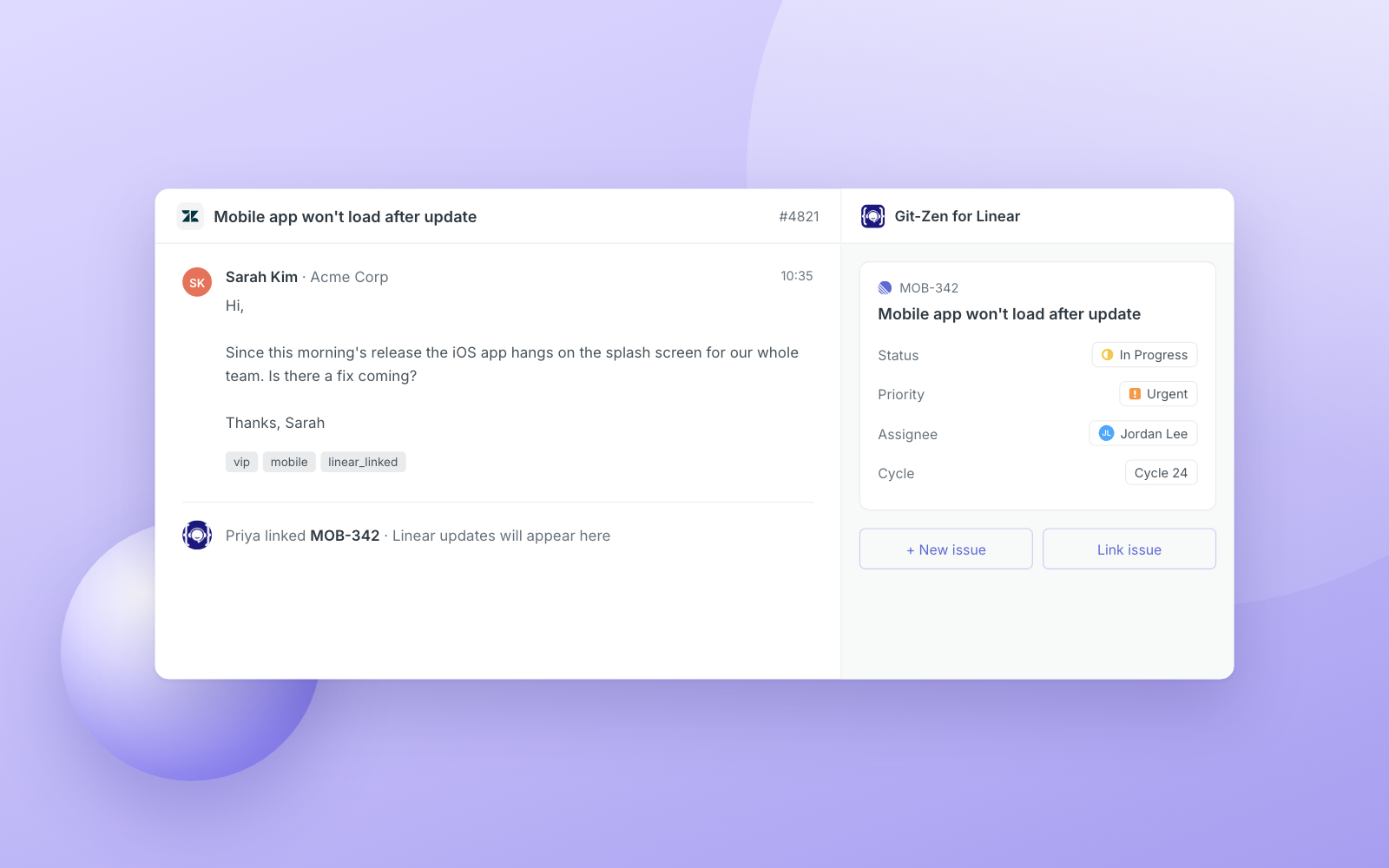
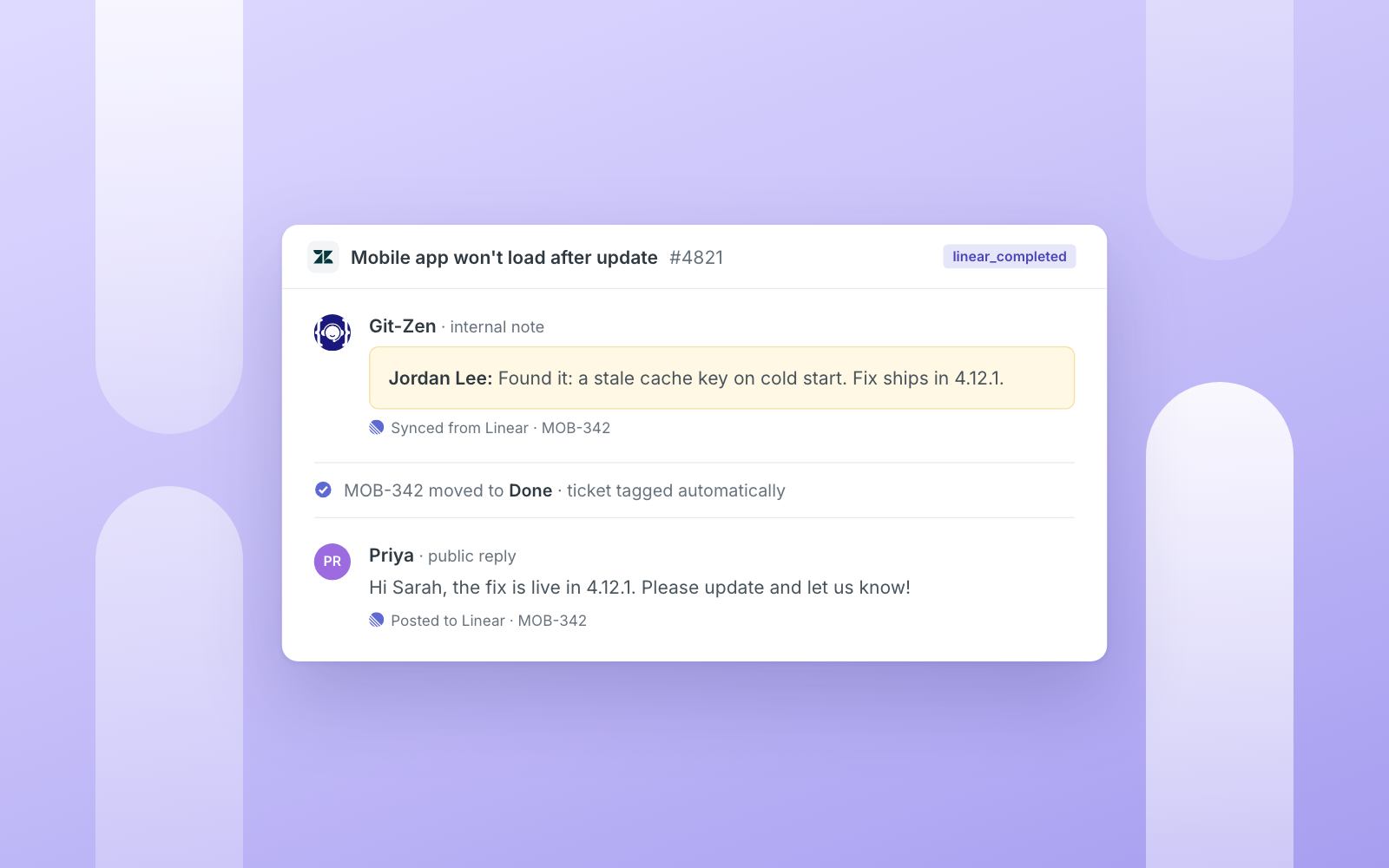
Git-Zen for Linear links your Zendesk tickets directly to Linear issues, so support agents can create or attach issues without leaving the ticket and engineers see the customer context right inside Linear. When an issue moves forward in Linear, the linked Zendesk ticket gets the update automatically. When there are comments or status updates on either side, the two-way sync allows you to capture the change in both systems.
How it works
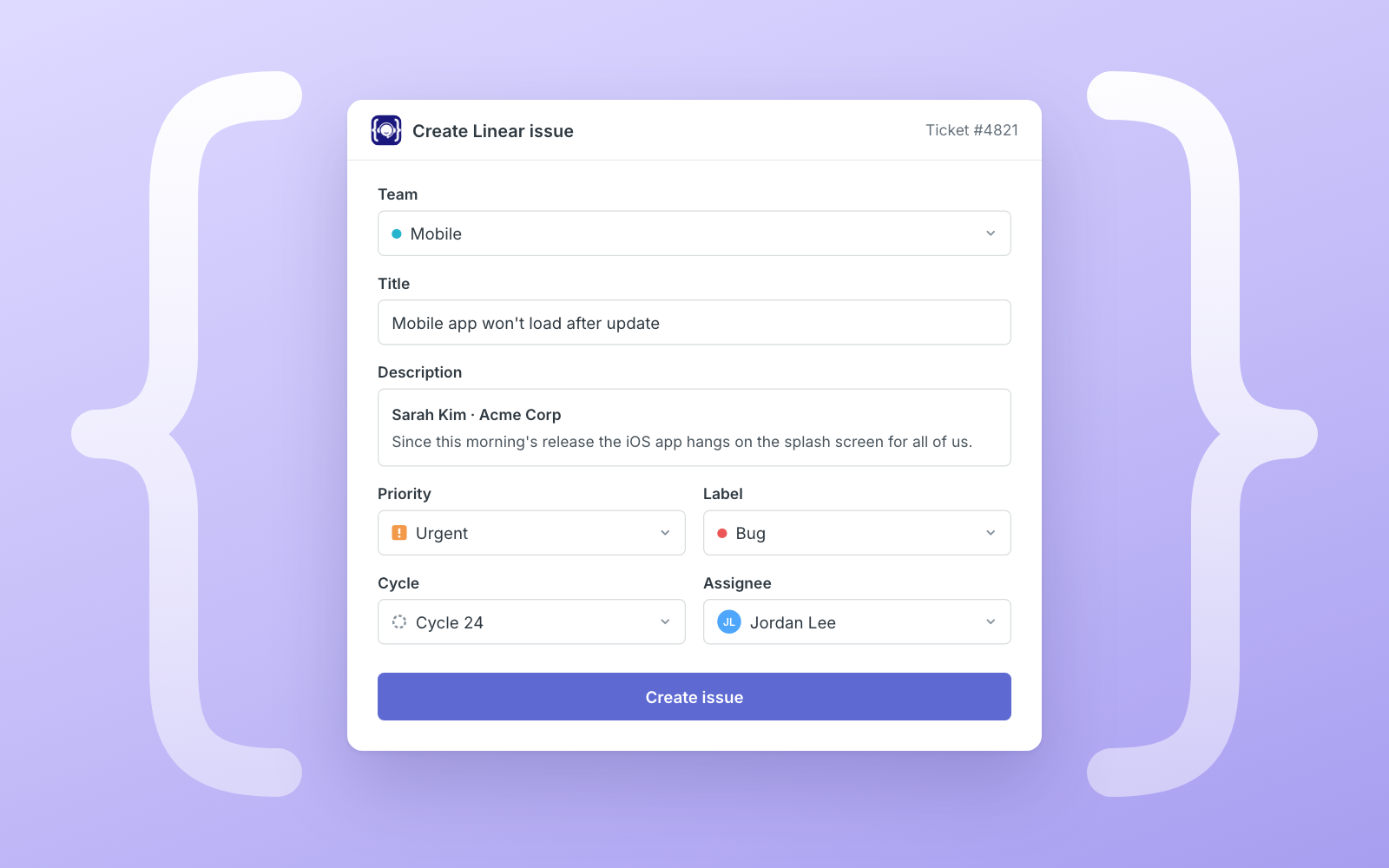
Git-Zen embeds a sidebar panel inside every Zendesk ticket that gives support agents direct access to your Linear workspace. From that panel, agents can create a new Linear issue pre-filled with ticket context, or search for and link an existing one. Once linked, the sidebar displays the issue’s state, assignee, priority, labels, project, cycle, milestone, estimate, and due date. Everything the engineering team is tracking, visible without a second tab.
The connection works in both directions. Agents can add comments to a linked Linear issue from inside Zendesk, and the issue appears as a native Zendesk attachment in Linear’s sidebar with a direct link back to the ticket. When creating an issue, agents can set the title, description, assignee, label, status, priority, project, project milestone, cycle, due date, and estimate, all from a single form in Zendesk without touching Linear.
Updates flow back automatically through webhooks. When engineers move an issue to a new state, close it, or reassign it in Linear, Git-Zen reflects that change on the linked Zendesk ticket. No manual status chasing, no pinging engineers for updates. The ticket tracks the issue from the moment it’s created until the work is done!
Configure
After installing from the Zendesk Marketplace, open the Git-Zen app settings and click Connect Linear. This starts a standard OAuth flow. You’ll authorize Git-Zen to access your Linear workspace and then select a default team. The app creates a webhook in your Linear workspace automatically during setup, so no manual webhook configuration is required. The connecting account needs permission to create webhooks in Linear, which typically requires admin or workspace owner access.
Once connected, all agents in your Zendesk account can use the integration immediately with no per-user setup.
You might be interested in
- Keep a tight feedback loop with customers and streamline bug reports
 ZendeskBy Linear
 - Connect GitHub to automate PR workflows, review code in Linear, sync issues and understand your codebase with Linear Agent
 GitHubBy Linear
 - Turn Linear issues into code with GitHub Copilot coding agent
 GitHub CopilotBy GitHub