- Integrations
- Approveit
Turn approved requests into Linear issues, and send Linear issues out for approval
Overview
Approveit routes approval requests through Slack, Microsoft Teams, email, or the web, then turns the decision into work in Linear. Approved access requests, release sign-offs, and purchase decisions arrive as Linear issues already authorized, with a record of who approved what and when.
How it works
Approveit is an approval workflow platform. An admin builds a workflow that defines what a request contains and who signs off on it, with multi-step routing and conditional logic so that a small purchase follows a different path than a large one. Requestors submit from Slack, Microsoft Teams, email, a public form, or the web app, and approvers act wherever they already work rather than signing into another tool.
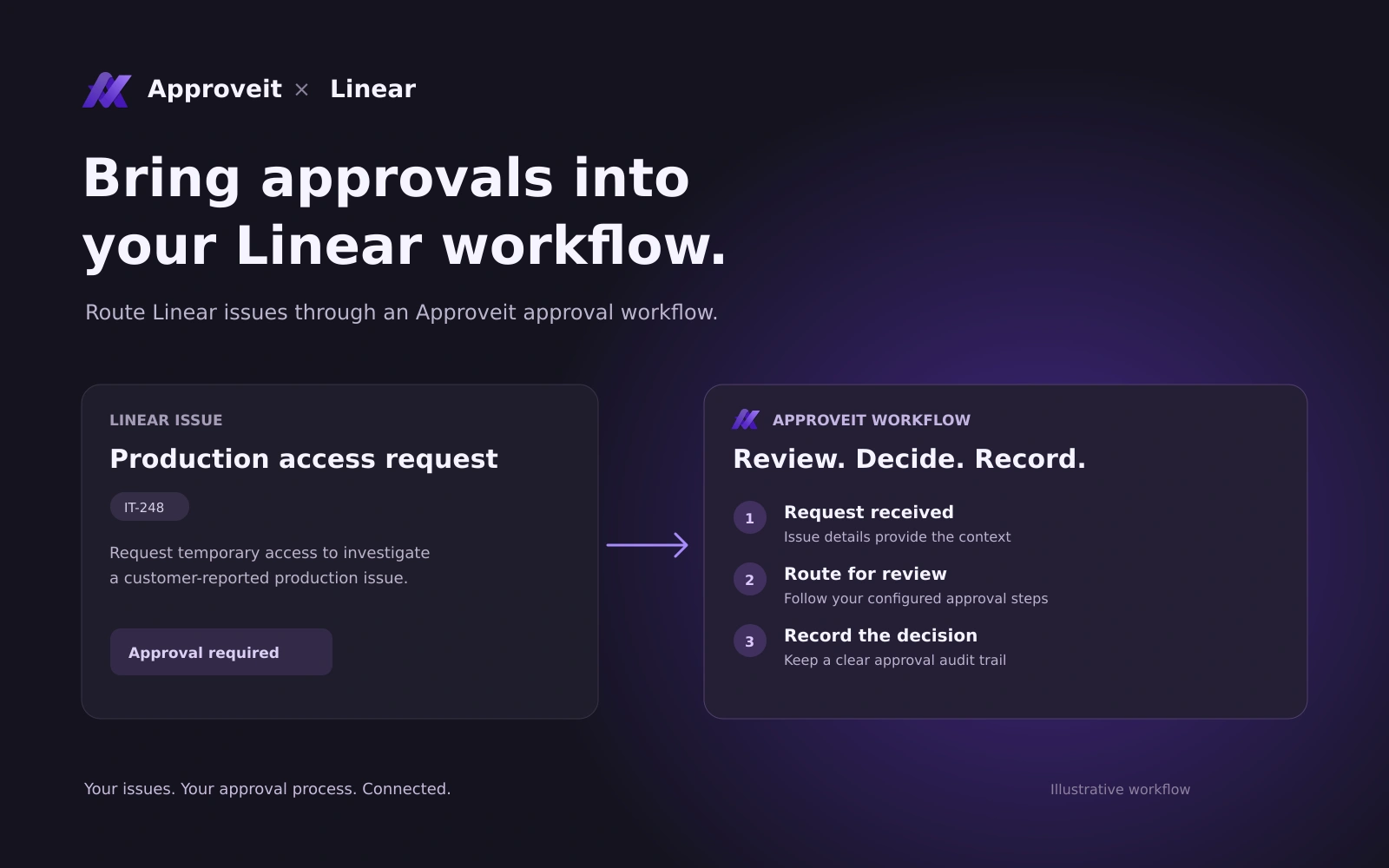
When a request is approved, Approveit creates or updates an issue in Linear. Values from the request are mapped into the issue title, description, team, and labels, so an access request arrives as a provisioning issue with the requestor, the system, and the approved scope already filled in. Actions can run automatically on approval or pause for an admin to confirm the resolved arguments first, and each one is recorded against the originating request, so it is always clear which decision produced which issue.
Approveit can also read from Linear on a schedule. You point it at a Linear query and matching issues become approval requests with their fields mapped across, deduplicated so the same issue is never imported twice. This takes work that is sitting in a backlog waiting on a decision and turns it into a tracked approval with named approvers and a timestamped history. The connection is authorized over OAuth through Linear’s hosted MCP server, so there are no API keys for customers to create or rotate.
Configure
Connecting Linear requires an Approveit admin with the Integrations permission, and a Linear user who can authorize OAuth access for the workspace.
In Approveit, open Settings → Integrations at https://app.approveit.today/settings?integration=mcp, add a new MCP server, and select Linear from the preset list. Authorizing redirects you to Linear to grant access and returns you to the settings page, where you then choose which Linear tools Approveit is allowed to call. We recommend creating a dedicated Approveit workspace in Linear so that all of your admins have access to the connection.
To send approvals into Linear, open a workflow in the builder, add an action to the approval stage, select the Linear tool, and map request fields into the issue using field references. To bring Linear issues into Approveit for approval, use Add external data source on the stage, choose the Linear query, and set a polling schedule.