- Integrations
- TestOrchestrator
Link, generate, and update test cases from Linear, with results posted back automatically
Overview
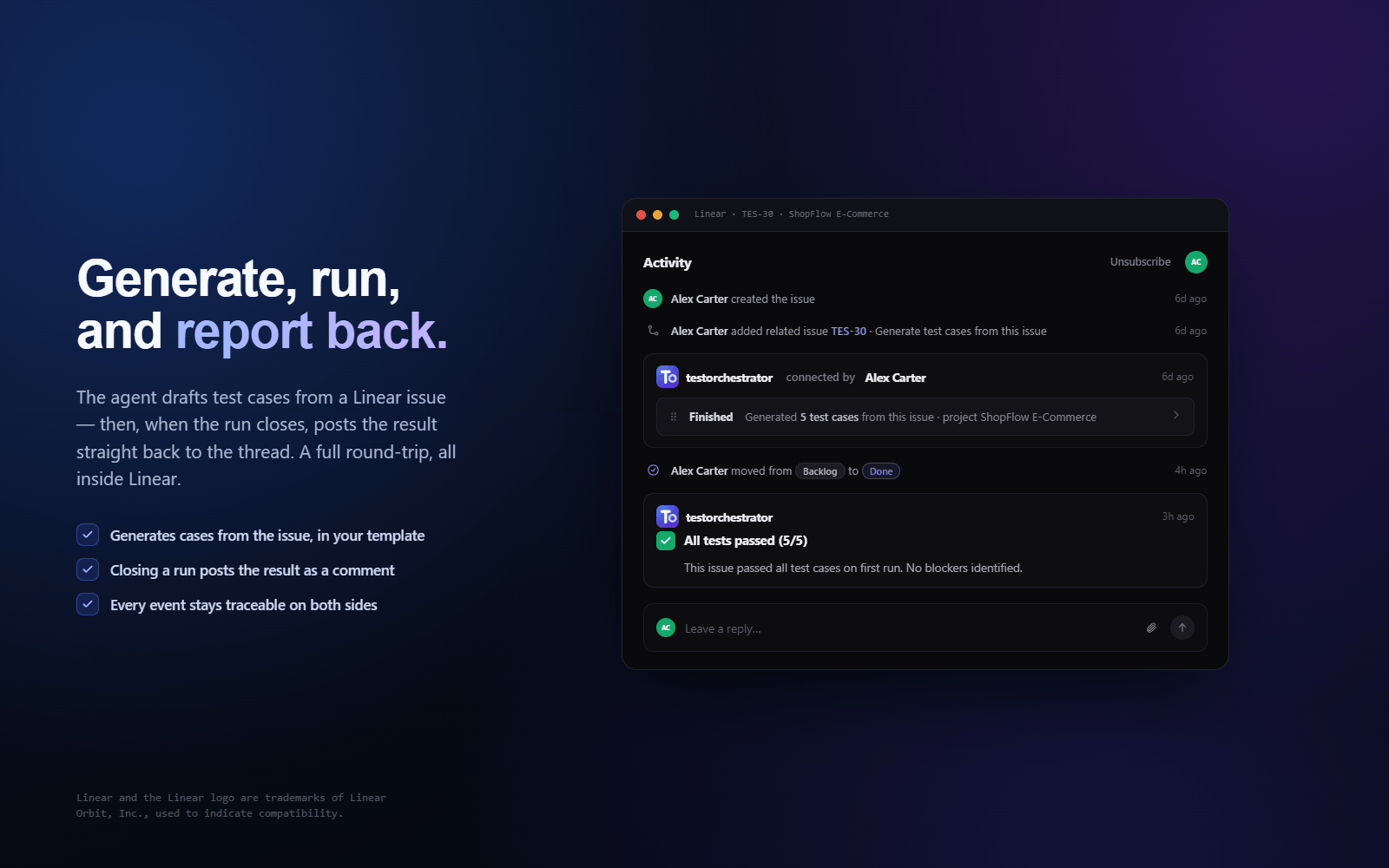
TestOrchestrator links your QA work directly to Linear, so test cases and runs stay traceable to the issues they cover. Generate test cases straight from a Linear issue, see AI insight on any linked issue, and — once you opt in — have test results posted back to Linear automatically when a run closes, so engineering always knows what passed, failed, or regressed without anyone copying updates by hand.
How it works
Getting connected. A workspace admin connects Linear once with a single OAuth authorization — no API tokens or manual keys to copy, and access refreshes automatically so the connection keeps working. Once connected, the integration is available across your projects, and an admin can scope it to specific projects if needed. From that point on, anyone on the team can link their QA work to Linear and pull Linear context into TestOrchestrator without further setup.
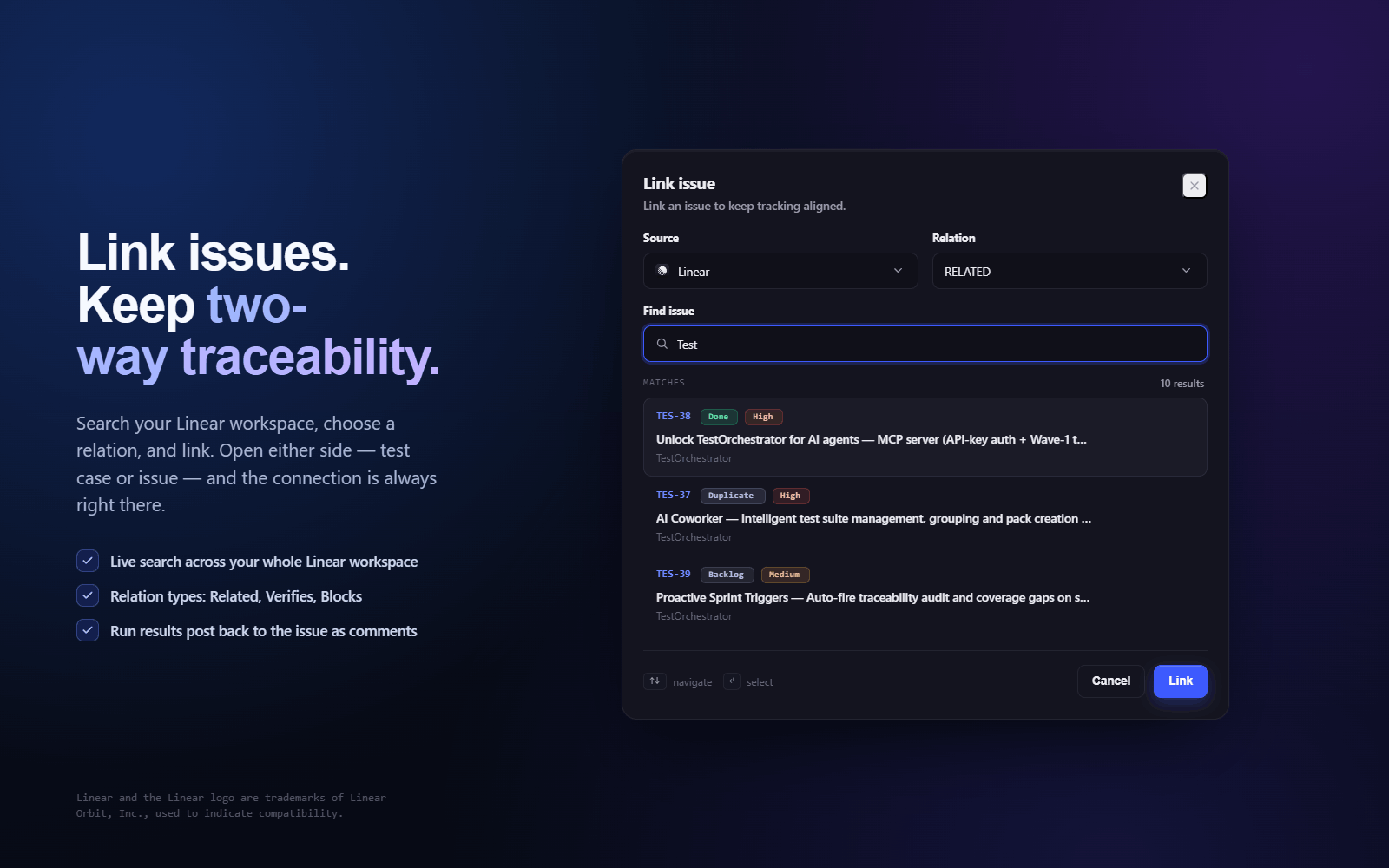
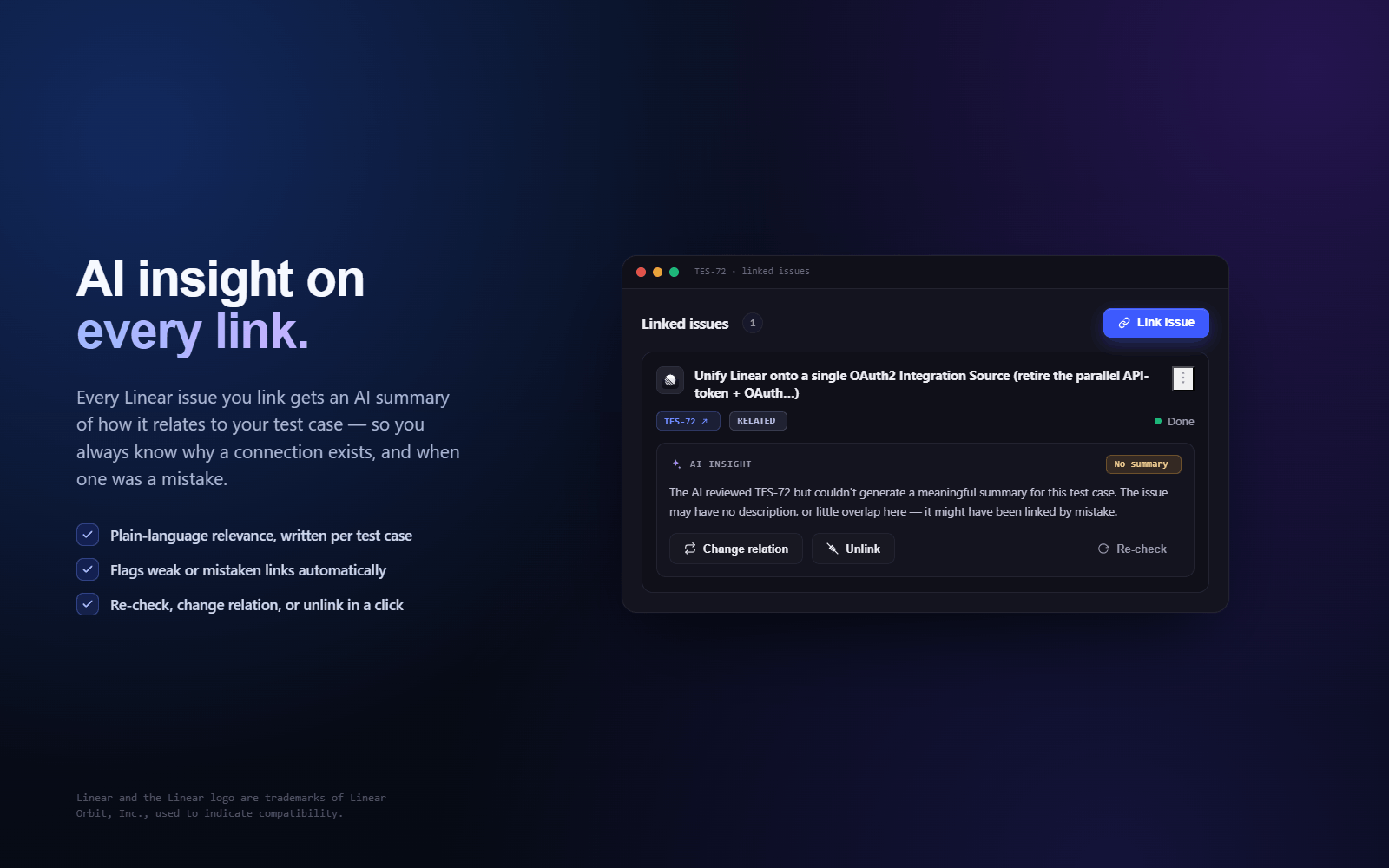
Linking and generating. When you add an external reference to a test case, test run, or exploratory session, you can search your Linear issues live by keyword and attach the right one, giving you traceability between what you tested and the work it relates to. On any linked issue, TestOrchestrator can generate an AI insight that summarizes the issue in the context of your testing, so reviewers get the gist without switching tools. You can also work in the other direction: from a Linear issue’s sidebar, the “Generate tests” action drafts test cases for that issue straight into a project you choose, turning a tracked requirement into reviewable tests in seconds.
Results flowing back. After a test run closes, an opt-in QA Agent analyzes the results tied to their linked Linear issues and posts back automatically — so engineering sees what passed, failed, or regressed without anyone bridging the gap by hand. Low-risk updates like posting a run summary comment, reopening an issue on a regression, or applying a label happen automatically, while higher-risk actions are held in an approval queue for a human to confirm before anything is written. Every action the agent takes is recorded in an activity log, and the whole behavior is off by default until your team chooses to turn it on.
Configure
Requirements. Connecting Linear is a one-time setup performed by a workspace admin with permission to manage integrations — regular members don’t need to configure anything. You’ll also need admin access to your Linear workspace to approve the authorization, plus a TestOrchestrator plan that includes AI to use the AI insight, test-case generation, and QA Agent features (linking issues itself works on any plan).
Connecting Linear. Open the External References page in TestOrchestrator and, on the Sources tab, choose “Authorize with Linear.” This opens Linear’s standard OAuth consent screen; approve it and you’re returned with Linear connected, showing your workspace and granted scopes — there are no API tokens or keys to copy. From the same card you can set a default project for the sidebar “Generate tests” action, use “Manage projects” to scope the integration to specific projects, and disconnect at any time, which immediately revokes access.
Enabling the QA Agent. The QA Agent that writes test results back to Linear is configured on the QA Agent tab of the same page and is off by default. “Enable QA Agent” turns on analysis and a run-summary comment on each linked Linear issue when a run closes, while a separate “Enable automatic actions” toggle lets low-risk actions — posting a comment, moving a regression to In Progress, or adding a needs-fix label — run without approval. Higher-risk actions such as moving an issue to Done, creating a bug sub-issue, or reassigning always require your sign-off in the approval queue on that tab, and every decision the agent makes is recorded in its activity log.
You might be interested in
- Connect GitHub to automate PR workflows, review code in Linear, sync issues and understand your codebase with Linear Agent
 GitHubBy Linear
 - Auto-detect cycles and generate traceable tests with AI
 Test Management by TestsigmaBy Testsigma
 - Automatically create issues in Linear whenever a test fails
 TestLodgeBy TestLodge