- Integrations
- Larridin
Developer productivity intelligence — from what shipped, to code quality and AI costs
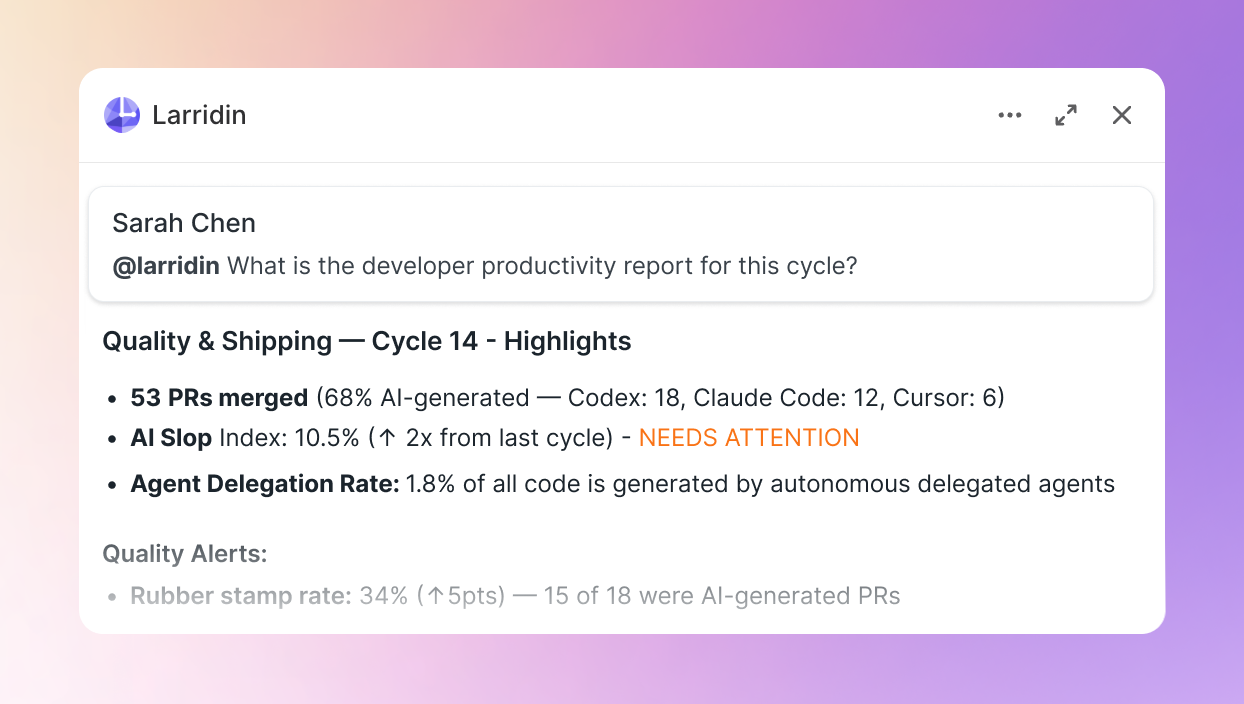
Overview
Larridin brings developer productivity intelligence into Linear. Mention the agent in a cycle, project, or issue and it pulls data from across your engineering stack (Linear, GitHub, GitLab, Codex, Claude Code, Cursor, Datadog, Sentry, PagerDuty) and posts back what shipped, how fast, at what quality, and what it cost.
How it works
The agent joins data from your ticketing, source control, and coding agents to answer questions where you work.
Issue lifecycle tracking: Mention @larridin on any issue and ask whether it shipped. The agent traces the full path from issue creation through coding agent activity, PR, code review, merge, deployment, and production health. It also checks whether the deploy went clean and if Sentry or PagerDuty flagged anything after.
Sprint and cycle scorecards: Mention @larridin in a cycle or project and ask how the team performed. It computes throughput, median cycle time, scope changes, and the split between human-authored and AI-generated code across Codex, Claude Code, and Cursor. Ask why velocity changed and it looks at scope creep, review bottlenecks, blocked work, or shifts in agent delivery.
Code quality: Ask @larridin about quality for what shipped this cycle. Rework rates, code turnover, and rollback frequency per team or developer.
Agent effectiveness and AI costs: Ask @larridin how your coding agents are performing across tools. Completion rates, autonomous run time, cost-per-issue, and quality comparison between agent-generated and human-authored work. Which tools your team is actually using, how much AI-generated code is landing in production, and whether it’s holding up or creating downstream rework.
Team and developer patterns: Ask @larridin about review turnaround, delegation rates, or where work is getting stuck. The agent surfaces per-team and per-developer signals so managers spot adoption gaps and coaching opportunities without pulling reports manually.
Reply to @larridin in any thread to drill deeper. Mention @larridin help to see available queries.
Configure
Linear admin or owner access is required to configure Larridin.
Connecting additional data sources may also require admin permissions in those systems.
- Connect your Larridin workspace
Go to Settings > AI Coder Integrations in Larridin and click Connect Linear. You need to be a workspace admin in both Larridin and Linear. - Authorize and select teams
Approve the OAuth consent screen. Pick which Linear teams get access to@larridin. It shows up as a workspace member in those teams. - Connect your stack
During setup, connect the systems Larridin draws from:
Source control: GitHub, GitLab
Coding tools: Codex, Claude Code, Cursor
Monitoring & incidents: Datadog, Sentry, PagerDuty
Each connection uses OAuth or API key authentication scoped to read-only access. Larridin computes metrics from your data - it never modifies issues, code, or configurations. - Start using @larridin
Mention@larridinin any issue, cycle, or project comment. Reply in the thread to drill deeper.