- Integrations
- Camber
Assign Linear issues to Camber data agents
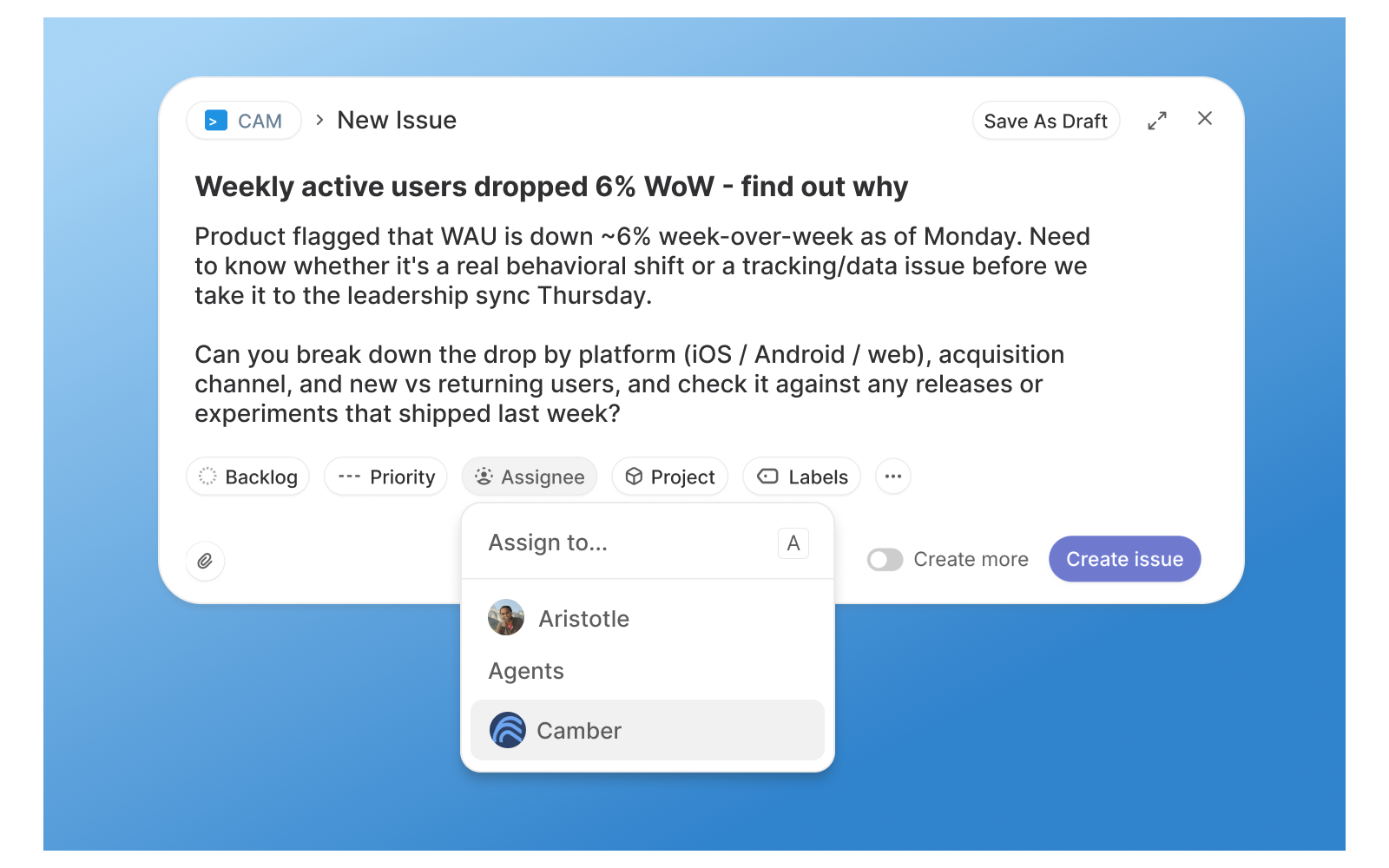
Overview
Mention Camber or delegate a Linear issue to start an agent run. Read progress updates, send follow-up instructions, and receive the result in the same issue.
How it works
Mention @Camber in a Linear issue or assign it a task and describe what you want to understand. For example: “Why did checkout conversion fall last week? Compare new and returning customers and check whether the drop is concentrated in one region.” Camber picks up the request with the issue context, so your team can start an analysis from the discussion it is already having.
Camber works with the data sources connected to your Camber to investigate the question. You can ask it to compare customer groups, explore changes in revenue or retention, or examine an unexpected pattern in your data. Describe the business question in plain language, including the time period and any details that matter. Camber adds a Camber Session link in Linear, where you can open the full analysis in Camber and review the work and its outputs.
If the analysis raises another question, continue in the same Linear conversation. Ask Camber to focus on a customer segment, change the comparison period, or investigate a different explanation. Camber continues the linked session with your new instructions and posts a completion notice in Linear when the run finishes. Your original request, follow-up discussion, and link to the analysis stay connected to the issue.
Configure
You need a Camber account and a Linear workspace admin to approve installation. Open Camber data connectors, and choose Linear.
In Linear, a workspace admin selects the workspace and allowed team access, then approves the installation. Once Camber shows Connected, open an issue in an approved Linear team and mention Camber or select it as the delegate.
Full setup instructions: Camber Linear connector documentation