SLAs and Routing
What to do with each item in the queue, where accepted work goes, and how deadlines are applied automatically.
Working the queue
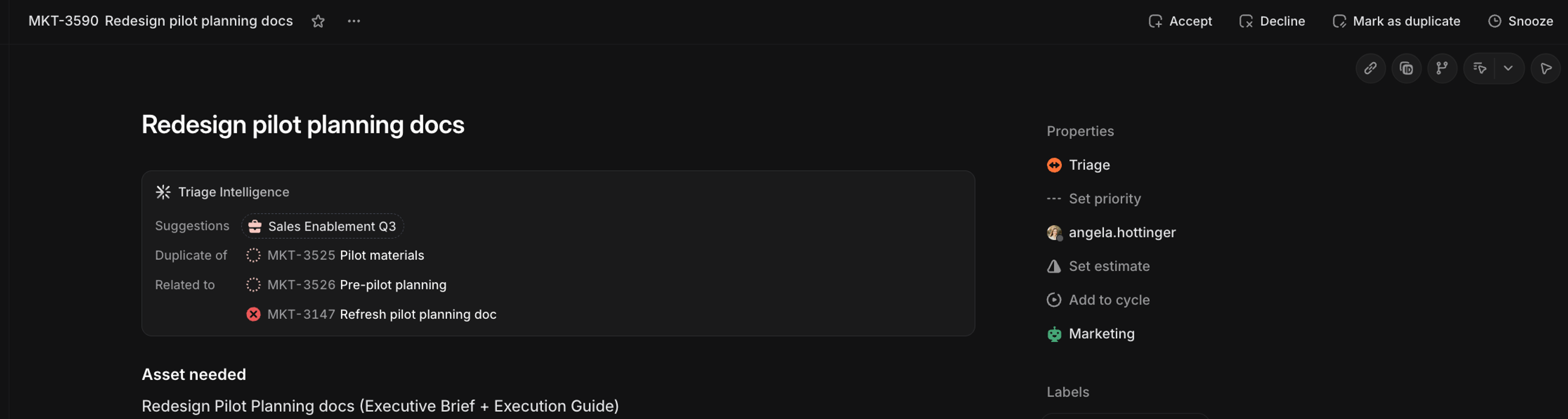
Each item in triage takes one of four actions, all available from the keyboard.
- Accept (1). The work is real and belongs to your team, and accepting moves it to your team’s default status.
- Mark as duplicate (2). Merges the issue into an existing one, carrying attachments and customer requests over to the original.
- Decline (3). Out of scope or not actionable. The issue is canceled, with an optional comment, which matters when the submitter is outside your team and will see the notification.
- Snooze (H). Hides the issue until a time you choose, or until there’s new activity.
Where accepted work goes
Accepted work takes one of three paths.
- To the backlog. Real work with no immediate slot waits there until planning pulls it into a cycle.
- Into a cycle or project. Work that fits an active cycle or project is linked directly, so it appears in the right context immediately.
- To an agent. Well-scoped issues with a clear description can be delegated to a coding agent or Linear’s own agent to start right away.
Issues that belong to a different team don’t need accepting at all. Move them to that team and they land in its triage queue with nothing more to do on your end.
SLAs
SLAs automatically apply deadlines to issues that match defined conditions.
They’re a workspace-level feature on Business and Enterprise plans, enabled once in Settings → Issues → SLAs rather than in any team’s settings
Default rules
SLAs ship with defaults you can use as they are or adjust.
| When | SLA |
|---|---|
| Urgent priority | 24 hours |
| High priority | 1 week |
| Medium priority or below | SLA removed |
Customization
The default rules can be edited, replaced, or extended with your own. Custom rules filter by team, priority, labels, project, and more, which is also how an SLA gets scoped to one team, with durations from 12 hours to 4 weeks or custom intervals that can exclude non-working days.
Where SLAs show up
SLAs surface in three places.
- On the issue. A flame icon shifts from gray through yellow and orange to red as the deadline approaches.
- In views. Any view can filter by SLA status, and Insights charts issue count by SLA status to track compliance over time.
- In notifications. Subscribers are alerted 24 hours before a breach and again at breach.
The statuses you can filter and chart by.
| SLA status | Definition |
|---|---|
| Low risk | More than a week from the deadline |
| Medium risk | Within a week of the deadline |
| High risk | Within a day of the deadline |
| Breached | The deadline has passed |
| Achieved | Completed within the SLA |
| Failed | Completed after the SLA was breached |
Any of these statuses can power a saved view, and engineering managers often keep one filtered to high risk and breached issues, with the view posting to Slack when new issues enter it.