Asks Web Forms
Anyone at your company can submit an Ask through simple web forms. Requesters do not need to have a Linear account or Slack access.
Available to workspaces on our Enterprise plan.

Overview
Access to web forms is gated by SAML auth, and employees can log in using their email. Once authenticated, employees submit requests by submitting a form, which creates an issue in Linear for the selected team.
Requesters receive an email acknowledgement when their form is submitted. Comments on the Linear issue sync both ways with the email thread, so Linear users can respond to the requester without leaving Linear and email replies will appear as new comments.
How web forms work
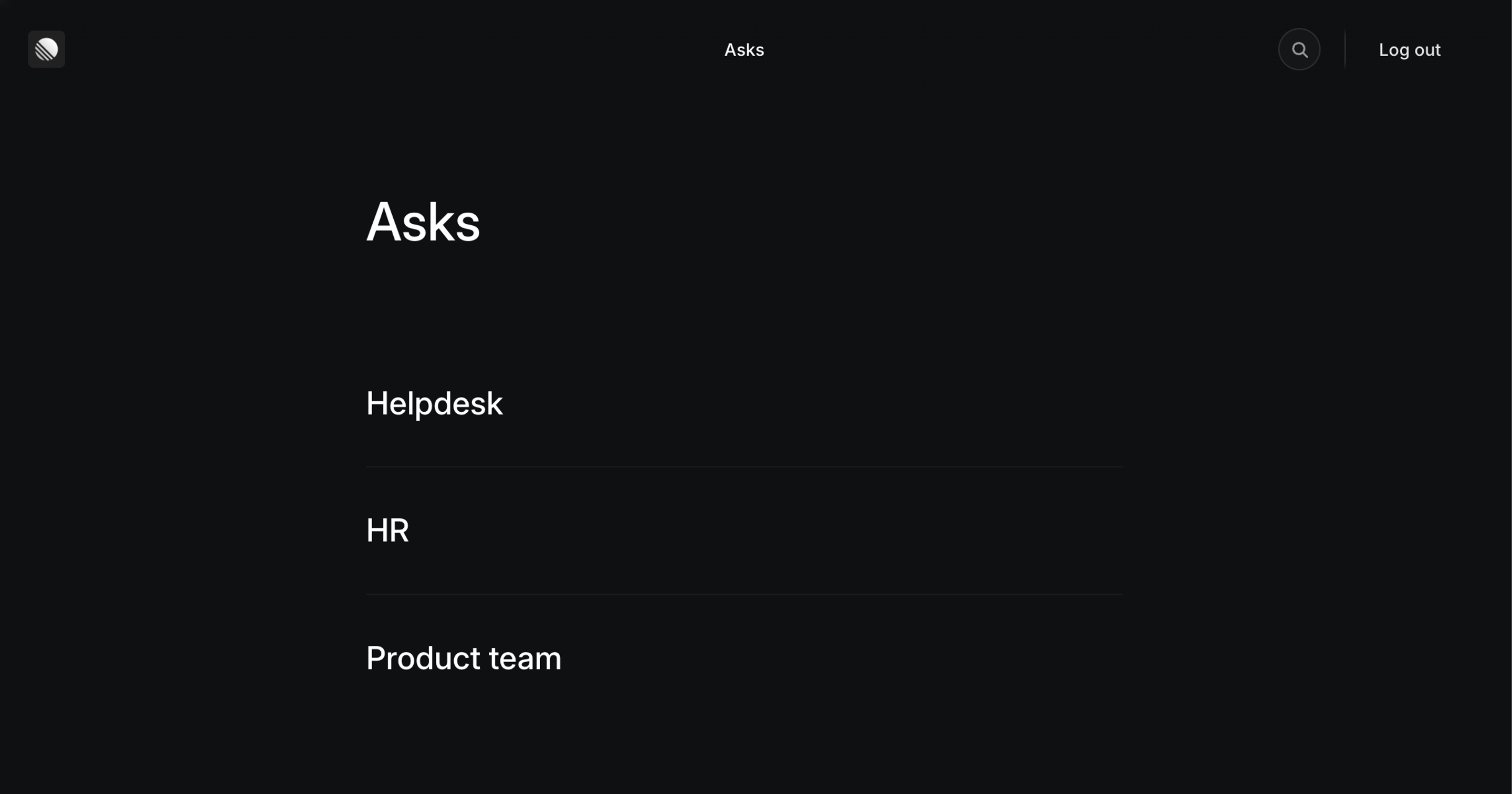
Your top-level Asks URL presents a set of pages, usually organized by team or topic.
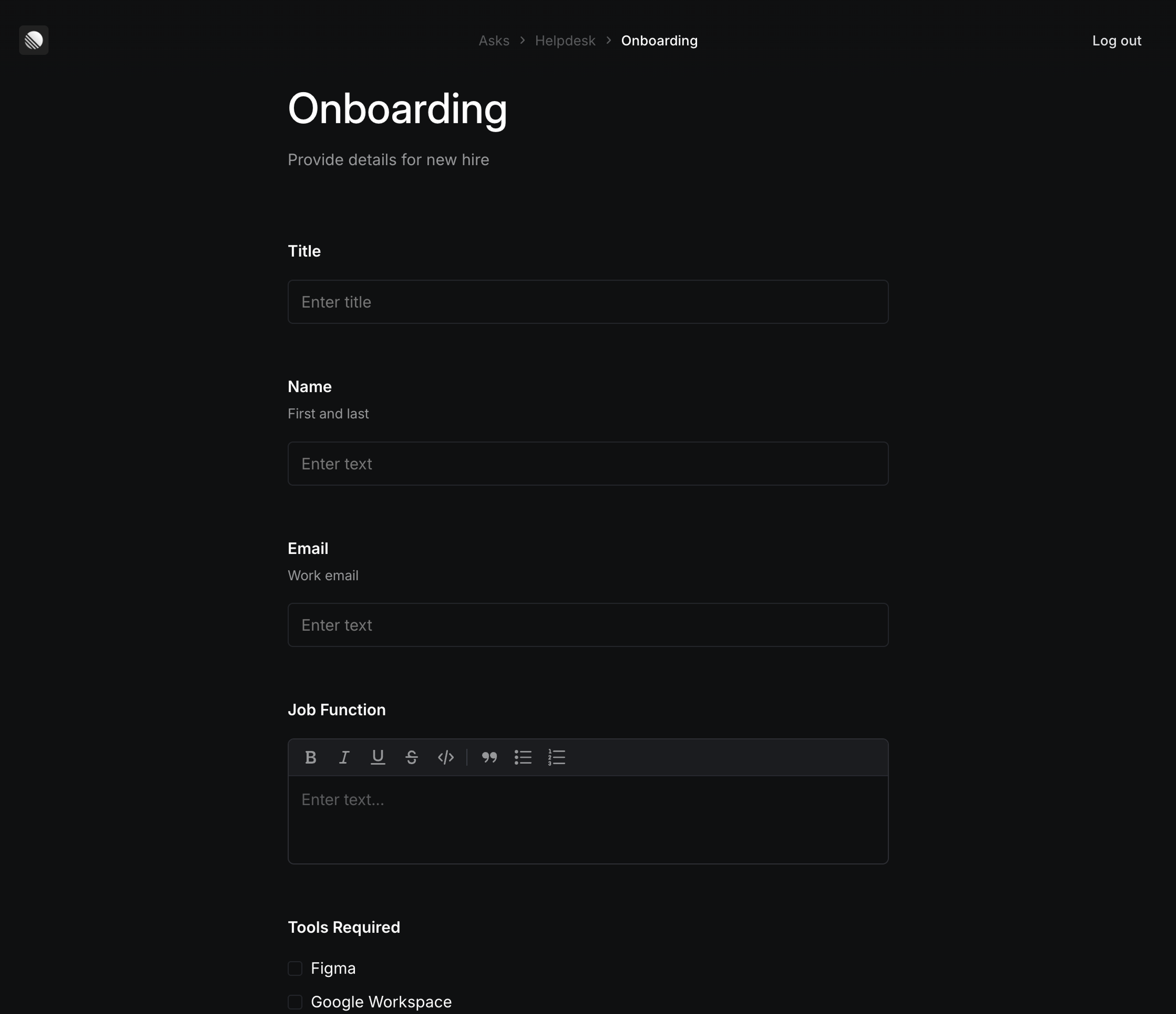
Each page contains one or more forms, and each form corresponds to a template in your workspace.
Requesters:
- Open the Asks site
- Sign in through SAML authentication
- Choose the appropriate page and form
- Submit the request
- Receive an email acknowledgement after submission
Comments on the Linear issue sync both ways with the email thread, so teams can reply from Linear while requesters continue the conversation over email.
Configure
Enable web forms
Workspace owners can enable Web Forms from Asks settings.
- Go to Settings → Asks.
- Click the + icon next to Web to begin setup.
Choose a hosting option
You can either:
- use a Linear-hosted domain
- host Web Forms on a custom domain
Using a Linear-hosted domain is simpler to set up. A custom domain can make Asks feel more native to your organization.
If you later switch between a Linear-hosted domain and a custom domain, you’ll need to update your SAML app because the redirect URLs will change.
If you choose to use the Linear provided domain, please skip to the Set up SAML authentication step below.
Custom Domain Setup
Set a custom email address
If you use a custom domain, you’ll also need to set an email address for outgoing updates and notifications to submitters.
When users receive email after submitting a form, those messages will come from that address.
DNS setup
Add the required DNS records in your domain provider to verify the custom domain and enable email delivery.
Verification can take up to 48 hours. You can continue setup while verification is pending. Once verification is complete, Web Forms will show as enabled in Asks settings.
Note - if a Cloudflare zone hold blocks custom-domain activation, release the zone hold temporarily, then return to Linear and select Retry activation. Once the custom domain is active, you can enable the hold again.
Email forwarding for replies
Email forwarding allows replies from submitters to appear in the issue’s synced thread in Linear.
Configure forwarding from your chosen email address to the Linear intake address.
You will need administrator permissions to set up email forwarding in your Google Workspace.
We do not recommend using Google Groups to set up forwarding as it modifies email headers which can result in several downstream issues.
Refer to Google’s help documents in Forward email to a third-party CRM for more details.
- Log into your Microsoft 365 Admin Center
- Select the mailbox that you wish to configure forwarding for:
- Shared mailbox: On the admin center homepage, go to the Teams & groups > Shared mailboxes page. Select the mailbox, then select Edit in the “Email forwarding” section.
- User: On the admin center homepage, go to the Users > Active users page. Select the user, then the mail tab and select Manage email forwarding in the “Email forwarding” section.
- On the “Shared mailbox” email forwarding side panel, select the “Forward all email sent to this mailbox” checkbox.
- Enter your Linear intake email address copied from Linear Email Asks Settings
- Select Save
Automatic forwarding needs to be enabled in your anti-spam outbound policy before trying to verify your forwarding setup. This is found in the Microsoft Defender portal.
Refer to Microsoft’s help documents in Configure email forwarding in Microsoft 365.
Set up SAML authentication
Before your users submit an Ask, they must sign in via SAML. Configuring SAML for Asks web forms involves copying Linear metadata into your identity provider (IdP) and copying IdP metadata into Linear. Steps 2 and 3 may occur in reverse order depending on your IdP.
You will need to create a separate SAML app for Linear Asks web forms. Don’t reuse the SAML app you use for workspace sign-in, because Asks web forms has its own SAML redirect URL and ACS URL.
Before you begin, please note that terminology can differ between services:
Linear | Google Workspace | Okta |
|---|---|---|
Callback URL | ACS URL | Single sign-on URL |
Audience URL (SP entity ID) | Entity ID | Audience URI (SP Entity ID) |
Start URL | Start URL (optional) | Sign on URL |
Name ID format | Name ID | Name ID format |
- In Asks settings, click next to Web to begin SAML setup. This will provide you with the details required to create a SAML app for Asks web forms in your identity provider.
- Open your identity provider and configure a SAML app with the details provided. If your identity provider supports importing metadata instead of copy/pasting values, you can download that file from Linear for easier setup. Once all provided values are present in your SAML app, create it.
- After creating the SAML app, your identity provider should supply either a URL, or XML pointing to the SAML configuration. Copy this value, paste it back into Web Asks settings in Linear, and click Finish.
- Your SAML configuration is now set up, and you will see a URL listed under Web forms in Linear. Please ensure you’ve added the users you wish to have access to submit web forms to your SAML app.
- Test the flow yourself by opening the URL from the overflow menu and logging in with your email address. If you can’t log in, double check the values you input by opening the Edit configuration menu. If you need more assistance, please contact us with the details.
Add pages
Pages organize your forms by thematic group, and help direct employees to the appropriate webform.
When an employee opens your Asks website, they’ll see a list of pages.
You can create up to 30 web form pages per workspace. Each page has its own URL.
When creating a page, you choose:
- name
- description
- URL
- which templates appear on that page
- optionally, customize the format of the email replies your users receive
Add templates
When you want to create a new form for an Asks page, you’ll do so by making a new template. You can use either standard templates or form templates.
Once you’ve created the template, make sure to add it to a page (if you don’t, it will still be available in Linear, not shown on your Asks page.)
Each page can include up to 30 templates.
Supported fields include Text, Long text, Dropdown, Checkboxes, Date, File upload, and Instructions. You can also include customer, label group, priority, title, and due date fields.
Synced thread behavior
After a form is submitted:
- an issue is created in Linear
- the requester receives an email acknowledgement
- follow-up communication syncs through the issue’s thread and the email thread
This lets Linear users work in Linear while requesters continue the conversation through email.