Sub-initiatives
Sub-initiatives allow Initiatives to be nested inside one another, enabling deeper planning and visibility across large programs of work. Use sub-initiatives to organize your company goals, workstreams, or OKRs into a structured hierarchy.
Available to workspaces on our Enterprise plan.
Basics
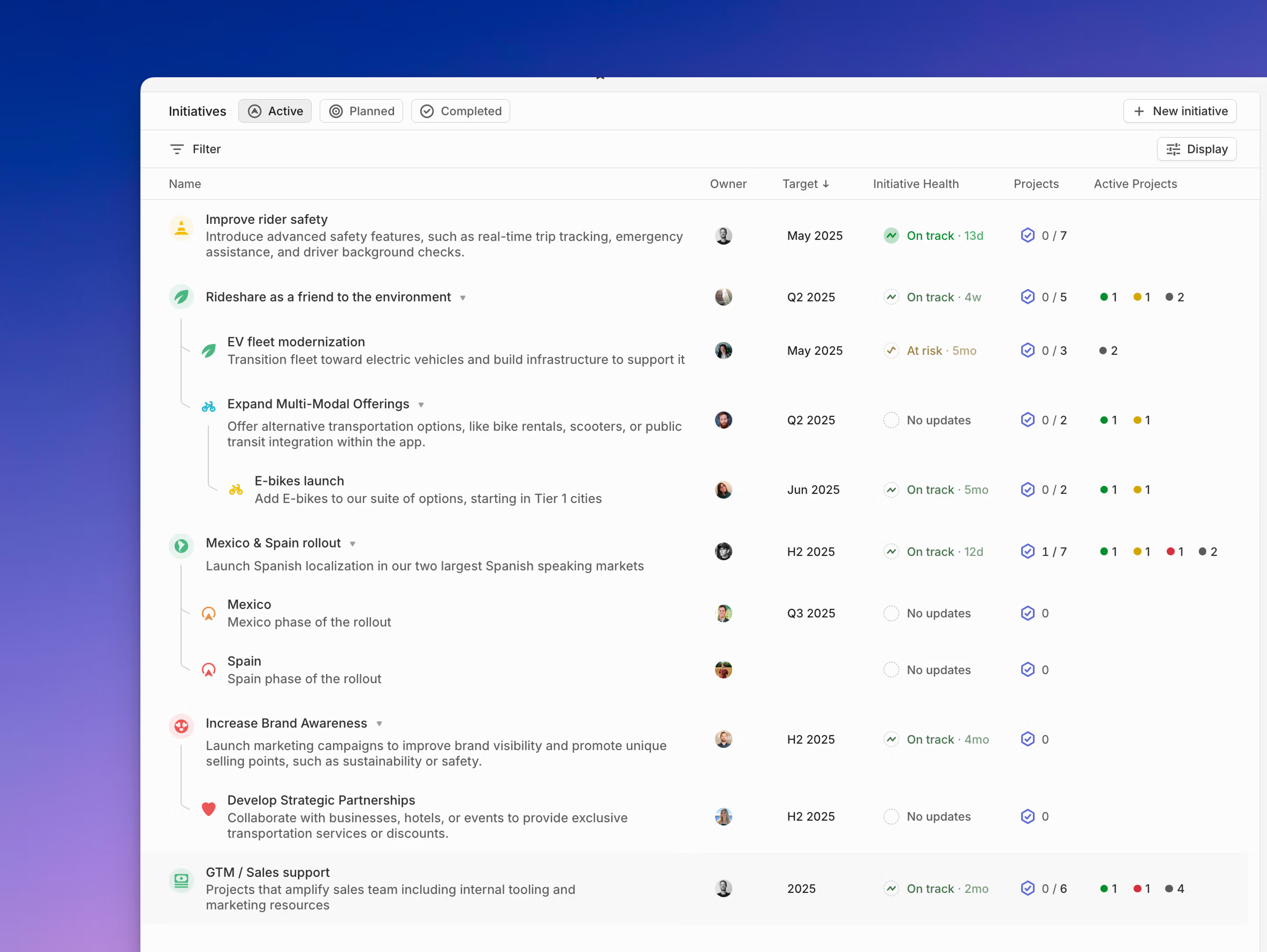
Sub-initiatives let you nest Initiatives up to five levels deep in a tree-like structure. A parent Initiative automatically includes all the projects it owns directly, as well as all the projects from its sub-initiatives. This makes it easy to roll up work from multiple departments, teams, or quarters into one overarching goal.
You can use sub-initiatives to:
- Structure company-wide objectives across multiple departments
- Break down a large strategic goal into phased delivery Initiatives
- Group Initiatives by quarter, theme, or ownership
Initiatives can have multiple parents. Projects added to any sub-initiative will automatically be included in the parent’s view of progress.
Creating and managing sub-initiatives
You can create and organize sub-initiatives from two places in Linear:
From the workspace Initiative views (Active, Planned, Completed)
- Create a new Initiative using the New Initiative button or the keyboard shortcut N then I. You can also choose a parent Initiative during creation.
- Nest Initiatives by holding Option (Alt on Windows) while dragging one beneath another.
- To remove a parent, drag the Initiative out of the nested section and drop it elsewhere in the list to return it to the top level.
- These pages are best for managing structure across multiple teams or quarters.
From an Initiative Overview page
- Use the Add button in the top right, or the ... menu beside the Initiative title, to create or attach sub-initiatives.
- Use the icon above the sub-initiative list (if shown) to add more.
- Use the command menu (Cmd + K) or shortcut Cmd + Shift + P to set or change the parent.
Sub-initiatives created from an Overview page are nested under that Initiative automatically.
Viewing sub-initiatives
Sub-initiatives appear nested beneath their parent Initiative both on the full workspace Initiative views (Active, Planned, or Completed) and on the parent’s Initiative Overview page. If you’d like to temporarily collapse or expand a nested list, press T — this affects only your own view.
By default, a parent Initiative’s project list includes all projects from its sub-initiatives. You can adjust this using the display settings in the top right of the project list to show only directly owned projects. Each sub-initiative displays a project count, which includes all projects from any further sub-initiatives nested within it.
When Initiatives are grouped by owner or other properties, parent Initiatives will still appear above their sub-initiatives to provide context — but they’ll be shown grayed out if they don’t directly match the grouping property.
Visibility and filtering
Sub-initiatives follow the same visibility rules as standard Initiatives: they’re visible to all workspace members except guests. If a project belongs to a private team, its details remain restricted — but the Initiative itself will still be listed.
When viewing a parent Initiative, filters (such as by team, status, or project health) will include projects from all of its sub-initiatives. This gives you a complete picture of progress at every level of the hierarchy.