Open issues with custom scripts
Overview
While many coding tools are supported in your Code & reviews settings, you can also choose to open issues using local scripts. This is particularly useful if you want to connect Linear to tools not supported in preferences.
Custom script lets you define precisely how an issue should be opened. You might choose to open issues through a CLI tool, internal script, or custom development workflow. Linear passes issue context into your command at runtime.
How it works
- Enable Custom script in Settings > Code & reviews > Configure coding tools.
- Define a command in
~/.linear/coding-tools.json. - Select Work on issue → Custom script in Linear.
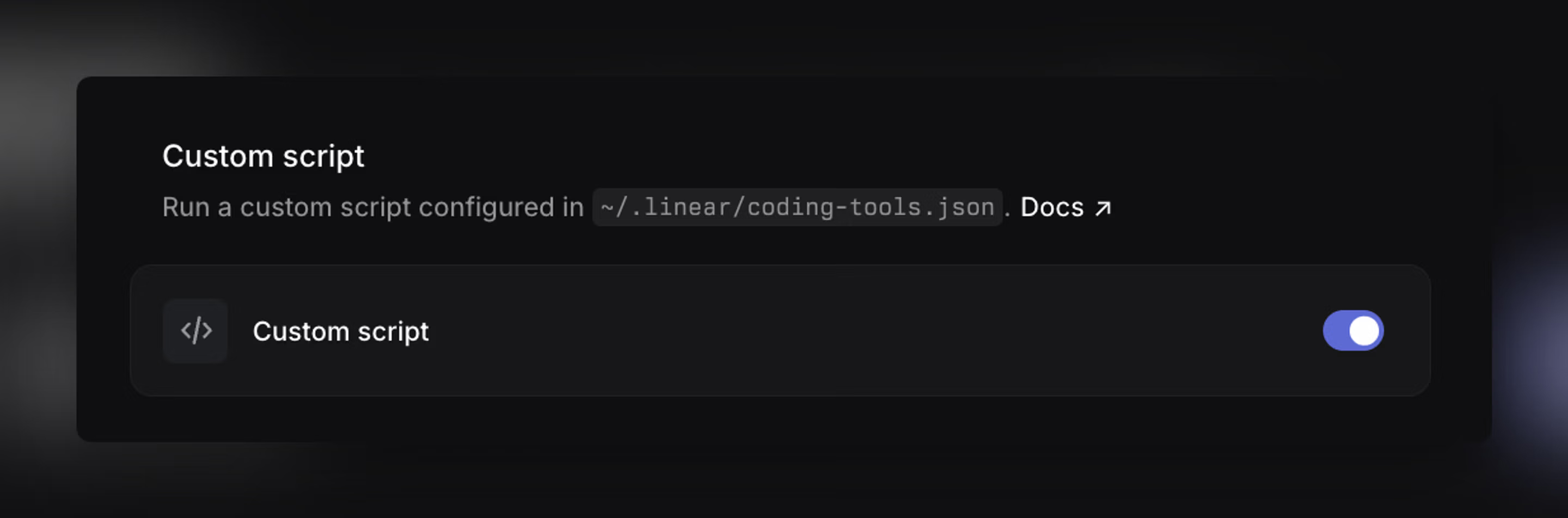
Linear will run your command locally and inject any variables you’ve configured.
The first time you use this feature, Linear will generate a starter config file. You can edit it to point to your executable and arguments.
Configuration
Each script is defined in coding-tools.json with the following fields:
- path: Absolute path to the executable
- args (optional): Command-line arguments; supports
{{variable}}templating - env (optional): List of
LINEAR_*environment variables to expose
Template variables
You can use variables in args:
promptissue.identifierissue.branchNameproject.namepullRequestComment.idworkDirtool.command
Environment variables
Expose these via the env array:
LINEAR_PROMPT: Full prompt textLINEAR_ISSUE_IDENTIFIER: Issue IDLINEAR_ISSUE_BRANCH_NAME: Suggested branch nameLINEAR_WORK_DIR: Working directory selected by the userLINEAR_PROJECT_NAME: Project name (only present when the issue belongs to a project)LINEAR_PULL_REQUEST_COMMENT_ID: PR comment ID (only present when triggered from a pull request comment)LINEAR_TOOL_COMMAND: Command of the selected coding tool
Example
{
  "openIssue": {
    "path": "/absolute/path/to/executable",
    "args": [
      "--issue",
      "{{issue.identifier}}",
      "--branch",
      "{{issue.branchName}}",
      "{{prompt}}"
    ],
    "env": [
      "LINEAR_PROMPT",
      "LINEAR_WORK_DIR",
      "LINEAR_PROJECT_NAME"
    ]
  }
}