Loops
Available to workspaces on Business and Enterprise plans. Usage draws from your workspace’s AI credits.
Overview
Loops let Linear take action automatically when issues match a set of conditions. Use them to reduce manual triage, keep work moving, and handle routine follow-up.
Loops can be created at the workspace or team level:
- Workspace loops are useful for workflows that apply across multiple teams.
- Team loops are useful for workflows owned by a specific team.
Each loop includes:
- A Trigger that decides when it runs
- Instructions that tell Linear what to do
- Optional Tools the loop can use
- Permissions that control what data it can access
Setup
A Workspace admin or owner can control who can create and manage workspace loops in Settings → Security → Workspace management → Manage loops.
Team owners can control who can create and manage team loops in Settings → Teams → [Team name] → Access and permissions → Loop management.
Create a workspace loop
- Open Loops from the main workspace navigation
- Click New loop
- Choose the trigger for the loop
- Add instructions describing the outcome you want Linear to achieve
- Add any tools the loop should be allowed to use
- Review the loop’s permissions and scope
- Create the loop, then enable it when you are ready for it to run
Use workspace loops for workflows that should apply across teams or span a broader part of your workspace.
Create a team loop
- Open the relevant team home page
- Go to Loops
- Click New loop
- Choose the trigger for the loop
- Add instructions describing the outcome you want Linear to achieve
- Add any tools the loop should be allowed to use
- Review the loop’s permissions and scope
- Create the loop, then enable it when you are ready for it to run
Use team loops when the workflow belongs to one team and should stay scoped to that team’s work.
Loop types
Loops can be configured in a few different ways depending on what should cause them to run.
Issue:
Use when you want Linear to respond automatically to changes in issue state or issue attributes.
Examples:
- Delegate bugs reports to a coding agent for review, along with a fix
- Follow up on issues that enter a particular workflow state
- Apply routine handling to issues that match a defined pattern
Scheduled:
Use when you want Linear to perform checks or routine follow-up at a specified cadence or schedule.
Examples:
- Review a queue every weekday and share a high-level summary
- Check for issues that need follow-up at the end of each week
- Review help documents against your codebase to maintain their accuracy
Review loop runs
Use Run history to check that a loop is behaving as expected and to investigate failed runs. You can check recent activity from the loop’s Run history.
- Open Loops from the workspace or team where the loop lives
- Select the loop
- Open Run history
- Review recent runs to see when the loop executed and whether it completed successfully

Write effective instructions
Clearly describe the intended outcome and any actions Linear Agent should avoid.
For example:
Investigate the issue using the available context. Add a comment summarizing the likely cause and recommend the next action. Do not change the issue’s assignee or status.
For more reliable results:
- Use Linear Agent Chat to help build your instructions
- Describe the outcome, not only an action
- Specify which context or connected tools Linear Agent should use
- State which changes are permitted
- Include a fallback for when there is not enough evidence to act
- Start with narrow filters and review early results before expanding the scope
Tools
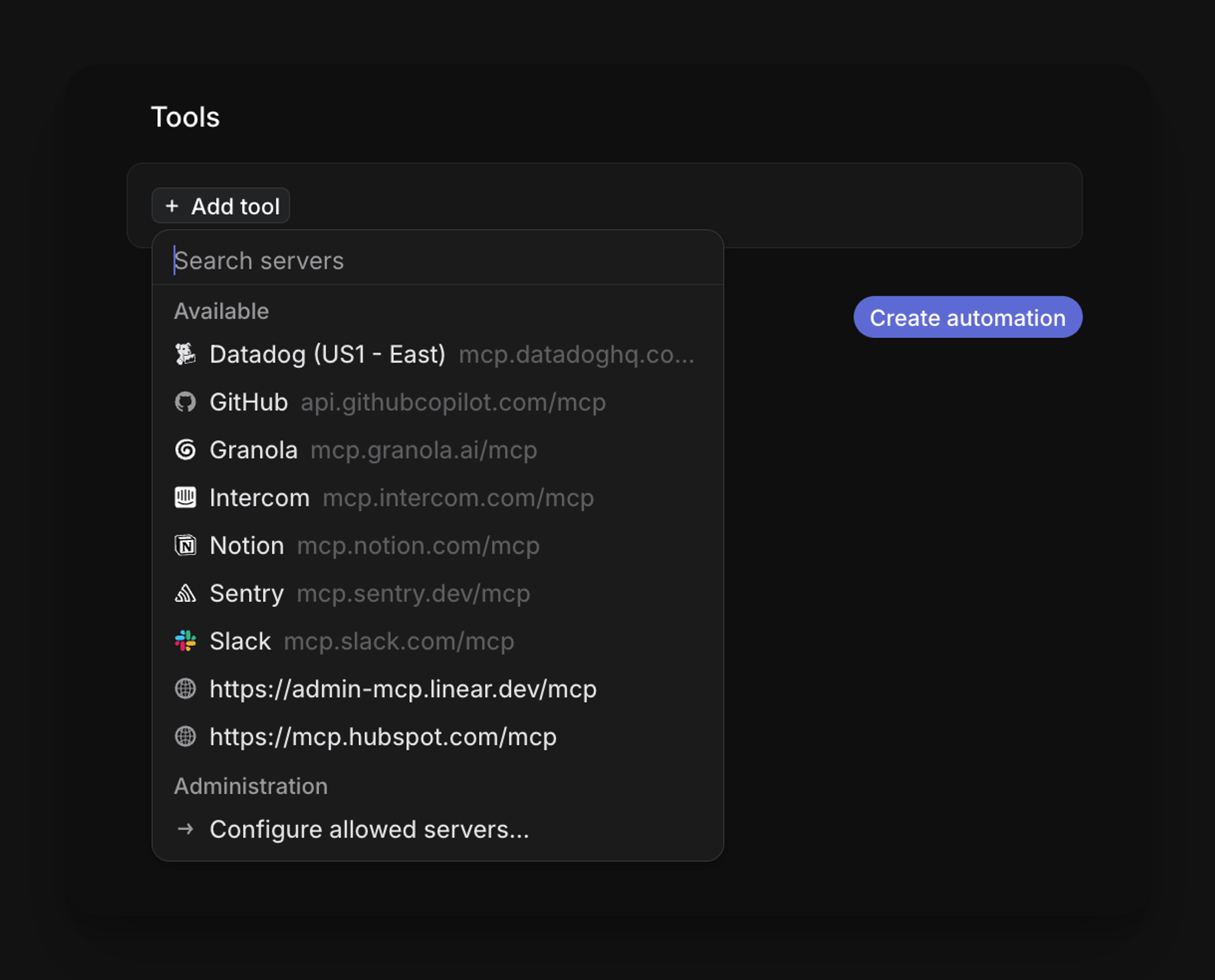
Tools extend what Linear Agent can do during a loop run. When a connected tool is available and permitted for the loop, Linear Agent can use it to gather additional context or take supported actions beyond Linear itself.
Examples of what tools can enable:
- Search or retrieve content from connected sources such as GitHub, Notion, or Sentry.
- Post comments or updates to external services when the loop has write access to that tool.
- Fetch relevant documentation, pull request details, or error reports to enrich an issue.
To use a tool in a loop, the tool must be connected to your workspace and enabled for Linear Agent. Reference the tool in your loop’s instructions to tell Linear Agent when and how to use it. For example: Use the GitHub tool to find the related pull request and summarize its changes.
Linear Agent operates within existing permissions. A tool can only access data and perform actions that are permitted by the connected integration’s configuration and the loop’s data scope. Review which tools are available and what access they have before referencing them in instructions.
AI credits
Agent loops use your workspace’s AI credits when they run.
If your workspace runs out of AI credits, affected loops can stop running until credits are added.