Asks Web Forms: Beta
Create a simple web portal for employees to submit internal requests
Asks web forms is in beta for select customers on Linear’s Enterprise plan.

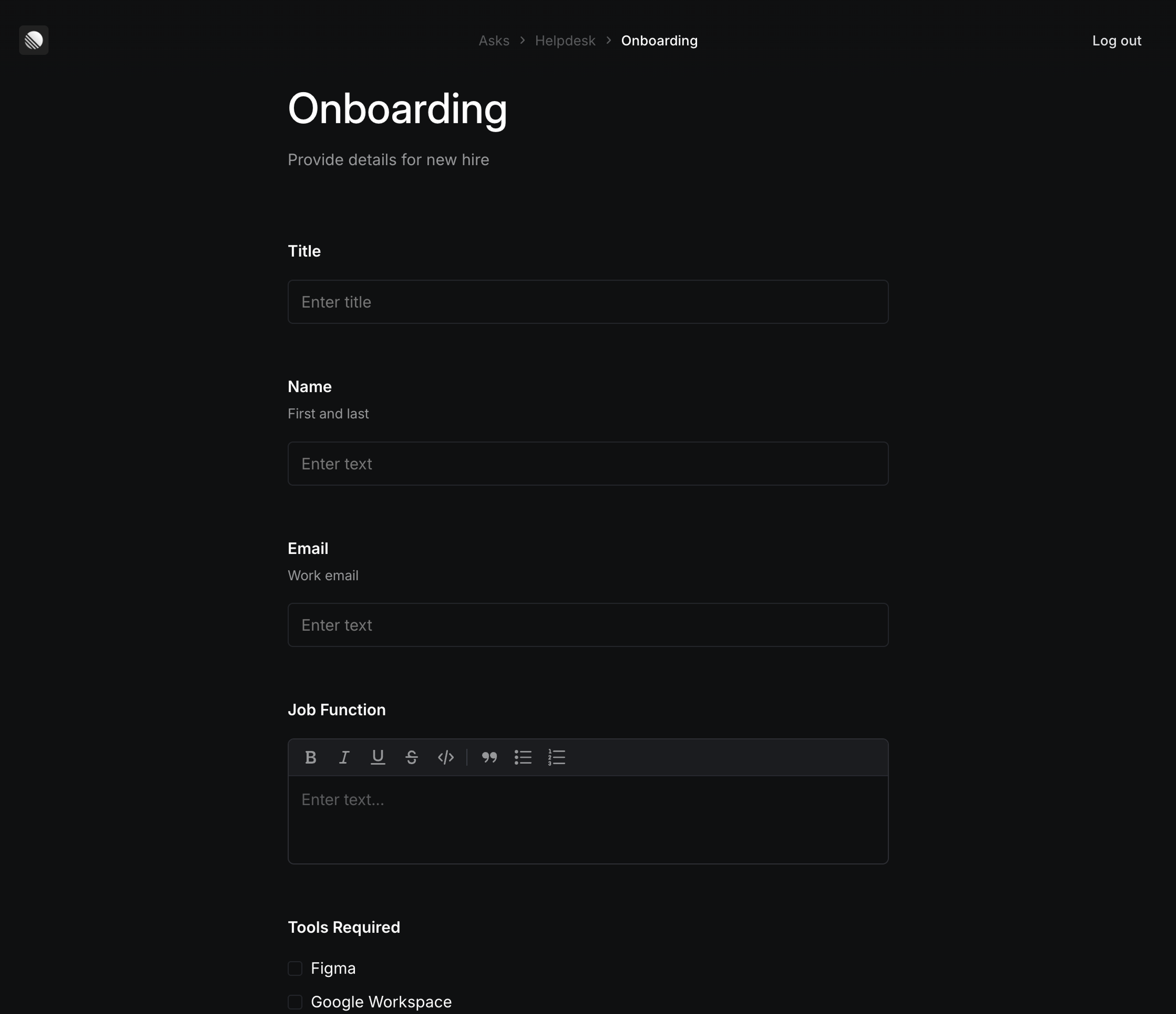
Asks web forms let anyone at your company submit a request from a simple web page — no Linear account or Slack access required. You can configure access to Asks web forms via SAML auth, and employees can log in using their email. Once authenticated, employees can submit requests by submitting a form, which creates an issue in Linear for the selected team.
Requesters receive an email notification when their form is submitted. Comments on the Linear issue sync both ways with the email thread, so you Linear users can respond to the requester without leaving Linear and email replies will appear as new comments.
Your top-level URL presents employees with all pages, so they can find the area they want to submit forms for. Each page holds individual forms, which correspond to form templates in your workspace.
Configure
Create your domain
Workspace owners can enable Asks web forms from settings. Click + next to Web forms to create your URL.
While in beta, your site will be hosted on Linear’s domain. We are working on supporting custom domains so you can offer a branded URL in the future.
Set up SAML authentication
Before your users submitting an Ask, they must sign in via SAML. Configuring SAML for Asks web forms involves copying Linear metadata into your identity provider (IdP) and copying IdP metadata into Linear. Steps 2 and 3 may occur in reverse order depending on your IdP.
Before you begin, please note that terminology can differ between services:
| Linear | Google Workspace | Okta |
|---|---|---|
| SAML Callback URL | ACS URL | Single sign-on URL |
| Entity ID | Entity ID | Audience URI (SP Entity ID) |
| SAML Login URL | Start URL (optional) | Sign on URL |
| Name ID format | Name ID | Name ID format |
- In Asks settings, click next to Asks web forms to begin SAML setup. This will provide you with the details required to create an SAML app for Asks web forms in your identify provider.
- Open your identity provider and configure a SAML app with the details provided. If your identity provider supports importing metadata instead of copy/pasting values, you can download that file from Linear. Once all provided values are present in your SAML app, create it.
- After creating the SAML app, your identity provider should supply either a URL, or XML pointing to the SAML configuration. Copy this value, paste it back into Web Asks settings in Linear, and click Finish.
- Your SAML configuration is now set up, and you will see a URL listed under Web forms in Linear. Please ensure you’ve added the users you wish to have access to submit webforms to your SAML app.
- Test the flow yourself by opening the URL from the overflow menu and logging in with your email address. If you can’t log in, double check the values you input by opening the Edit configuration menu. If you need more assistance, please contact us with the details.
Add pages
Pages organize your forms by thematic group, and help direct employees to the appropriate webform. When an employee logs in to your top-level Web Asks URL, they’ll see a list of pages.
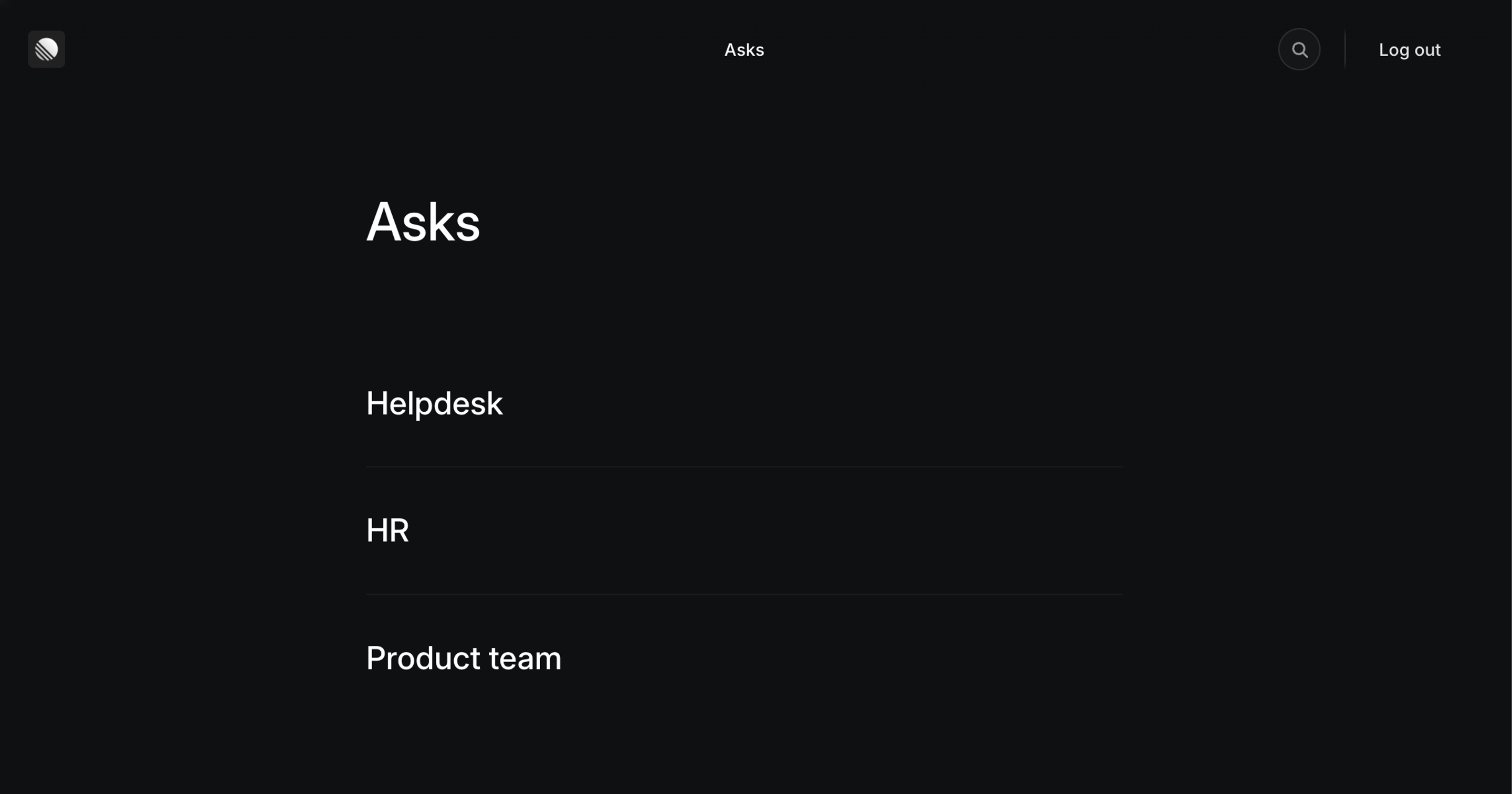
Set up a new page by using the + icon next to pages in Asks settings. When creating a page, you’ll set its name, description and URL. This is also where you choose the templates to provide to the page, and optionally customize the format of email replies the submitting user receives.
Add templates
When you want to create a new form for an Asks page, you’ll do so by making a new template. Both standard templates and form templates are available for use.
Once you’ve created the template, make sure to add it to a page (if you don’t, it will be available in Linear but not in Asks.) Once added, users will be able to submit it from web.