# SLAs
Automate SLAs for issues that should be completed within a certain amount of time.
> [!NOTE]
> Available to workspaces on [Business](https://linear.app/pricing) and [Enterprise](https://linear.app/pricing) plans
## Overview
SLAs (Service-level agreements) automatically apply deadlines to issues when they match your defined parameters. While traditionally used to describe service level agreements with your customers, SLAs can also be used to maintain internal standards for how quickly bugs will be fixed and time-sensitive issues will be resolved.
## Configure
Enable the feature in _[Settings > Issues > SLAs](https://linear.app/settings/sla)_, then create rules for when to apply an SLA to a newly created issue.
> [!NOTE]
> SLAs won't be applied to existing issues that have already been prioritized. Changing the priority of an existing issue will trigger SLAs however once the change matches your SLA rules.
## Basics
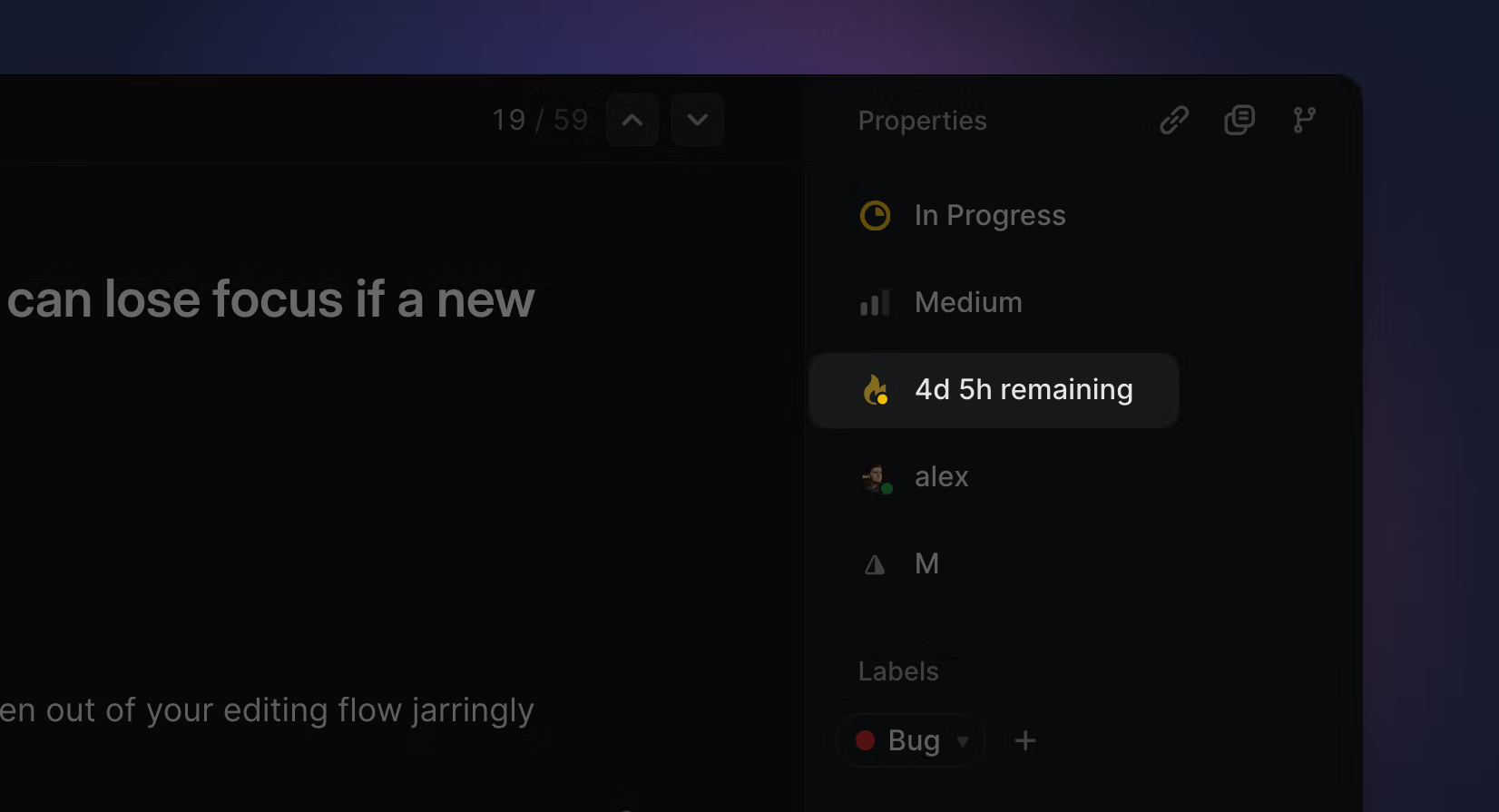
SLAs appear on issues as a fire icon which transitions from gray > yellow > orange > red as an issue nears and breaches the SLA. Once the issue is completed, the SLA field remains and indicates completion time down to the minute and whether the SLA was achieved early or failed.
SLAs are automatically created on any issue that matches the rules set in SLA settings. You can also manually add SLAs to issues if desired.
### Default SLAs
When you enable SLAs, you'll enable a set of default rules:
* When Priority is Urgent, add a 24 hour SLA
* When Priority is High, add a 1 week SLA
* When Priority is Medium, Low, or No Priority, remove the SLA
You can edit, delete or create new SLA rules as desired.
### Create new SLA Rules
Select _New Rule_ to create a new SLA rule.
Set the time interval to any of the following durations:
* 12 hours
* 24 hours
* 48 hours
* 1 week
* 2 weeks
* 4 weeks
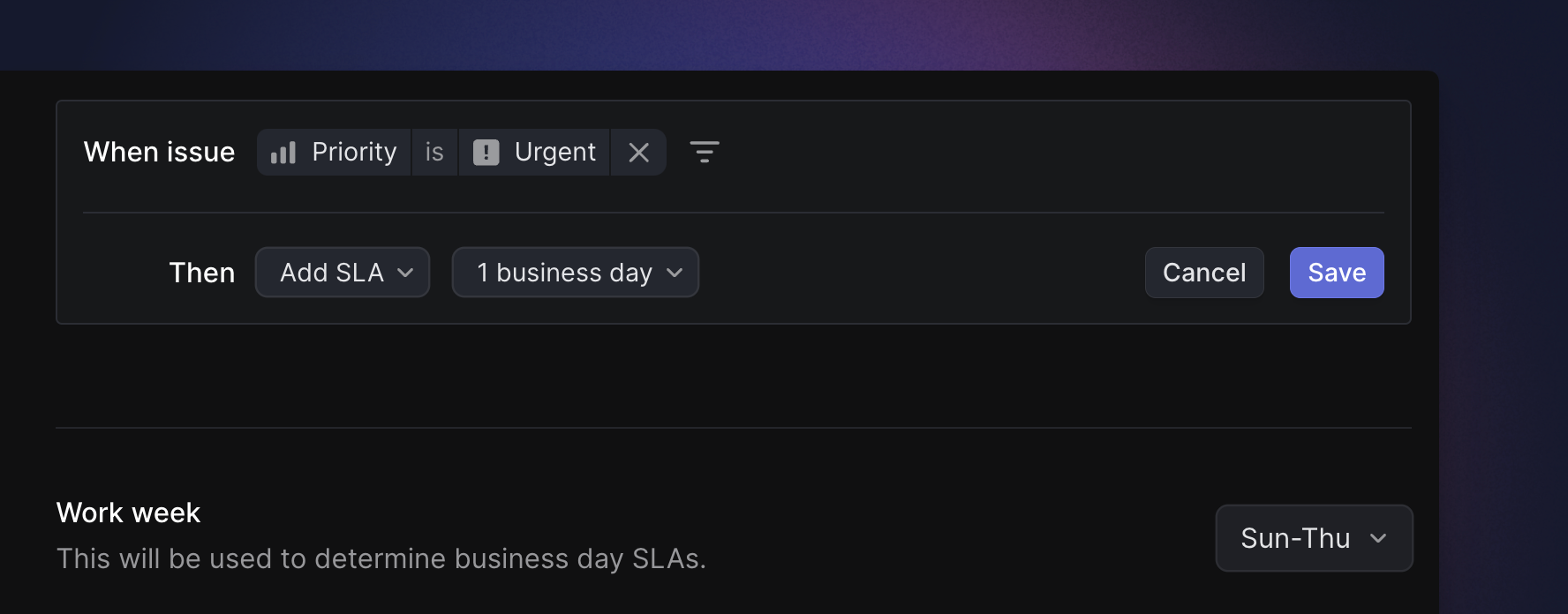
* Custom time: Hour, Day, Business day and Week
You can filter by almost any field to specify when SLAs should be applied, including _Team, Status, Assignee, Creator, Priority, Labels, Project, Project Status,_ and _Initiative,_ and filters can be combined.
### Business Day SLAs
When configuring an SLA with a custom time period, you can choose business days as your unit of time to exclude days that are not a part of your work week.
By default Business days are considered Monday through Friday.
On the SLA settings page, you can choose optionally to set your work week to Sunday > Thursday. This will affect your SLA calculations and other features that skip working days, like [nudges on project reminder updates](https://linear.app/docs/initiative-and-project-updates#initiative-and-project-update-reminders).
When setting an SLA manually on an issue, you can choose business days or standard days when choosing a duration.
### Remove SLAs
Linear's default SLA rules contain conditions to remove SLAs when priority is marked as Medium, Low, or No priority. These "removal" rules are helpful to maintain data hygiene, so that if an issue's priority is downgraded, SLAs which are no longer relevant will be removed. We recommend keeping these in the workspace.
### SLA status and filtering
Linear groups SLAs into different SLA statuses. You will be able to filter and organize views of issues by their SLA status, and the different statuses will be indicated by the color of the SLA icon.
SLA status | Definition
--- | ---
Low risk | More than 1 week away from SLA
Medium risk | Within 1 week of SLA
High risk | Within 1 day of SLA
Breached | SLA has passed
Achieved | Issue was completed within SLA
Failed | Issue was completed after SLA was breached
### SLA notifications
Subscribers to an issue with an SLA receive notifications in their Inbox when SLAs are 24 hours away from being breached as well as when SLAs are breached. Individuals can opt in to receive notifications whenever any issue in their Team has an SLA, too. Manage these notifications in [settings](https://linear.app/settings/account/notifications) under _Account > Notifications_.
Slack team notifications for “an issue is at risk of breaching SLA” are sent 24 hours before the SLA breaches, or if using business day SLAs, one business day.
### Viewing SLA issues
You can filter any view to see issues according to SLA status: _Breached, High Risk, Medium Risk, Low Risk, Achieved, Failed,_ and _No SLA._
[Insights](https://linear.app/docs/insights) offers a helpful way to evaluate how well you're meeting your SLAs. Filter a view by SLA, set Insight parameters to _Issue count_ (measure) and _SLA status_ (dimension) to see a clear breakdown of how well you're meeting your SLAs.
### Manually apply SLAs
You can add SLAs to issues even when they don't apply to a predefined rule. Select the three dot menu from the issue creation modal to apply an SLA.
Note that if you create an SLA that conflicts with a "removal" rule, the SLA will automatically be removed after the issue is created. In these cases, you can override the rule but only if you add the SLA by editing the issue after it's created (not during issue creation). Do so from the issue view by selecting the three dot menu, then _Set SLA_.
## FAQ
What is the best way to view SLAs?
We recommend creating a custom view filtered down to issues that contain SLAs. You can group the view by SLA status and also use Insights to explore the data.
Can I add custom names for SLAs?
No, we do not offer custom naming for SLAs.
When does Linear send a notification to subscribers that an SLA will be breached?
Subscribers will be notified 24 hours prior to a potential SLA breach.
What's the relationship between SLAs and due dates?
An issue may use either due dates or an SLA, but not both. If an issue has a due date and then has an SLA applied, the due date will be replaced by the SLA