# Search
Quickly find issues, projects and documents with Search.
## Overview
Use the shortcut `/` to open Search. Search retrieves issues, projects, and documents across your workspace.
Use `O` + `I` to search for issues specifically by title or identifier.
### Keyboard
`/` to search all issues in workspace by title, description, comments
`Cmd/Ctrl` `F` to search issue titles in the current view (board, list, Inbox)
`O` then `I` to view recently opened issues
`O` then `I` to quick search issues by _issue ID_ or _title_
### Mouse
* Select the button with the magnifying glass from the sidebar next to the _New Issue_ button to search all issues in workspace by title, description, comments
* Searching boards, lists, or the Inbox must be done using the keyboard shortcut or command line
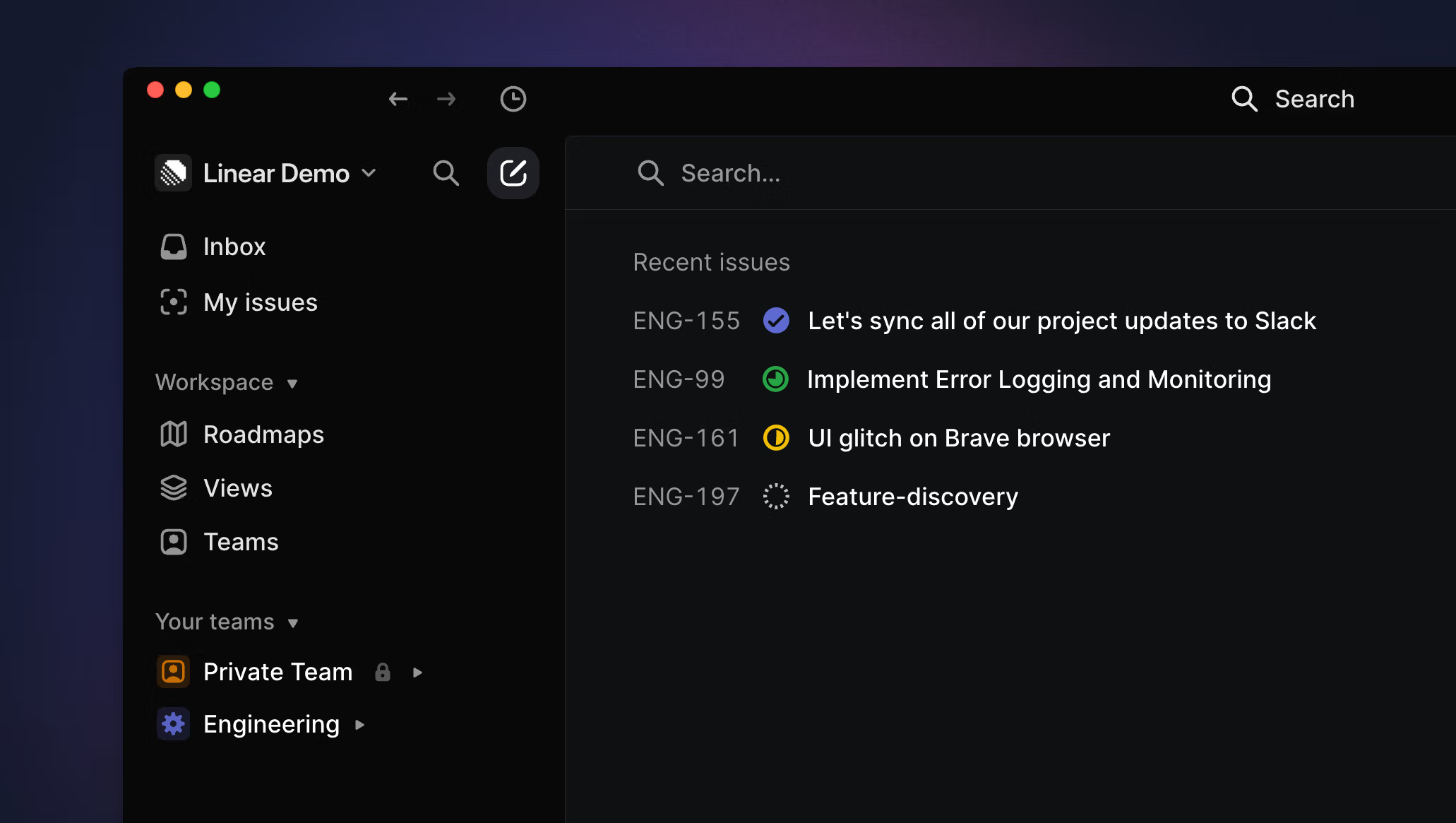
* Select the clock button in the top bar (next to the arrow buttons) to open recent issues or find a list of recent issues under the workspace search
### Command menu
`find in view` to search issue titles in the current view (board, list, Inbox)
`open issue` to launch quick issues search
`issue ID` then `Enter` to open any issue
Type ``i`` followed by space to focus your command menu on issue results
Additionally, you can type ``p`` followed by space for projects, ``u`` for users, ``t`` for team, ``l`` for labels, ``f`` for favorites and ``d`` for documents.
## Basics
### Search workspace
Click on the search button in the top left or type ``/`` to open the quick search menu and then type your query. Search looks for issues and documents across the full workspaces and matches the issue ID or terms in the title, description, or comments. You can search by ID exactly e.g. `LIN-123` or shorthand e.g. `lin123`. The search term will be highlighted if it's in the title.
We sort search results in what we assume is the most relevant order, showing unstarted and in progress issues first, then backlog, completed, canceled, and archived issues.
To further refine your search, use operators like:
* **"keyword"** to search for an exact term. Without quotes, searches may also include results for similar terms.
> [!NOTE]
> **ProTip**: Use filters to refine search results. Apply them after entering the search by clicking the search icon in the upper left using `Cmd/Ctrl` `F` to search a view (list, board, Inbox).
### Search filters
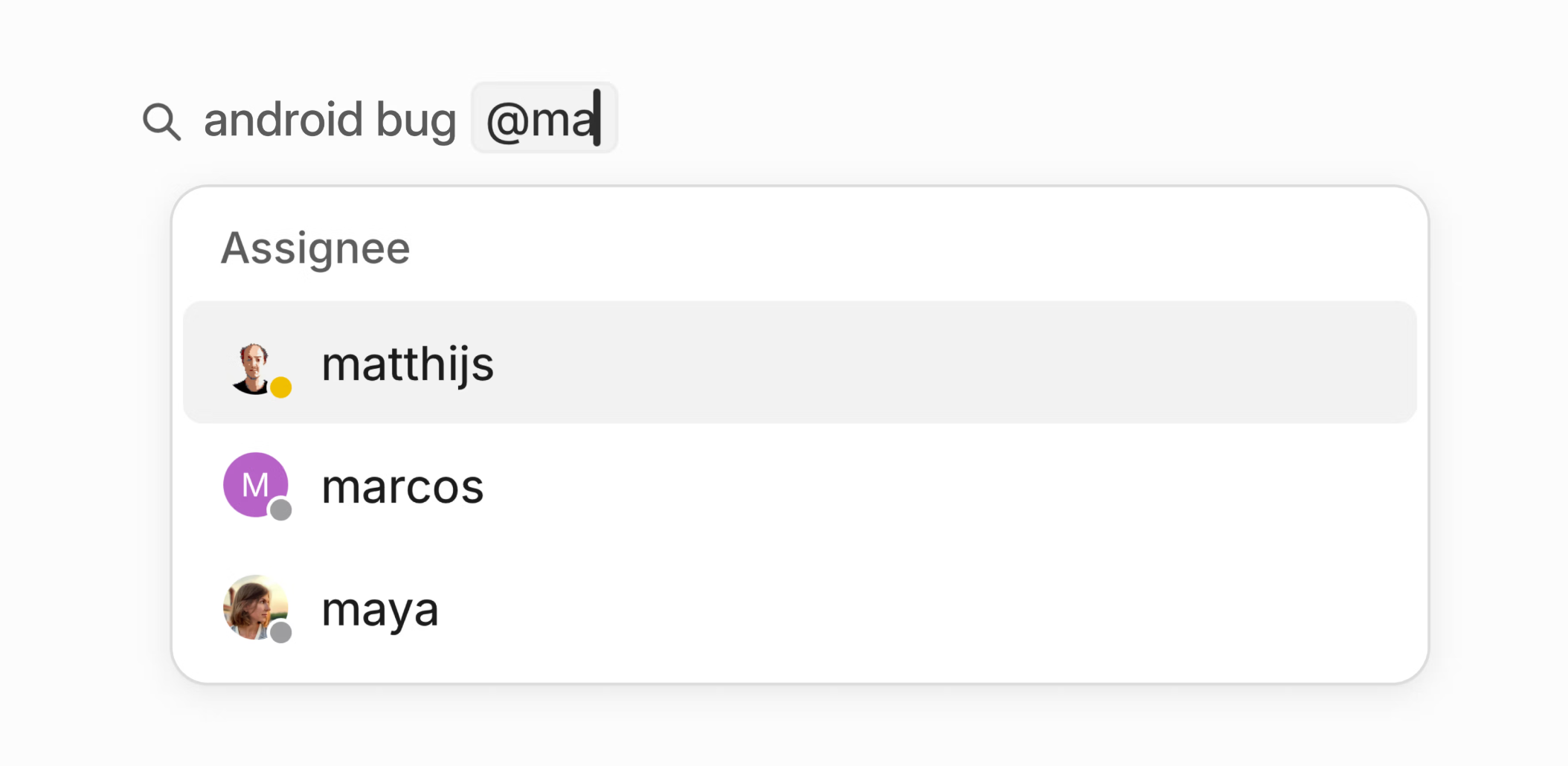
Narrow your search by `@`-mentioning teams, users, status, and other properties. This will automatically create and apply a filter to your search. Apply additional filter options through the Filter menu.
### Recent issues
When you open the search menu, you'll be shown recent searches as well as a list of recent issues for easy access. You can also find recent issues on the macOS desktop app by clicking the clock icon above the lefthand sidebar or launching it with `O` then `I`.
### Search specific views
Type `Cmd/Ctrl` `F` to search for issues within the current view. The search bar will appear in the top right corner next to the Display Options button. You'll need to search by exact _issue ID_ or words in the title. This search acts more like a temporary filter, so as you type, only matching issues remain on the board or list. Press `Esc` to clear the search and show all of your issues.
### Quick search
The shortcut `O` then `I` will open a recent issues search where you can also search for issues by _issue ID_ or _title_. This supports partial word search but will only search by title (not description or comments).
## Q&A
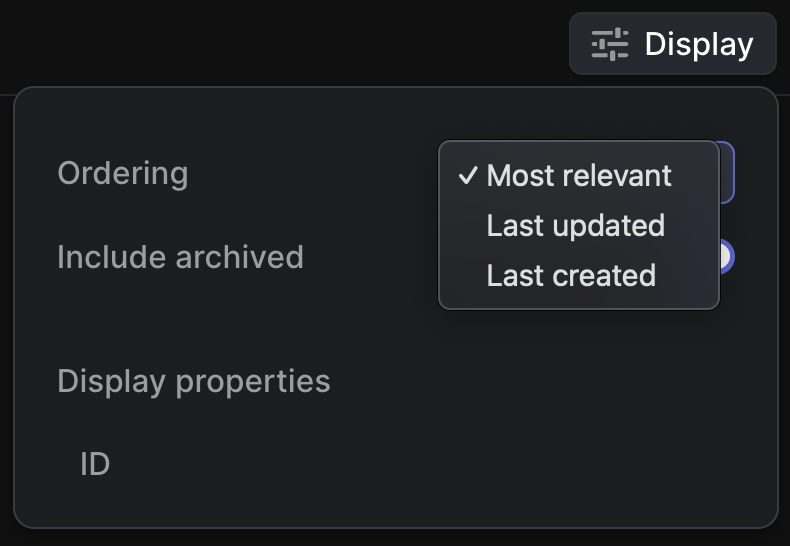
Can you sort search results?
Yes, you can adjust the display settings of your search results to order these by relevance, last updated or last created.
What is the maximum number of results returned?
We return 500 results maximum at this time.
Words search excludes by default
When not searched within quotations, search removes the following English stop words:
`a`, `an`, `and`, `are`, `as`, `at`, `be`, `but`, `by`, `for`, `if`, `in`, `into`, `is`, `it`, `no`, `not`, `of`, `on`, `or`, `such`, `that`, `the`, `their`, `then`, `there`, `these`, `they`, `this`, `to`, `was`, `will`, `with`
###