# Inbox
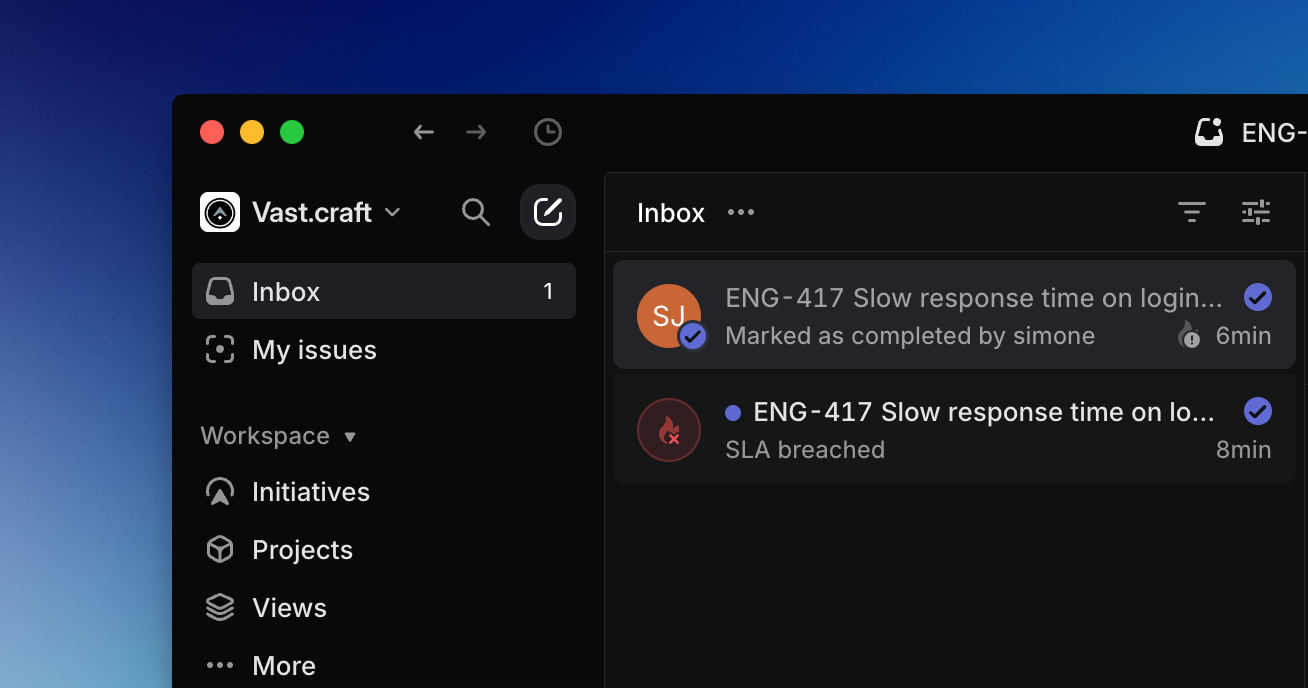
The Inbox is your notification center in Linear and where you’ll find important updates on issues in your workspace.
## Overview
You'll receive an Inbox notification for key events on your subscribed issues. You are automatically subscribed to issues when you create them, are assigned them, or are mentioned in an issue description or comment.
Inbox shows in-app notifications for work that needs attention. Other notification channels can be managed in [notification settings](https://linear.app/docs/notifications).
## View notifications
Find your Inbox in the sidebar. The fastest way to get there is with the keyboard shortcut `G` then `I`, which takes you to the Inbox from any page.
Scroll through the notifications in your Inbox using `J` / `K` or `↑` / `↓` while on the list or individual notification view.
Click into the notification to view the individual issue in a special Inbox view, from which you can take Inbox actions as well as make changes to the issue.
## Inbox actions
From the list view you can take Inbox-related actions such as deleting or snoozing notifications as well as actions to update the issue properties.
`Right-click` over an issue to bring the contextual menu with available actions.
You can delete the selected notification with `Backspace` or delete all read notifications with `Shift` `Backspace`.
Select a notification and then use `U` to mark as read or unread, `Option/Alt` `U` to mark all notifications as read, and `H` to snooze the selected notification (more below).
To unsubscribe from an issue via the Inbox view, you must click into it first and then unsubscribe use `Shift` `S`, the button in the top menu bar, or the unsubscribe option in the Activity feed.
## Quick search
Press `Cmd/Ctrl` `F` to bring up the quick search bar. Use quick search to narrow notifications by fields such as issue title, issue ID, notification type, assignee, team, project, and priority. `Esc` will clear the search.
## Display options
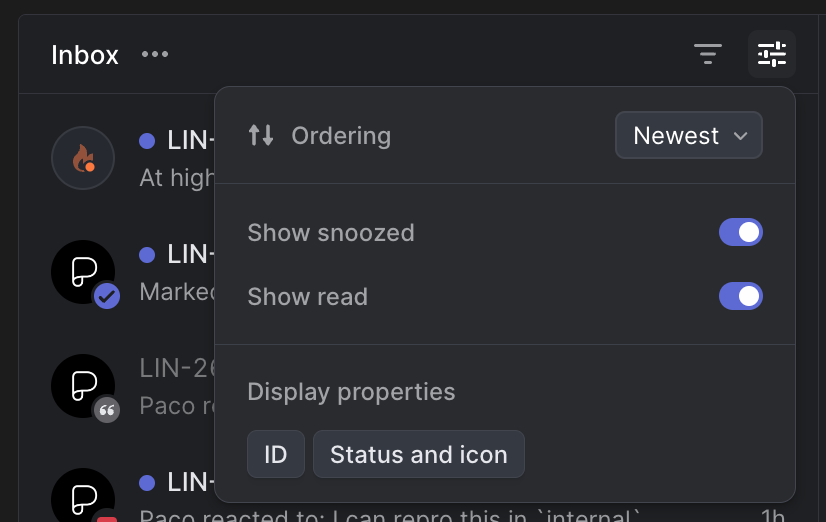
Open display options to update what properties are displayed on your notifications. You can toggle **Show snoozed** or **Show read** issues.
Because reminders do not hide an issue, there is no toggle in Display options regarding reminders.
## Snooze
Snoozing hides a notification from your Inbox until the selected time. When that time arrives, the notification reappears in Inbox.
You can choose to show or hide snoozed notifications in your inbox display settings.
## Issue Reminders
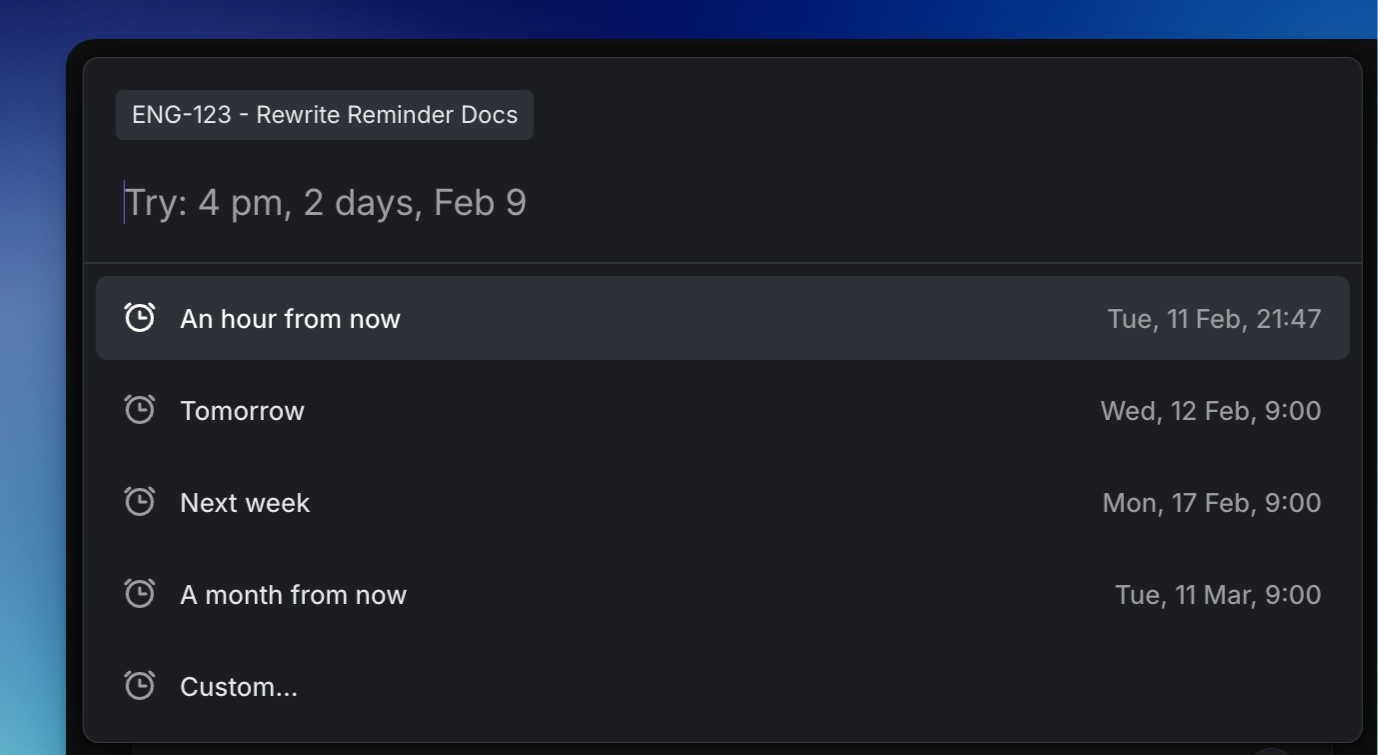
You can also set issue reminders for an issue, document, project or initiative and receive a notification to your Inbox at the selected time.
Your scheduled reminder will show at the top of the issue and can be rescheduled or canceled as needed.
### Setting Snooze or Reminders
Set a reminder on an issue or document, or snooze existing reminders:
#### Keyboard
Press `H` to snooze a notification from the inbox, or to set a reminder on an issue or document
#### Mouse
From the inbox, right click an issue and select **Snooze** to delay the notification
Click on the display settings at the top of your inbox to show or hide snoozed issues
Click into the **...** menu of an issue and choose **Remind Me** to set reminders
Click on an existing reminder at the top of an issue to reschedule or cancel it.
#### Command Menu
`Snooze this notification` to snooze an existing notification from the inbox
`Remind me about this issue/document` to set or edit a reminder on an issue or document
`Cancel reminder` to cancel a reminder you've set already
**Custom dates**
For custom dates and times, you can type in the selection instead of selecting from the calendar. Be sure to type the option in full (e.g. _next quarter_ not _next quar_) otherwise the option will not appear.
* Month Date Time (e.g. Jan 3 10am)
* Next quarter
* Til or until month / date
* For X months / weeks / days
## FAQ
Can you archive notifications?
We don't support archiving notifications at this time but will consider it in the future.
Can I customize what goes into my Inbox?
You cannot choose which notifications go to your Inbox. All notifications will arrive there, and any additional notification subscriptions you enable under Account > Notifications will link back to the Inbox notification.
Is there a limit on Inbox notifications?
Yes, you can have up to 2,000 open notifications in your Inbox at one time. Older notifications beyond that count will not be retained.